


Overview of the e-mail dialog #
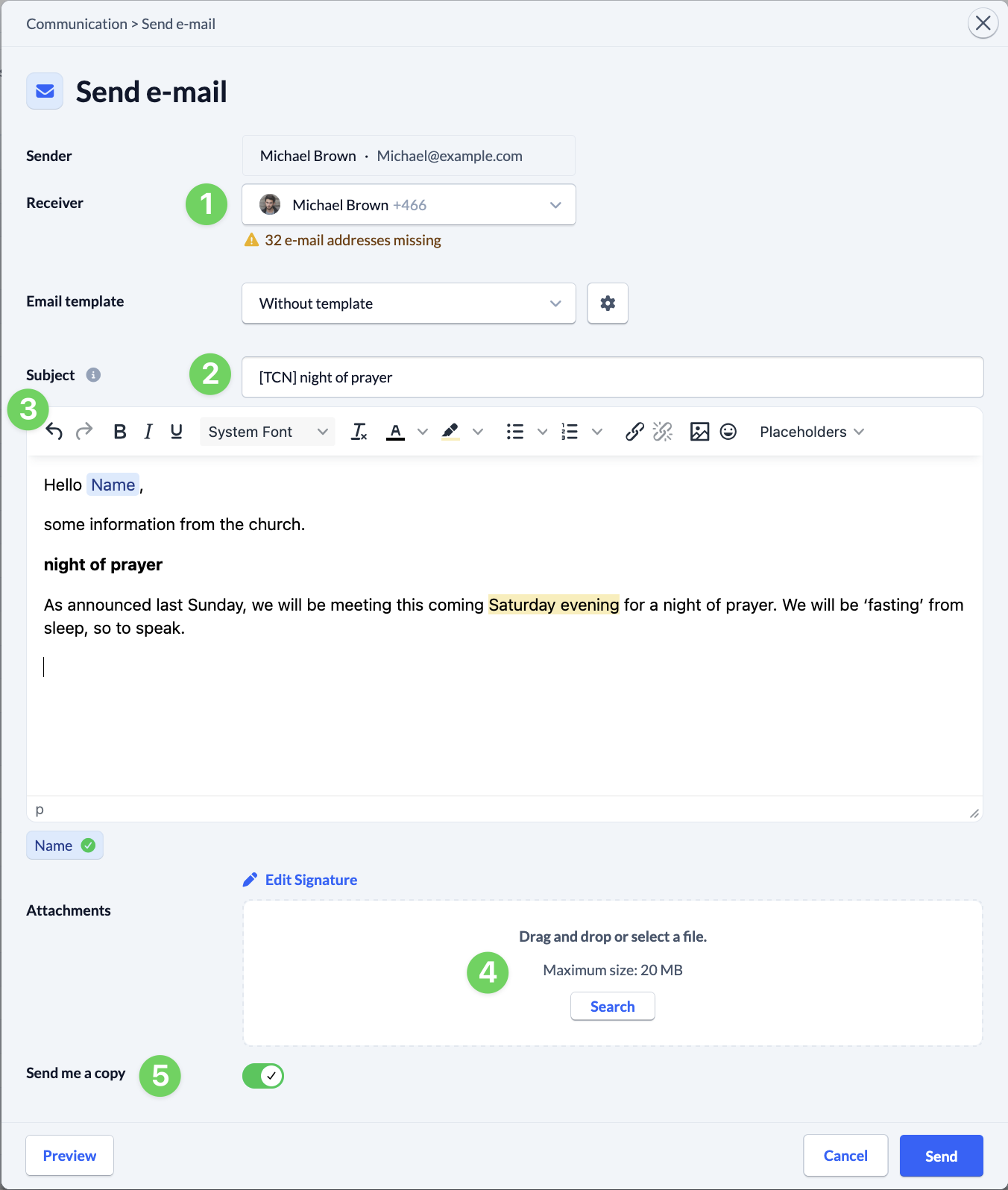
The text editor #
Overview of the tools #

- (1) The editor gives you the freedom to undo (Ctrl+Z) or repeat (Ctrl+Y) entries
To the right are the three typical formatting options Bold, Italics and Underline (keyboard shortcut Ctrl + the respective letter (B,I,U)) - (2) Fonts. This field offers various fonts to choose from
- (3) Reset. Deletes all formatting for this text.
- (4) Color formatting. The left button colors the text in a desired color, the right button changes the background color for the selected text.
- (5) For the enumeration there are
- Three different formats for unnumbered lists
- six variants for a numbered enumeration
- (6) Links. The left button can be used to add a link to a website for a selected text (Ctrl+K). If you select an existing link, you can delete it with the right button.
- (7) Insert images.
It is currently not possible to embed and display images directly in an e-mail. You have to enter a link to an image that has already been uploaded.
So you have three options:- Attach the image to the e-mail (below the text editor: Upload file)
- Upload the image in the “Wiki” module to a public(!) wiki page. Then click on the image with the right mouse button and select “Copy address of link” (the wording differs depending on the browser).
Disadvantage: public users could then see all files on this page as attached files. - An external image service is used. This service must provide a link to a “real image”. It must not be an encrypted link, such as the one offered by Dropbox.
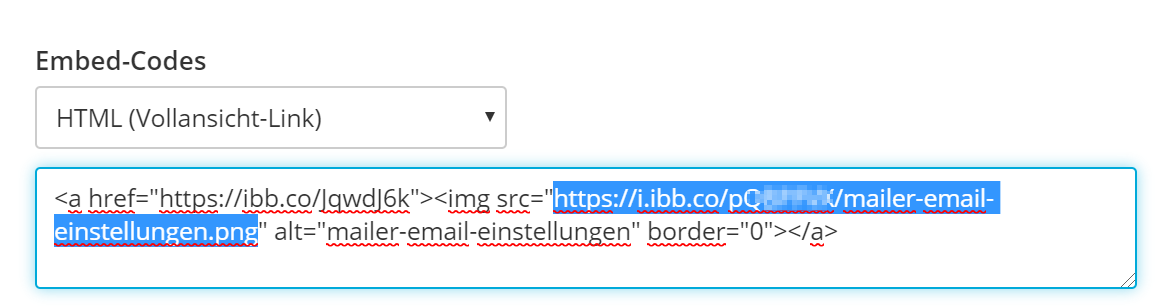
One option is https://de.imgbb.com/
Imgbb has the advantage that a “real” image is displayed in the link.
Select “HTML full view link” and then copy the link to <img src=” until the next ” (sometimes you can only copy the entire text)
Disadvantage: 1) Data protection! 2) It’s more complicated, but you don’t have to create a “blank” wiki page with all e-mail images.
- (8) “Personal” salutation. If an e-mail is sent to several people, you can insert a placeholder which is then filled with the appropriate content. You can find more information on this here.
Signature #
You can enter a personal signature below. This signature only applies to e-mails that the current user sends manually.
The signature is inserted below the e-mail text. This is useful, for example, if you want to enter the congregation’s contact details or insert the congregation’s logo.