To do this, you’ll need a bank statement in MT940 or CAMT format, which you can usually download from your bank’s online banking portal. In this article, we’ll show you how to import it and create transactions from it.
You can also import PayPal activity reports and perform transactions on your account from there. Click here to find out what else you need to keep in mind when doing so.
Here, we’ll explain how to use bank statements correctly in ChurchTools.
1. Import a bank statement #
In the Finances module (1), navigate to Bank Statements (2) and click on “+ Import Bank Statement ” (3).

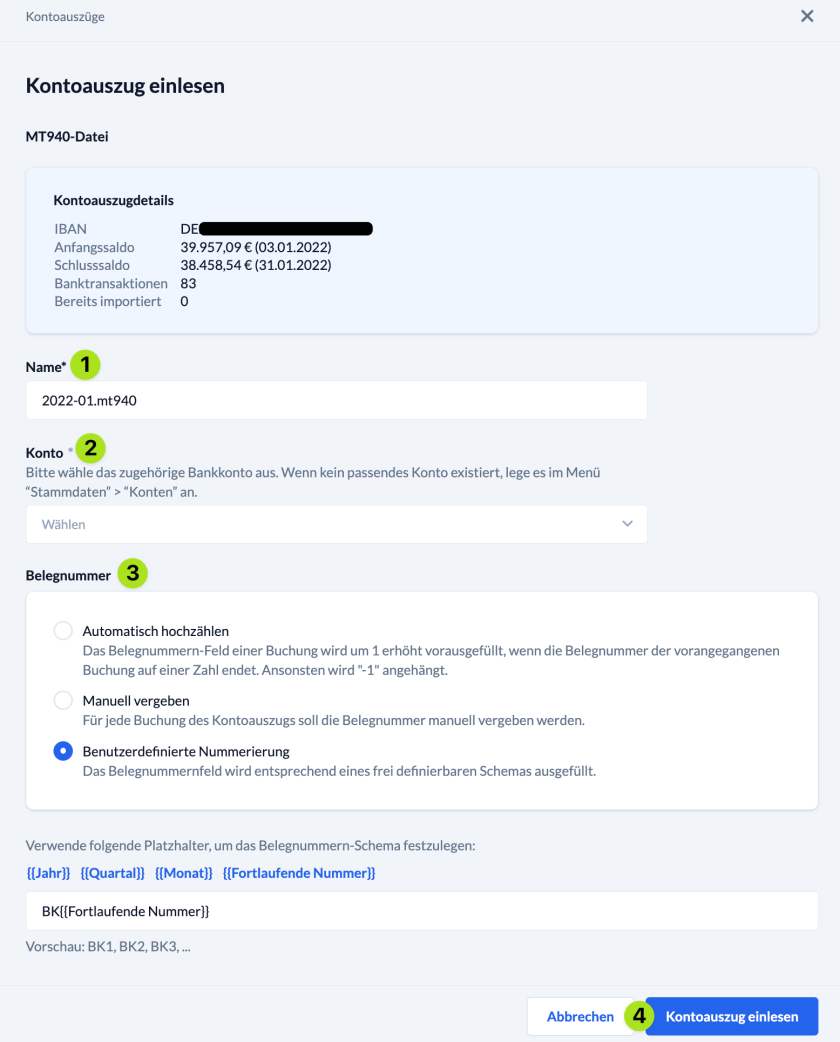
In the dialog box that opens, name the bank statement you want to import (1), select the account (2) it belongs to, and define how the document numbers (3) should be assigned. You can either assign document numbers manually, specify a user-defined scheme, or have the system automatically continue the numbering based on the document number of the last existing booking for the selected account.
2. Transactions #
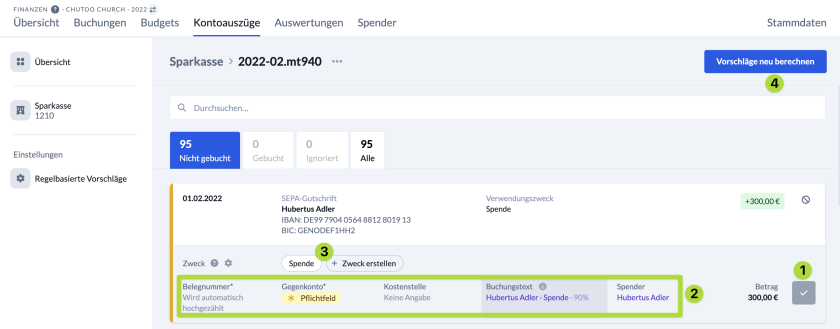
Once you’ve imported the bank statement, all the transactions it contains will be displayed, and you can post them directly (1)—based on ChurchTools’ suggestions (indicated by the purple text).
If you hover over a suggestion, you’ll also see how accurately ChurchTools was able to calculate it.
Clicking the ” Recalculate Suggestions ” button (4) updates ChurchTools’ booking suggestions based on the most recent available data.
If you purposes in the master data, you can apply them with a single click (3), and the information stored in the purpose will be filled in automatically.
Of course, you can also edit individual transactions manually (2) before posting them. To do so, simply click in one of the highlighted fields to open the posting screen.
3. Optionally review and post transactions #
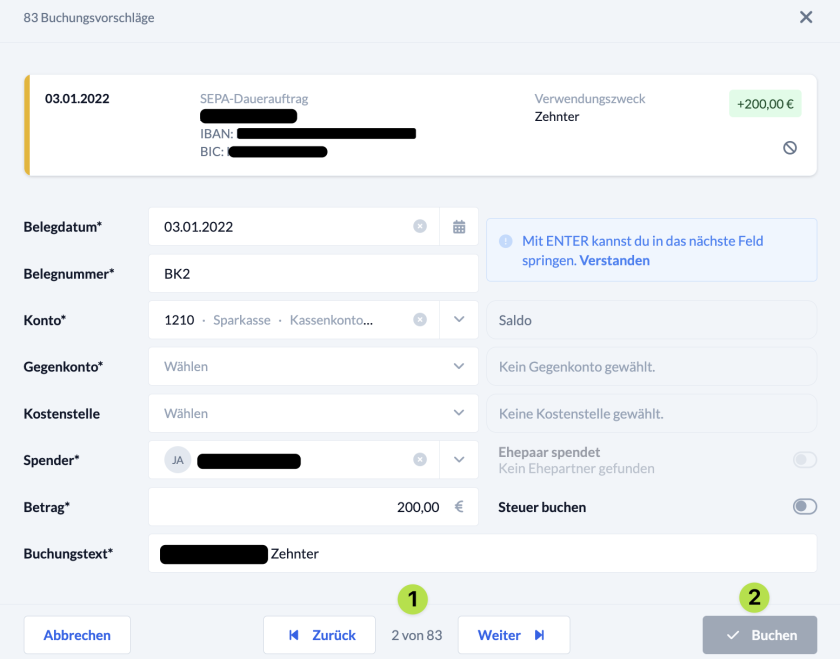
When editing a transaction manually, all fields in the advanced entry view are available to you. Some fields are already filled in based on suggestions from ChurchTools, but you can edit all fields—both empty and pre-filled ones. To better understand the transaction form, we recommend reading our guide “How to perform a transaction? ”
Once you’ve entered all the information, you can either go to the next or previous transaction (1) or post the transaction (2).