


In this step-by-step guide, we’ll show you how to quickly and easily track group members’ attendance at a meeting using the ChurchTools app —either by scanning a check-in code or by manually marking the person as present.
View Group Meetings #
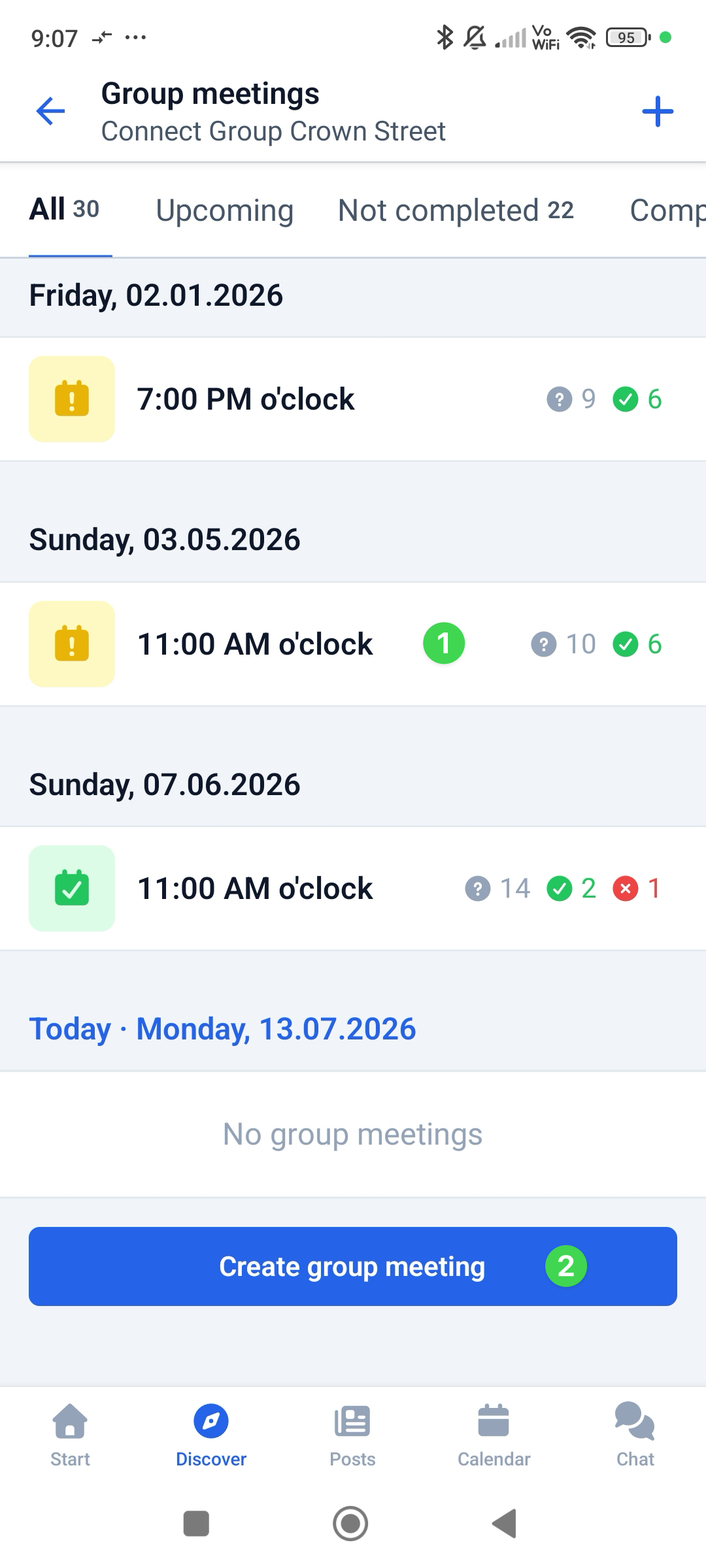
In the corresponding group in the app, under ” Meetings,” you can either select a group meeting (1) or create a new one (2).
Scan the check-in code #
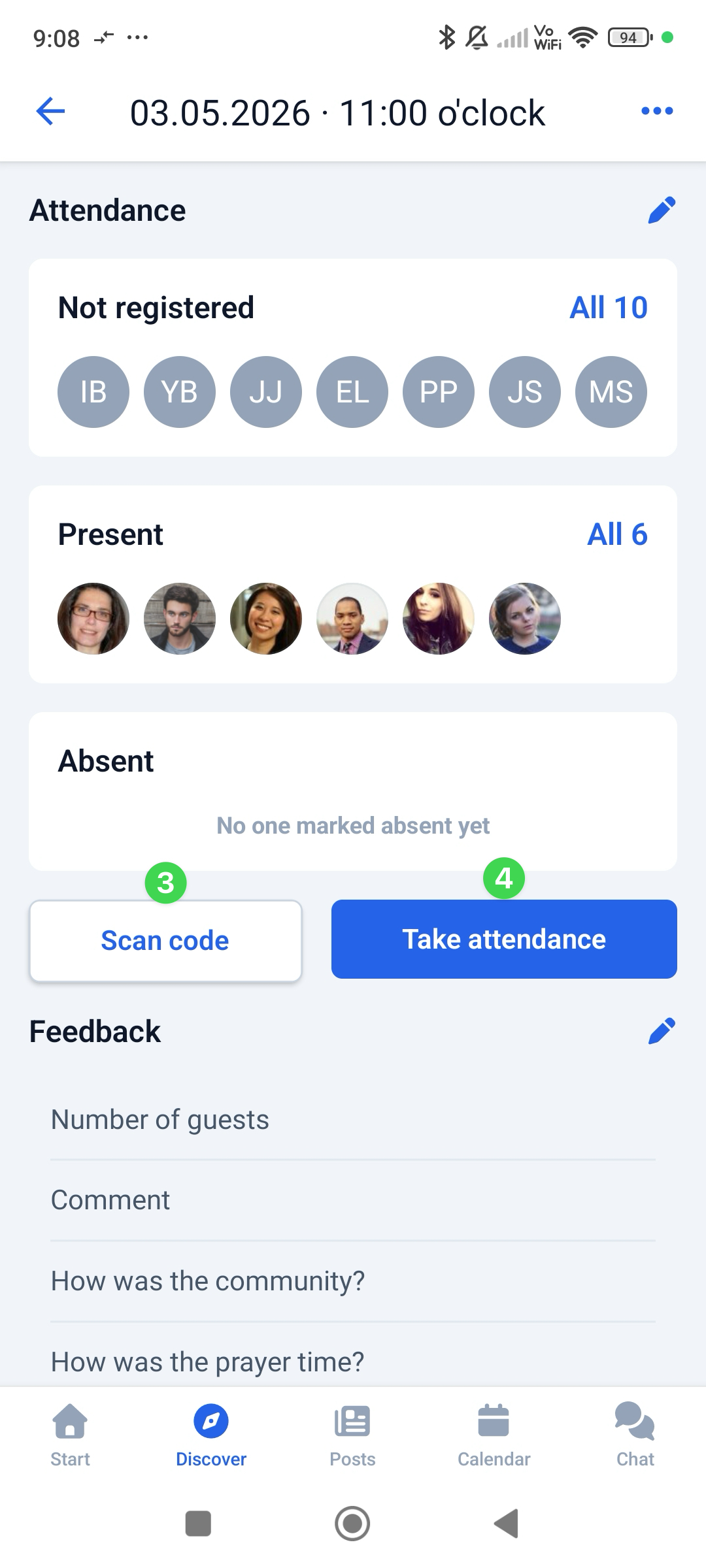
Use the ” Scan Code ” button (3) to record a group member’s attendance using the check-in code displayed.
Record attendance manually #
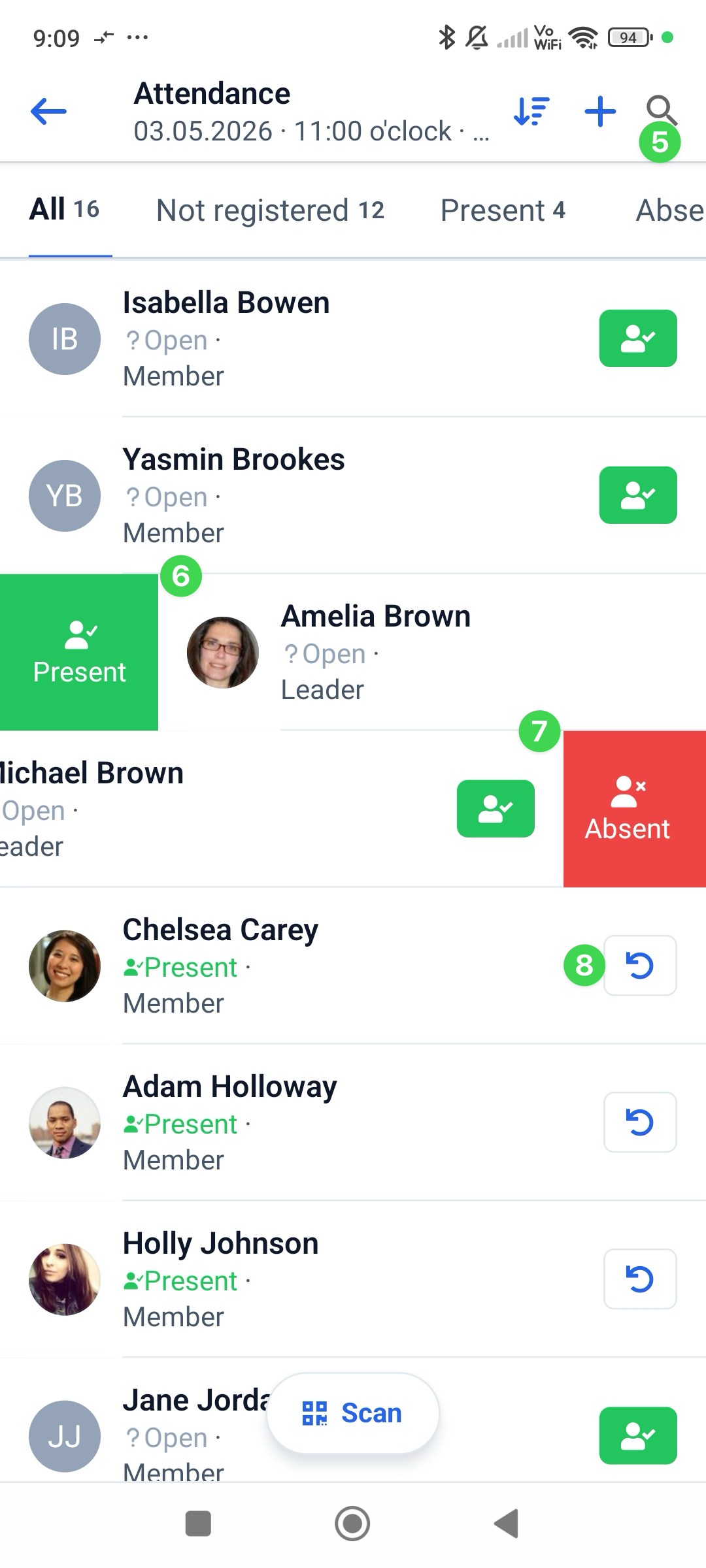
The ” Record Attendance ” button (4) lets you manually record attendance. To quickly find the right person, you can search for people (5). Swipe right to mark a person as present (6), swipe left to mark them as absent (7), and use the button with the circular arrow (8) to reset the selection for that person.
Complete meeting #
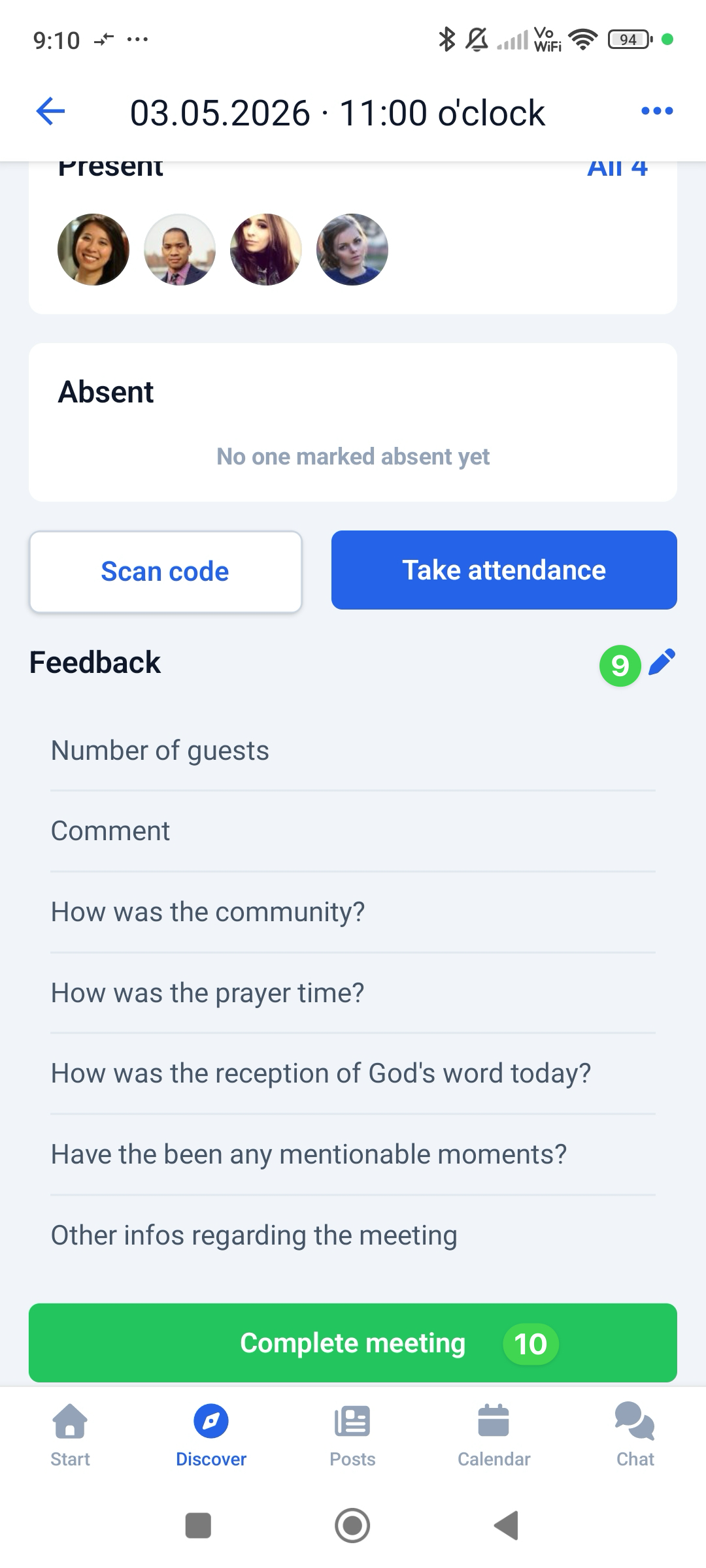
Once you’ve recorded the attendance of all participants, you can optionally provide your feedback on the meeting and complete it by clicking the “Complete Meeting ” button at the very bottom of the screen. To find out why this is a good idea, read the article “Why Is It Worth Completing a Group Meeting?”
Record Attendance in the Check-in module #
It works almost exactly the same way on the web. Here, you open the Check-in module, select your group and a meeting, and then record attendance in the right-hand column.
We’ll explain exactly how to do this in the article ” How to Record Attendance During Check-In?”