


You can subscribe to calendars via iCal.
1. Prerequisite #
For iCal to work, your ChurchTools admin must grant the “View Calendar” permission to the guest user. If the iCal link isn’t working for you, please contact your admin.
2. View iCal Link/File #
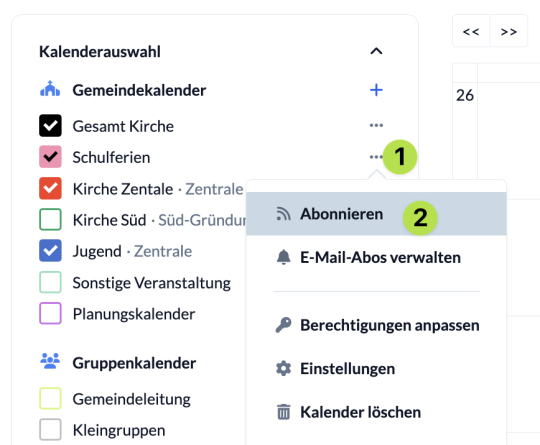
Open the three-dot menu (1) for the calendar you want to sync, and select Subscribe (2).
3. Retrieve iCal Link/File #
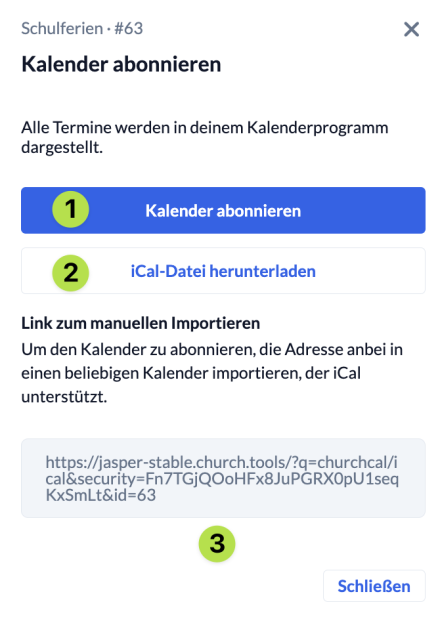
Load the iCal file (2) or copy the iCal link (3) to paste it into the calendar app of your choice. Click Subscribe to Calendar (1), the webcal link will automatically be added to the default calendar app on your device.
Calendar Programs #
We’ve put together some quick guides for the most popular calendar programs. Just click on the heading, and the text will expand.
Microsoft 365
To subscribe to ChurchTools calendars in Microsoft 365, follow these steps:
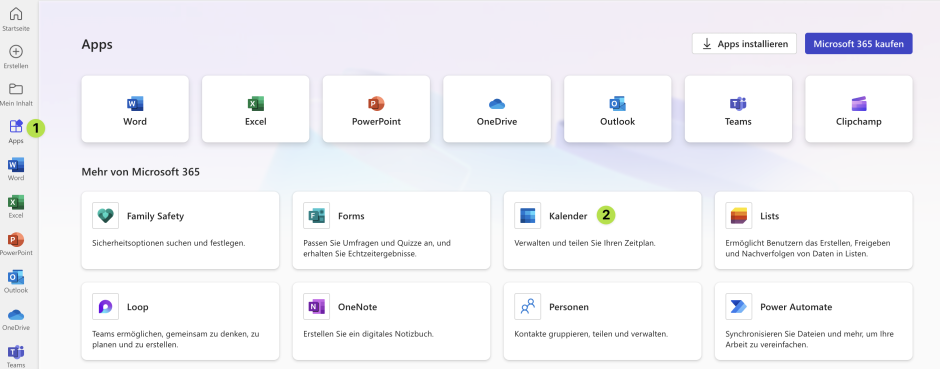
a) Open the MS365 Calendar
Sign up for Microsoft 365 in your browser and navigate to Calendar
b) Add a calendar
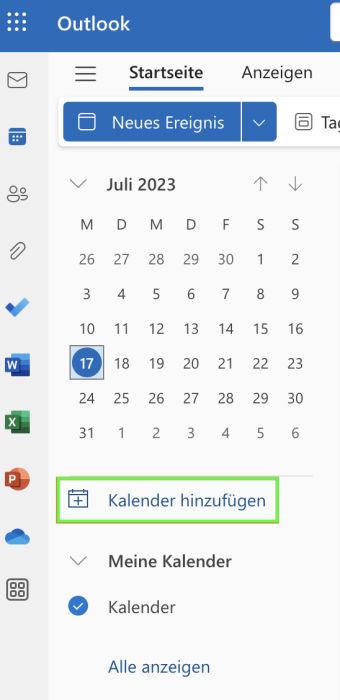
Start the process to add the calendar.
c) Insert the WebCal link
Copy the WebCal link from ChurchTools and subscribe to it by selecting the option Subscribe from the Internet in Microsoft 365.
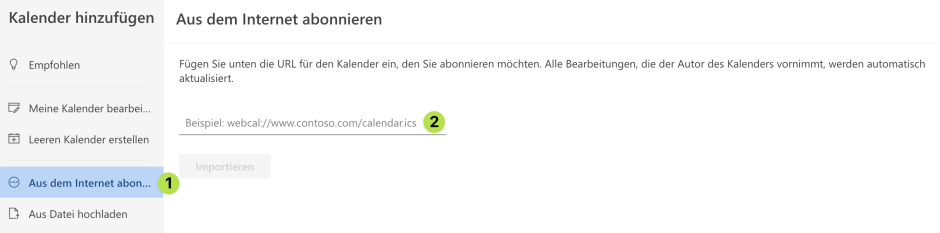
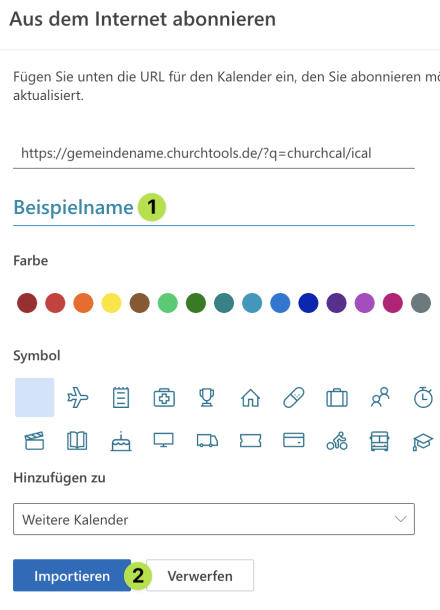
d) Import a calendar
Name the calendar and then import it.
Google Calendar (Browser)
- In Google Calendar, click the “+” icon in the “More Calendars” section at the bottom left of the sidebar
- Select “By URL”
- Enter a new iCal link
- Click “Add Calendar”
For more information: https://support.google.com/calendar/answer/37100?hl=de (section “Add a public calendar via a link”)
Google Calendar (Android, iOS)
You must subscribe to calendars through your browser (see above).
Apple Calendar (iOS)
- Tap “Calendar” at the bottom, then tap “Add”
- Tap “Add Calendar Subscription”
- Enter a new iCal link
- Tap “Subscribe”
More information: https://support.apple.com/de-de/guide/iphone/iph3d1110d4/ios
Apple Calendar (Mac)
- In the menu bar, go to “File” > “New Calendar Subscription”
- Enter the calendar’s iCal link
- Click “Subscribe”
- Fill in the “Name” field and select a color
- Click “OK”
More information: https://support.apple.com/de-de/guide/calendar/icl1022/mac
Outlook Calendar (Windows, Mac)
- Click “Add” at the top of the ribbon
- Select “From the Internet …”
- In the “New Internet Calendar Subscription” dialog box, insert a new iCal link
- Click “OK”
More information: https://support.microsoft.com/de-de/office/kalender-nach-outlook-importieren-8e8364e1-400e-4c0f-a573-fe76b5a2d379
Outlook Calendar (Browser)
- Delete a subscribed calendar with the error “Invalid calendar link”
- In the “Calendar” navigation pane, click “Add Calendar”
- Select “Subscribe via the Web”
- Enter a new iCal link
- Click “Import”
More information: https://support.microsoft.com/de-de/office/importieren-oder-abonnieren-eines-kalenders-in-outlook-com-oder-outlook-im-web-cff1429c-5af6-41ec-a5b4-74f2c278e98c