For each of your groups, you can define individual settings for signing up to your group.
1. Call up group #
In the Groups module, search for your group and call it up.
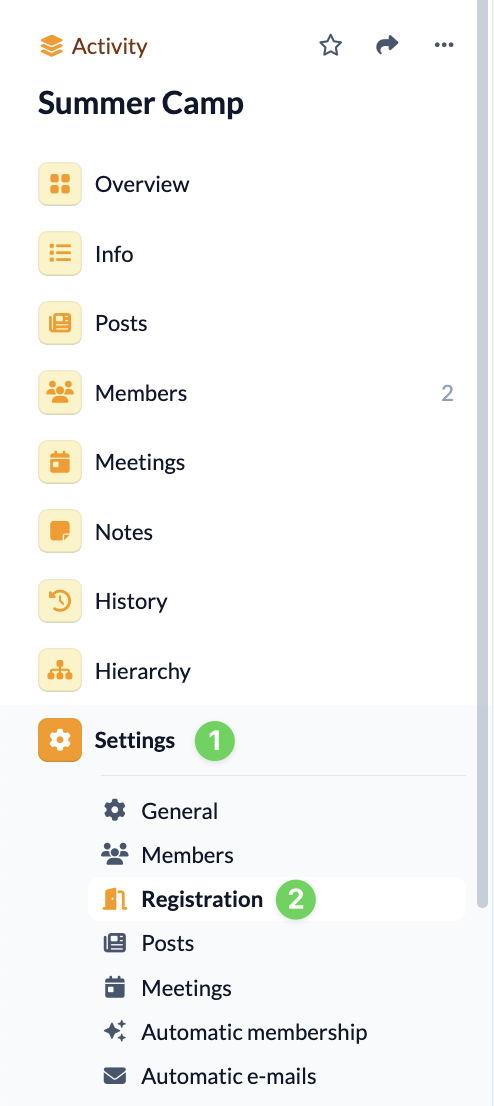
2. Open settings for registration #
In the menu on the left-hand side, select Registration (2) under Settings (1).
3. Status of the registration #
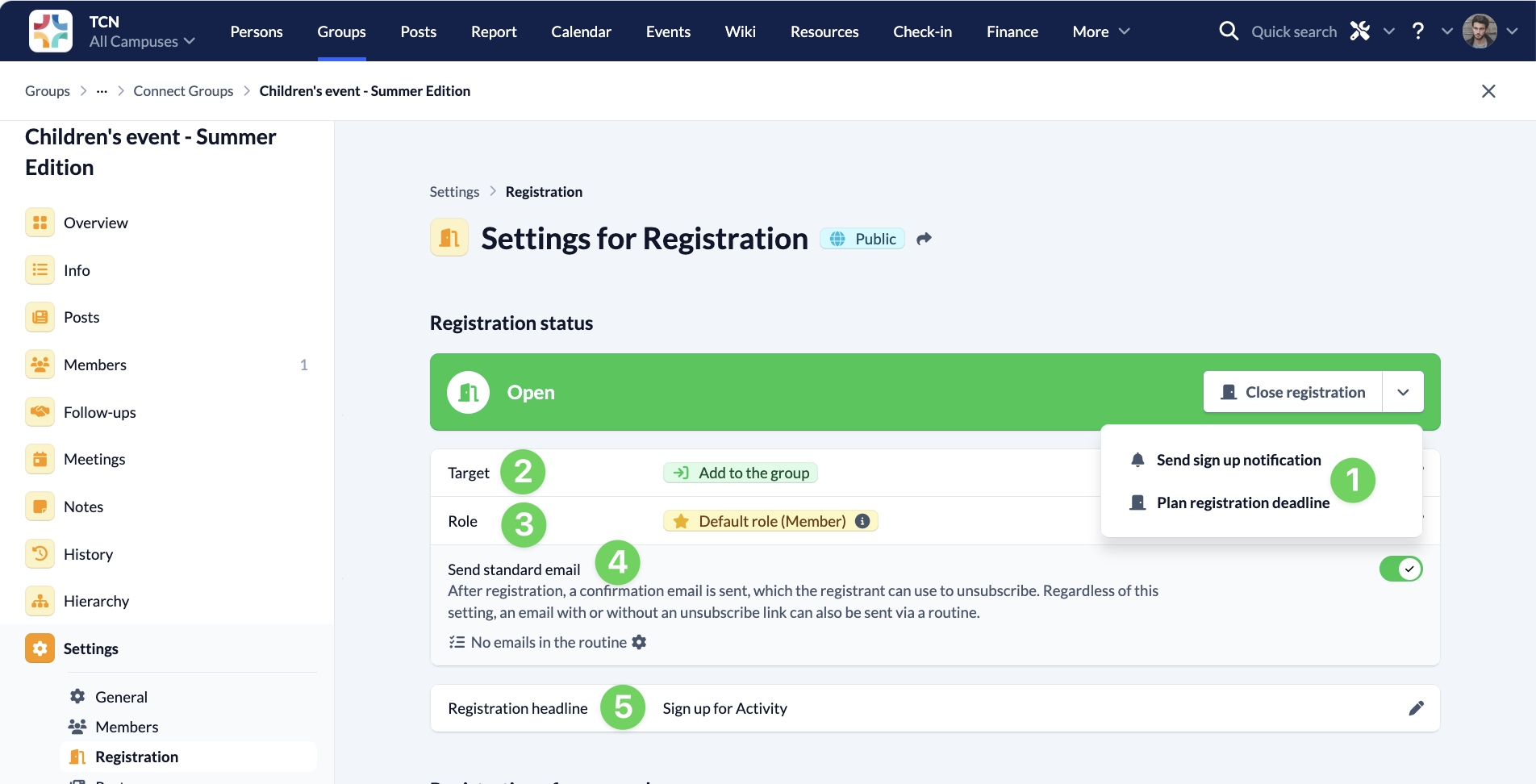
Here you specify when the registration should be opened and closed (1), whether the target (2) of the registration is an immediate release or whether a leader must confirm the participation and which Role (3) the person should receive after successful registration.
Under Send standard e-mail (4), you specify whether a confirmation e-mail is sent after the registration request, which the person signing up can also use to withdraw the request. Regardless of this setting, you can also use a routine to send an e-mail with or without an unsubscribe link.
You can also add a heading to the registration (5).
4. Registration of new persons #
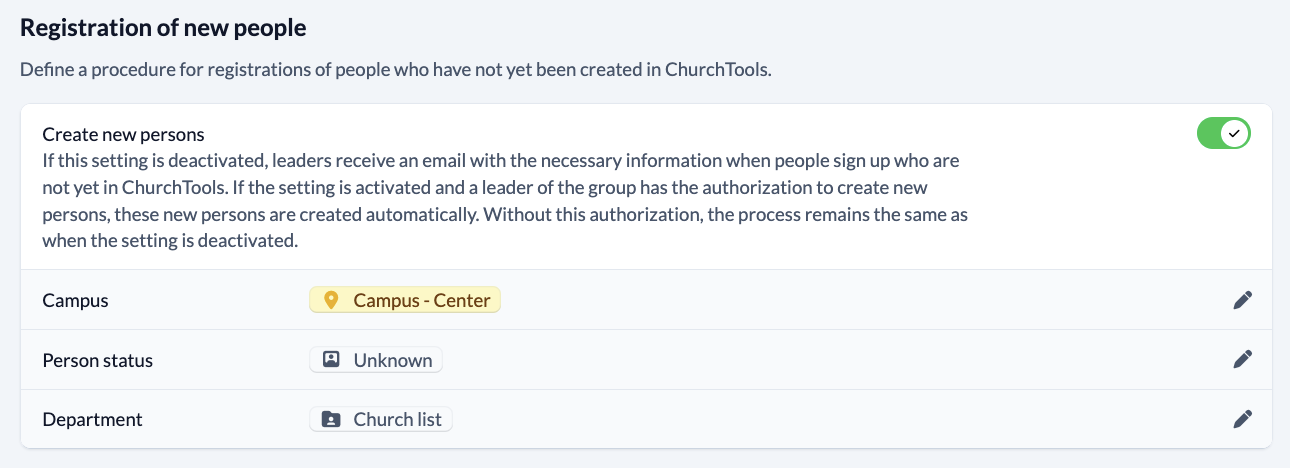
For people who sign up to your group and have not yet been created in ChurchTools, ChurchTools needs to know what to do with the data entered.
Create a new person or not #
You can either activate that a new user should be created automatically for these people and specify which campus and person status should be used for this.
Or you can deactivate this option. In this case, the leaders of your groups will receive e-mails with the necessary information to sign up these people and no new users will be created. This must then be done manually.
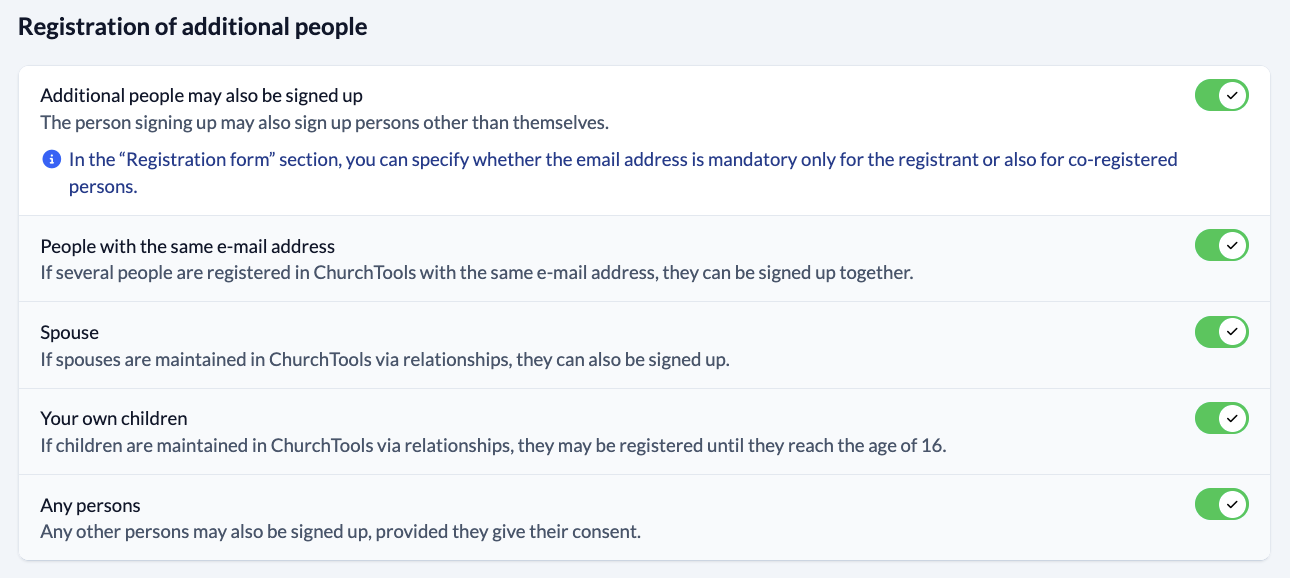
5. Registration of additional persons #
If you want to allow people who sign up to your group to also sign up other people, activate this function and then specify below which other people may also be signed up.
6. Waiting list #
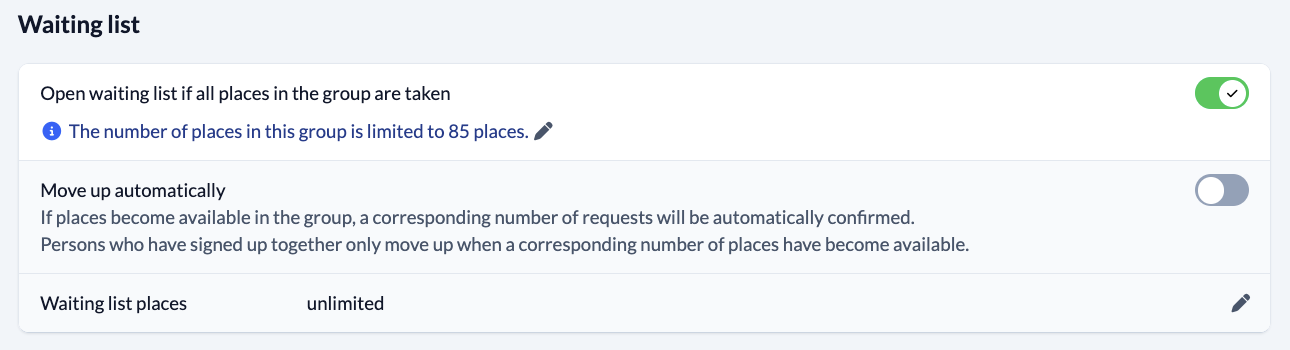
If the places for your group are limited and full, this function automatically adds other people who sign up to your group to a waiting list.
If the aim of the registration is that newly signed up people are automatically added to the group (see under 3. Status of registration), you can optionally activate Automatically move up. In this case, a corresponding number of requests are automatically confirmed when places become available in the group. People who have registered together will only move up when a corresponding number of places have become free.
You can also limit the number of waiting list places if you wish.
7. Registration form #
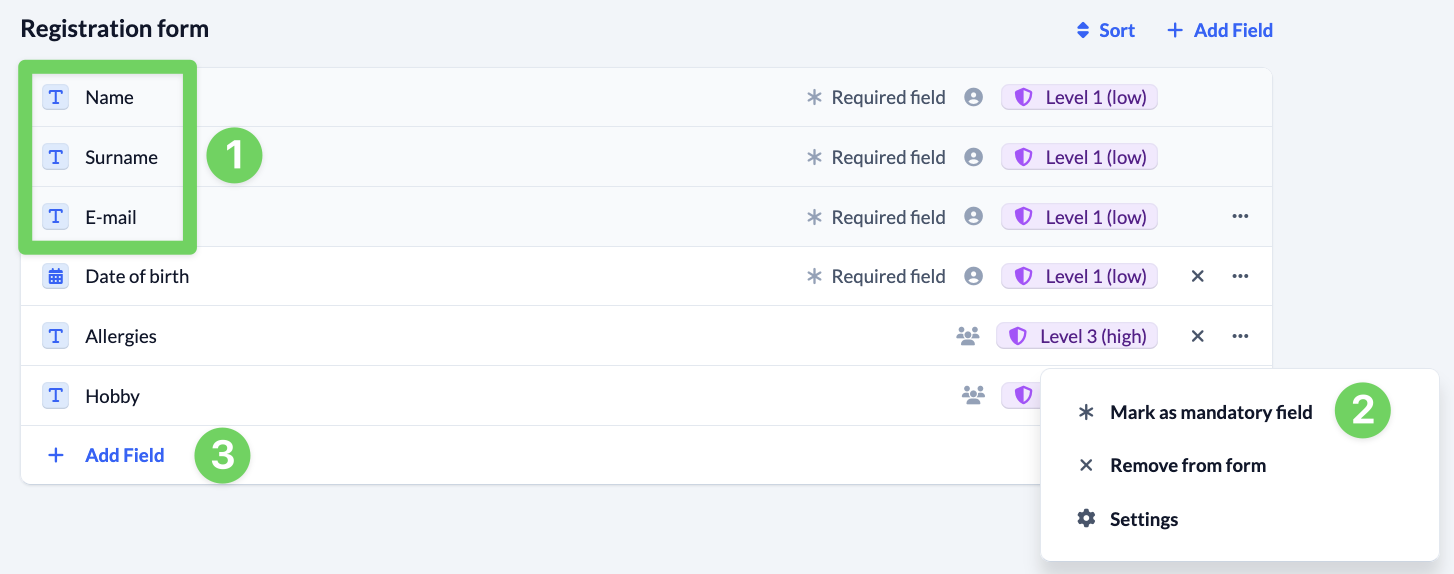
Here you add information that should be requested in the registration form.
- First name, surname and e-mail (1) are always marked as mandatory fields. For the e-mail, you can specify whether the field should only be marked as mandatory for the person signing up or for all persons (2).
- Select additional person and group membership fields from a list and add them (3).
- You can mark each added field as a mandatory field via the context menu (3) at the end of the line or remove it from the form. If it is a selection field, you can also call up further settings for the field here.