With the help of ChurchTools Finance, you can create donation receipts, also known as collective confirmation, quickly and easily. You can only ever do this for previous accounting years. However, you can create drafts for donation receipts before the end of an accounting year. They then contain the draft watermark.
Call Donor #
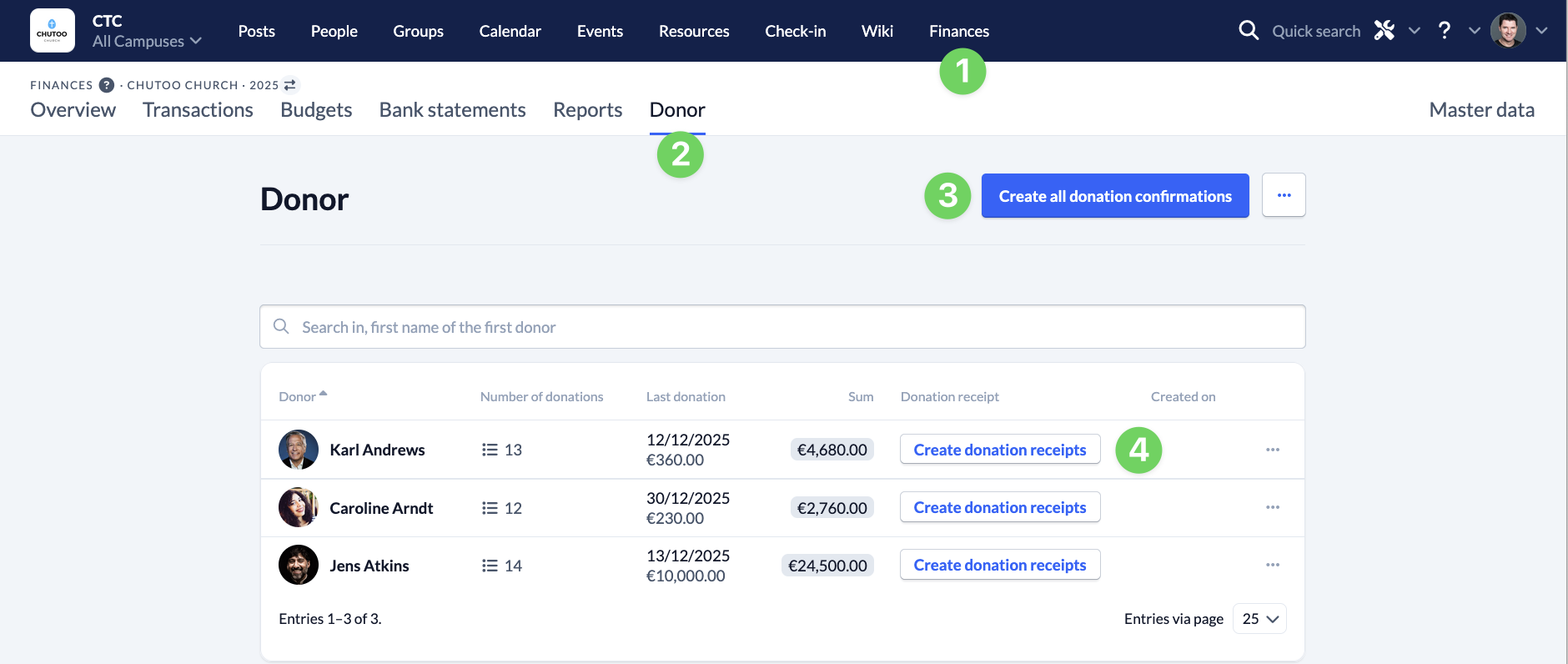
To create collective confirmations for an expired accounting year or the current draft of a donation receipt, navigate to the Donor tab (2) in the Finance module (1).
Here you can either create all collective confirmation (3) or the collective confirmation for an individual donor (4). We will show you how to do this in detail in this article.
Option 1: Create collective confirmation for a donor #
To create the donation receipt for an individual donor, search for the donor in the list and click on Create donation receipts in the corresponding line (4 – see above).
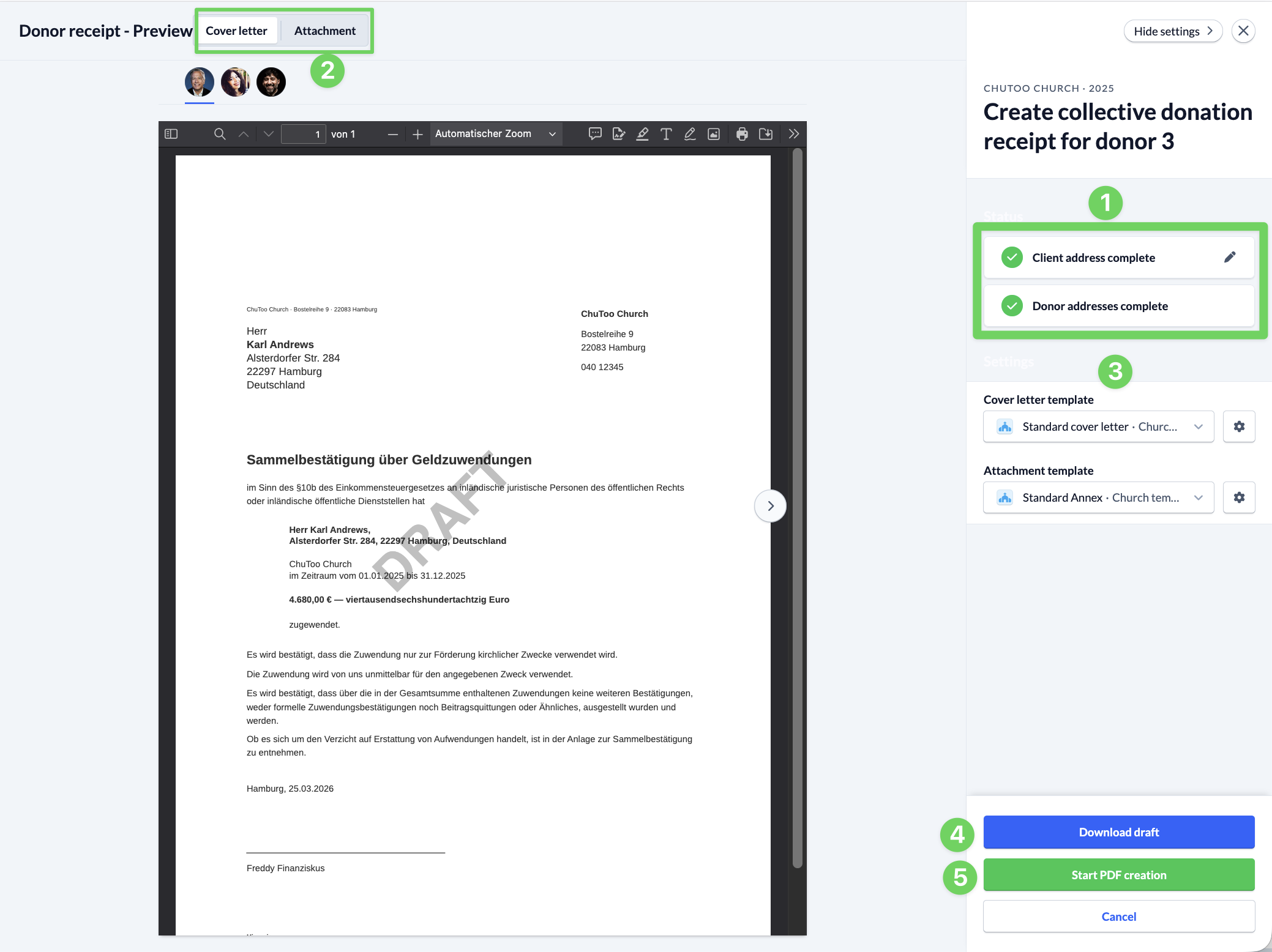
The preview will then open, where you can check whether the donation receipt looks correct and whether all the required data is complete (1).
You can switch between the cover letter and the attachment (2) and select which template should be used if you have saved several templates in ChurchTools (3).
If everything is correct, you can download a draft (4) or the finished donation receipt (5) directly. Two separate pdf files are always downloaded, the cover letter and the attachment.
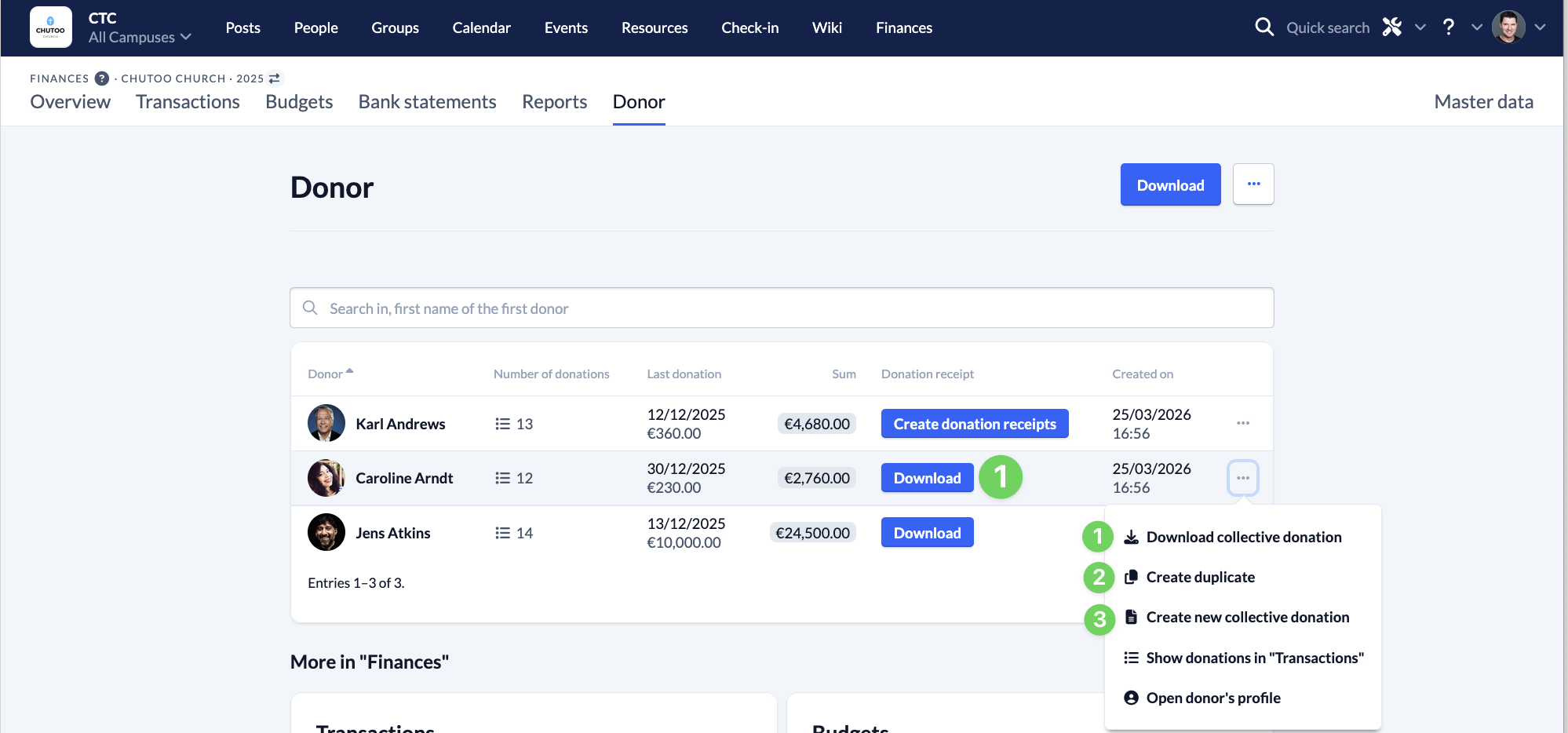
In the donor overview, you can download an already created collective confirmation again (1), create a duplicate (2) of the collective confirmation or delete the already created collective confirmation and create a new one instead (3).
Option 2: Create all donations confirmations #
You can also directly create all available donation receipts at once in ChurchTools. To do this, click on the Create all donation confirmations button in the donor overview (3 – see above) or Create remaining collective receipts if you have already created individual donation receipts.
As explained above, you can use the preview to check the donation receipts to be created.
Then click on Create and download PDF to generate all donation receipts at once.
As soon as all donation receipts have been created, you can download them either collectively (1) or individually (2).
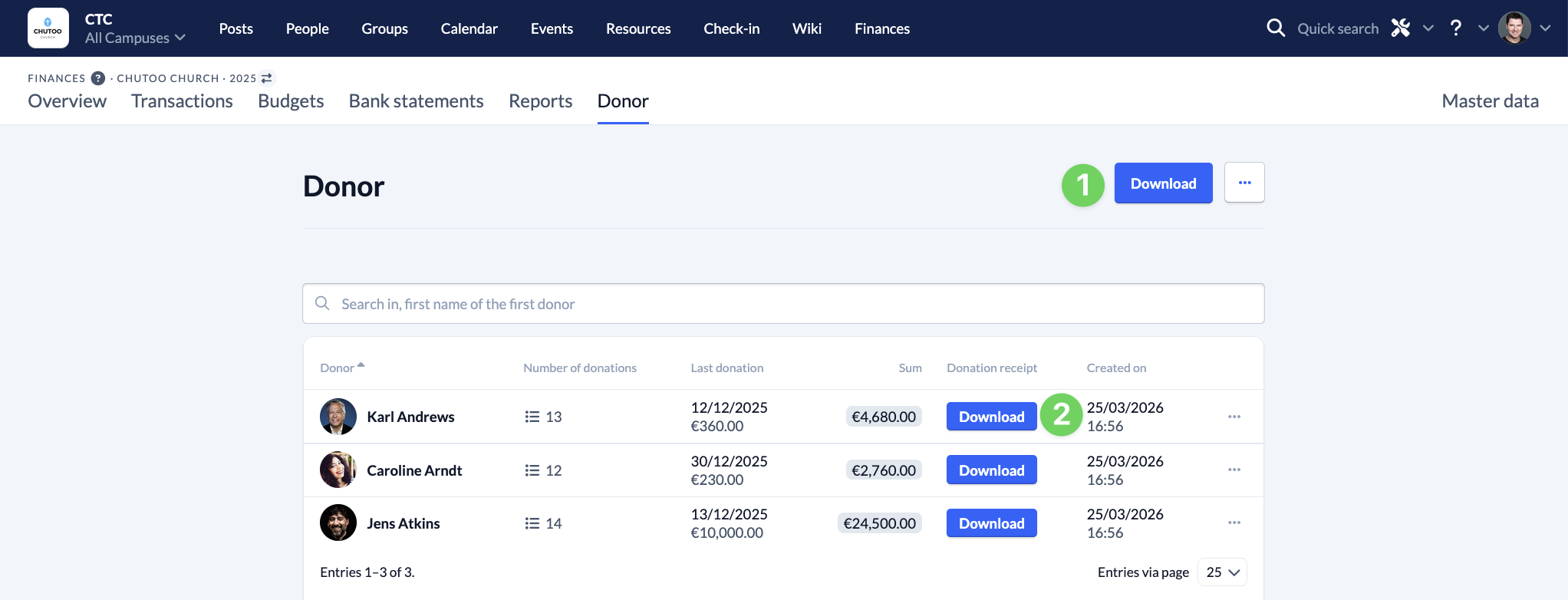
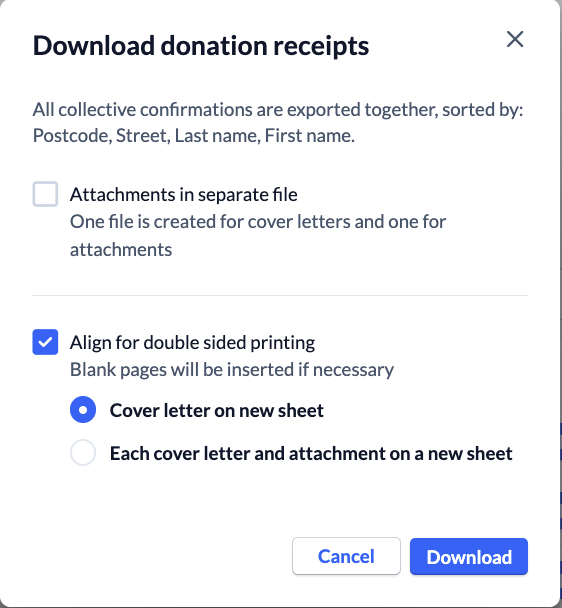
If you download all donation receipts together, you have the option of configuring the file before downloading it.