Before your congregation uses the Post module, you should make a few basic settings for the module.
To get you started, we have created a setup wizard which guides you step by step through all the basic settings of the module. You can find it at the top of the module on the right-hand side. You can adjust the settings made in the wizard at any time later in the module settings and at Groups.

In the settings of the module, you can create a better overview of Posts for the people in your congregation by creating a recommendation so that all posts can be easily filtered according to one of these recommended Groups. This could be, for example, prayer requests or important news from the congregation leadership.
On the other hand, you can define for your ChurchTools for which group types Posts do not make sense and are therefore for selected group types should be deactivated.
Call up settings for posts #
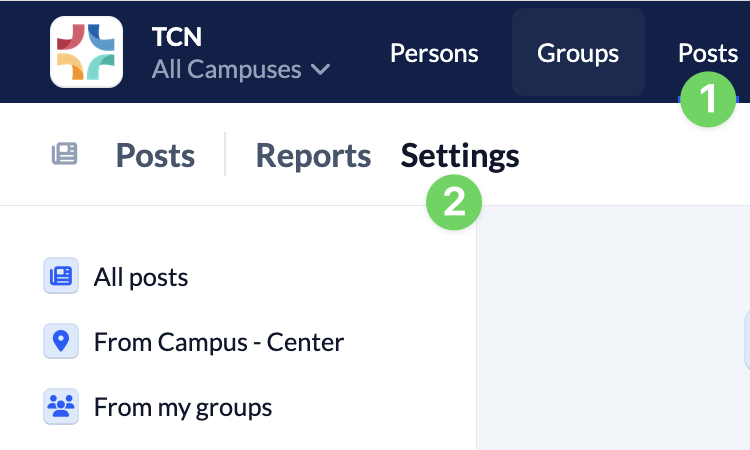
Call the module Posts (1) first and then switch to the Settings (2) of the module.
Recommended groups #
Use the + Add group button to search for the group you would like to have on your list of recommended Groups and select it from the search results. Above the list, you will always see how many Groups are already on the recommended list. Simply drag and drop the selected Groups to your desired position on the list via <> Sort.
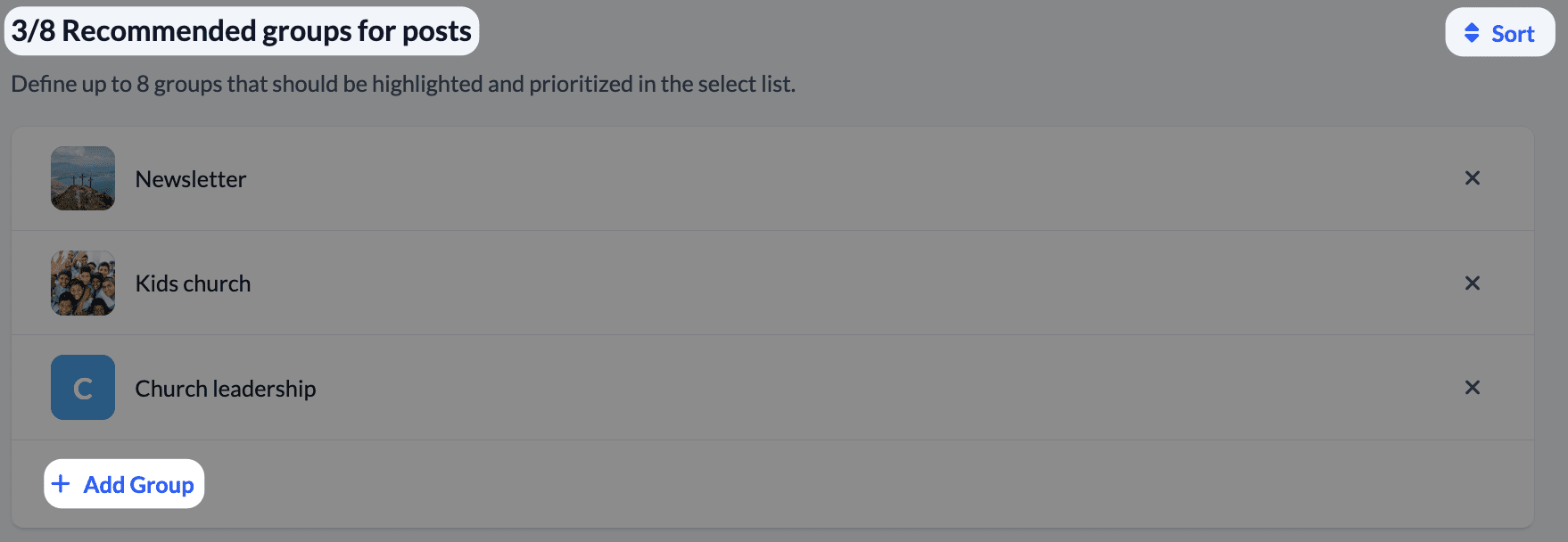
The Groups you have selected will be displayed to everyone in the menu on the left so that they can quickly navigate to the posts from these Groups. On the other hand, these Groups are the first to be offered for selection in the group list when a new post is created.
Posts for group types #
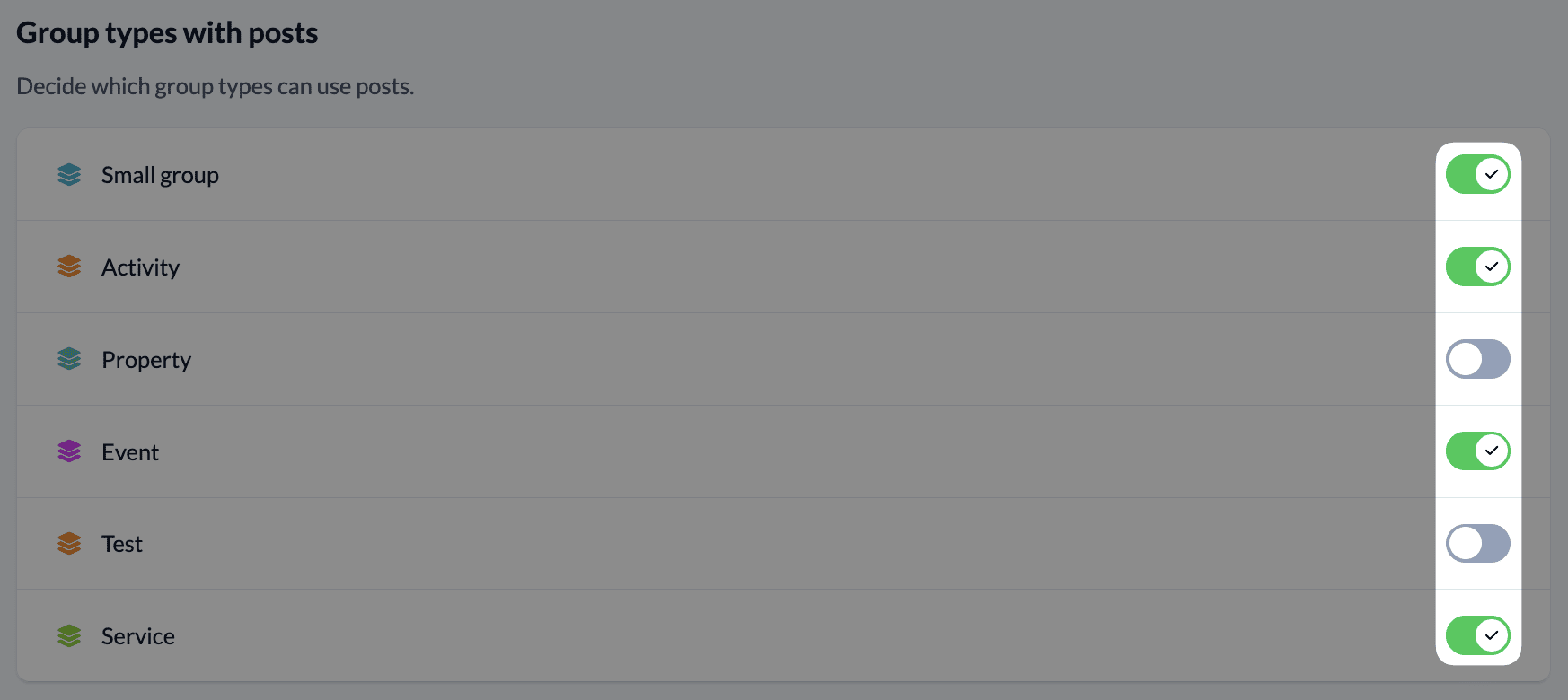
Use the sliders at the end of the group type rows to easily decide which group types Posts can be used for.
Further settings #
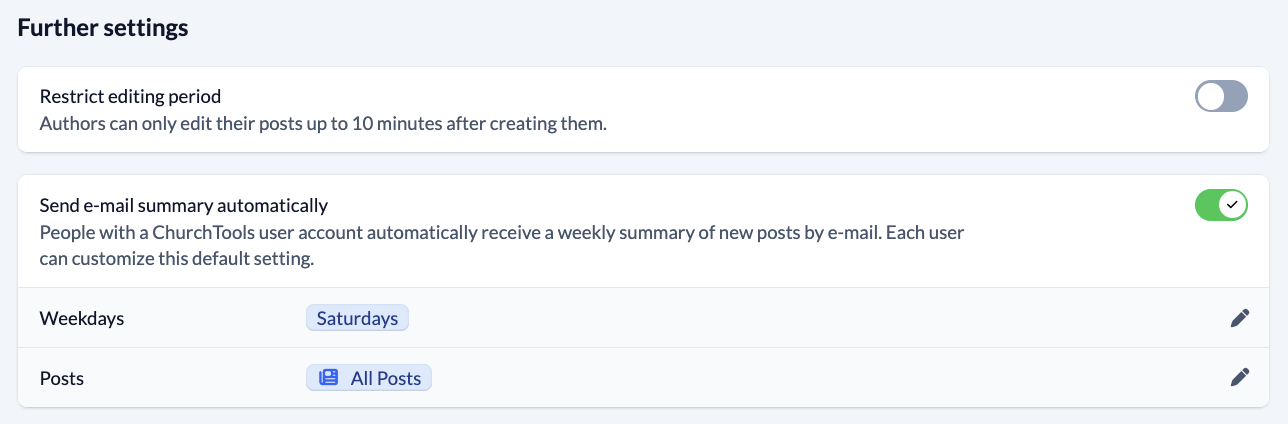
You can set up all users with a ChurchTools account to receive a summary email once or several times a week, informing them about posts from the past few days. You can specify whether they should receive summaries of all posts or only posts from their own or recommended groups.
Each user can individually disable this email or set when they want to receive it. In this case, the default setting made here will be overridden.
Posts can be edited by the author for an unlimited period of time by default. If you would like to limit this editing period, you can use the slider on the right-hand side to limit the period to up to 10 minutes after a post has been created.
Deactivate Posts module #
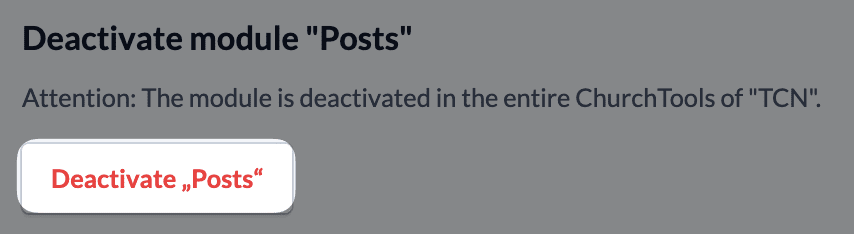
By clicking on the Deactivate Posts button (5), you decide for your entire ChurchTools that the Posts module can no longer be used.
Please only deactivate the module if you do not want to use Posts in your congregation at all. If you only want to deactivate the function for individual Groups or group types, you can do this via the corresponding setting in the respective group or for the group type.