In this guide, we explain step by step how to create/edit a person in ChurchTools and record relevant information, relationships and affiliations.
1. Call up the Persons module and create a new person #
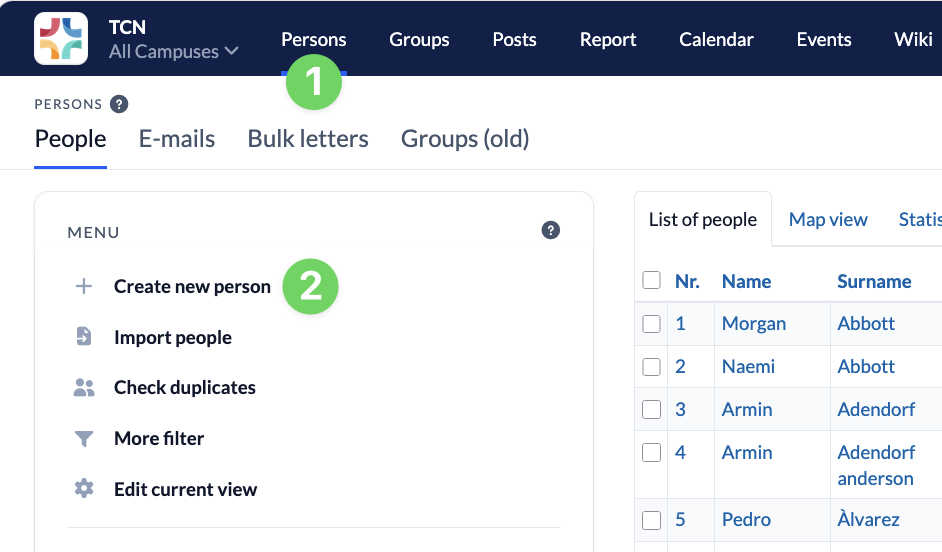
To create a new person, go to the Persons module (1) and click on Create new person (2) in the menu on the left-hand side. If you want to edit a person, click on the name and skip the 2nd point.
2. Fill in fields and create person #
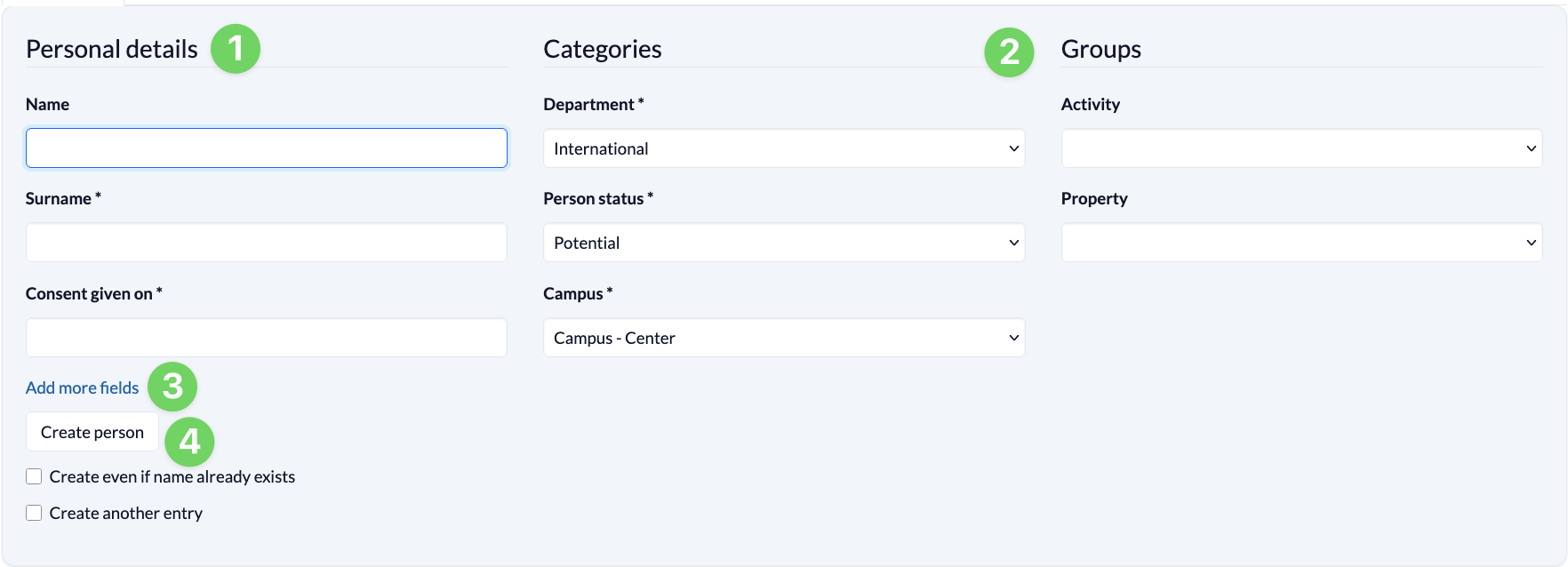
Here you enter the personal data (1) of the person you want to create.
You can already enter further affiliations under Categories and Groups (2).
With Add more fields (3), you can expand the data fields that you have marked as Appears when people are entered in create new in the master data under Person fields and fill them in.
Click on Create person (4) to save the new user entry for the person.
- You can decide whether the person should also be created if there is already a data record with the same first name and surname.
- You can also select that you would like to create another data record directly afterwards. The information from the surname, consent by what and consent by whom will then be transferred.
3. Store further information #
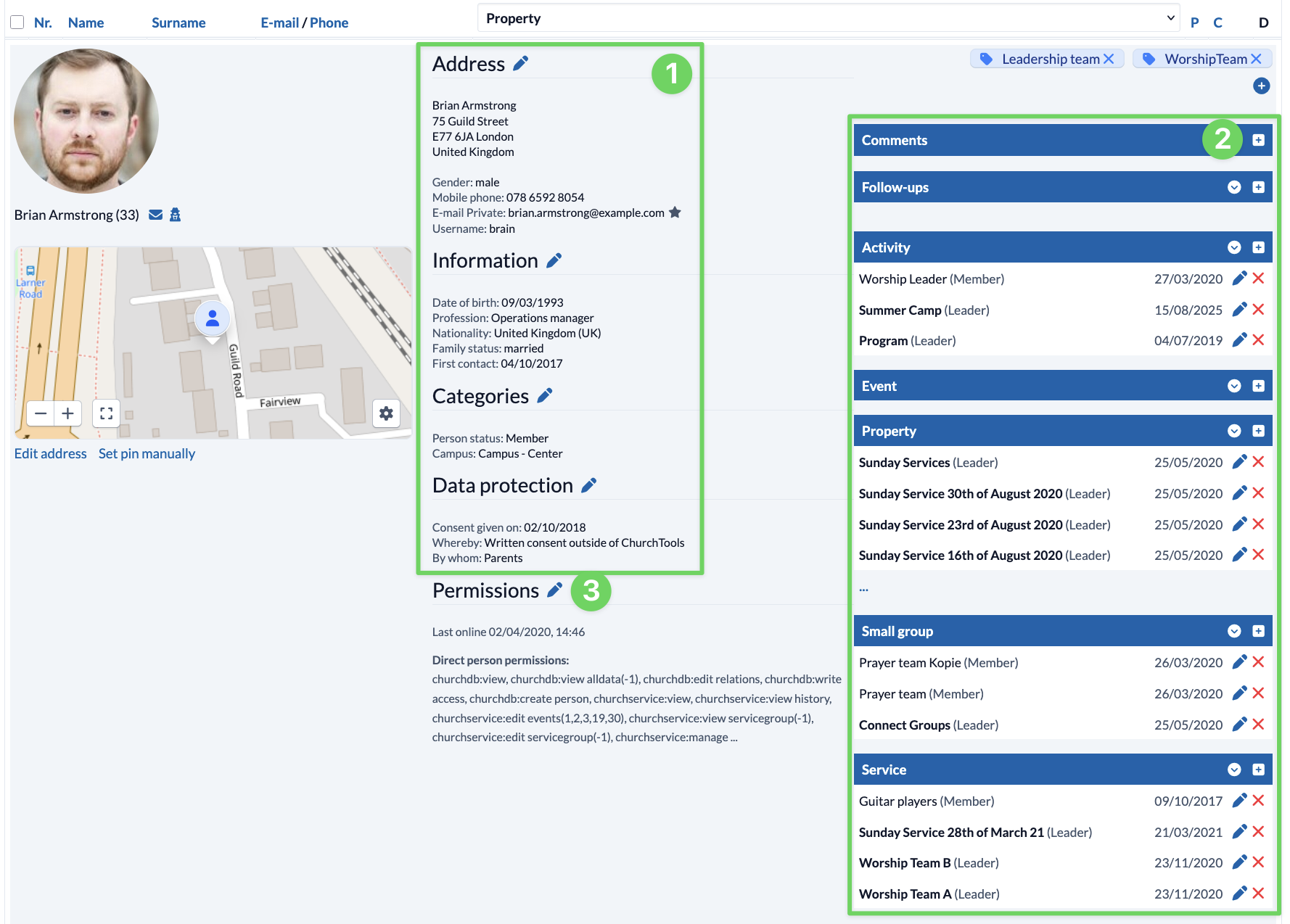
Once the user entry has been created, enter all the desired data for the person in the other personal data field categories (1).
On the right-hand side of the person detail view, you can enter the person’s group affiliations (2). If the person is added directly to a group, the group membership automatically appears here. The status of the groups is displayed directly using small icons.
Under Permissions (3) you will find, among other things, the option to activate 2-factor authentication for the newly created person.