If you need a list of information about groups, ChurchTools offers you the option of exporting all or a selection of your groups as an Excel or CSV file. In this guide, we will show you how the group export works.
1. Select and mark groups #
First, select all the groups you want to export. The preset filters in the sidebar on the left, the search and the selection of the group status (1) will help you do this.
Once you have selected all groups, switch to the table view (2) and use the checkboxes (3) in front of the group names to select the groups whose information you actually want to export.

2. Export groups #
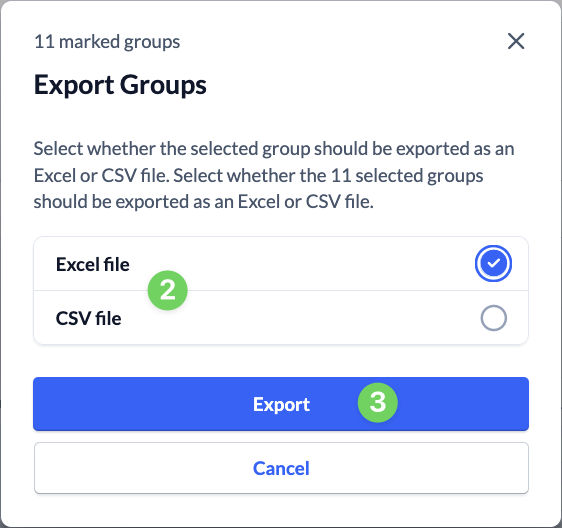
Finally, click on the Export group button (1) in the bar below the group list, select whether you want an Excel or CSV file (2) and click on Export (3).