


The web and app versions of Resources let you filter the list of bookings. This provides a clear overview and makes it easier for you to complete your pending tasks or search for a specific booking. In this article, we’ll show you how to filter bookings in the app. If you’d like to know how to do this on the web, read the article “How to filter resource bookings on the web?”
Filter bookings in the app #
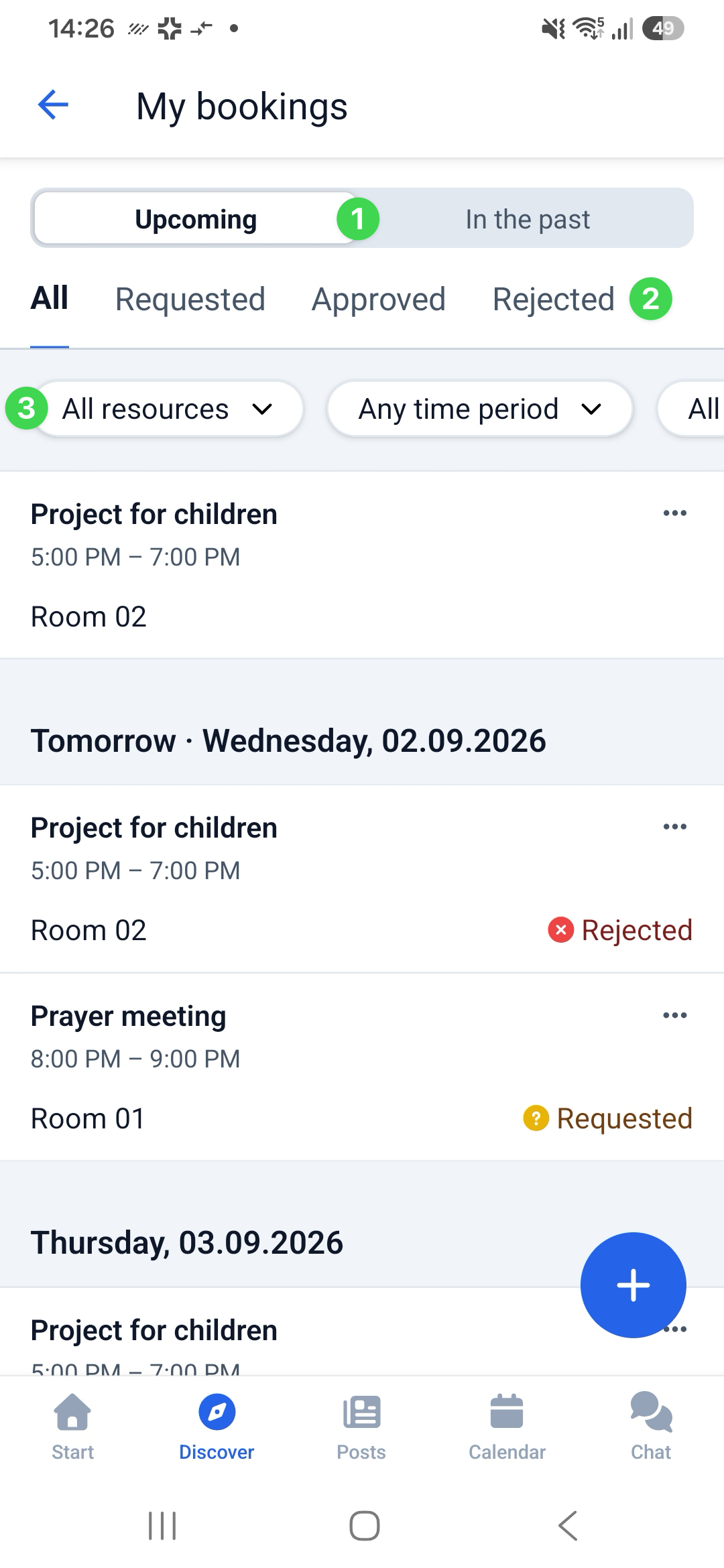
If you’ve opened ” My Bookings ” or ” All Bookings ” under “Resources” in the app, you’ll first see all resource bookings in a list sorted by date.
Here you can view either upcoming or past bookings (1).
You can also filter this list by resource status (2).
Below that, you’ll find additional filters (3). You can combine them with the other filters to find what you’re looking for even faster.
Troubleshooting: I can’t find a specific booking. What should I do? #
If you can’t find a specific booking, check the following:
- Did you select ‘My bookings’ or ‘All bookings’?
- Is it an upcoming appointment or a past one?
- Did you select the correct request status?
- Are the other filters you’ve set correct?