The calendars in ChurchTools are very helpful for organizing various areas within the congregation and keeping track of appointments. Of course, it is even better if the calendars are also integrated on your own church website and display all relevant information there.
However, there are times when certain event details are displayed in ChurchTools but should not be visible on the website. In this tutorial, we’ll show you how to use a CSS command to hide event details in the embedded calendar, using resources as an example.
Open the system settings for the calendar module #
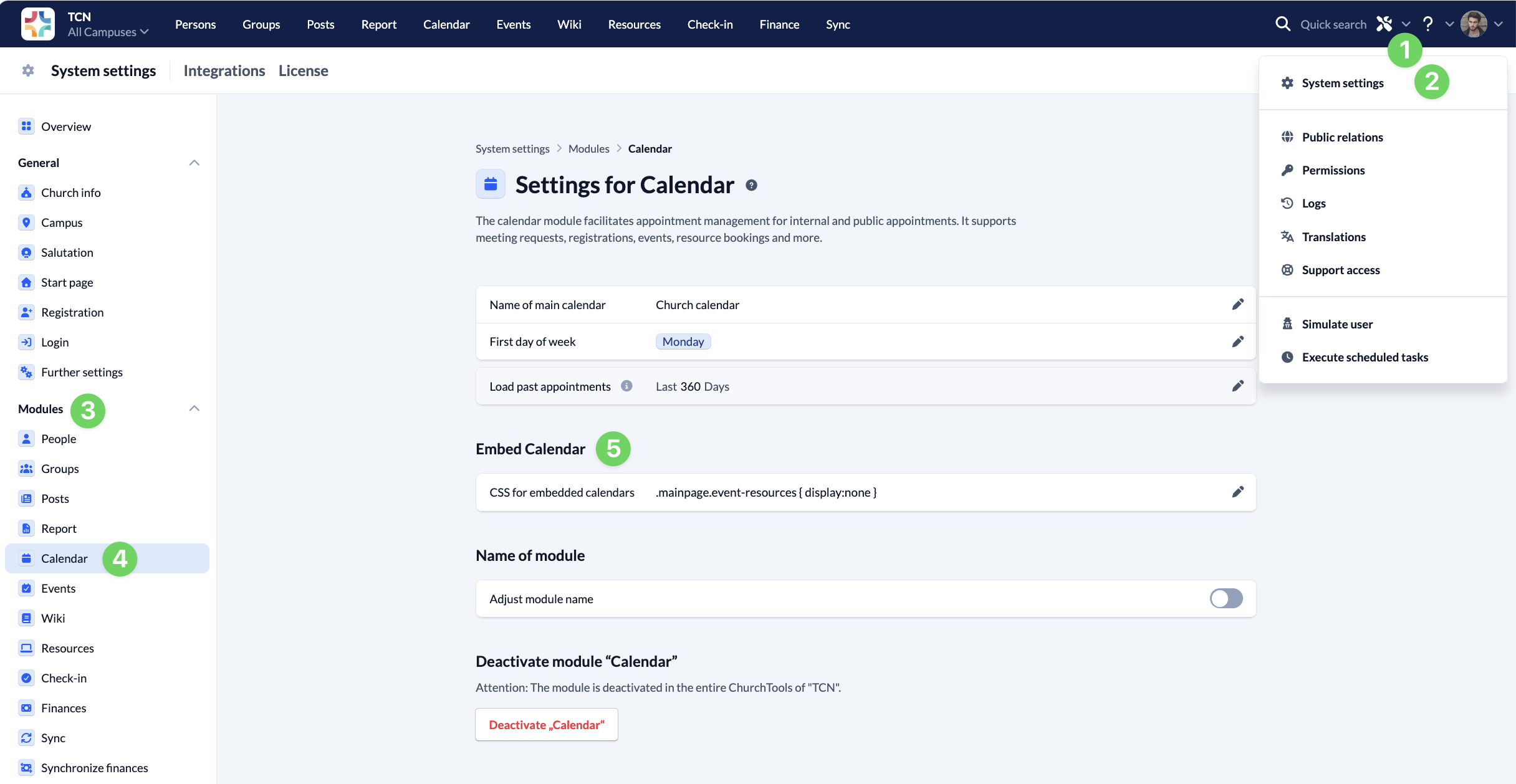
You can customise your embedded calendar using CSS classes. You need to set these up in advance in your ChurchTools system settings.
To do this, open the System Settings (1) and (2) and navigate to the Calendar module (3) (4). Under Embed Calendar (5), enter your CSS code.
Enter CSS command #
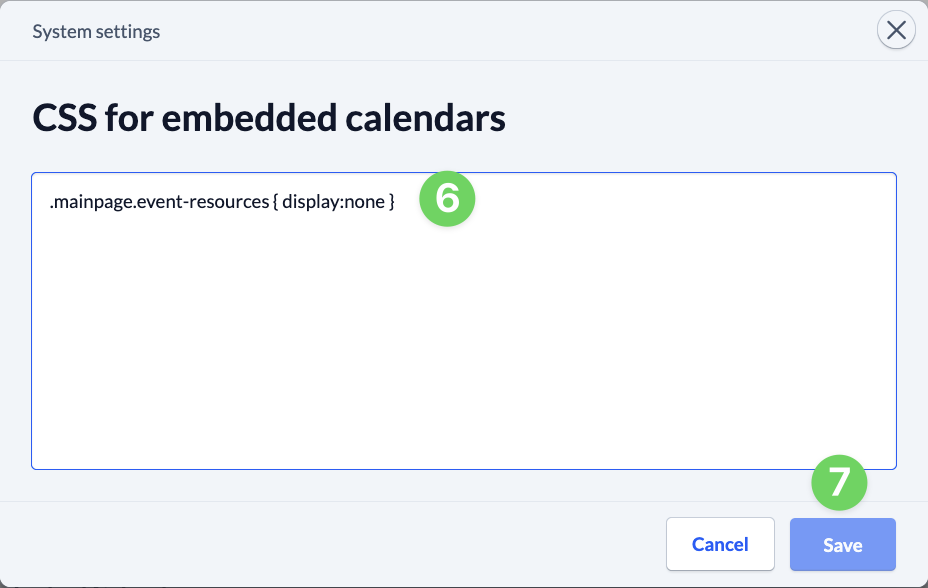
To hide the resources associated with the event, enter the following CSS code in the field provided (6): .event-resources { display:none }. Then save your changes (7).
Check CSS command #
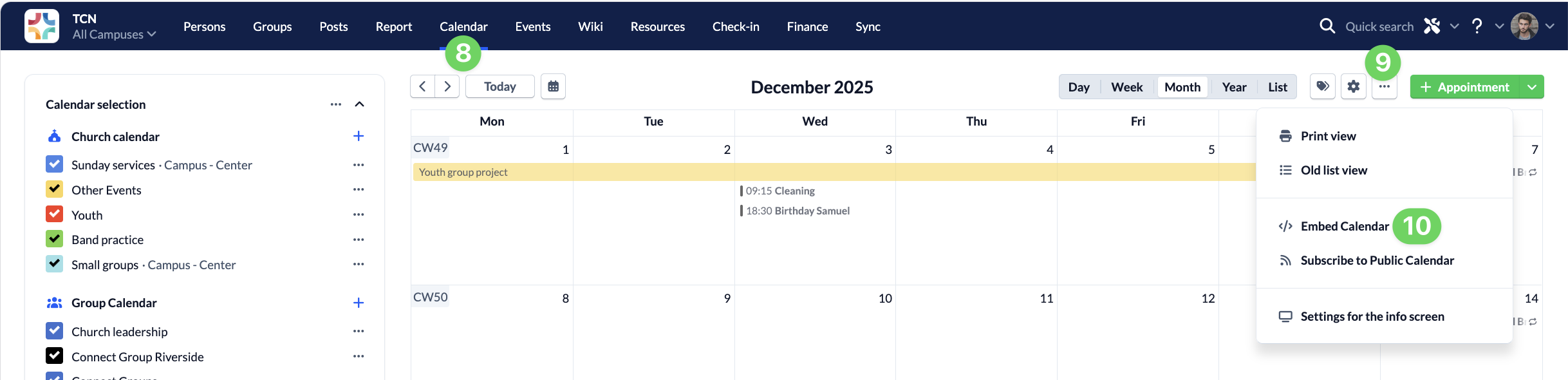
Now navigate to the Calendar module (8) and select ‘Embed Calendar’ from the module’s context menu (9 and 10). There, you can preview how the CSS command is applied.
Customize different calendars differently #
Depending on how your website is structured, you may not want the resources to be hidden for every embedded calendar, but only for the calendar that you display on the Home page of your website, for example.
You can also implement this with ChurchTools Website by assigning your own CSS class.
Assign your own CSS classes #
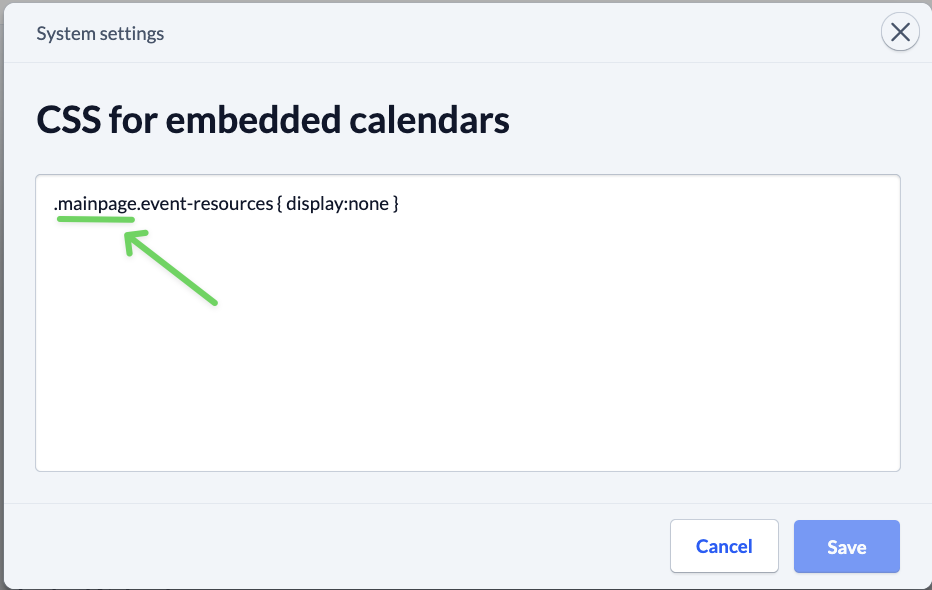
To do this, go back to the system settings for the calendar module, add your own CSS class – for example, .startpage – before the CSS command that hides the resources, and save your changes. It is important to ensure there is a space between your CSS class and the command that follows.
The CSS command is now only applied if the corresponding CSS class is entered before embedding.
Enter CSS class #
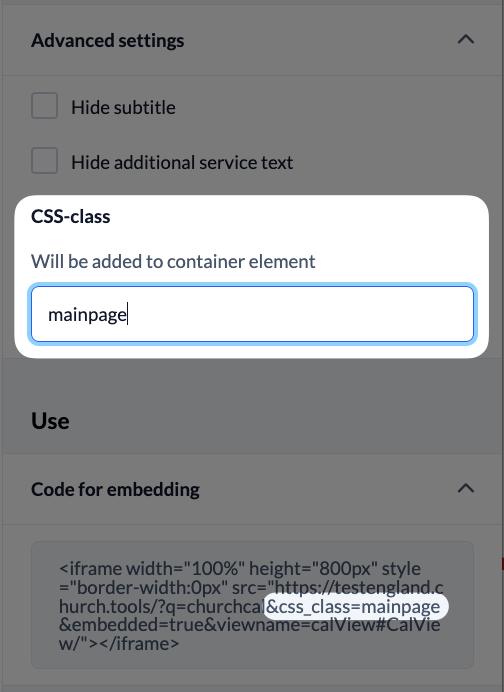
Switch back to the calendar module and open the dialogue box to embed the calendar. To ensure that the CSS command for hiding the resources is applied, you must enter the CSS class you assigned earlier under Display > Advanced Settings > CSS Class.
You have now assigned a custom CSS class to this embedded calendar, which is also visible in the embed link. This allows you to customise which CSS styles are applied to which calendars on your website.