


In this article, we’ll show you how to use Automatic Membership to fill a group with all the people in a neighborhood and keep it up to date. The people in this group can then, for example, network via a shared chat, meet to pray for their district or organize a neighborhood festival. If someone moves, they are automatically removed from the group.
1. Select group #
Call up an existing group in which you would like to bring together people from a district or create a new “Example district” group.
2. Call up settings for automatic membership #
In the settings for this group, you can access the settings for automatic membership.
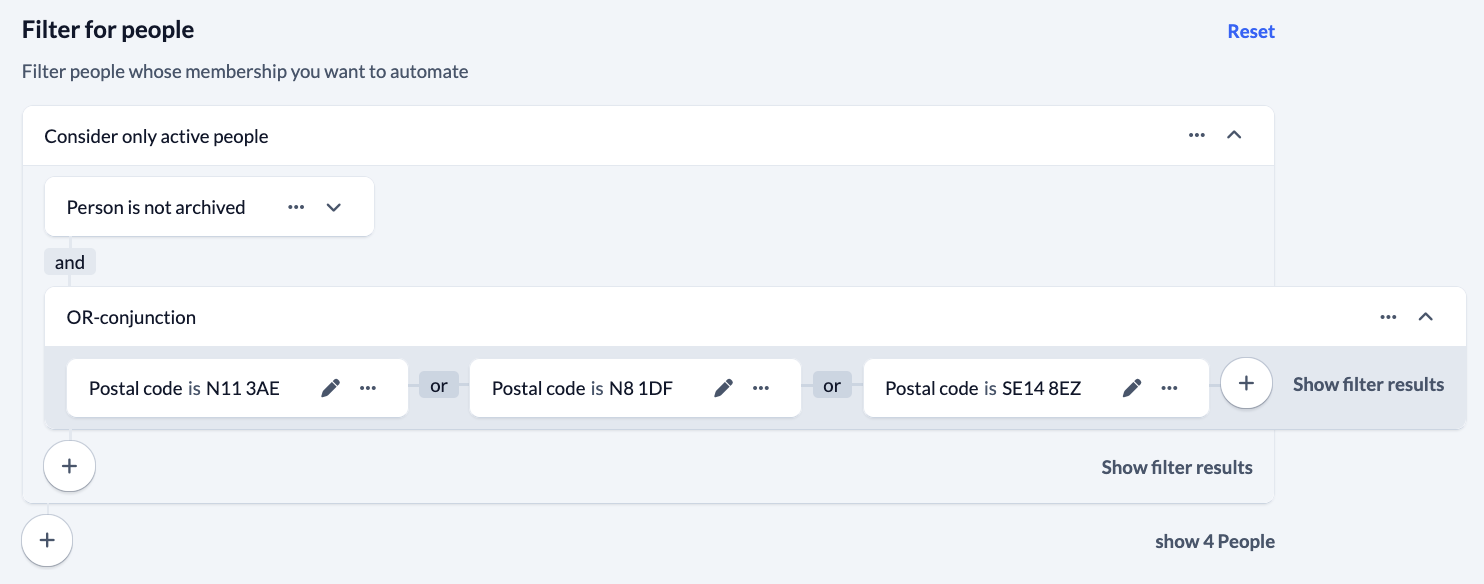
3. Set personal filter #
Use the plus symbol to add filters to the person. You select these as follows:
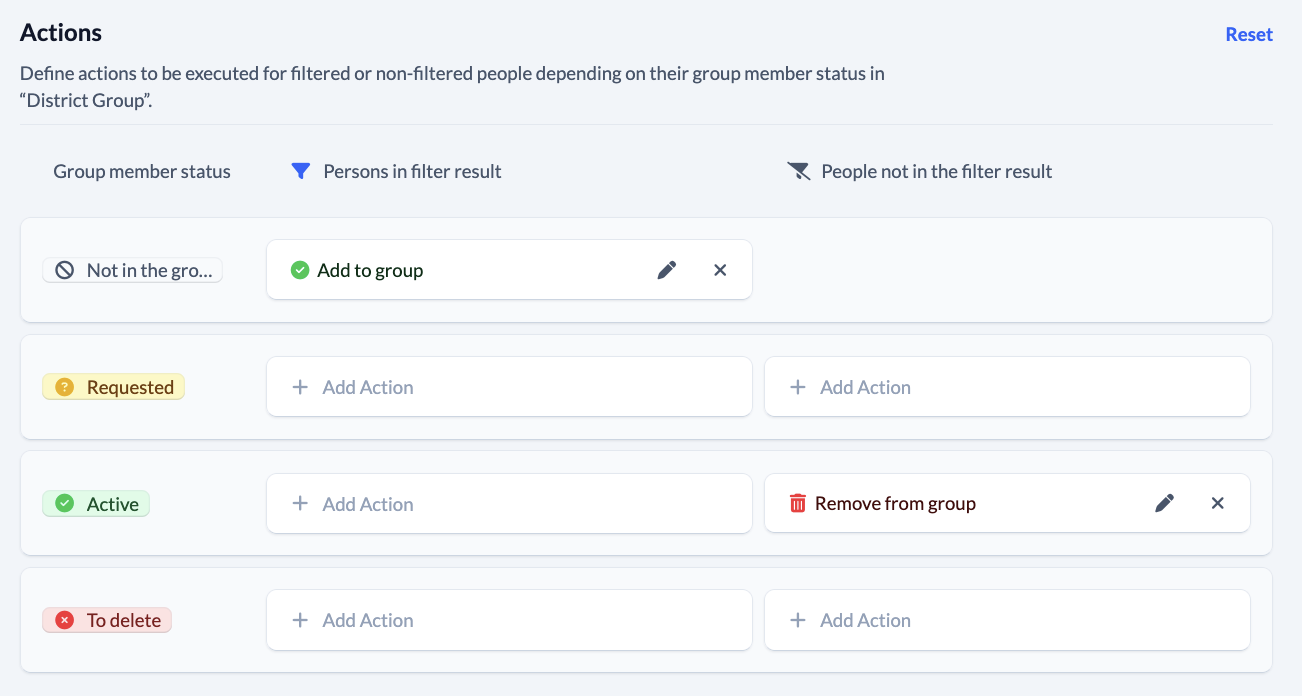
4. Set actions #
This is how you set the actions:
5. Activate execution #
Finally, you either execute the actions you have defined once manually or you activate automatic execution, which then always runs when the scheduled tasks are executed.
