


Under “Events,” you can enter your absences. This is especially helpful when scheduling roles. Those of you who are absent will then automatically be excluded from the schedule. If you try to enter them manually, a clear warning message will appear.
In the calendar, you can view your own absences as well as absences from your groups. You’ll find both options in the ” Personal Calendars” section. You can configure which absences from your groups are displayed here. For more information, see “How can I configure mutual visibility of absences?” below.
Record Absences #
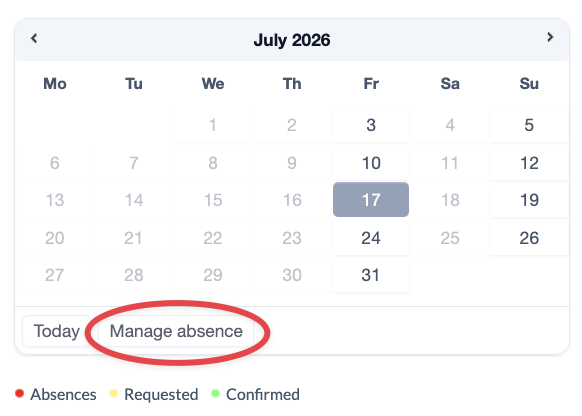
You can manage your absences under ” Events.” Here, anyone with access to Events can click the “Manage absence” button below the calendar.
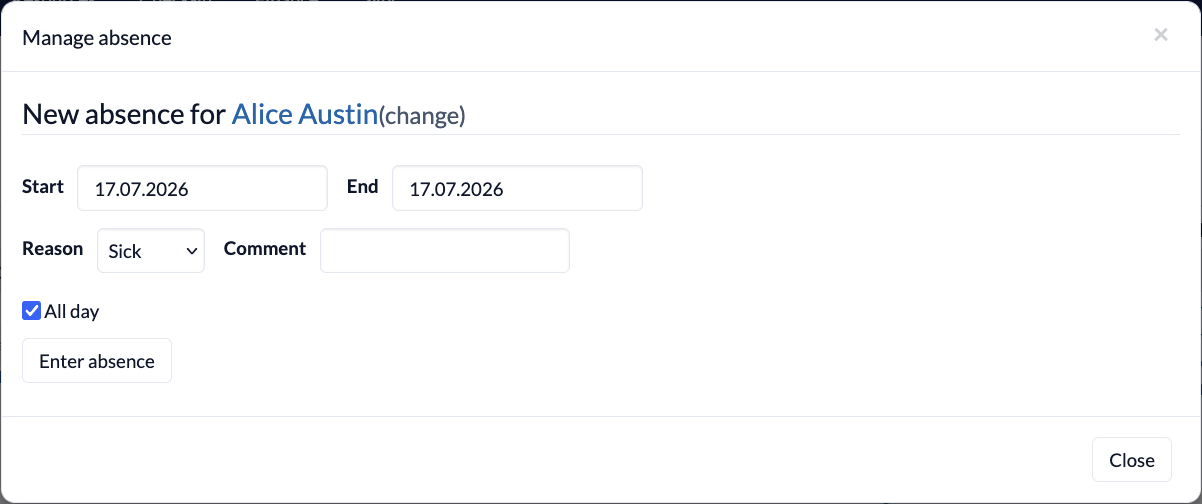
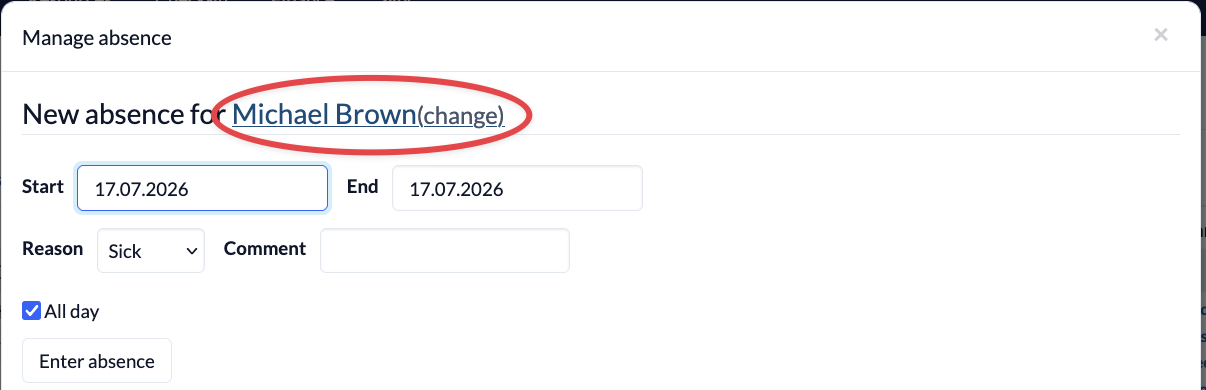
A box will open where you can select the time period, specify a reason, and leave a comment. Then click “Enter absence” to save the information.
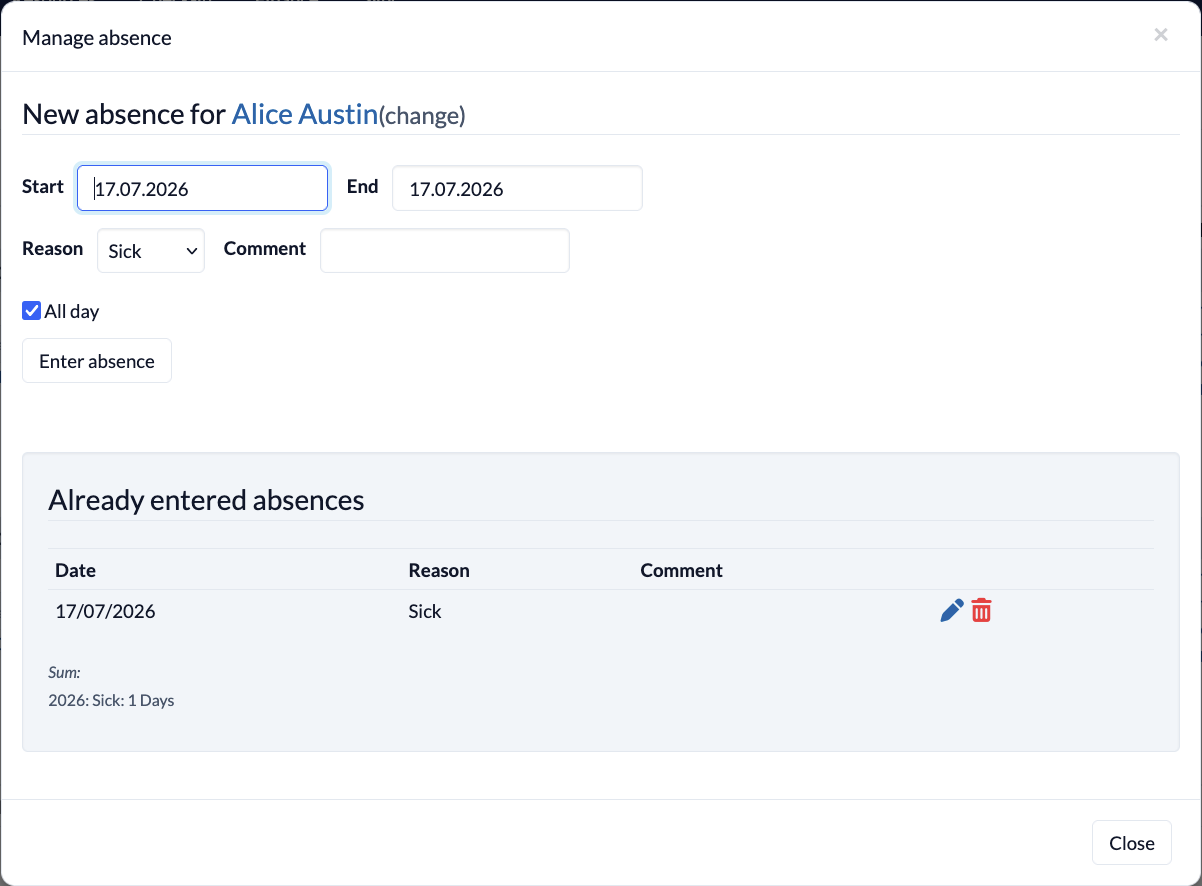
You’ll see the newly entered absence at the bottom of the box. If you’ve already entered other absence records, they’ll be listed here as well.
You can also edit the entries later by clicking the pencil icon. Click the trash icon to delete an absence.
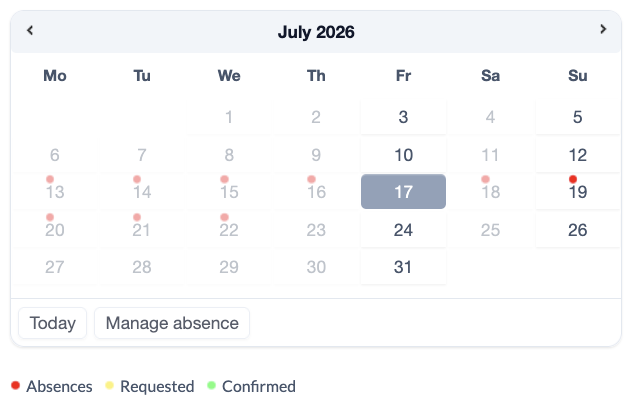
Your scheduled absences are marked with red dots on the calendar.
Enter an absence for someone else #
You can also enter absences for other people. To do this, you need the global permission to view and manage absences for all people (manage absent).
Click the “Edit Absence” button , then click the current name. Next, enter the name of the person you want to mark as absent, or select them from the list.
View all absences #
Under “Events,” you’ll only see the absences for people you’re scheduled to work with in your roles. To view the absences of everyone you’re authorized to see, you’ll need to use the calendar.
How to configure the mutual visibility of absences? #
Using the ” View absence ” group-internal permission in the Permissions Manager under ” Events,” you can control which roles are allowed to view the absences for the respective group.