If you’ve entered transactions in ChurchTools—either manually or by importing them—and want to make sure they aren’t accidentally changed later, you can lock the transactions.
You can either lock a single transaction or multiple transactions at the same time.
Lock a single booking #
To lock a single transaction, locate the transaction in the Finance module under the Entries tab (1) and open the context menu (2) for the transaction. From there, select “Lock down the transaction” (3).
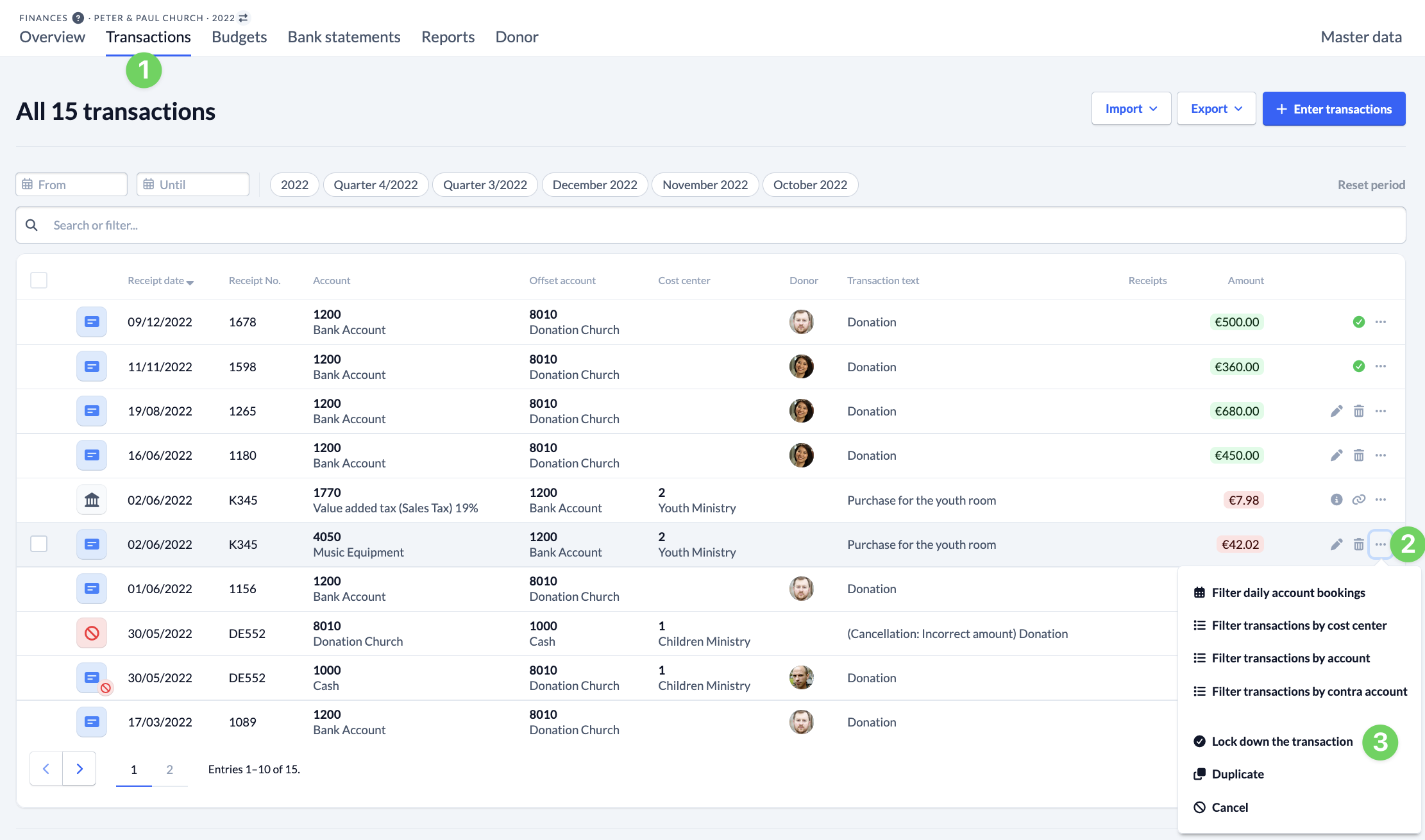
You can then tell that the transaction has been confirmed by a green check mark.

Lock multiple transactions #
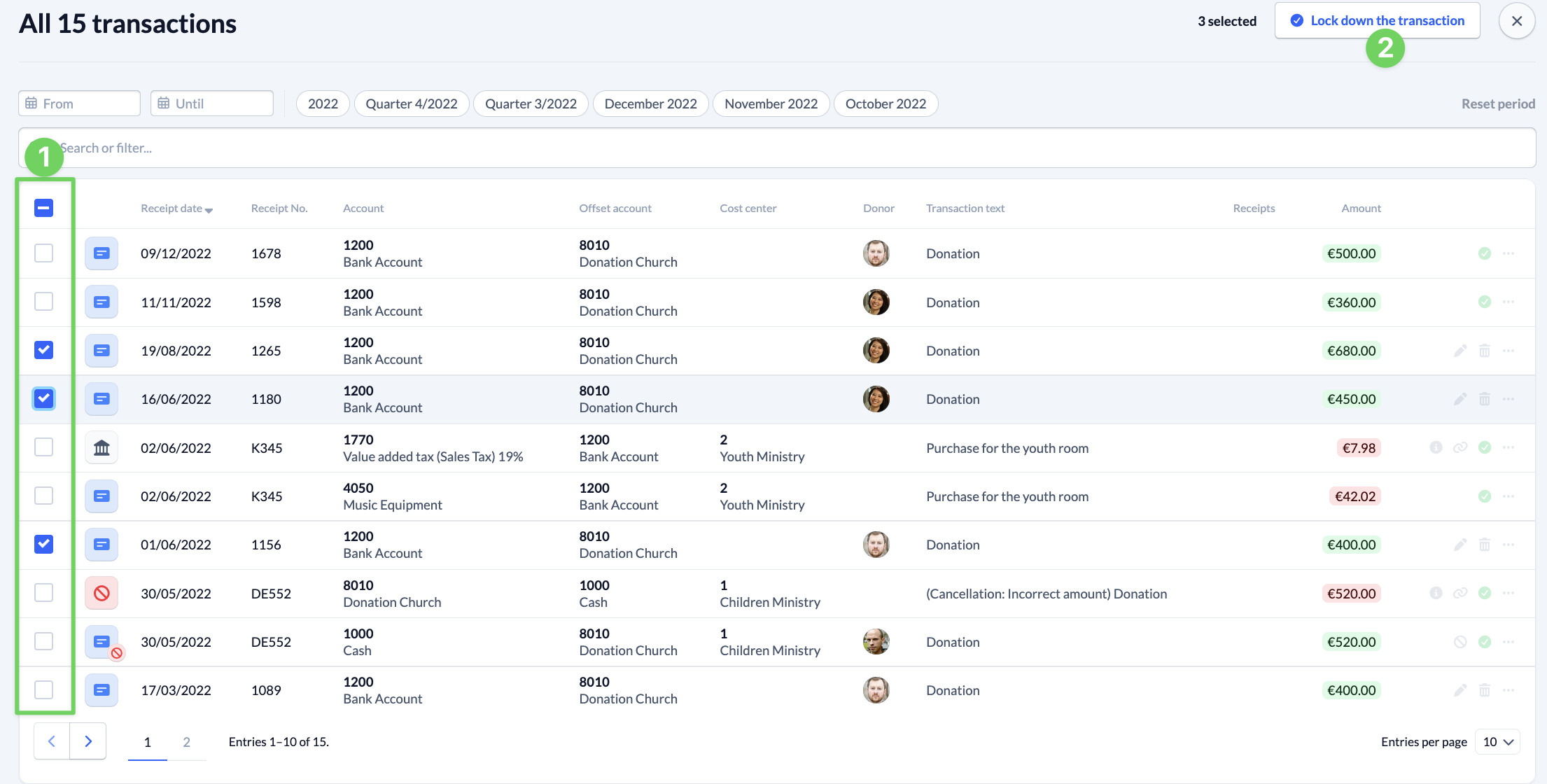
You can also select multiple transactions and then lock them all at once.
To do this, (1) select all the transactions you want to lock, and then click ” Lock down the transaction ” (2).