


Anyone who manages bookings,
- would like to be informed about requests as quickly as possible and be able to keep track of them.
- must confirm and cancel bookings, and possibly delete them as well
- must be able to track the history of acceptances and rejections
- Assign a specific resource to general requests (“We need a room for a seminar with 50 people” > Room 3)
Assign the user as the person responsible and coordinator #
Basic Permission:
A person responsible for coordinating rooms needs the appropriate permissions. In addition to the “View Resources” permission, they also need the “Edit, Reject, etc., All Requests (administer bookings)” permission. Since bookings can also be created from the calendar, the permission “Create, edit, etc., appointments in individual calendars (edit category)” is additionally required for that calendar.
Special Permission
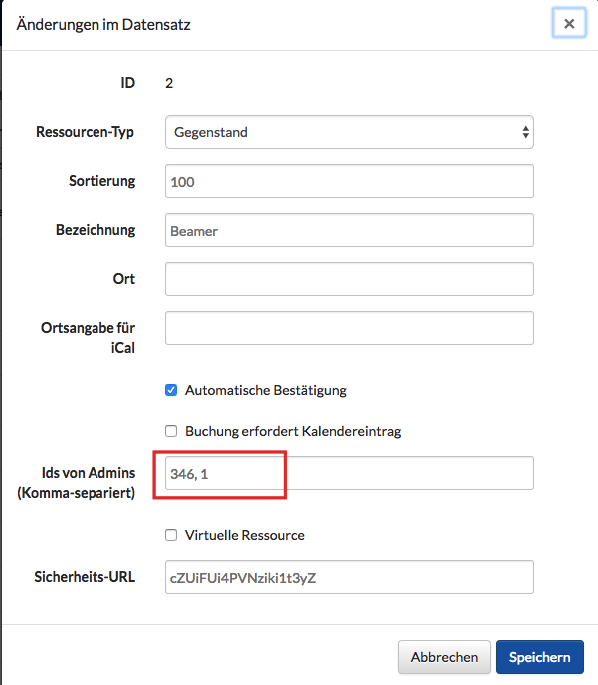
For each individual resource, a person in charge can be specified in the master data (Resources > Master Data).
There, you may already see people in charge listed, or the field may be empty:
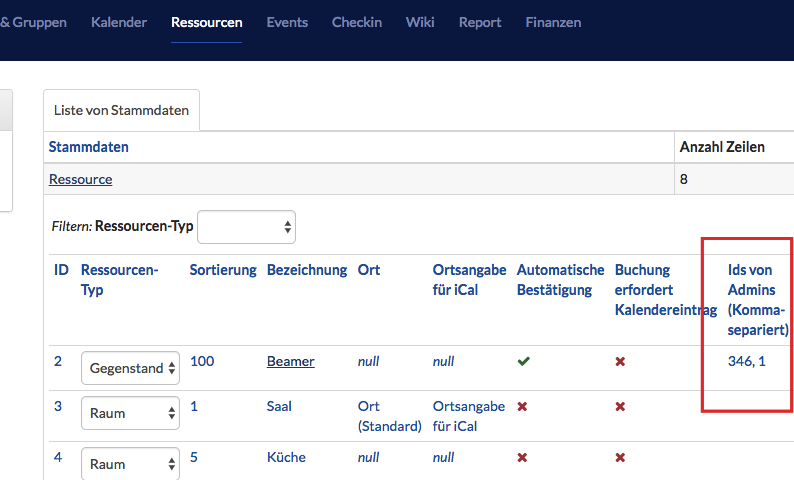
For each resource, you can now enter the user ID of the person responsible (currently, it is not possible to filter by name or enter names).
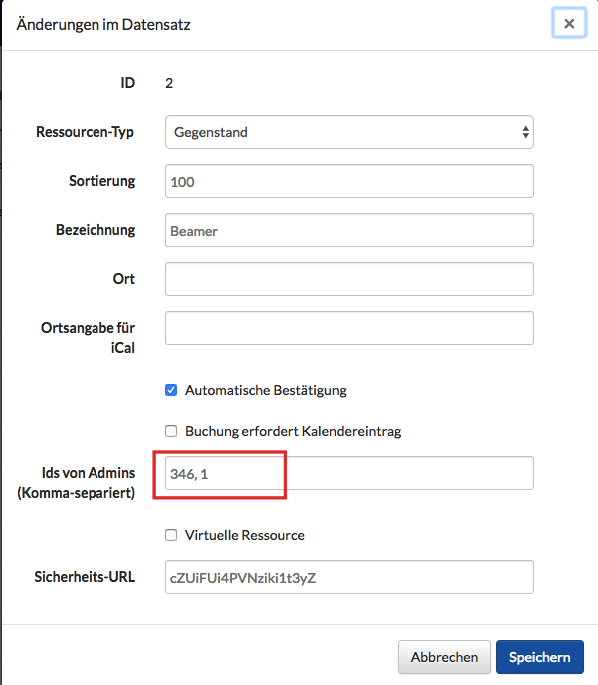
This admin receives e-mail notifications about inquiries, sees the widget for pending booking requests on the Home page, and has the permission to edit, decline, and perform other actions on all inquiries (administer bookings).
Respond to and process booking requests #
If a person has permission to process requests, there are several ways to do so:
In the Resources module itself, you can quickly respond to a request by hovering your mouse over the request and then clicking the checkmark (accept) or the X (decline).
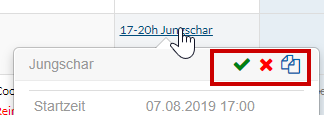
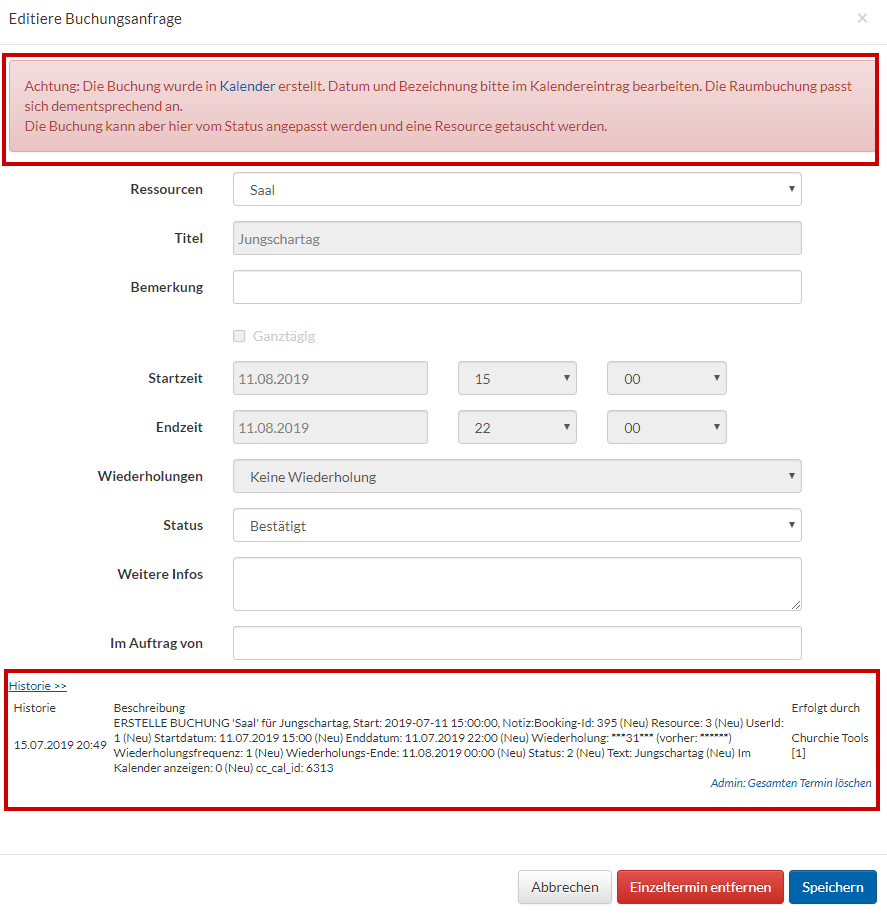
Of course, you can also open the entry
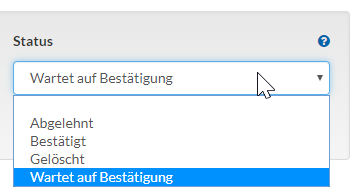
- Under “Status,” you can manually change the resource status
- In this exceptional case, however, you can only change this status and not any other details. This is because the resource is linked to a calendar entry and must be edited there.
- At the bottom, you can see the history—who requested, confirmed, or rejected what and when.
- Below the history, you also have the option to delete the entry entirely—whether it’s an appointment or a booking.
Get notified about booking requests and changes #
Anyone who coordinates bookings wants quick access to the latest news.
There are four options for this:
- Overview on the Home Page
- Overview in the Resources Module
- An e-mail subscription with notifications about inquiries.
- A calendar subscription that allows you to sync all your bookings with your personal calendar (Outlook, mobile devices, etc.).
1) To-do list on the Home page #
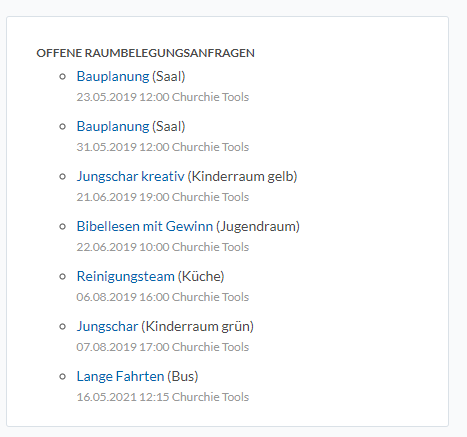
The Home page displays a list of open requests. Clicking on a request takes you directly to the booking page:
2) Overview in the module #
If you want to respond to multiple bookings, it’s best to go directly to the Resources module and filter for open requests in the bottom-left corner under “Request Status”:
Below the status, there is a “Selected” filter. You can check specific rows or resources on the right side of the list, and only those selections will be displayed.
3) Subscribe to bookings via e-mail #
The e-mail subscription option is a bit hidden right now, but it is available.
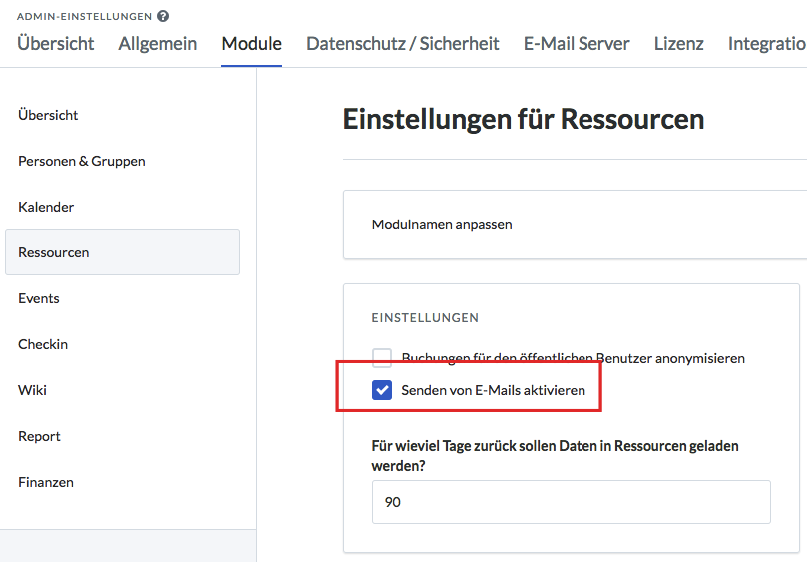
First, you need to enable e-mail in the System settings
Now you must assign a person in charge for each individual resource in the master data.
In the menu, go to Resources > Master Data Maintenance
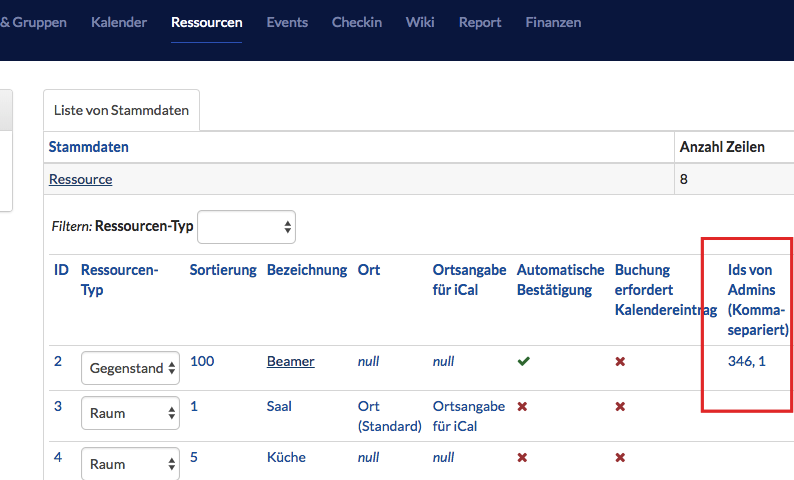
There, you may already see people listed as responsible, or the field may be empty so far:
For each resource, you can now enter the ID of the person responsible.
If a room reservation request is submitted, the person in charge receives an e-mail notifying them of the pending request.
4) Booking Overview by Calendar #
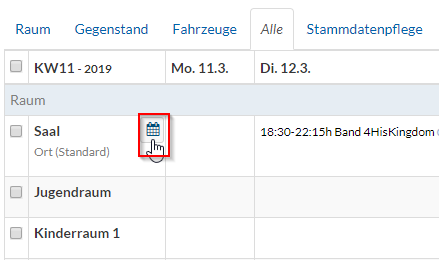
To keep track of resources even outside of ChurchTools and while on the go, you can also subscribe to them in a calendar. When you hover your mouse over a resource, a small calendar icon appears. Clicking on it opens the subscription window you’re familiar with from the Calendar module. We explain this in more detail in the article “How to subscribe to a calendar?”
This way, you can stay informed quickly even outside of ChurchTools and keep a good overview.
Special Cases: Automatic Confirmation and Multiple Bookings #
For resources, there are two special settings that are enabled in the master data.
Automatic Confirmation
- If not enabled: The resource is not automatically confirmed. An admin must confirm the resource request accordingly. (Useful for room reservations, etc.).
When a request is submitted, e-mails are automatically sent to the admin and the person who submitted the request. - If enabled: The resource is automatically confirmed. Each requester is responsible for ensuring that the resource is not already reserved. (E.g., for projectors).
The person making the request receives a booking confirmation via e-mail, and the admin is notified that the resource has been booked.
Multiple Bookings
- Multiple Bookings are intended, for example, for requests from employees in larger congregations or conferences who are not fully familiar with what resources are available on-site. For example, an office assistant can then take over the specific planning. The employee who submitted the request will then automatically receive an e-mail regarding the specific resource.
It makes sense here to create resources that are general in nature and can later be planned in detail by someone in the office. For example, a resource such as “Room 10…50 people,” “Room 51…100 people,” or “Projector.” - Multiple bookings therefore do not cause a conflict. There is a separate permission required to request multiple bookings.