


If you don’t want to enter your transactions manually, ChurchTools lets you create them from imported CSV files or scanned bank statements, making your work faster and easier.
Option 1: Import transactions from a CSV file #
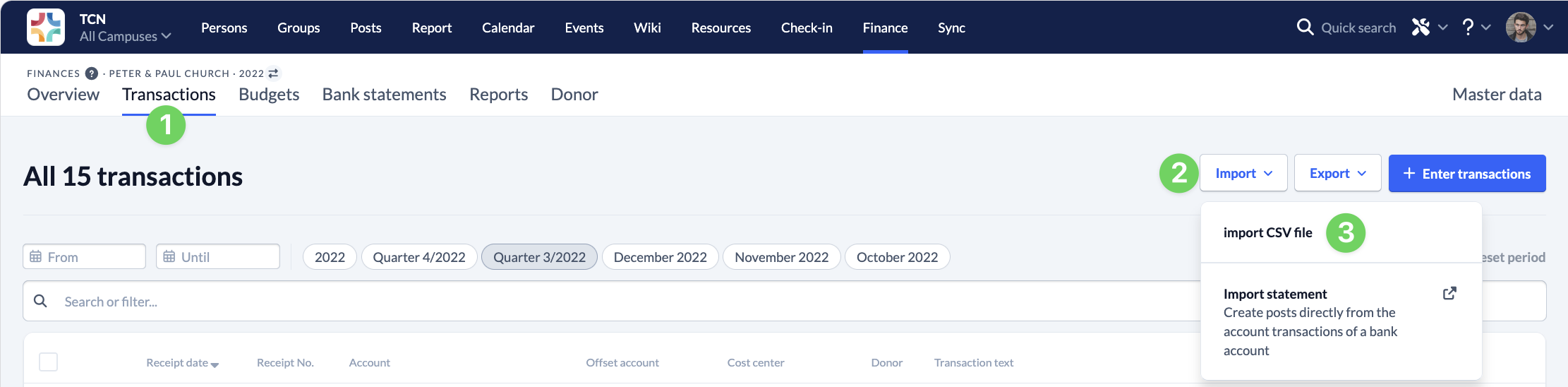
You can export your transactions to a CSV file and then import them into ChurchTools. To do this, go to Bookings (1) and select ” Import CSV File ” (3) under “Import ” (2).
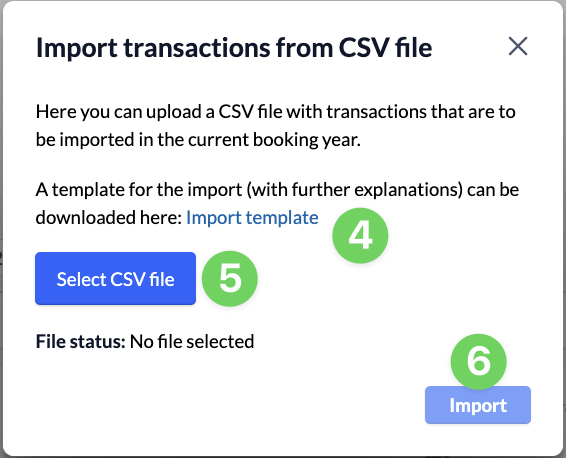
Here, we provide you with an import template (4) with notes, into which you can copy your data. You can then upload the prepared file in the same window (5) and import (6) your data.
Option 2: Import a bank statement #
The most helpful approach is probably to import your bookings directly from a bank statement. All you need is a bank statement in MT940 or CAMT format, which you can usually download from your bank’s online banking portal.
We explain how to import bank statements and create bookings from them in the guide ” How to create transactions from bank statements?”
You can also import PayPal activity reports and post your account transactions from them. To find out what else you need to keep in mind, see ” How to create transactions from a PayPal activity report?”