To make it easier for you to create new events, you can use event templates. In the templates, you can enter various pieces of information that you’d like to have pre-filled for your new event.
For example, you can create event templates for different church services, prayer and worship evenings, or any other type of event in your congregation.
To create a new event template, follow these steps:
1. Open the duty roster #
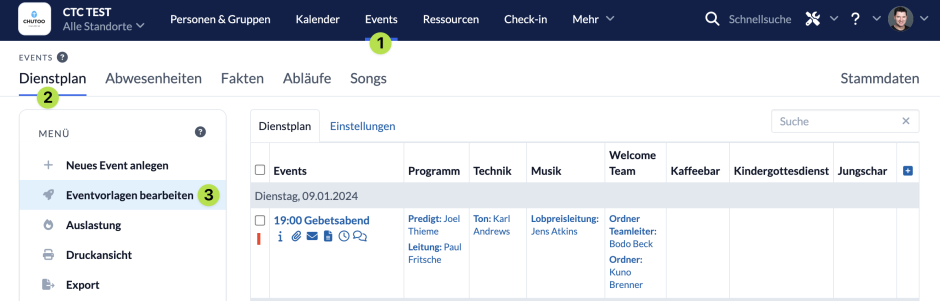
In the Events module (1), navigate to the Schedule (2) and click on ” Edit Event Templates ” (3).
2. Enter information #
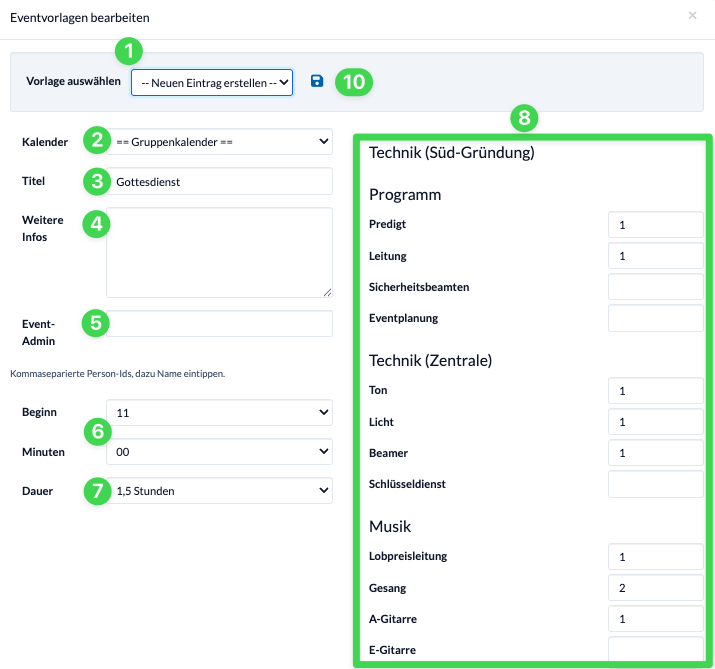
In the dialog box that opens, you can enter all the information you want to have pre-filled when creating a new event using this template.
You can specify which calendar (2) the event should be created in, what the title (3) should be (this will also be the title of your new event template), and whether additional information (4) should be included by default.
You can designate admins (5) for the event by typing in the person’s name and then selecting them. If there are multiple admins, separate their names with commas.
If your event always takes place at the same time, you can also save the start time (6) and duration (7).
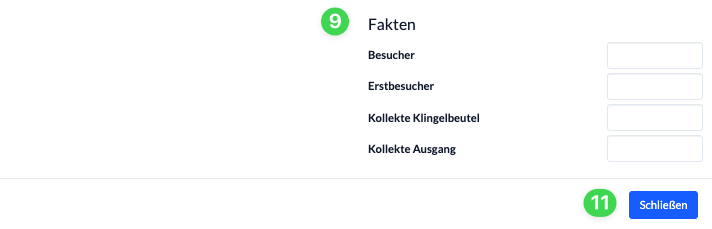
On the right-hand side, you can specify whether certain roles (8) and facts (9) should be used by default in the event.
Click the floppy disk icon (10) to save your new event template. If you decide not to create a new event template after all, you can simply close the dialog box (11), and your changes will not be saved.
Now, when you create a new event, all your templates will be available to you, and the information for your new event will be filled in according to the selected template.