The euBP is a legally required audit conducted by the German Pension Insurance (DRV). ChurchTools helps you prepare the necessary audit documents.
Prerequisites #
For an euBP, certain settings must be configured in the master data of the Finances module.
Company name and number on file #
Under ” Clients,” enter your company name and your 8-digit company number. For more information, see the article ” How do I add a new client?”
Mandatory accounts marked #
Some accounts must be transferred to the DRV during an audit; these are therefore mandatory accounts. You can download the minimum number of bookings required for an euBP directly from the DRV.
If you use the SKR03 or SKR42 chart of accounts when creating your chart of accounts, the required accounts are automatically marked as mandatory accounts. This setting is also applied retroactively to systems that have already used these charts of accounts to create their charts of accounts.
Create an exam #
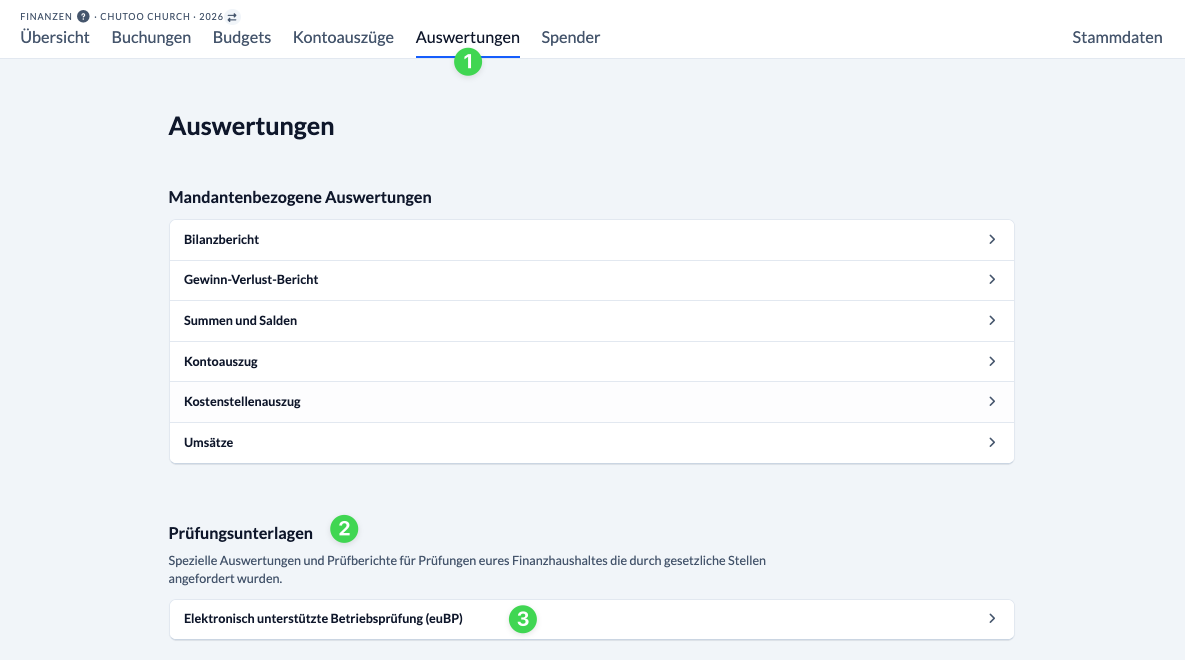
In the Finances module, navigate to Reports (1). Under Audit Documents (2), click on Electronically Supported Tax Audit (euBP) (3).
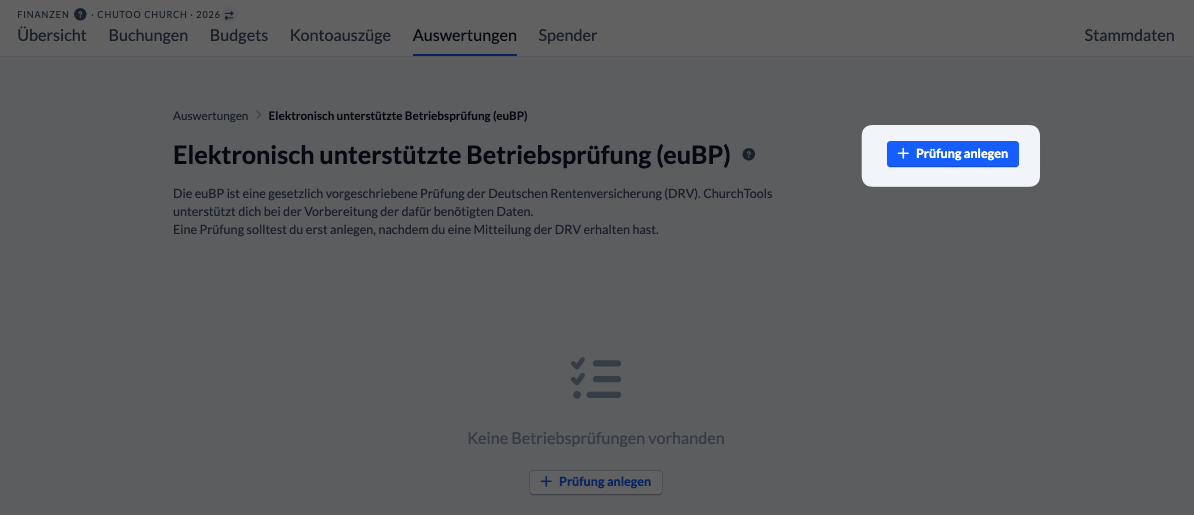
Click the ” Create Exam ” button to open the dialog box for creating a new exam.
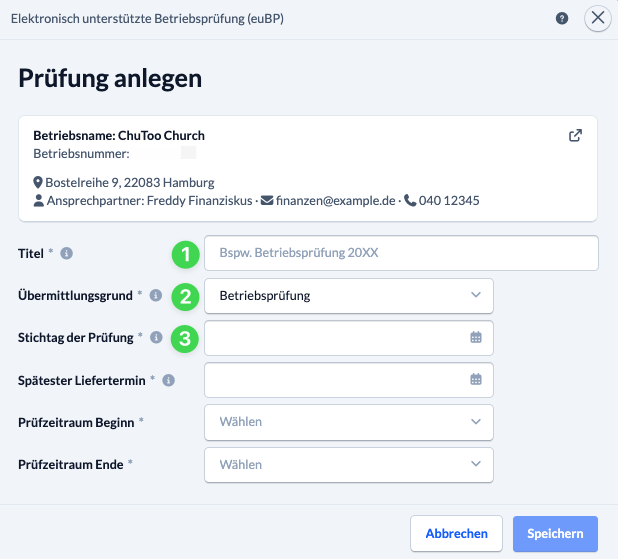
In the dialog box, enter a Title (1) for the test in the dialog box.
As Reason for Submission (2), “Tax Audit” is selected by default. If this reason does not apply to you and you would like to create an audit for other reasons, be sure to contact our support team beforehand to discuss the matter.
Finally, enter the deadline (3) specified in the letter from the DRV. All other fields will be filled in automatically.
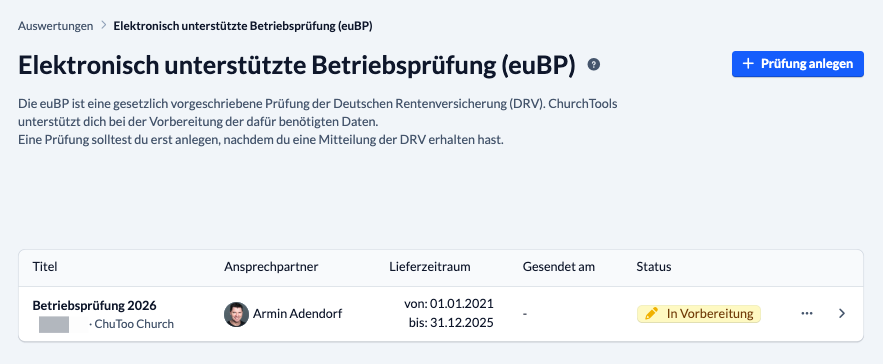
When you save the exam, it appears in the list of created exams.
Submit Exam #
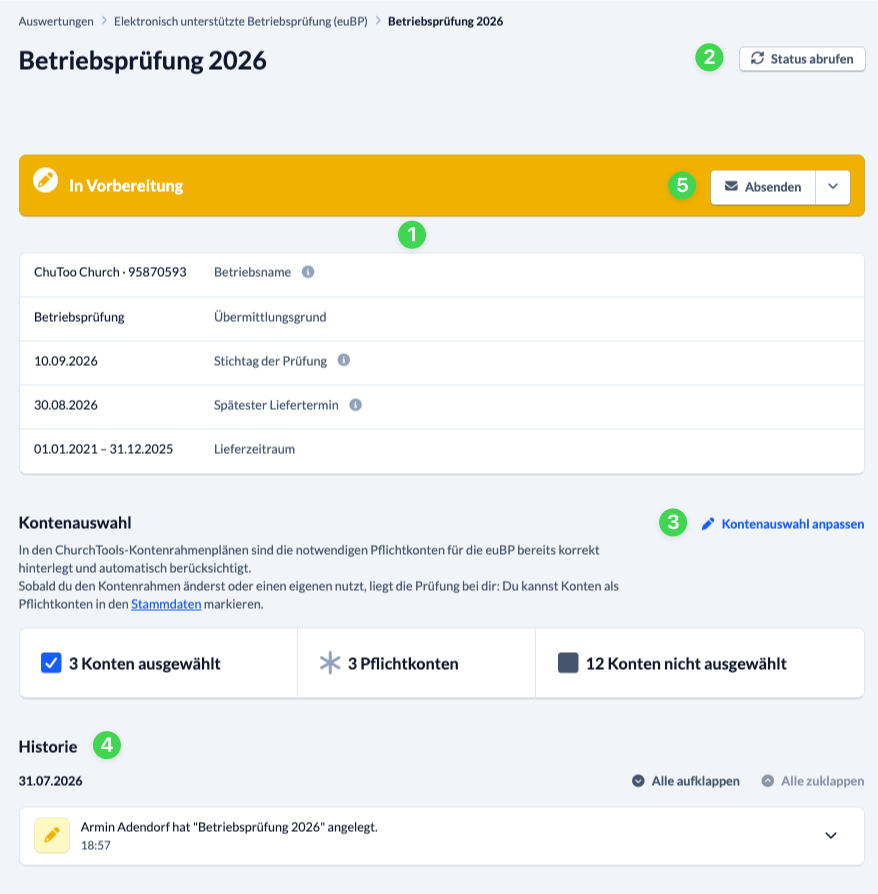
To review the exam one last time before submitting it and make any final adjustments, select it from the list.
In the detail view, you’ll see the current status and the stored information for the review at the very top (1). Depending on the response from the DRV, the status can be “In Progress,” ” Sent,” ” Receipt Confirmed,” ” Complete Review,” or ” Error.”
Use the ” Get Status ” button (2) in the upper right corner to manually update the status of the test.
In the ChurchTools chart-of-accounts, the required accounts for euBP are already correctly configured and automatically included in the audit. As soon as you change the chart of accounts or use your own, the audit is your responsibility: You can mark accounts as required accounts in the master data. Use the “Customize Account Selection” button (3) to review your selection and edit it if necessary.
In the History (4), you can review the details of each step.
Once you have reviewed everything and entered it correctly, submit the prepared exam documents by clicking the ” Submit” button (5) in the status bar. Using the dropdown menu to the right of it, you can cancel or abort the submission of the exam, depending on its current status.