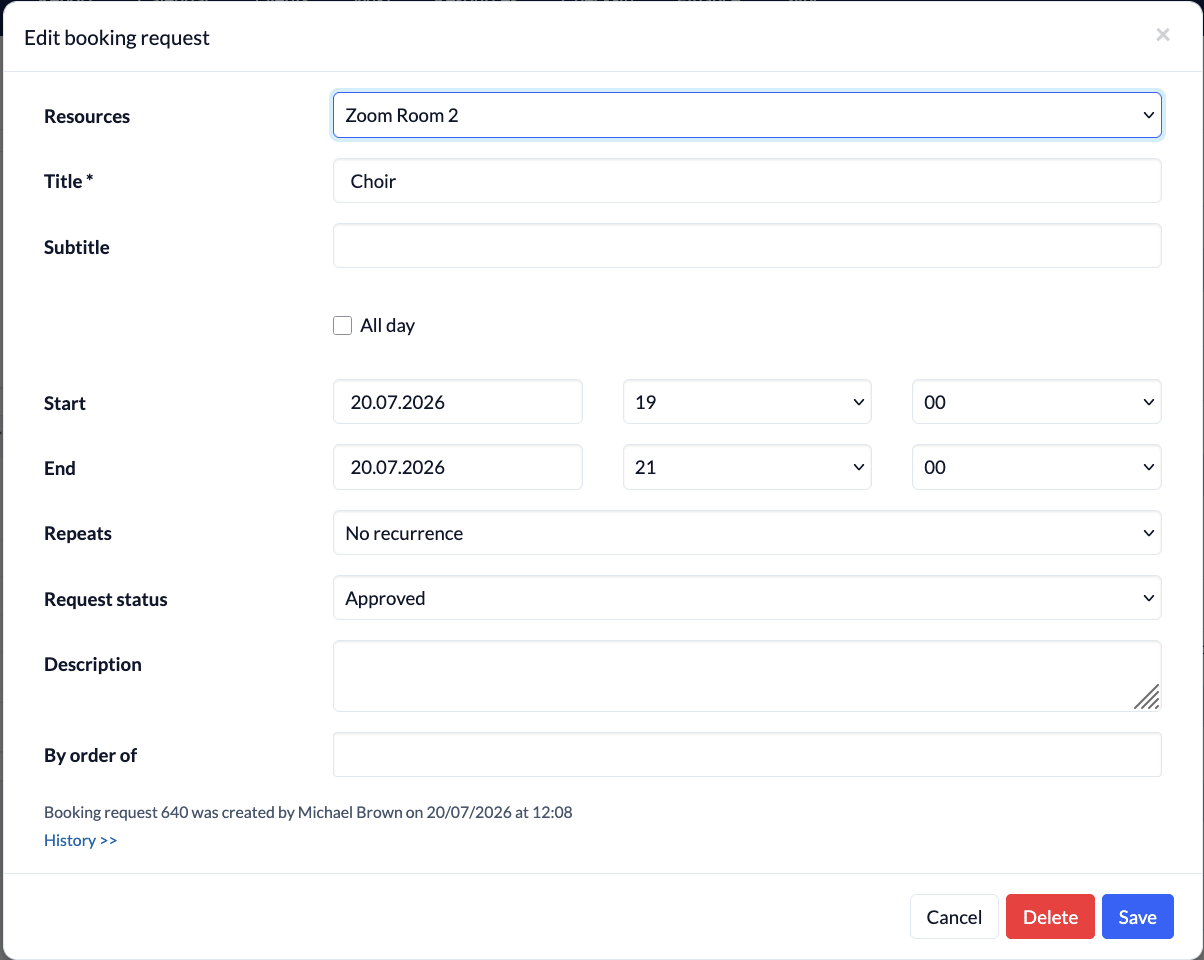
1. Create a new request #
Switch to the Resources module and either click directly on a table field in the resource booking schedule for the desired date, or click “+ Create new request” in the menu on the left.
2. Fill in information #
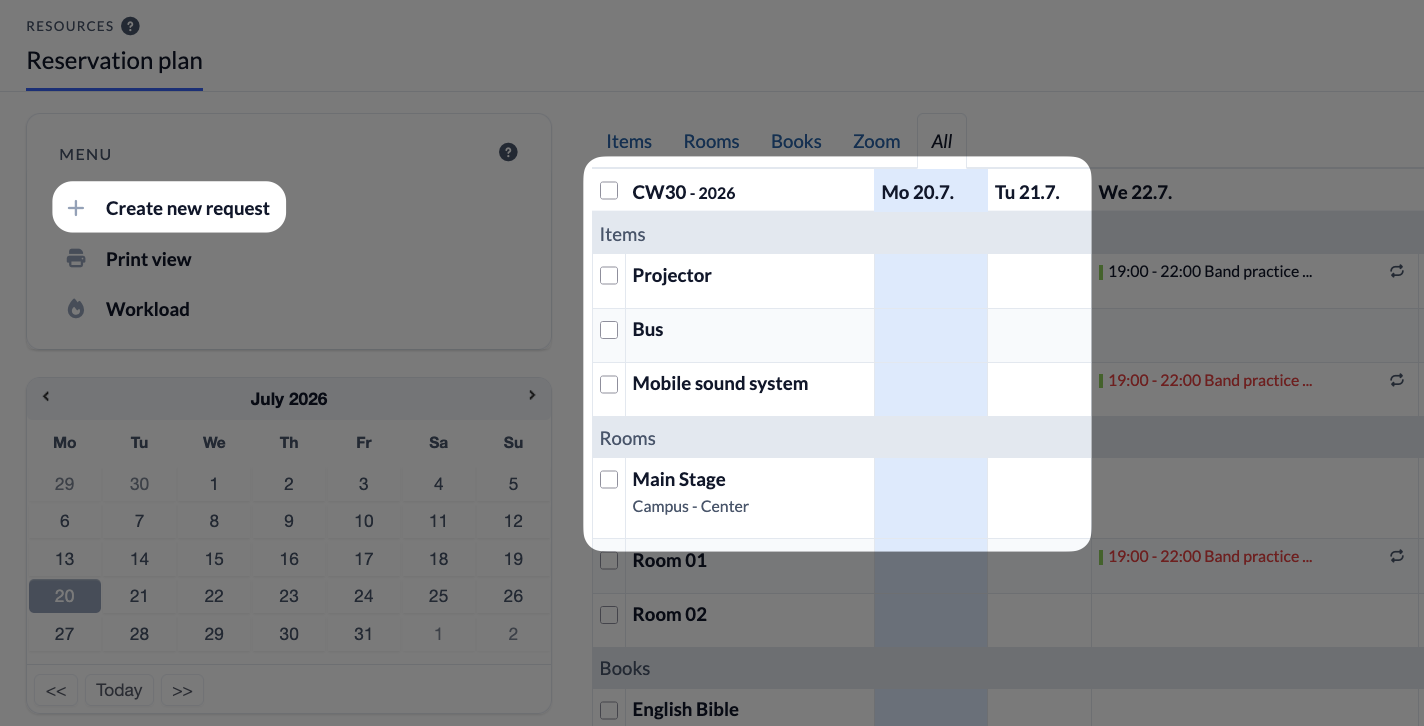
In the ” Create Booking Request ” window, fill in all the required information.
- First, select the resource and enter a title and, if you’d like, a subtitle for your request.
- If you create a request for a full-day appointment, the time selection option disappears after you check the box.
- Select the date and, if necessary, enter the desired start and end times for your resource reservation.
- For a recurring appointment, you can set the frequency and duration of your appointment series under
“Repeats (5).” - The request status lets you know whether your booking has been confirmed immediately or is pending confirmation by a manager.
- Under “Description,” you can enter a short text.
- If you’re performing a transaction for someone else, search for their name here and enter it. If the person isn’t saved in your ChurchTools, you can add them directly if you have the necessary permissions.
- Clicking “Save” completes your resource reservation.
3. Delete a booking request #
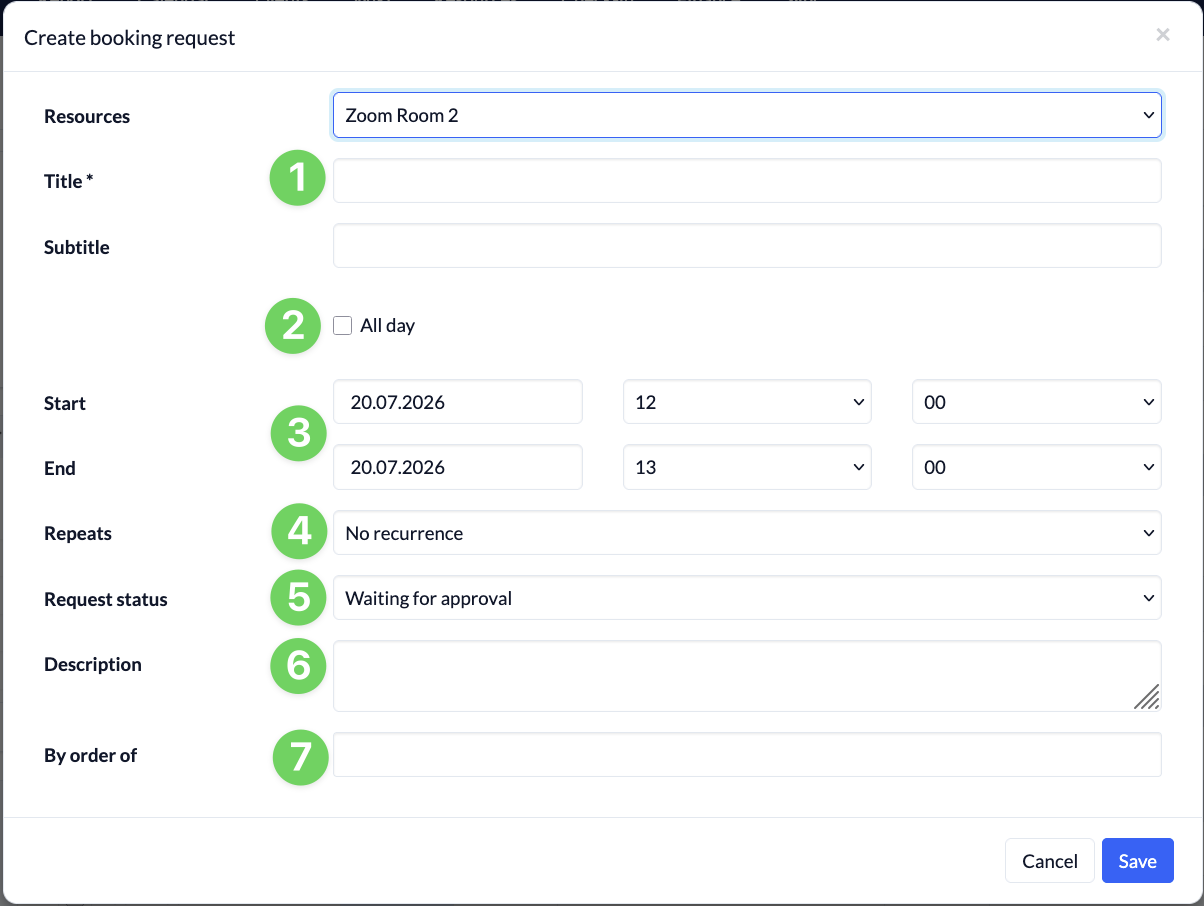
If there are any changes to your resource request, or if you no longer need the resource, you can access your request through the booking schedule and edit or delete it.