What would groups in ChurchTools be without the people who belong to them and bring them to life? ChurchTools offers several ways to add people you’ve entered into ChurchTools to groups. You can add individual people directly to a group, add multiple people at once using a bulk action, or add selected people through automatic group memberships.
In addition, you can add people directly to groups during check-in, and of course, people can add themselves to public groups by completing registration.
In this article, we’ll explain the first two options (you can find more information about the others on the linked help pages): You can either open the relevant group and add a person using the “+ Add New Member” button, or you can select one or more people directly from the contact list and add them to a group using the bulk actions feature. The latter option is especially useful when you want to quickly add a large number of people to a group.
Option 1: Single person #
1. Call up group #
In the ” Groups ” module, find your group and open it.
2. Add a member #
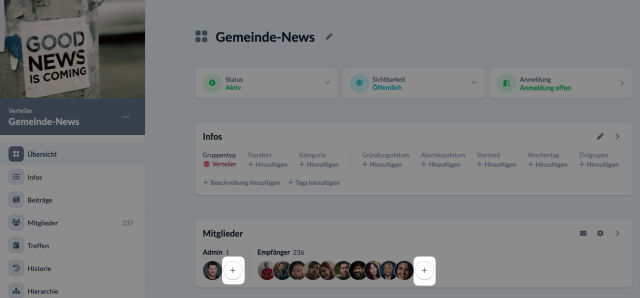
In the overview, click the plus button under “Members” next to the Role to which you want to add someone. In the window that opens, search for the person and enter additional information about the future group member before adding them.
Option 2: Multiple people at the same time #
1. Open the list of people #
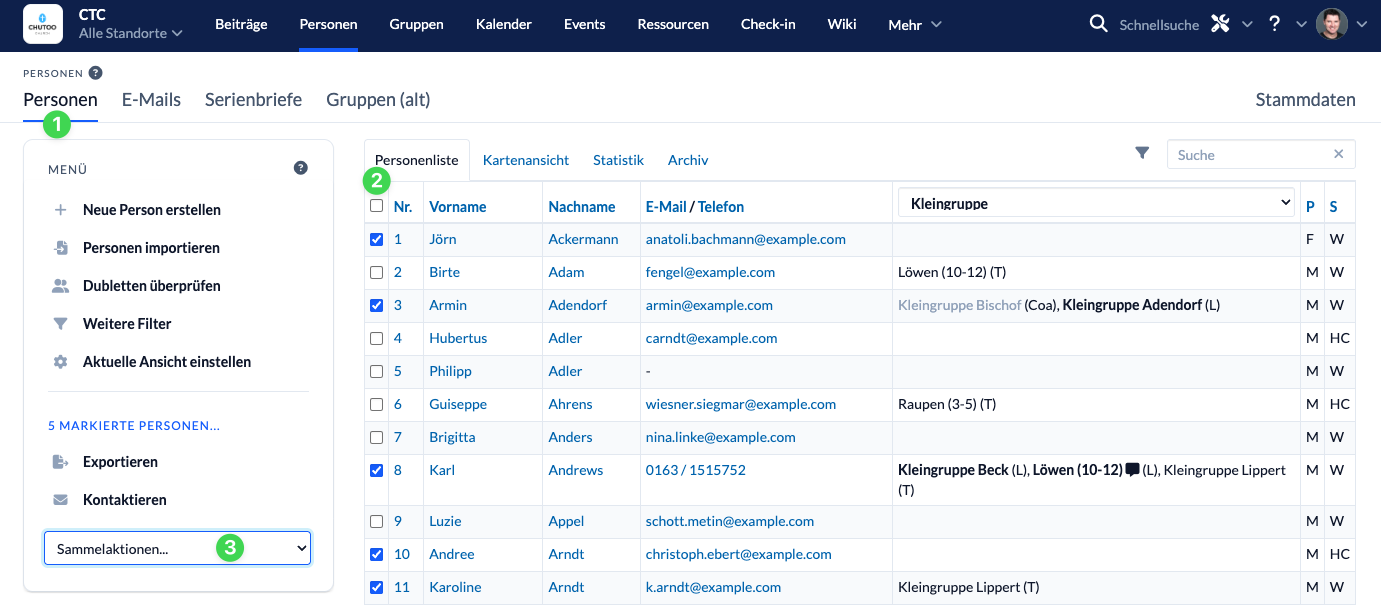
In the People module, open the list of people.
2. Select people #
In the list, select the people you want to add to a group with the same group role and group membership status.
3. Select a fundraising campaign #
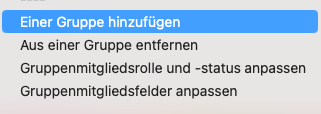
Next, select the ” Add to a Group ” action from the list of bulk actions on the left. After selecting the group type for the target audience in the window that opens, choose the group, specify the Role and group membership status of the new group members, and click ” Execute ” to add the people to the group.