The right-hand column of the Check-in module displays all the people who are already members of the selected group.
If you haven’t selected a group yet, use the filters under ” Meetings ” and ” Group ” to specify a specific group and a group meeting.
1. Search for a person #
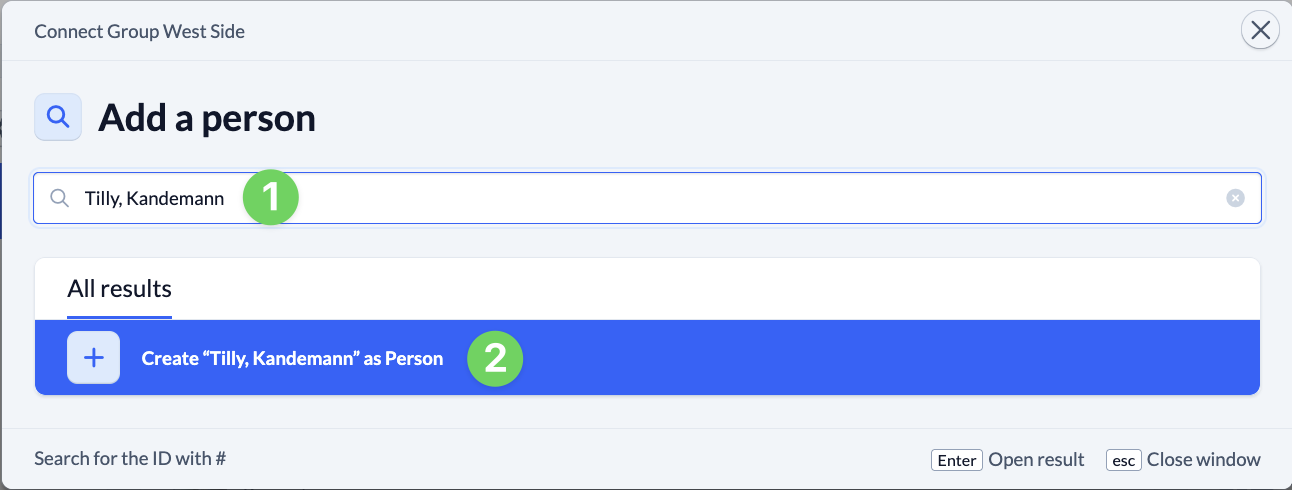
If a person whose attendance you want to record is missing from this list, they may not yet be a member of the selected group. In that case, you can search for them in ChurchTools using the blue plus icon(1) and add them to the group. They will then appear in the list in the right-hand column.

2. Create a person #
If there is no record for that person in your ChurchTools yet, you can create a new record for them by clicking the [Name] Create as Person button (2).
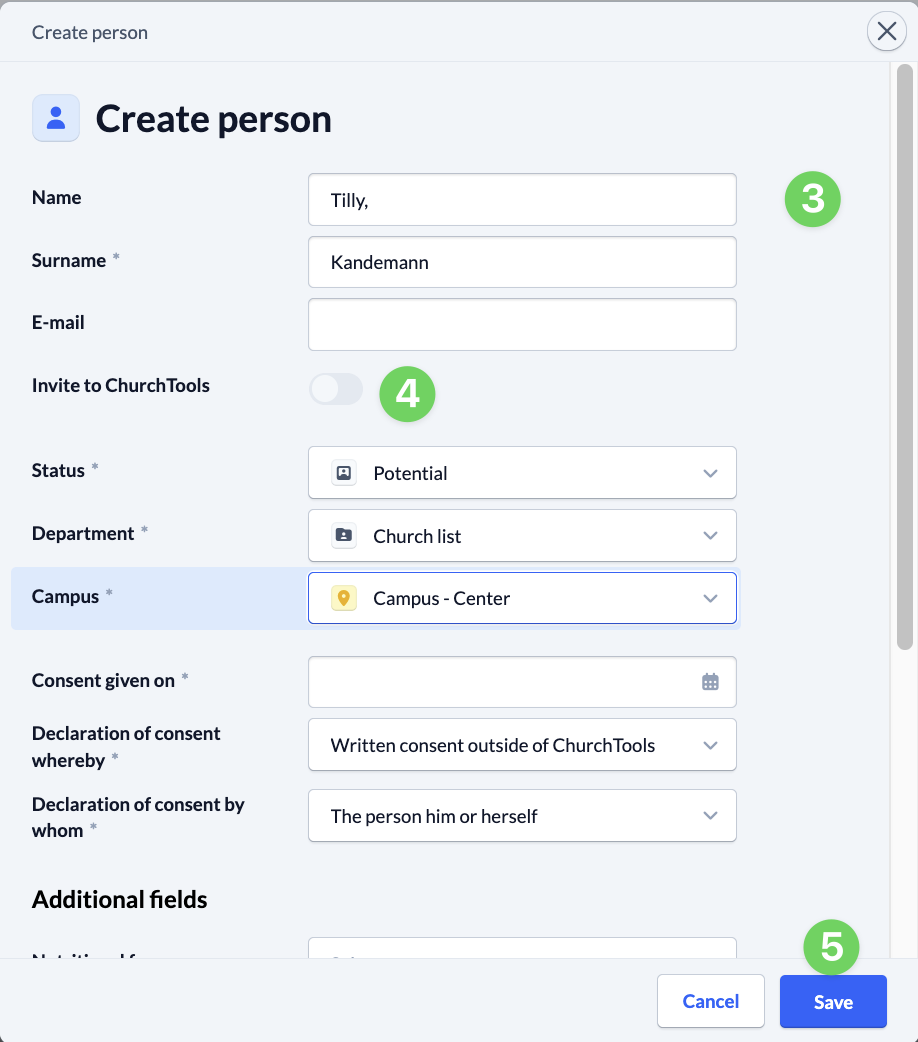
In the following dialog box, enter the person’s information (3), fill in the required fields, and optionally fill in any additional fields. If you click the “Invite to [My Congregation]” button (4), the person will automatically receive an e-mail after you save the information, allowing them to create an account.
If you save (5) this record, the newly created person will automatically be added to the selected group and their attendance will be recorded.
Create a new person in the app #
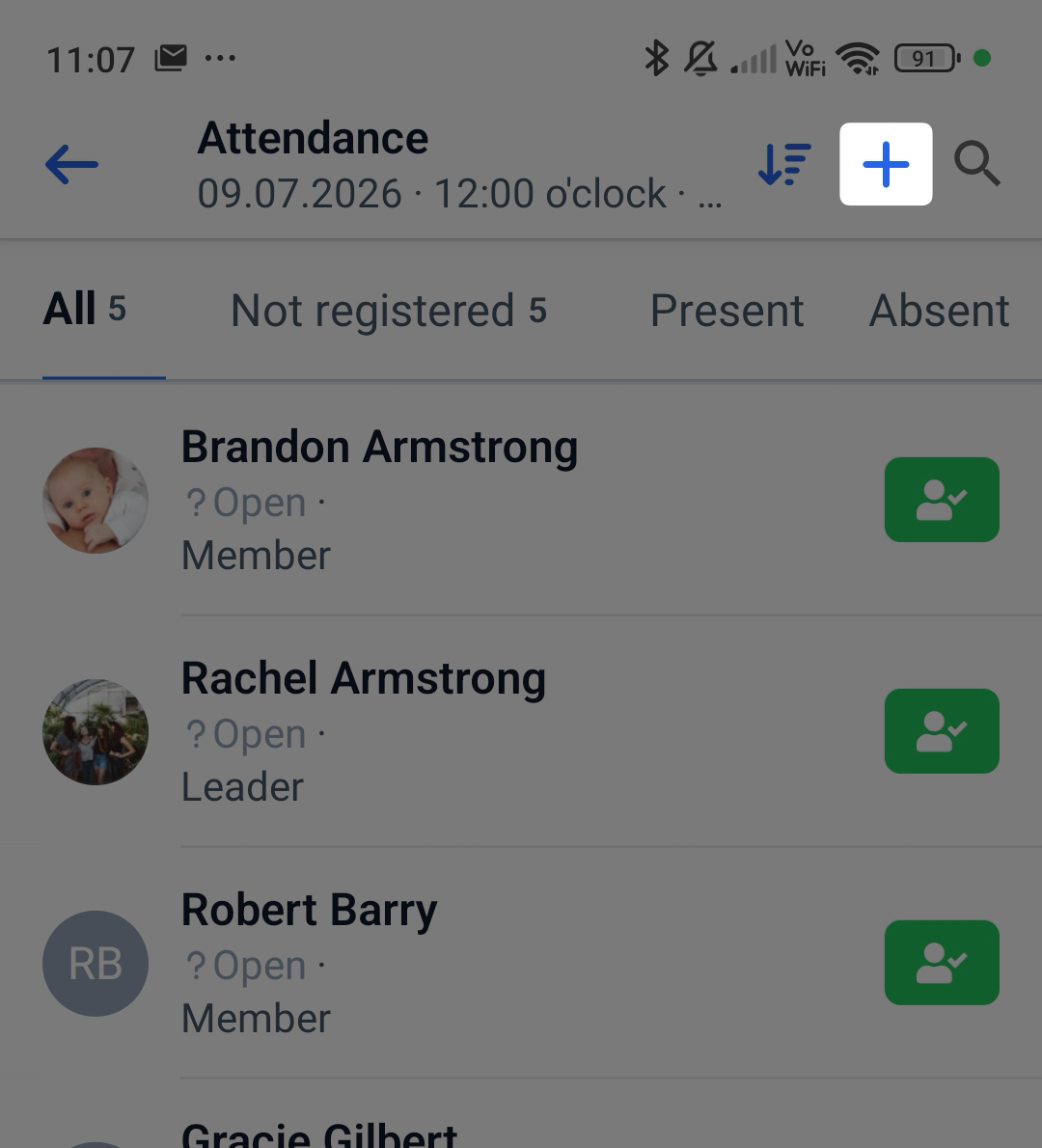
It works the same way in the app. Here, you can create a meeting through your groups, and when taking attendance, you can also use the blue plus icon to search for or add a person who isn’t shown in the list.