When you start using ChurchTools Finance, one of the first steps is to import your cost centers into ChurchTools so that you can create transactions and manage your financial data in ChurchTools going forward.
With the cost center import feature, you can import all data that you have in digital form and that is directly related to cost centers into your ChurchTools. In this guide, we’ll walk you through the best way to do this, step by step.
1. Upload data #
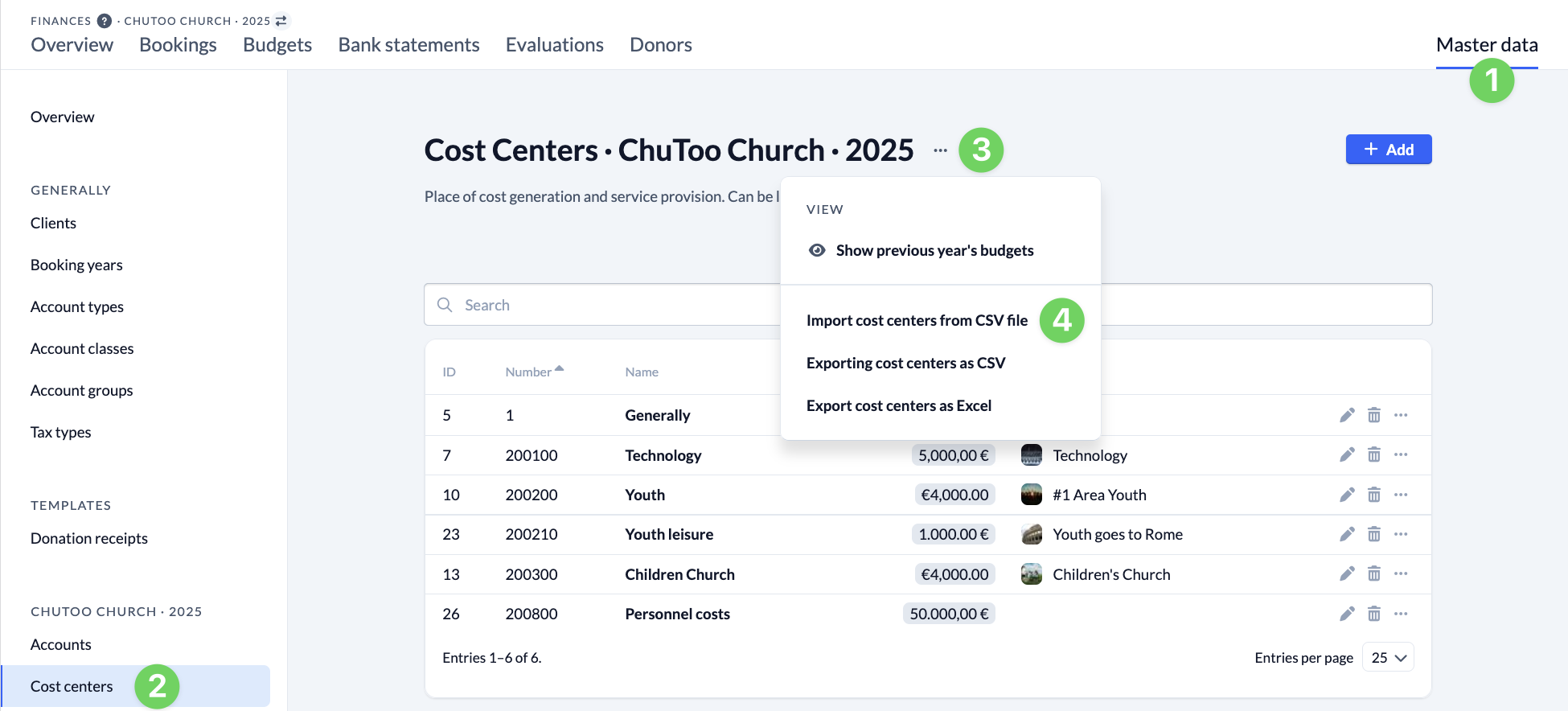
In the Finances module, open the Master Data (1), navigate to Cost Centers (2), and click the three dots (3) next to the heading to open the context menu for the cost centers. Here, select “Import Cost Centers from CSV File” (4).
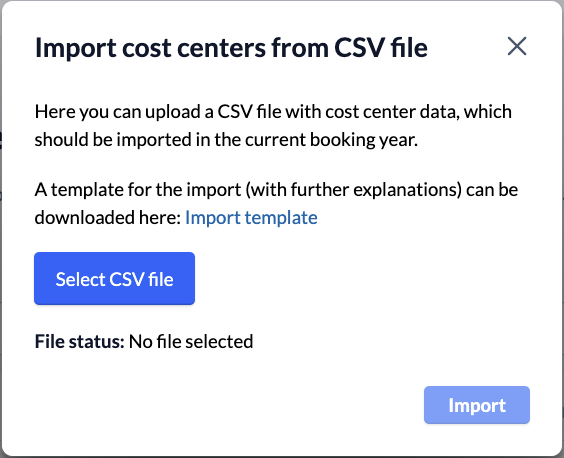
In the window that opens, click ” Select CSV File ” to upload your prepared file.
2. Import Cost Centers #
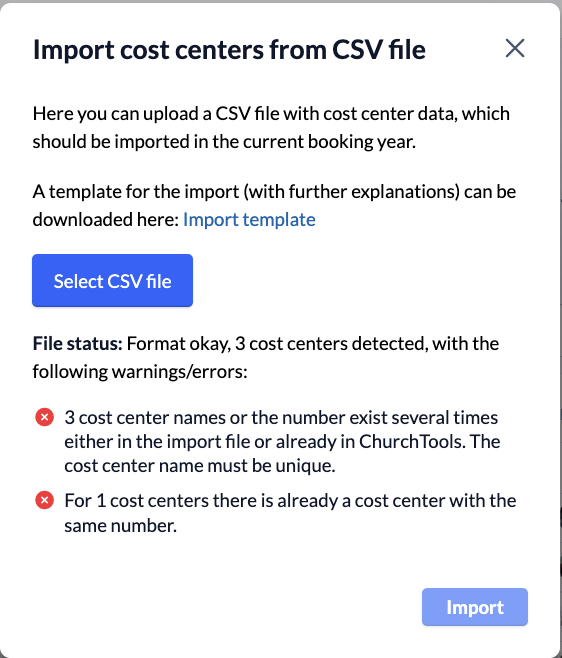
After uploading your CSV file, the file status will be displayed at the bottom of the same window. Here you can see whether the format is correct and how many cost centers were recognized.
In addition, any warnings or errors that you should address before importing will be displayed below.
When you click ” Import,” the cost centers will be imported into the master data for the current fiscal year, where you can continue to edit them.