


To avoid having to manually enter every PayPal transactions, you can generate a PayPal activity report and import it into ChurchTools Finances under “Bank Statements.” This page describes the specific considerations you need to keep in mind when importing PayPal activity reports.
Here, we’ll explain how to use bank statements in general. And here, we’ll show you how to import bank statements and create transactions from them, or how to import bookings as a CSV file.
1. Download the activity report from PayPal #
First, download the activity report from PayPal, which you can find at the following link: https://www.paypal.com/reports/dlog. Alternatively, you can find it at:
(1) Activities
(2) Download button
(3) Custom > Activity Report (under the Activities tab)
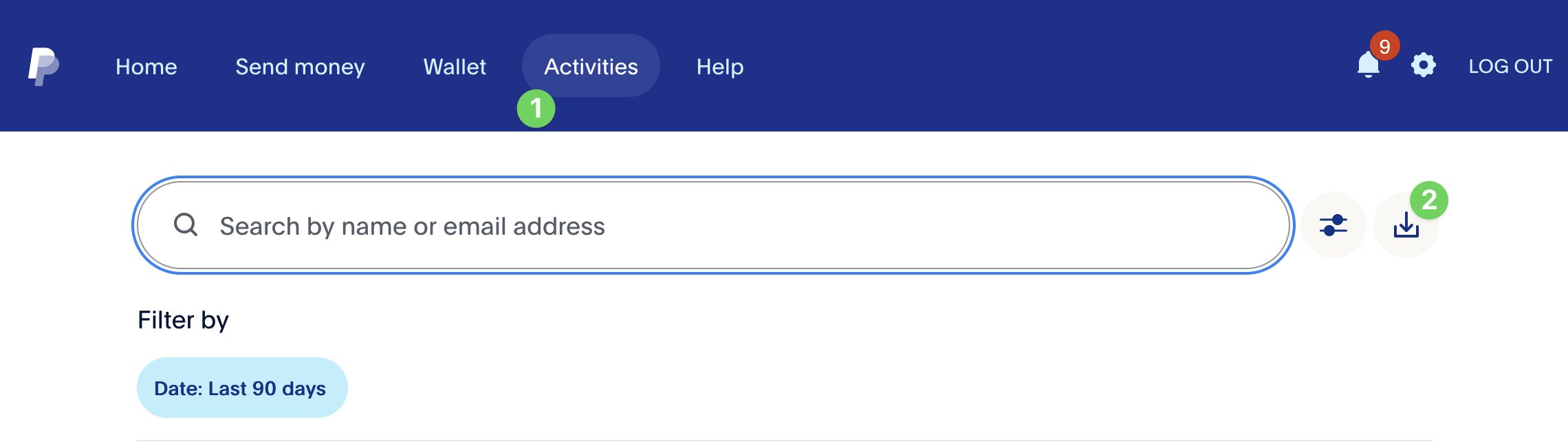
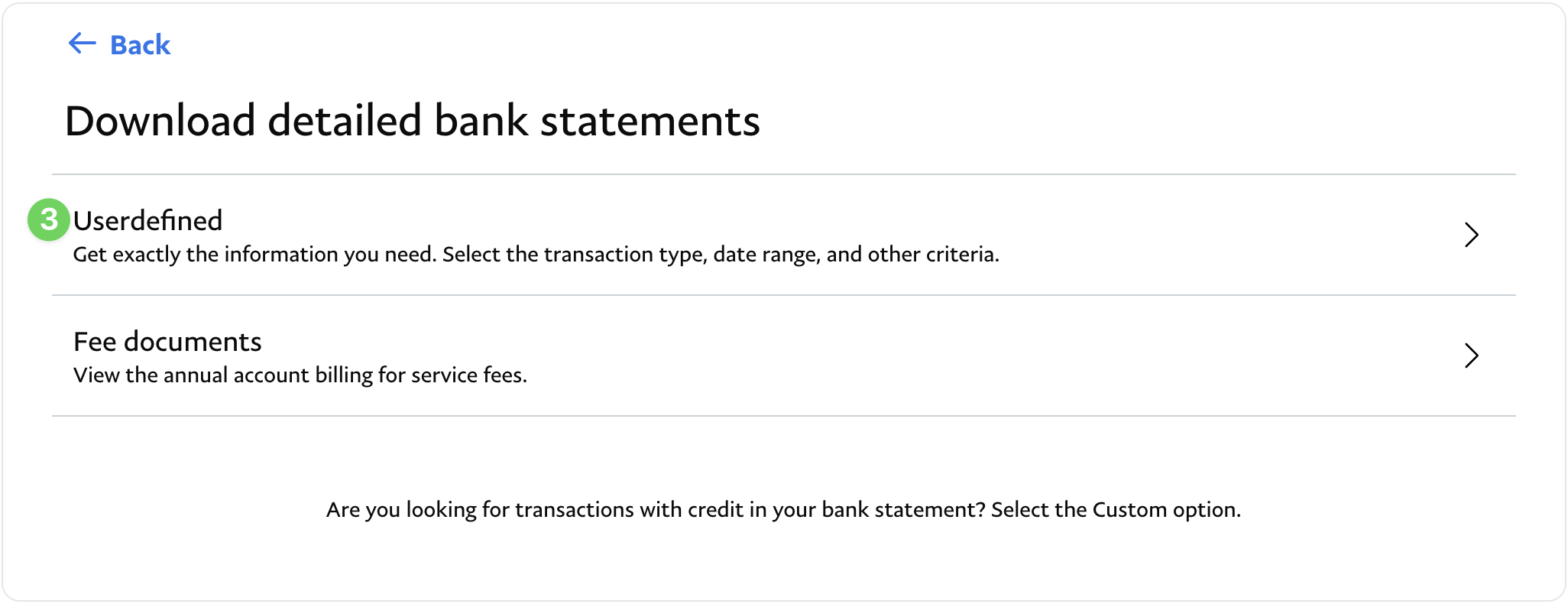
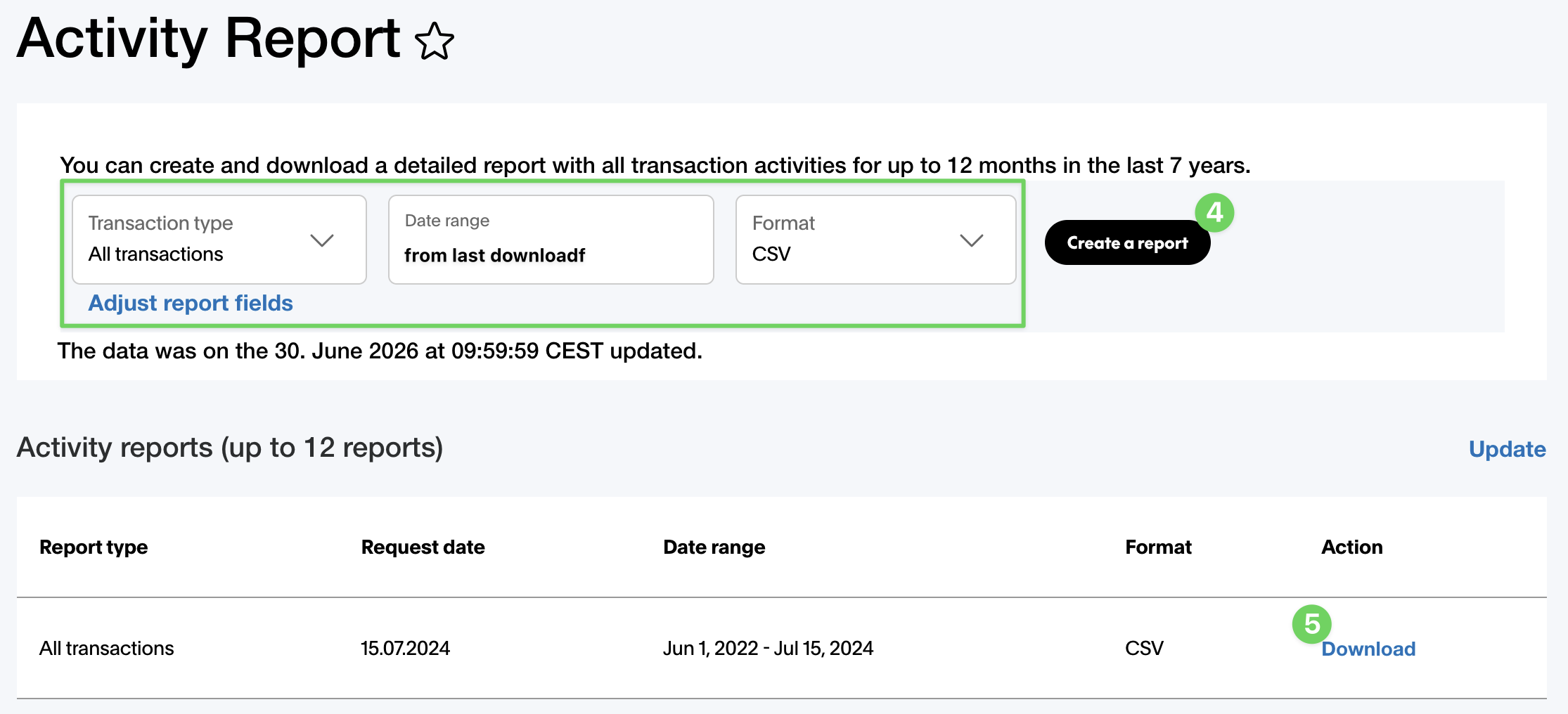
Select ” All Transactions ” as the transaction type. The format must be CSV. You can choose any time period. ChurchTools Finances recognizes transactions that have already been imported. However, PayPal makes it easy for you by ensuring that the report includes only transactions from the last download onward.
Then click on “Create Report ” (4). Depending on the number of bookings, it may take a few minutes to generate the report. You can download the reports you’ve created from the ” Activity Reports ” table (5).
Required fields #
PayPal offers many fields that can be exported as columns in the activity report. Not all of them are relevant to ChurchTools, but there are some that are necessary for the import into ChurchTools to work. The following fields must be included in the CSV file:
- Date
- Description
- Gross
- Net
- Remuneration / Fee
- Fee
- Credit / Balance
- Transaction Code / Transaction ID
- Sender’s e-mail Address / From e-mail Address
- Name / Name
- Type
- Recipient’s e-mail address / To e-mail address
- Item Name / Item Title
- Item Number / Item ID
- Note / Remark
- Impact on Balance
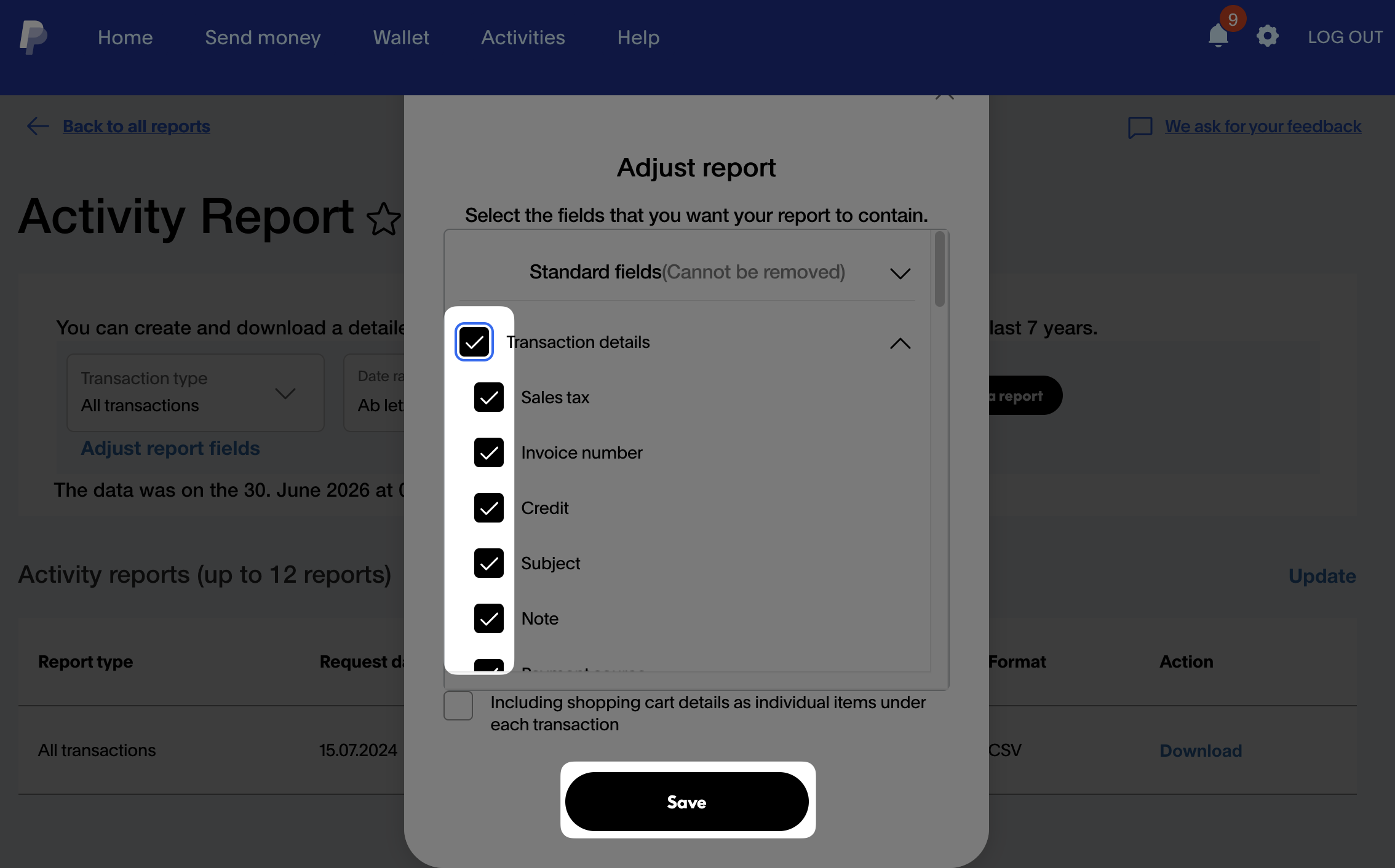
If any fields are missing, they can be added to the export under ” Adjust Report Fields.” Alternatively, you can select all details to include them in the report. ChurchTools ignores any fields that are not needed during the import.
2. Import the report into ChurchTools #
You can now import the CSV file you created into ChurchTool Finances under ” Bank Statements.”
If you have never uploaded a PayPal activity report before, you will be prompted to select a cash account that does not yet have an account ID. If you upload another PayPal activity report, ChurchTools will recognize this and automatically select the correct account.

3. Transferring Money from PayPal to Your Own Account #
It’s important to note that when importing PayPal transactions, you should make sure to post debits through a money transit account. For example, if you transfer money from your PayPal account to your own checking account, you should not post the transaction directly to the checking account but first to a money transfer account. You can find more information about money transfer here.