


Songs in ChurchTools not only contain lyric information, but can also be linked to a song database, store different arrangements, include files, and much more.
Overview #
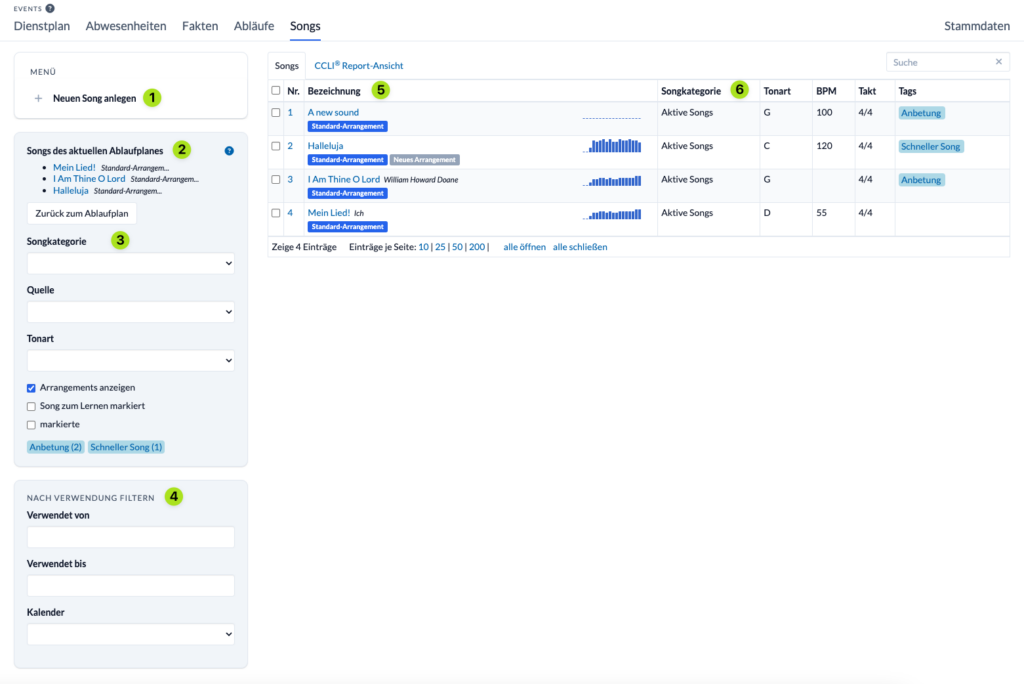
- (1) The “Create New Song” field is self-explanatory.
- Under (2) “Songs from the current Agenda,” the songs from the current Agenda are displayed to help you get your bearings. Of course, this is only the case if w if you had opened an Agenda beforehand.
- Under (3), you can filter the displayed songs —by song categories, sources, keys, and tags, among other things. More information on creating and editing songs is provided below.
- Under (4), you can filter the songs by usage.
- The list (5) then displays the individual songs along with various additional details:
- The Title and the Artists
- The different versions listed below can be selected (blue). The information updates accordingly based on which version is selected (for example, if a team plays the song faster or in a different key).
- The frequency with which a song was played in an Agenda is represented by small blue bars. In the CCLI Report view, this information can be exported to be submitted to CCLI. This song usage export also includes the song’s author. The information about the author makes it easier for you to submit the songs you’ve performed to VG Musikedition, since they require song titles and artist names.
Create Individual Songs #
Songs can either be created manually or imported from the SongSelect/CCLI database. First, you need to link ChurchTools to CCLI. After that, you’ll be able to import songs.
To create a song manually, enter the relevant information.
If you want to link a song to the CCLI database, type in the title and then click the blue CCLI icon next to the title. You can also enter the CCLI number directly.
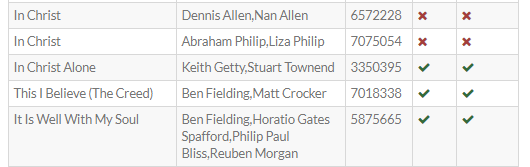
A list of suggested songs will open, including information on what types of data can be imported:
Now, if necessary, fill in the missing fields:
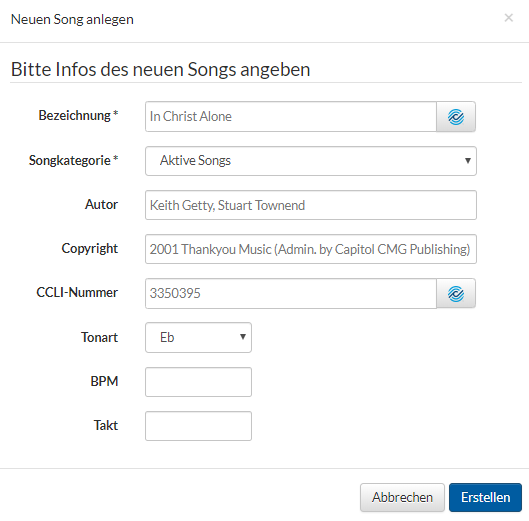
Just click “Create,” and the song will be added to the database.
Edit Songs #
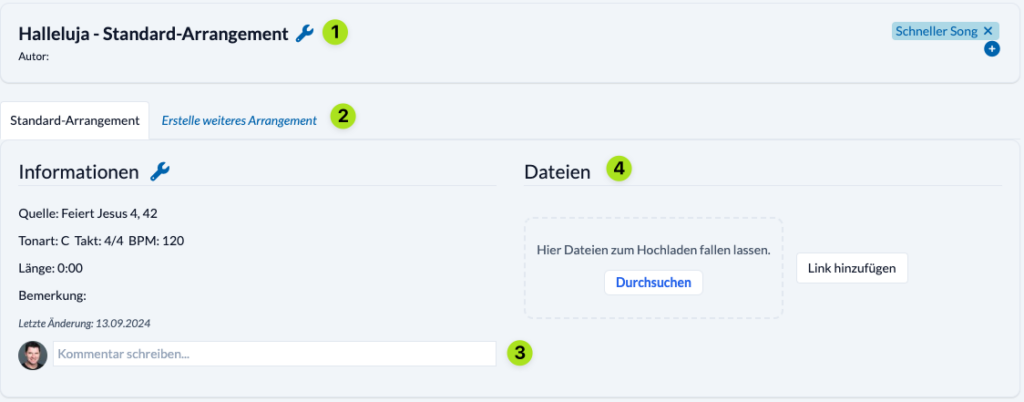
- Song Titles and Information(1)
Of course, the most important information is displayed at the top.
The “plus” sign on the right side of the title bar is somewhat hidden: this is where you can add tags to a song. - Different Versions and Arrangements (2)
In the tabs, you can see the different arrangements/versions of a song. Some music teams may play different versions and have saved different tempos or chords. All the information below applies to the respective versions. The source and key of an arrangement can also be specified here. - Comments (3)
Please use the comment feature for brief additional information. - Attaching and Linking Files (4)
A particularly convenient feature: You can attach files to each song or arrangement . A wide variety of file formats are supported.- There are four ways to attach files:
- You can drag and drop a file from your file manager directly into the field
- Select “Upload File” and then browse for the files in your Explorer/Finder
- Add a link (for example, to a YouTube video)
- Once you’ve linked the song to your CCLI account, you can re-download the files as often as you like. Want to play the song in a different key? Just click on it and add a new version:
- For MP3 files, a small playback icon even appears. Clicking on it opens a player and the song starts playing right away.
- Files from Songbeamer (sng) or ProPresenter can even be exported to presentation software as part of the Agenda.
- There are four ways to attach files:
CCLI® Auto-Reporting #
Since many of you use CCLI and therefore regularly report the songs you sing to CCLI, there is a CCLI Auto-Reporting feature. If this feature is enabled, all songs scheduled in Agendas are automatically reported to CCLI 7 days after the event.