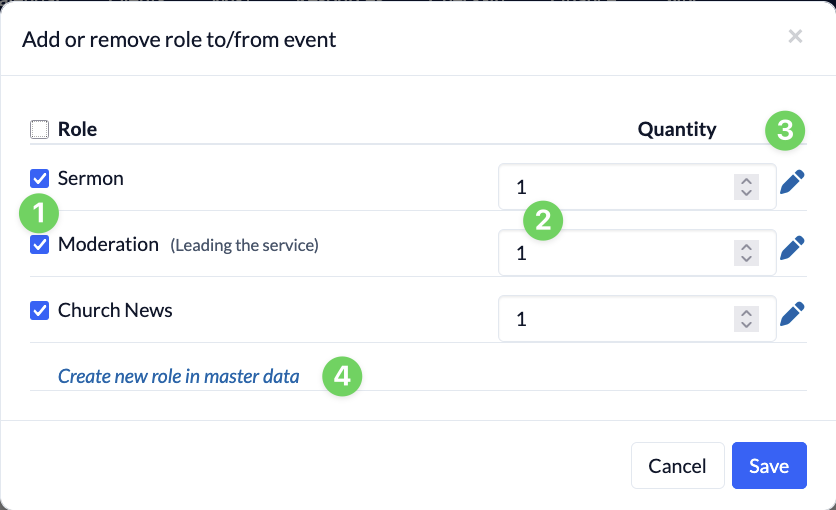
In ChurchTools, you can decide on a case-by-case basis for each event and each event template which roles are needed and how many staff members should be assigned to each role.
If an event occurs on a regular basis, you can select the necessary roles and number of staff for all events at once when creating the series. If something changes later, you can simply adjust the roles and number of staff for each individual event.
You can customize the roles either directly when creating an event or in an event that has already been created.
Customize roles for a new event #
1. Create a new event #
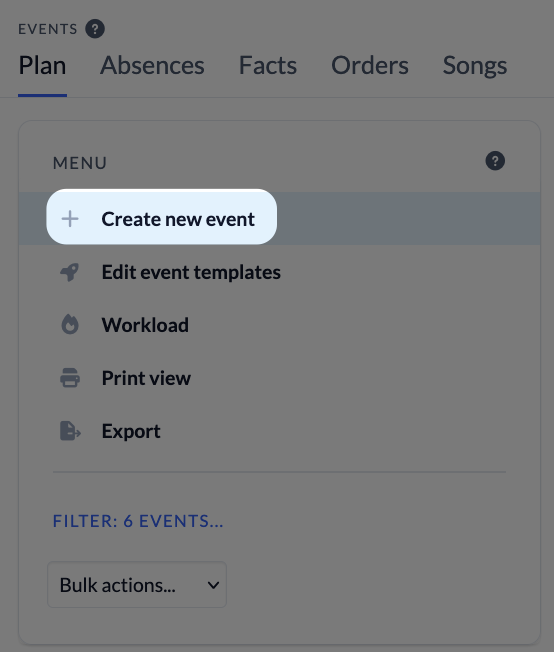
In the Events module, select ” Create new event ” from the menu on the left.
2. Adjust the number of employees per role #
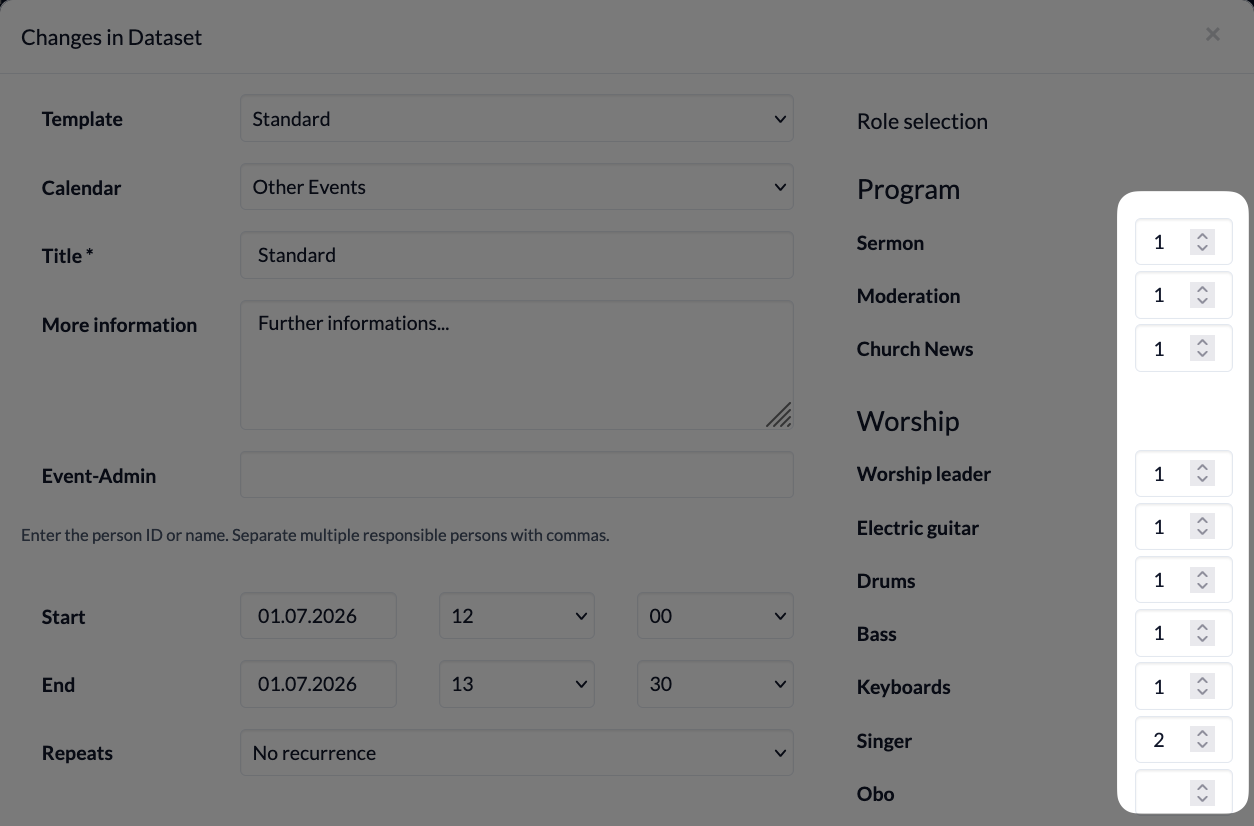
To create a new event, first select a template here and enter the information and details about your event. On the right-hand side, you’ll see all roles sorted by Role categories. The number of staff members specified in the template is already filled in here. You can now adjust these numbers as needed before saving your event.
Customize roles for an existing event #
If your event has already been created, roles sorted by role categories will already be listed here as well.
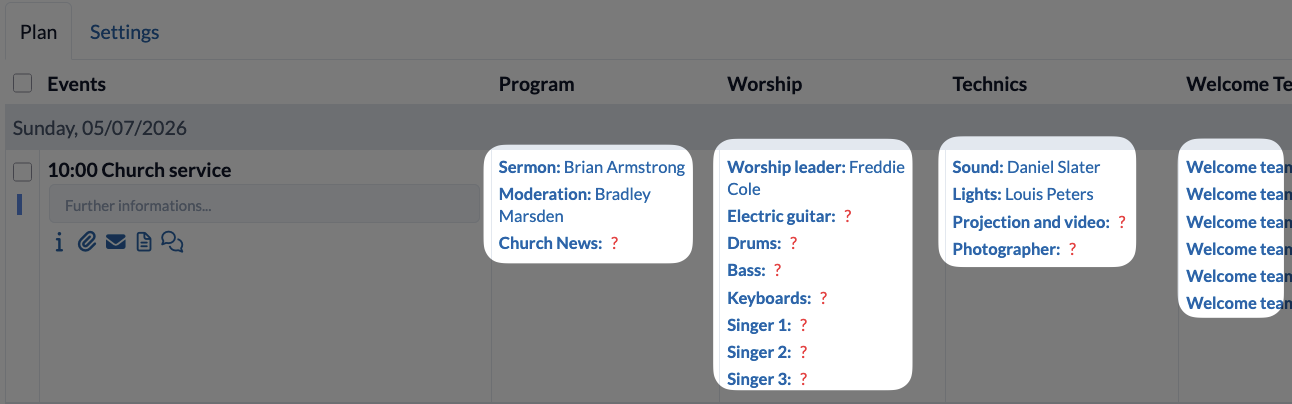
To adjust the roles and staff numbers here, hover your mouse over a role category. Three small icons will appear one above the other on the right side of the role category.
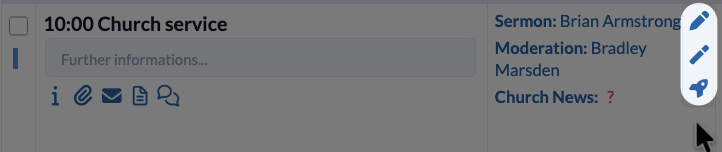
If you click on the pencil icon, a window will open where you can easily select or deselect roles (1) and adjust the number of employees (2).