With the “Integrated Agendas ” feature in the Events module, you can use the same agenda for multiple services at the same time—ideal for identical services held on different campuses or at different times.
Your changes to the Agenda automatically apply to all integrated services. You can still individually show or hide specific program items for each service. With integrated Agendas, you can efficiently coordinate multiple events using a single Agenda—while still allowing for customization for each event.
1. Create an agenda for the first worship service #
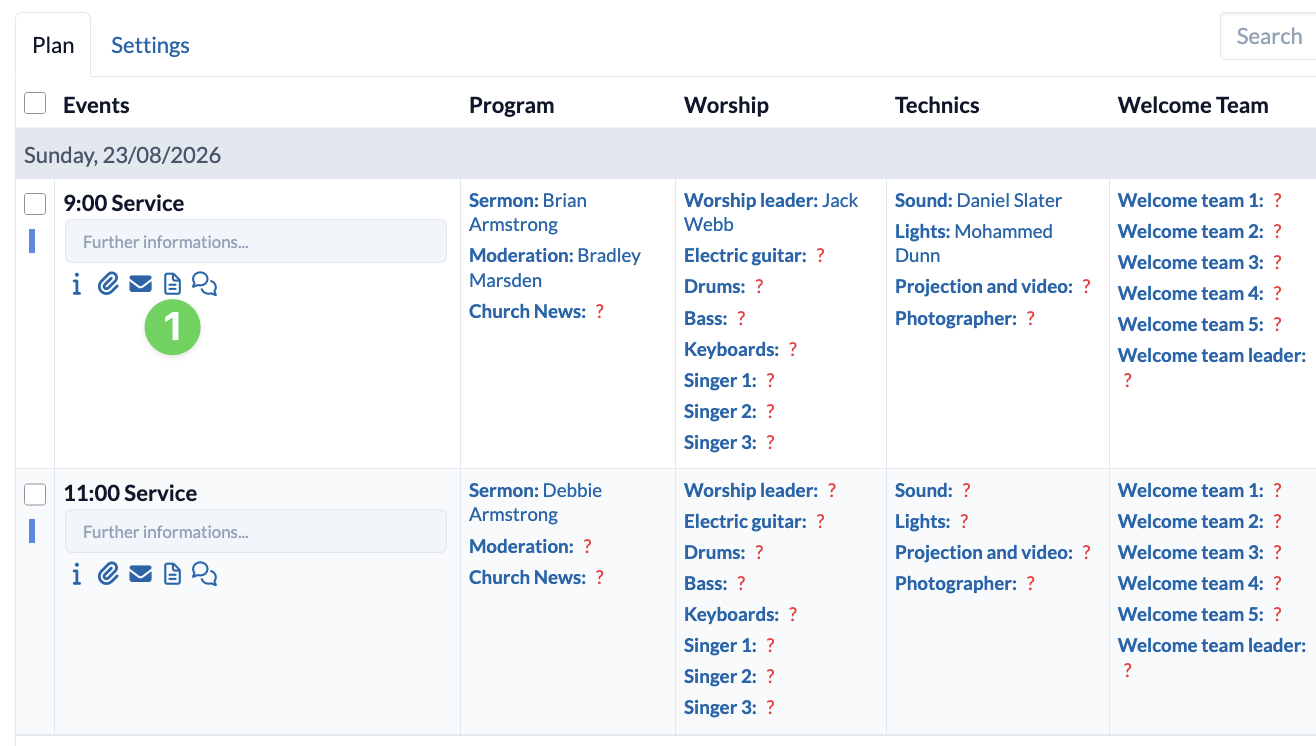
- In the Events module, open the Agenda (1) for the event you want to plan first (e.g., Service A).
- Select an event template or continue without one.
2. Integrate the agenda into another event #
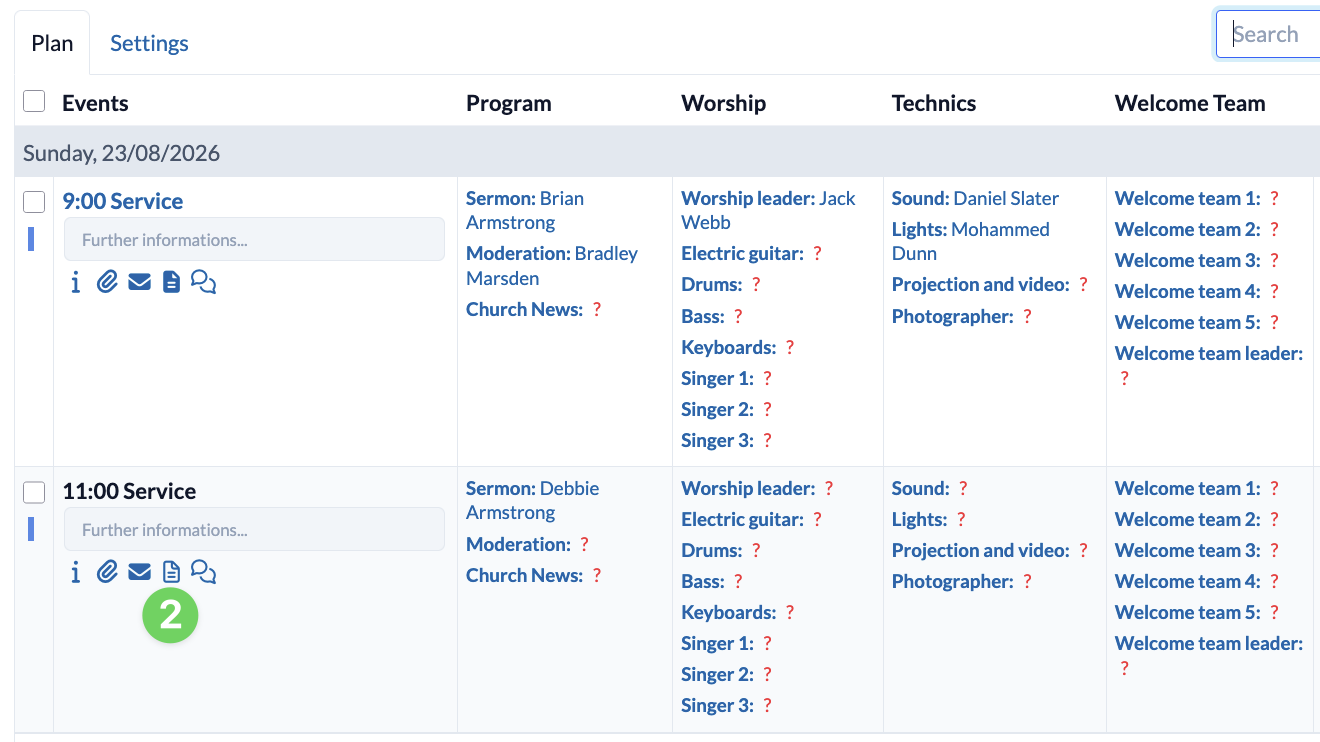
Open the second event (e.g., Service B) for which you want to use the same Agenda. Click the paper icon (2) to create a new Agenda.
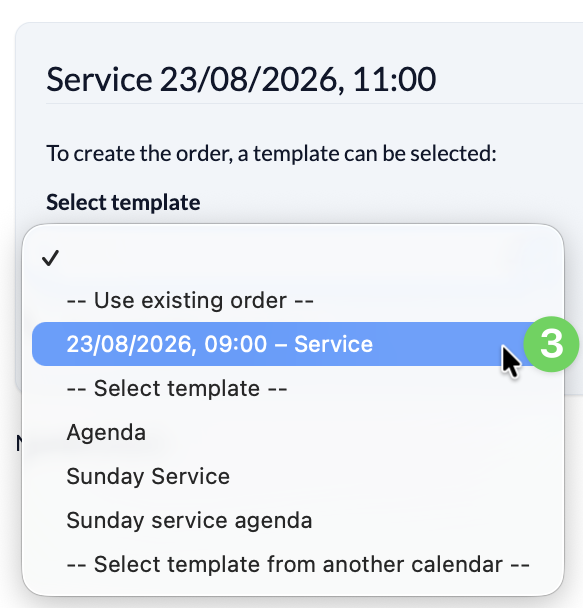
From the dropdown menu, select the Agenda (3) that you created for the first event.
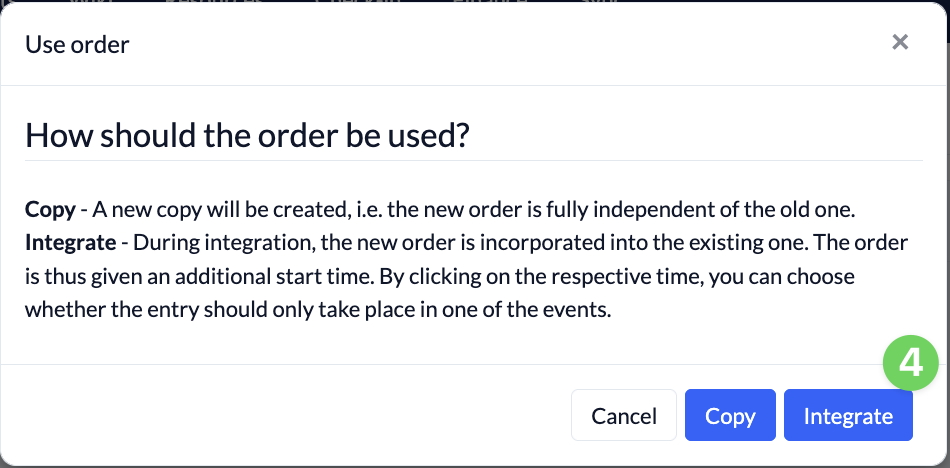
You now have a choice between two options:
- Copy: Creates a separate copy of the Agenda.
- Integrate: Links the events to a common Agenda (recommended for identical worship services).
Select ” Integrate.” (4)
3. Edit the agenda and keep it up to date #
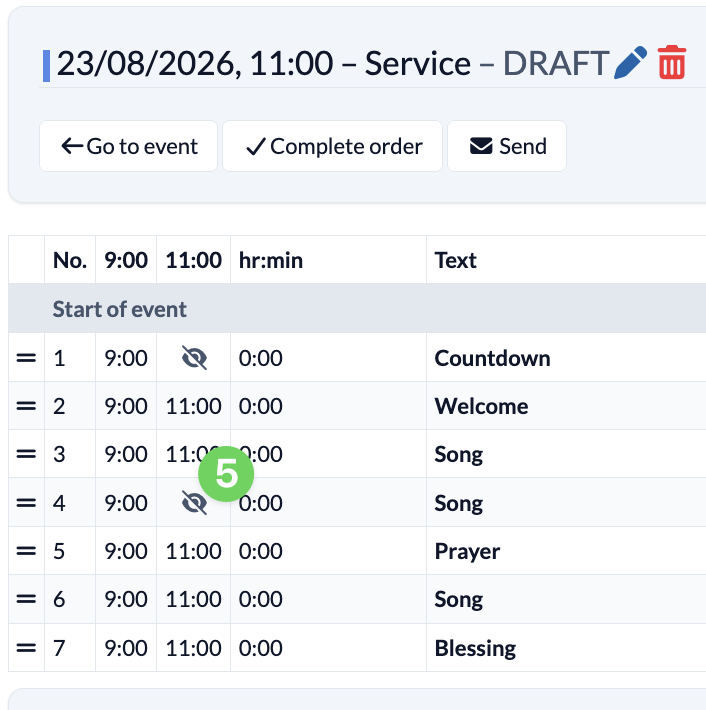
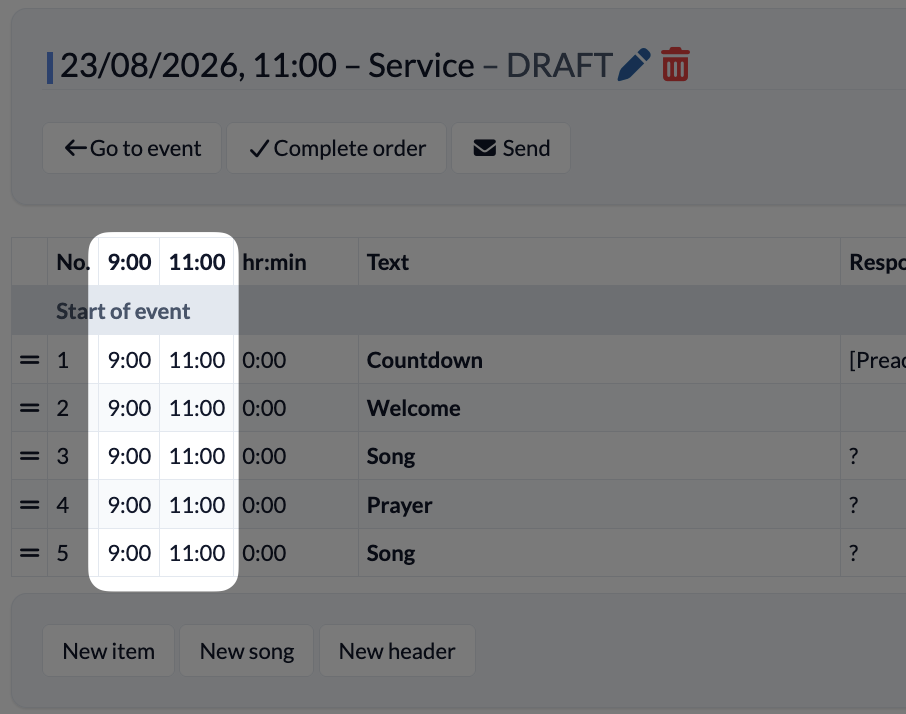
The agenda now shows several time columns, one for each scheduled event (e.g., 10 a.m. and 11 a.m.).
Changes such as moving or renaming elements affect all integrated events.
4. Hide individual elements for specific worship services #
Not every part of the program is included in every service? Then you can hide specific parts.
In the Agenda, click on the time of the item (5) that is not supposed to take place during a specific service. A crossed-out eye appears—the item is hidden for that service.