


Split entries allow you to split the total amounts of individual transactions and assign the individual amounts to different accounts and cost centers.
For example, you can allocate rental income to different accounts, break down individual items into reimbursements paid out, or assign a person’s donation to different projects.
This feature is included in the advanced posting view of the Financials module.
To split a booking or transaction, follow these steps.
1. Fill in the general booking information #
Check the ” Split Booking” slider.
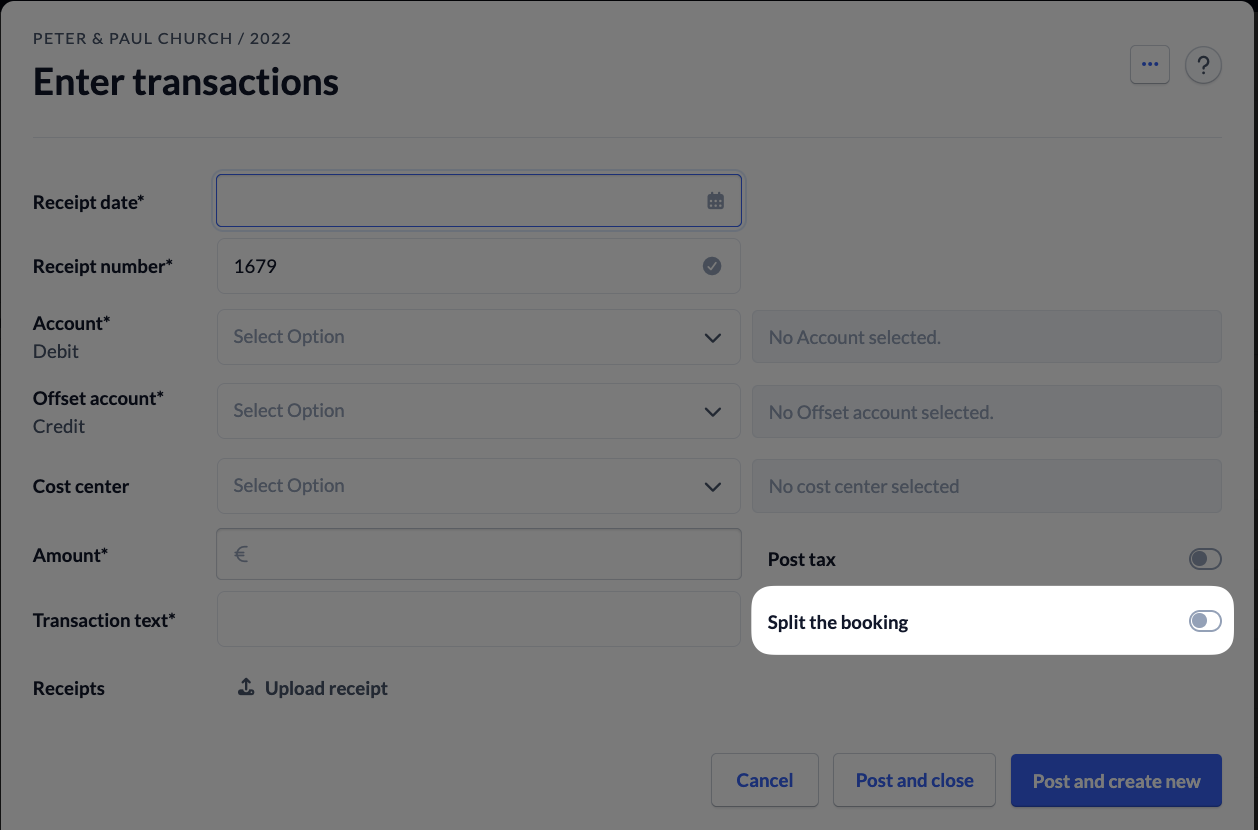
Next, fill in the required information that applies to the entire transaction and upload the relevant supporting documents for the booking. Except for the booking text and the total amount, this information will be carried over to all sub-bookings.
2. Fill out the partial entries #
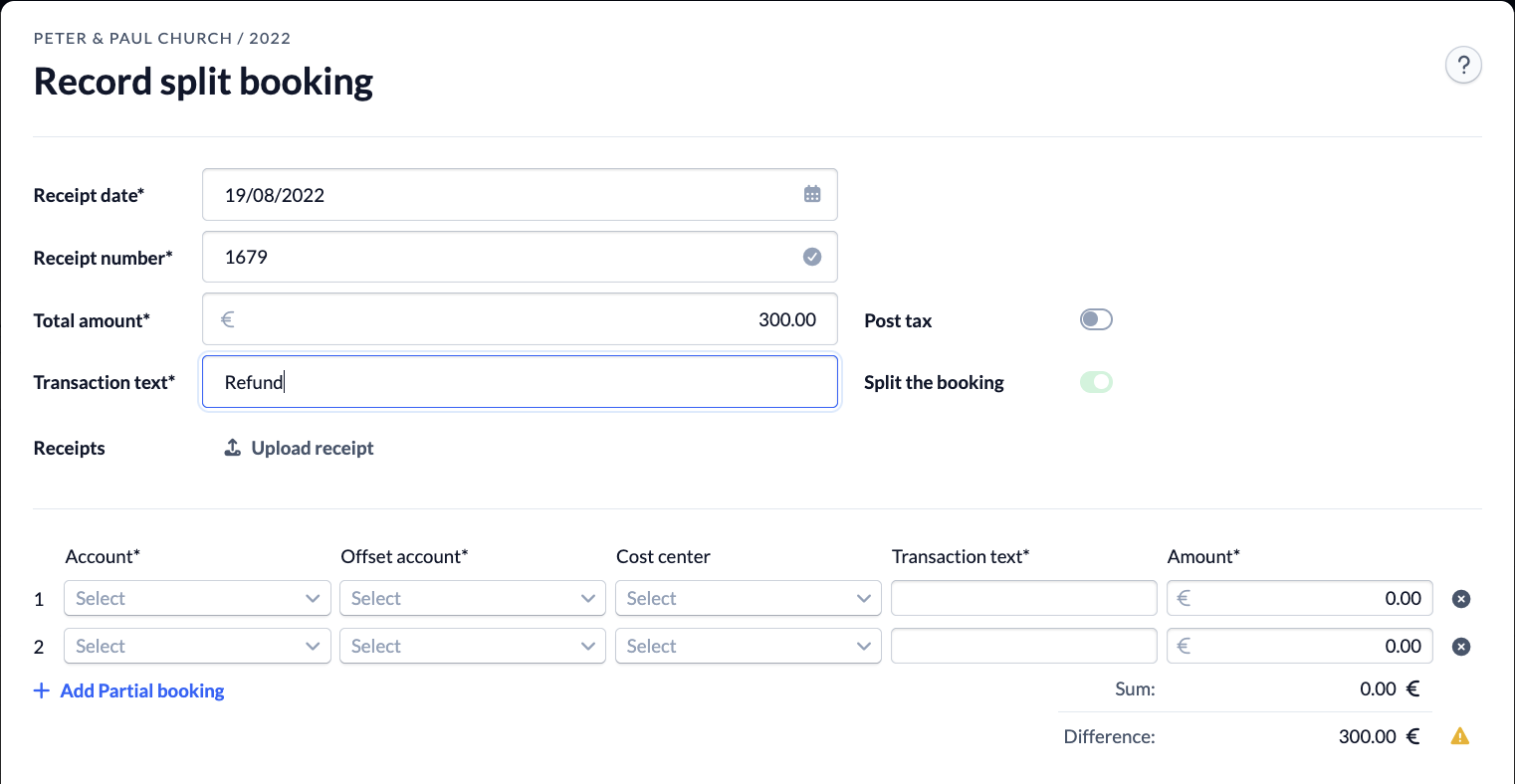
Next, you can enter the information for your partial entries.
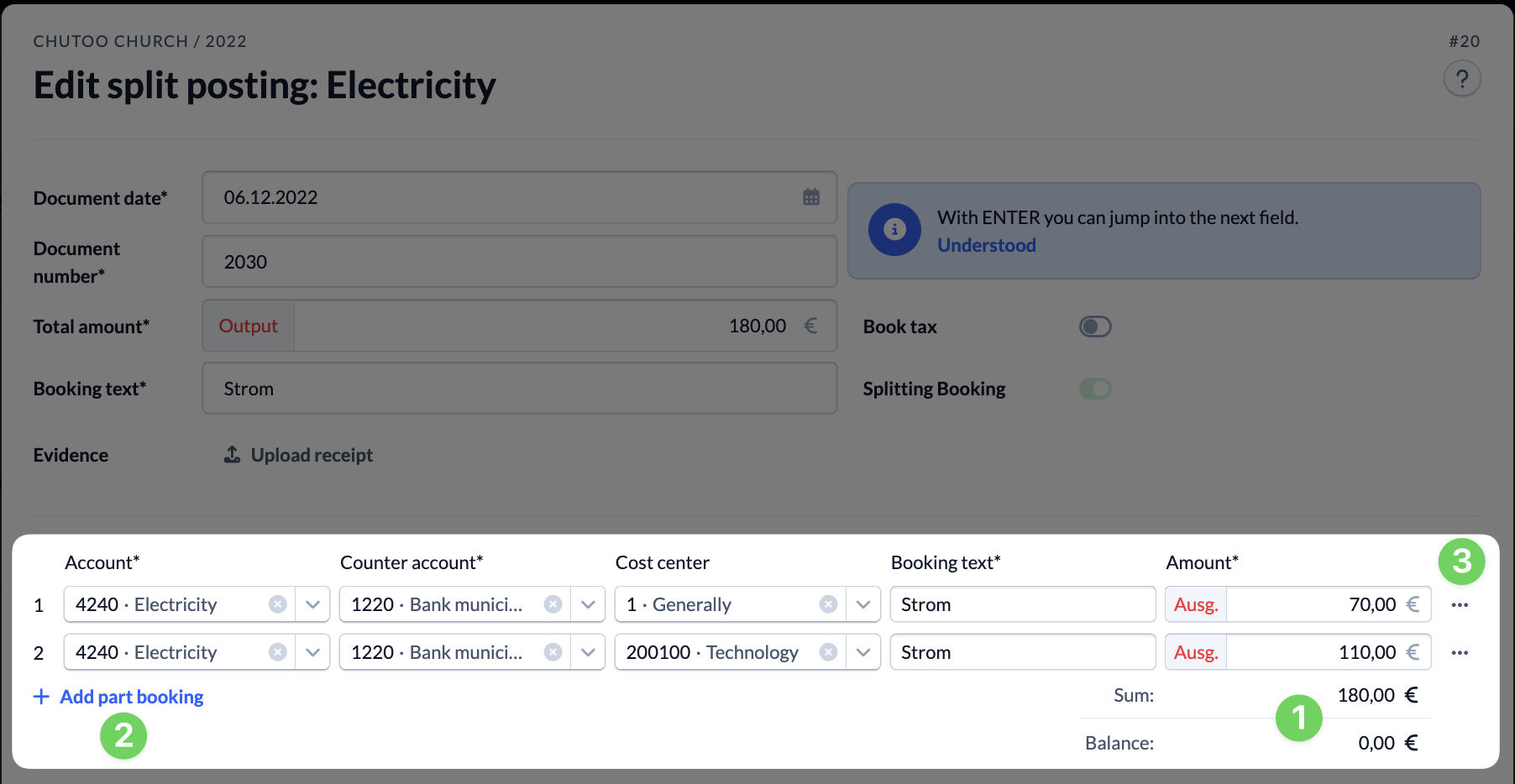
The individual amounts of the partial entries are automatically added together (1), so you can see right away whether your partial entries match the total amount entered above or how much is still remaining. You can’t save the booking until the amounts of the partial transactions match the total amount.
If you want to split your transaction into more than two sub-entries, you can use the ” Add Sub-Entry ” button (2) to enter additional sub-entries.
You can use the “X” button (3) at the end of a sub-entry’s row to remove that sub-entry.
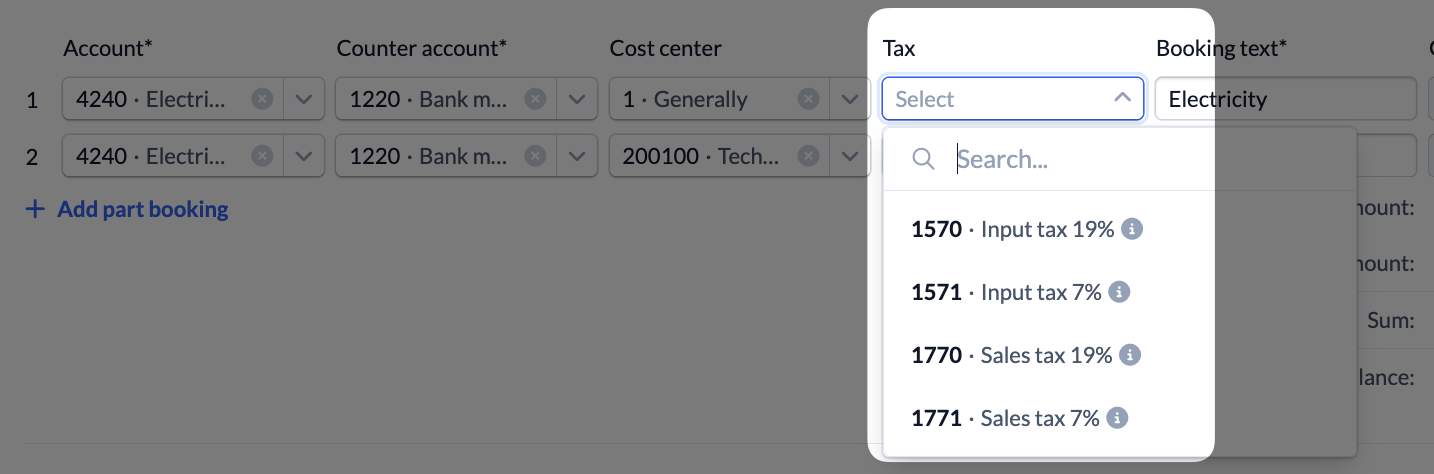
If you wish to post tax(es) for your booking(s), you can also enter this individually for each sub-booking once you have activated the ‘Post tax’ slider.
3. #
The transaction list now displays the individual entries for your split posting; you can identify them by the purple icon.
When you open an individual sub-entry, you can only view the entry details. To edit the sub-entry, you must open the entire split entry.
