You use the settings for the Groups module to form the structure of your groups. You define the information that can be saved for each group, describe your group types and adjust their roles. You can also create categories and group tags here to organize and sort your groups even better. This creates an overview.
In this article, we will give you an overview of the settings for the Groups module and provide links to other articles that describe the individual settings in more detail.
Call up settings for the Groups module #
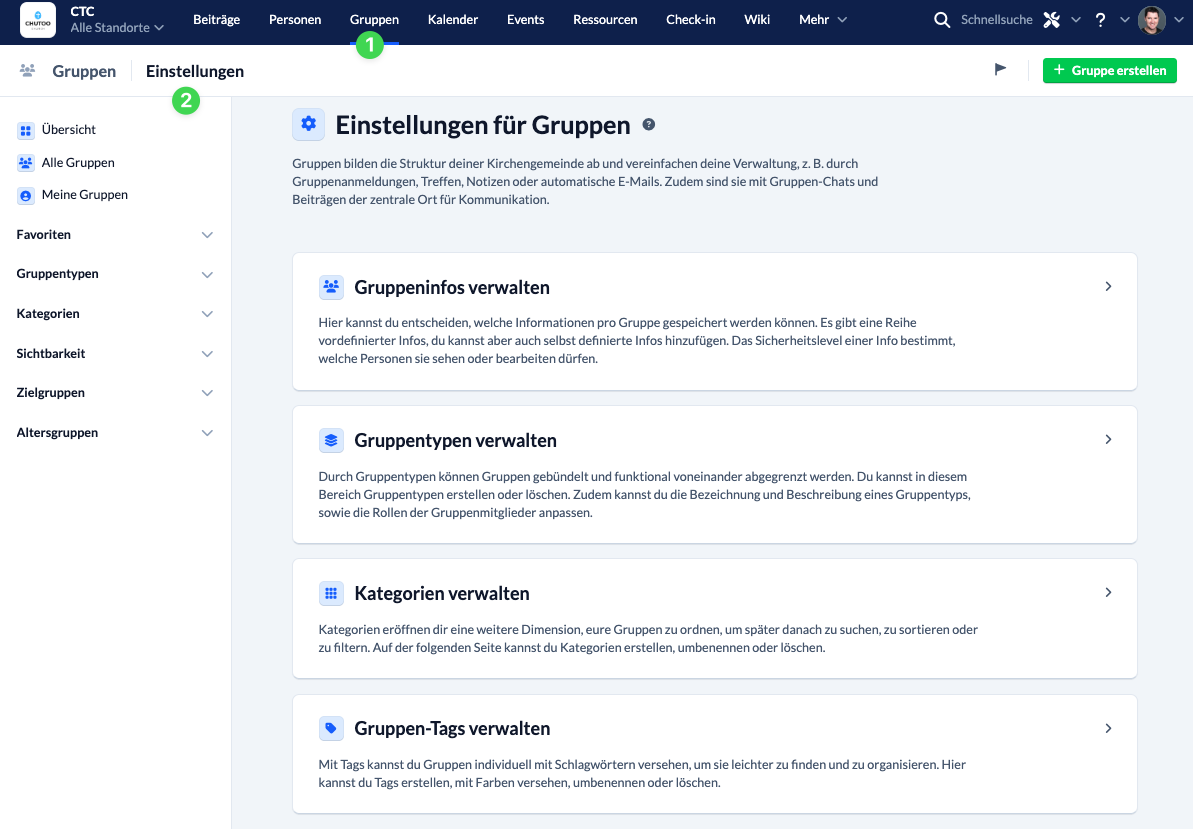
First call up the Groups module (1) and switch to the module settings (2).
Manage group information #
Here you can decide which information can be saved in a group.
There is a range of predefined information, but you can also add information that you define yourself. The security level of an info determines which people are allowed to see or edit it.
Manage group types #
Groups can be bundled and functionally differentiated from one another using group types.
You can create or delete group types in this area. You can also customize the name and description of a group type as well as the roles of the group members.
Manage categories #
Categories open up another dimension for organizing your groups. The groups can then be searched, sorted or filtered by category.
You can create, rename or delete categories in this area.
Manage group tags #
You can use tags to assign individual keywords to groups to make them easier to find and organize. We also recommend the article How to organize my groups with tags?
Here you can create tags, assign colors to them, rename or delete them.
Further settings #
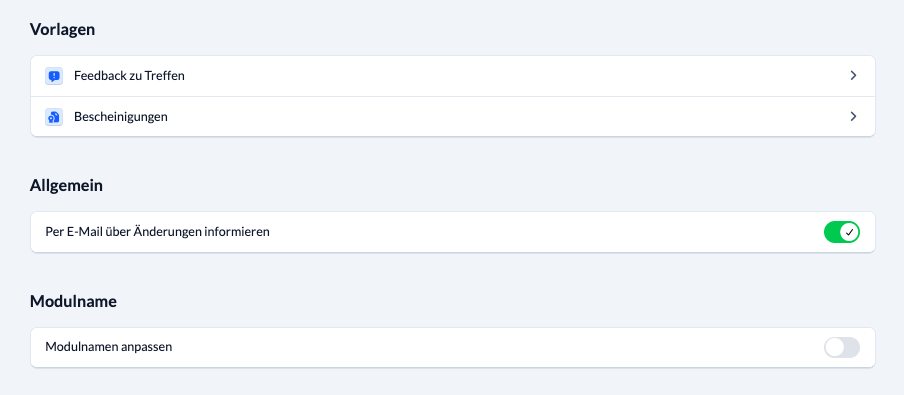
Templates can be used in the groups for various purposes. Here you create central templates for feedback on group meetings and for certificates that can be used in the groups, e.g. to confirm seminar participation or to apply for a certificate of good conduct.
In the General section, you can specify whether group moderators should be notified via e-mail about changes to their groups. Users with permission can override the default setting configured here in their group’s settings.
For some modules, you can customize the module name. This is not possible for the ” Groups ” module. That is why the button is disabled here.
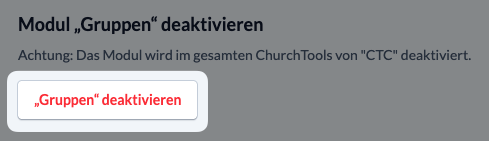
Deactivate “Groups” module #
By clicking on the Deactivate groups button, you decide for your entire ChurchTools that the Groups module can no longer be used. Only deactivate the module if you do not want to use groups in your congregation at all.