


You can find step-by-step instructions on how to fill roles here.
Before You Assign Staff: ChurchTools and Doodle
ChurchTools does not work like the well-known “Doodle” system.
- Doodle always expects employees to take action
- The system assumes that everyone decides for themselves when they want to work a role. Each employee must take the initiative and sign up for a specific date. This means the manager must always wait until all roles are filled.
- ChurchTools expects a response from its employees
- The manager assigns employees to a specific date, and the employees respond to the request. This works well if absences have been reliably entered in advance. Employees indicate when they are generally unavailable, and the manager receives a warning if they are selected anyway.
- When employees are tagged in a request, they receive an e-mail and can also view all requests in the app, including a pop-up notification! They can accept or decline the request through either channel. It’s very convenient.
Employee workload #
The workload indicator as a formula is helpful for getting an overview of a person’s workload.
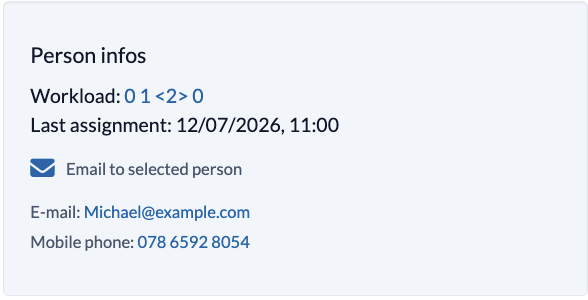
The formula can be broken down as follows:
- 5 – Roles 2 months ago
- 3 – Roles in the Last Month
- <4> – Roles for the current month
- 0 – Scheduled roles for next month
- 30% – What percentage of the employee’s visible appointments are scheduled?
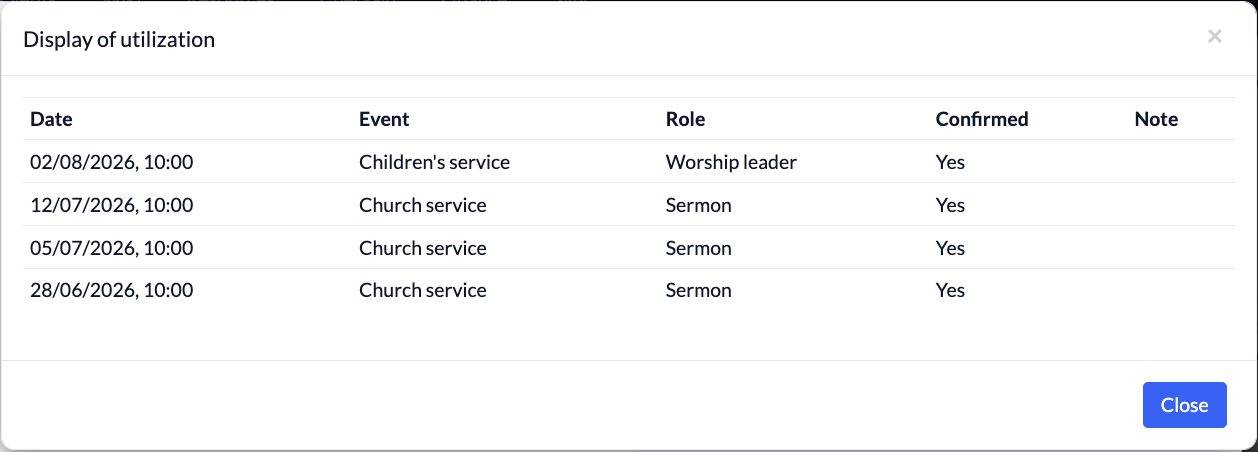
You can get a detailed overview by clicking on the formula:
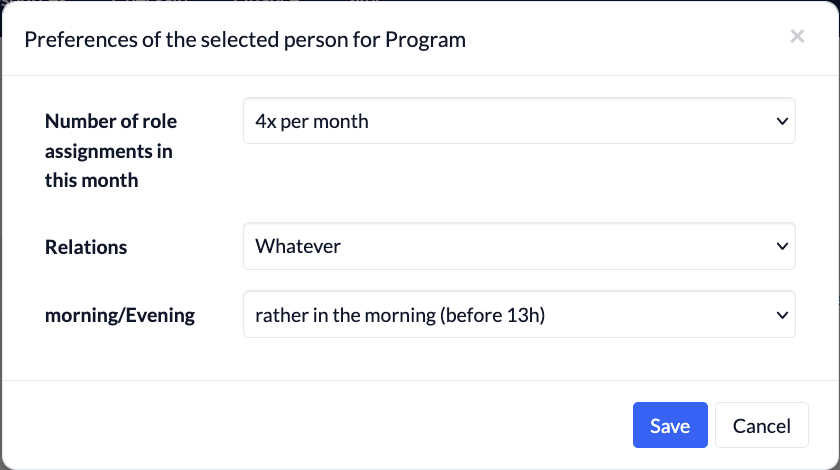
The option behind the wrench icon is a little hidden. If you’ve nominated someone for a role and click on the wrench icon, you can set that person’s preferences.
Calculation of the allocation
Clicking on the bar causes ChurchTools to automatically display the people who are best suited for this role. A scoring system based on various factors is used to identify the best candidate:
- – 1000 => Person Absent
- – 500 => The person has already been asked to participate in this event—either for the same role or a different one—and has declined
- – 100 => Maximum number of services performed reached
- – 100 => Work only in the evenings and the appointment is in the morning (or vice versa)
- – 100 => Do not want to be with a partner
- – 50 => The last/next deployment was just a week ago
- – 10 => Last/Next deployment was two weeks ago
- + 10 => Feel free to bring a partner
This is then multiplied by the number of services
- This month*3
- Last month*2
- The month before last*1
- Next month*2
The results should be viewed in context. For example, if there is no other option, an employee may be suggested even though they are already working at full capacity. If the negative number is very high (200 or lower), it may be necessary to add additional people to this role.
Employees can sign up for roles on their own #
In some cases and for certain roles, you may want to allow employees to sign up on their own. To do this, look for the option “Sign up for open roles” in the group’s internal permissions. This allows a person to sign themselves up for an open role.
Divide into teams #
There is a recurring desire to organize entire teams. In a sense, this is possible, even though there is no direct feature for it.
The trick is:
- You base the role requirements on the maximum number of people in the largest team.
- For example, if you have 7 cleaning crews and the largest one has 12 people, you should select a staffing requirement of 12 people, even if the other crews are smaller.
- If you have one worship team with 2 worship leaders, another with 4 guitars, and a team with 3 brass players, you can either a) work with different event templates—for example, save the brass team as a template—or b) set all instruments as needed.
- Now create the various teams as subgroups of a group:
- In the Groups module, there are cleaning teams 1–7, each with all the volunteers assigned to them
- Under the “Worship Teams” group, there are “Worship Team: Brass”, “Worship Team: Rock,” etc.
- You can assign multiple groups to each role; ChurchTools will suggest staff members from these groups. Here, you can now assign all teams as options.
- If you select the bar icon, you can limit and filter the suggestions to a specific group.
- This means that, for smaller cleaning teams, for example, only 8 out of 12 roles are filled, but all 8 members of the team are listed. For a worship team without brass players, all available musicians are listed, even if the slots for brass players remain empty.
- This prevents you from having to enter each instrument individually and keeps different teams from getting mixed up.