With ChurchTools, you can plan various types of events to suit your specific needs. After you’ve customized the roles needed for your event, you can assign them to the appropriate staff members.
You decide whether to staff them manually or automatically. This article explains how to staff the roles for your event.
Manually Staff Individual Roles #
1. Open the service #
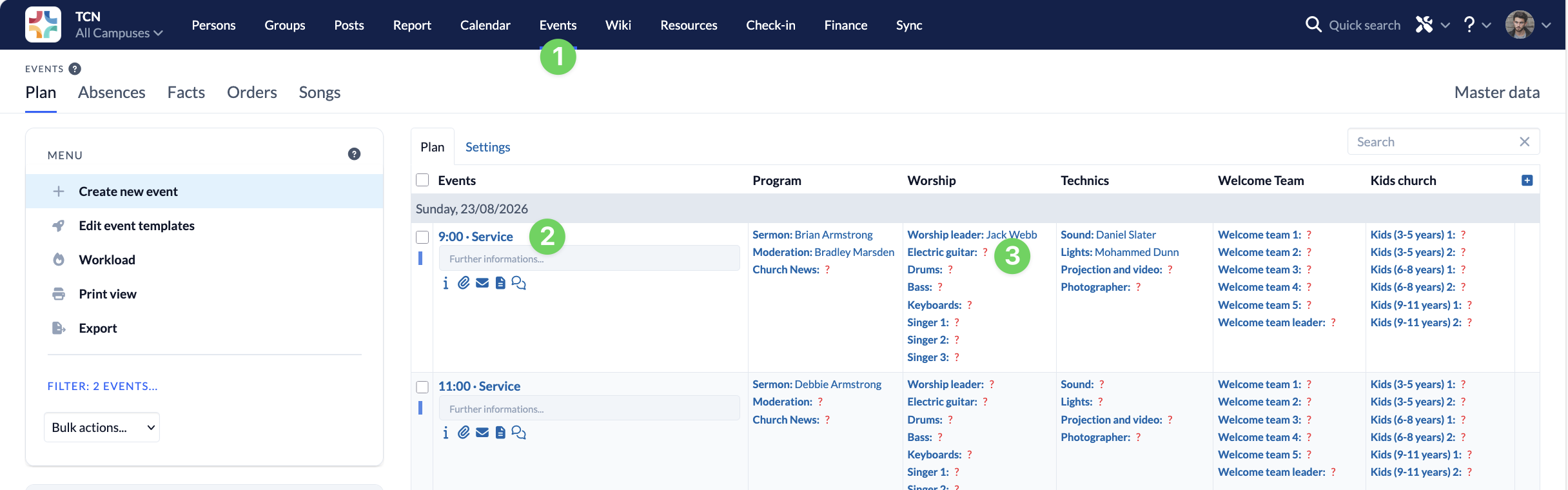
Open your event (2) in the Events module (1) and click the red question mark (3) next to the role you want to fill.
2. Select a person #
If no group from the Groups module is linked to the selected role, a free-text field (1) will appear. Once you enter at least two characters, the system will suggest people from your personnel database. If you select one of the suggested people and an e-mail address is on file for them, they will also receive the automated e-mails.
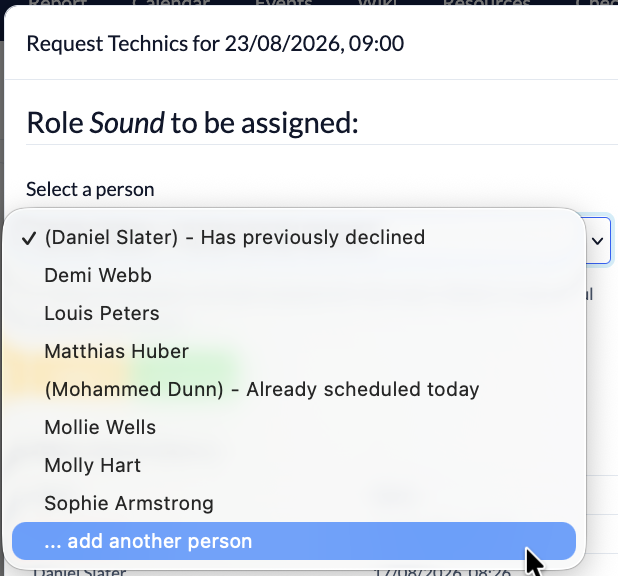
If you have linked one or more groups from the Groups module to the selected role, select the person you want to assign from the list (1) here.
If you want to select someone who is not a member of the linked duty group, there is an option at the very bottom of the list called “Add another person.” This option is available as long as there is still an open role for that role category.
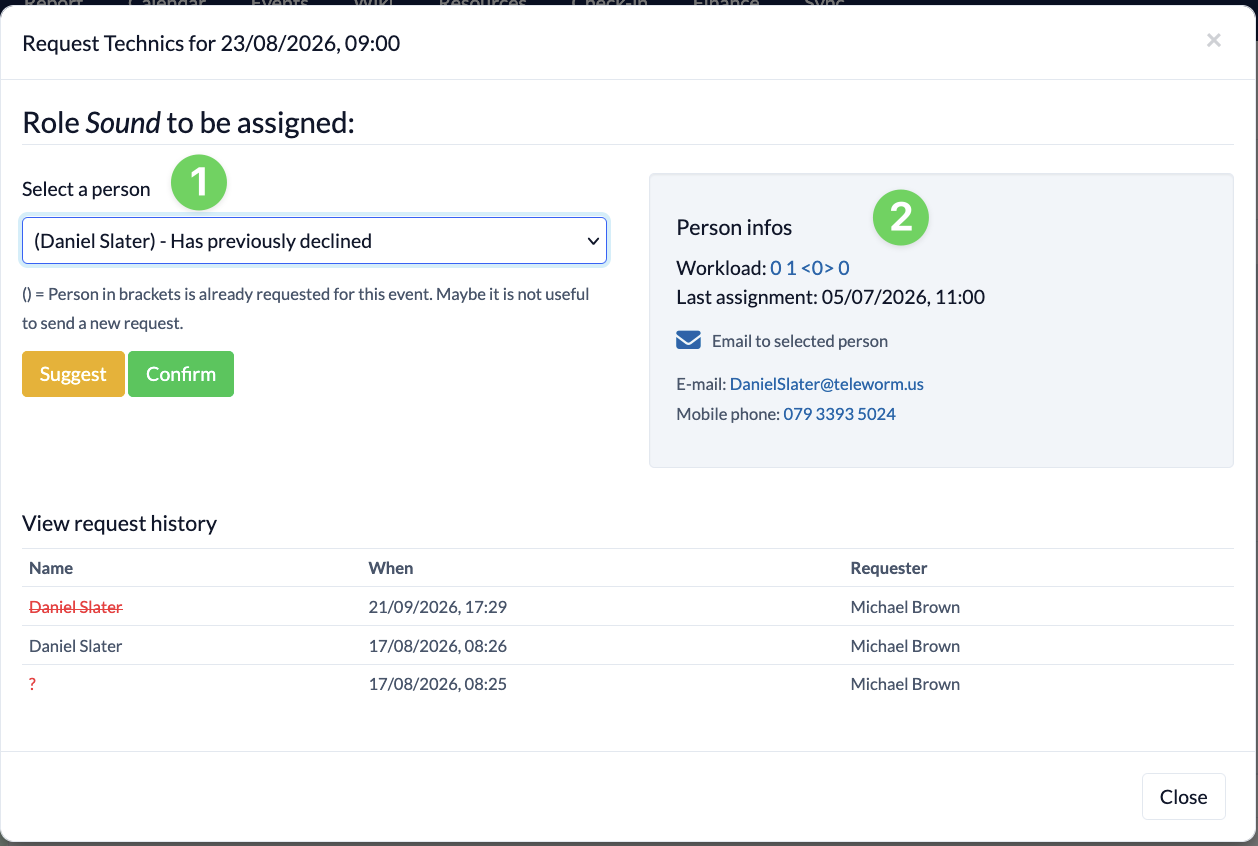
To help you see if the person is available and how busy they are, clear information about the person (2) is displayed in the gray box on the right.
Automatically assign all roles to a role category #
To enable automatic staffing, you must link the roles to shift groups from the Groups module. In our article on creating roles, we explain how to do this.
1. Fill roles in this category #
Once the links have been set up, open your event (2) in the Events module (1) and click the bar icon (3) in a Role category for which you want all roles to be filled automatically.
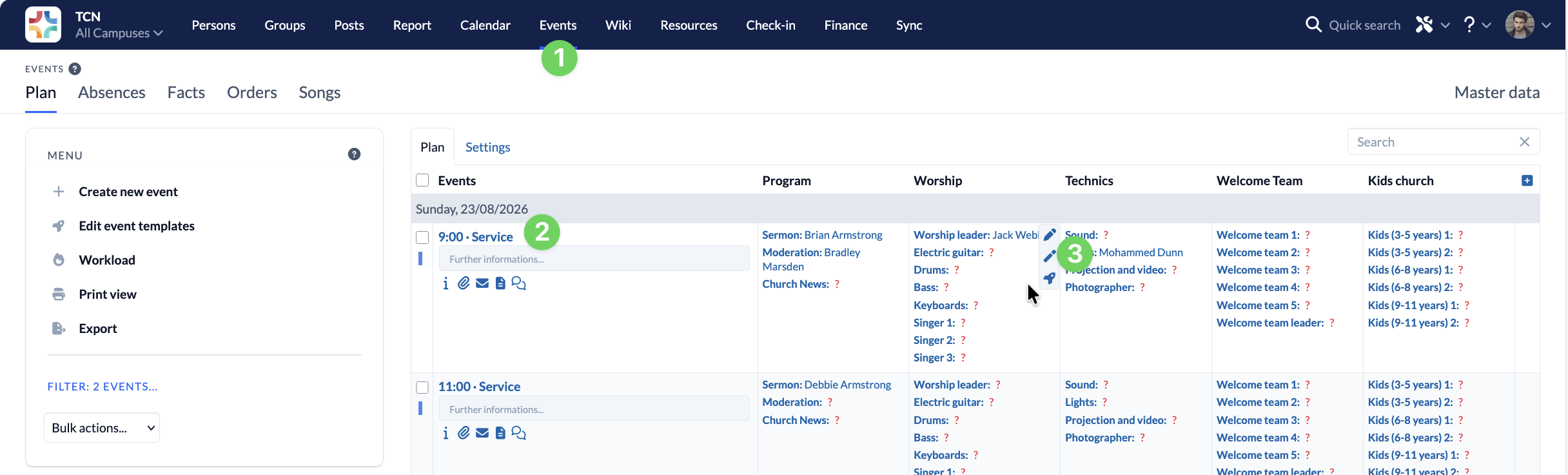
2. Verify the selection of individuals #
ChurchTools suggests a schedule for all roles in the category. This takes into account alternative schedules, requests, absences, staff availability, and personal preferences.
If you’ve linked multiple groups to a role or assigned tags to it, these filtering options will be available to you here.
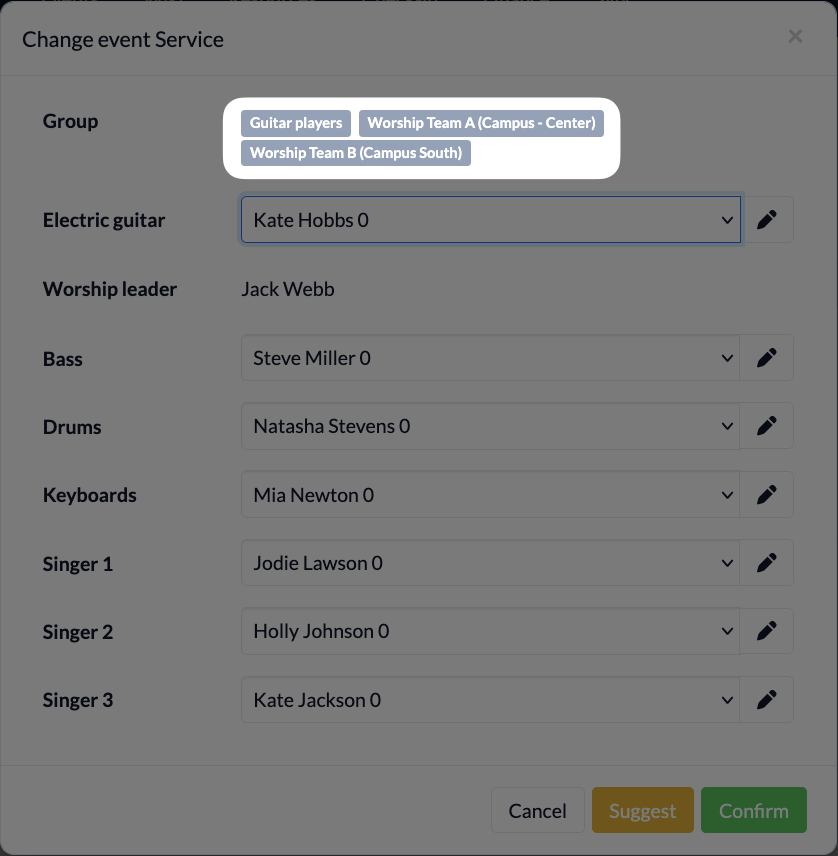
You can review and edit the suggested selection here.
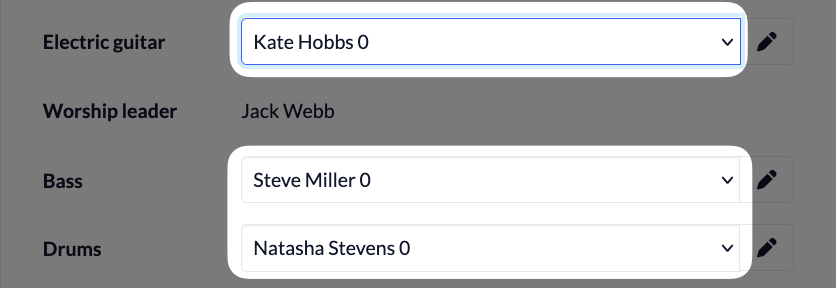
Make a suggestion or give your approval #
For both options, click ” Suggest ” or ” Accept” when you’re finished.

If you suggest that person, they will receive a request via e-mail, on the Home page, or through the app, which they can accept or decline. This is only possible if the request has been enabled in the service’s master data.
If the person has already confirmed their participation in advance, you can confirm on their behalf right here. In this case, the person will not receive another request. However, a reminder will be sent a few days before the event if they have enabled this option in the ” Events” section under “Settings.”
Staff a single role across multiple events #
You can also select multiple events and assign individuals to specific roles within them at the same time.
For example, you can enter the preacher for the upcoming services for all the desired services at once.
1. Select events #
First, select all the events for which you want to fill a role.
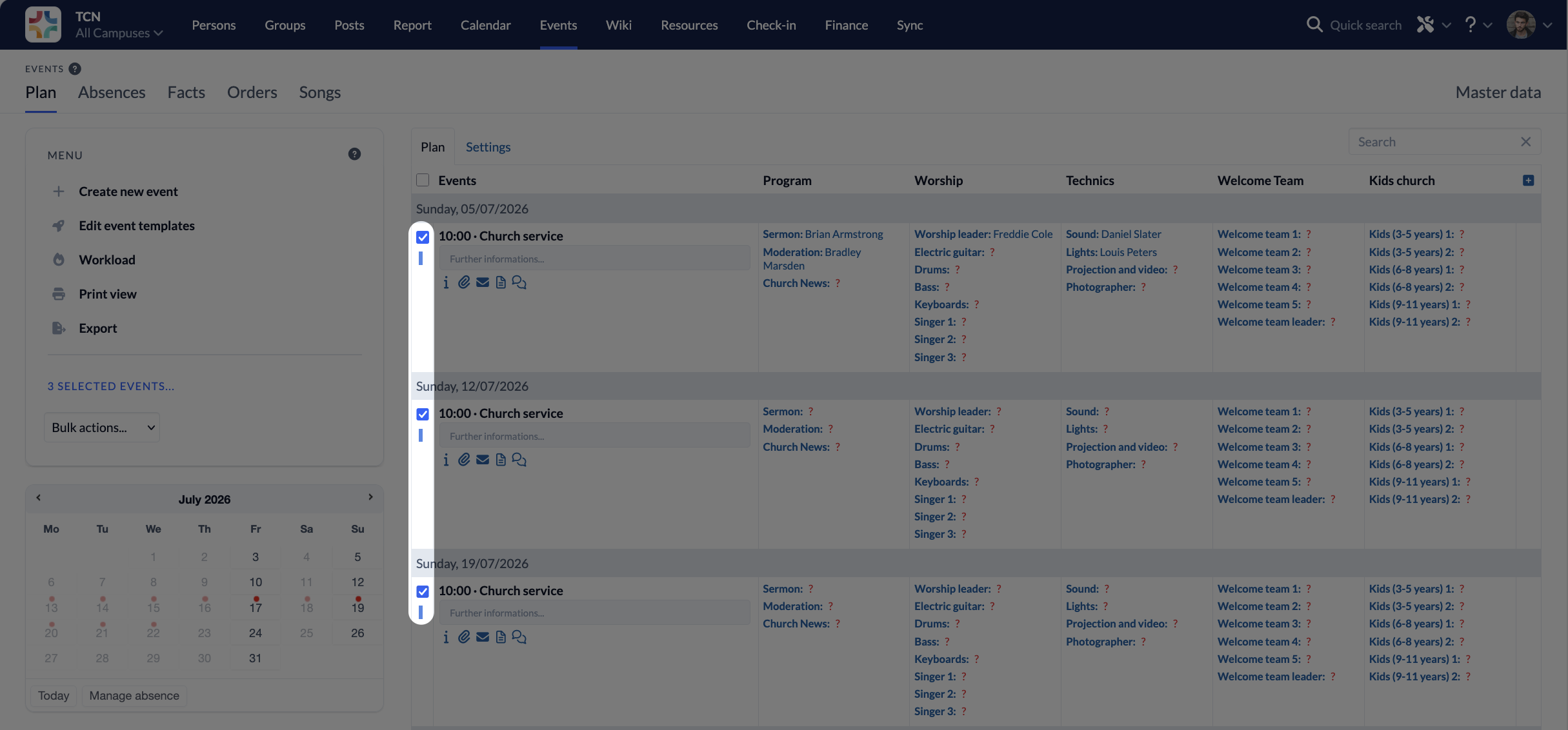
2. Perform the action #
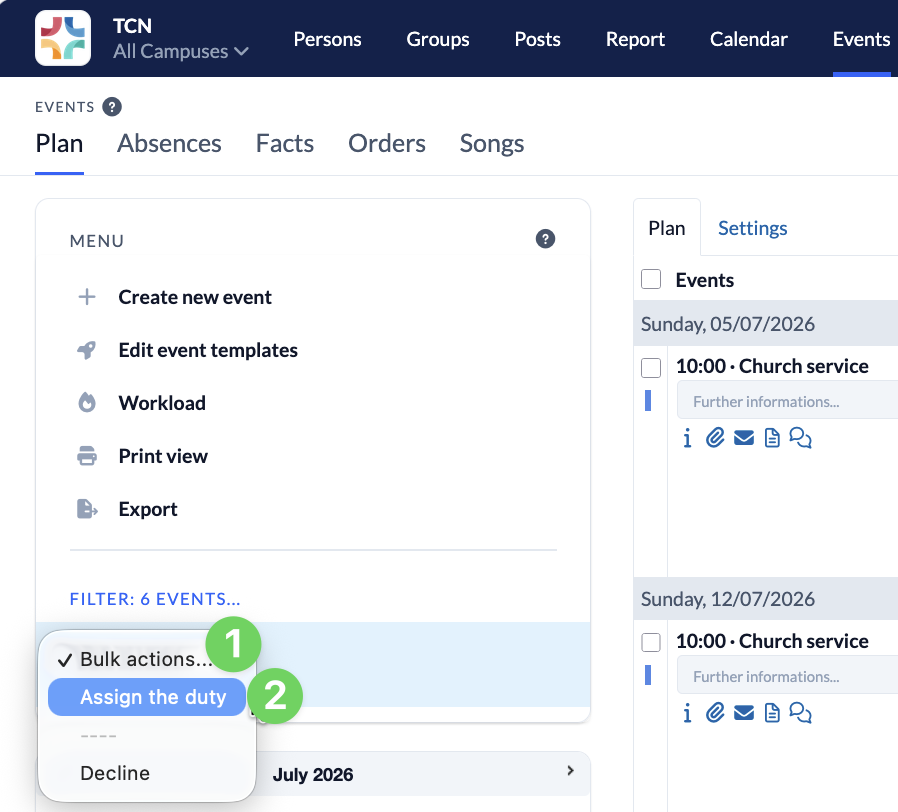
Next, select ” Fill Position ” (2) under ” Bulk Actions ” (1) in the menu on the left.
3. Select a role #
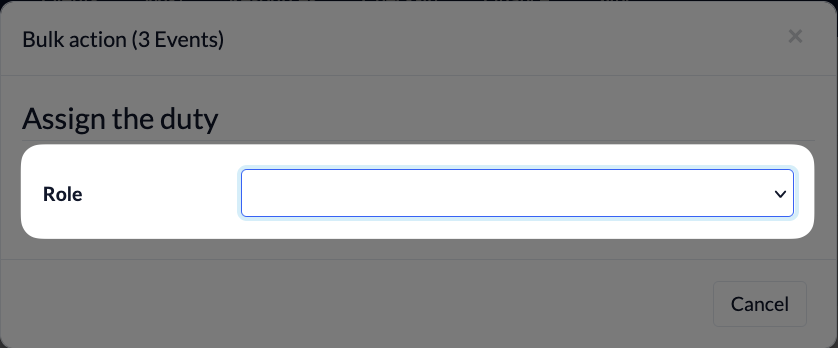
Next, select the role you’d like to fill.
4. Fill the role #
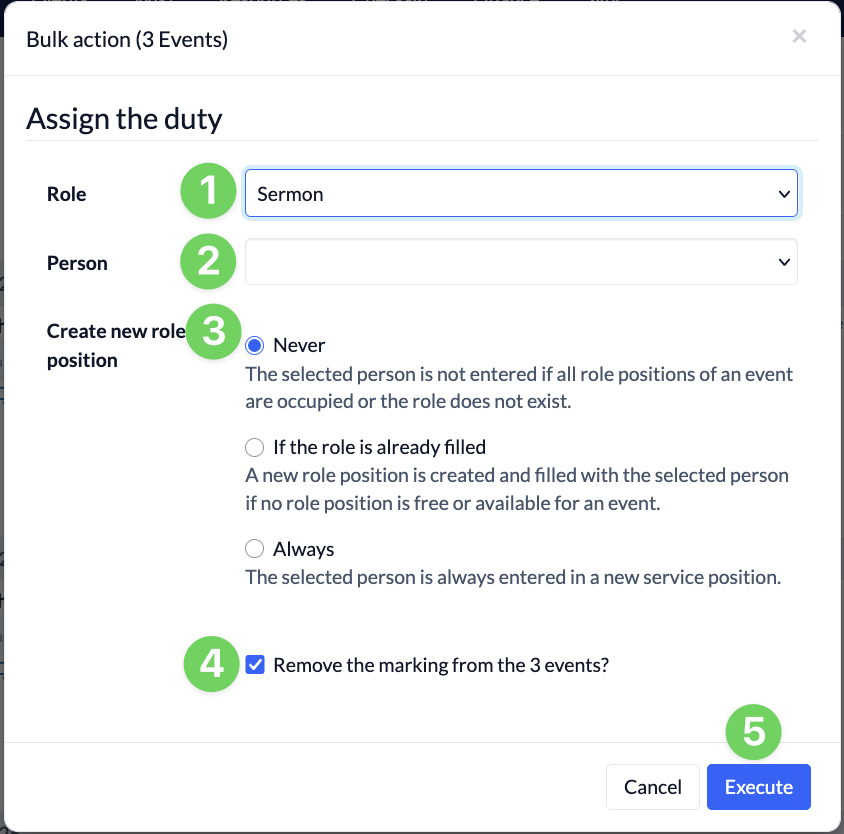
Now you can assign the selected role to a person (2) and also choose how ChurchTools should handle the role (3) if it is already assigned to one of the selected events.
If you selected the wrong role (1) earlier, you can change it here and also specify whether the selected events should remain marked (4) after the role has been assigned or not.
Clicking ” Execute ” (5) assigns the selected role to all previously selected events.