Follow-ups support your church in maintaining relationships and reliably recording the results of discussions. They are suitable, for example, for welcoming first-time visitors or accompanying people in their spiritual or personal development.
How do follow-ups work? #
Follow-ups are used to plan tasks that are to be carried out for a specific person.
Plan follow-ups #
When planning, you select who the task is for and describe what needs to be done. You specify when the task is due, who is responsible for it, and whether it should result in group membership.
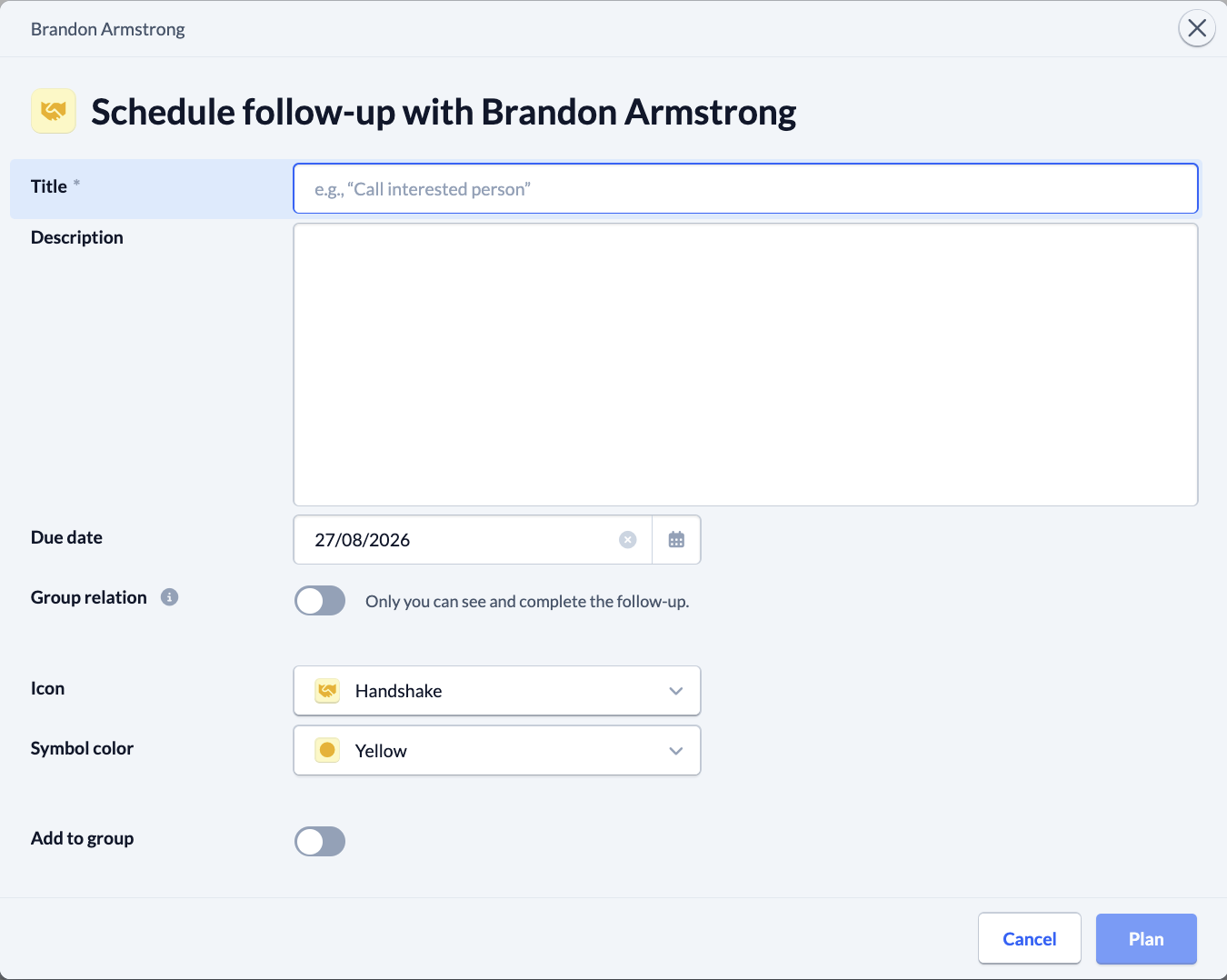
Follow-up task #
You will be notified on the Home page, in the People module, and in the groups about all scheduled follow-ups that you are authorized to perform and their due dates. Starting 14 days before the due date, you will receive a daily reminder e-mail for follow-ups that you can handle yourself.
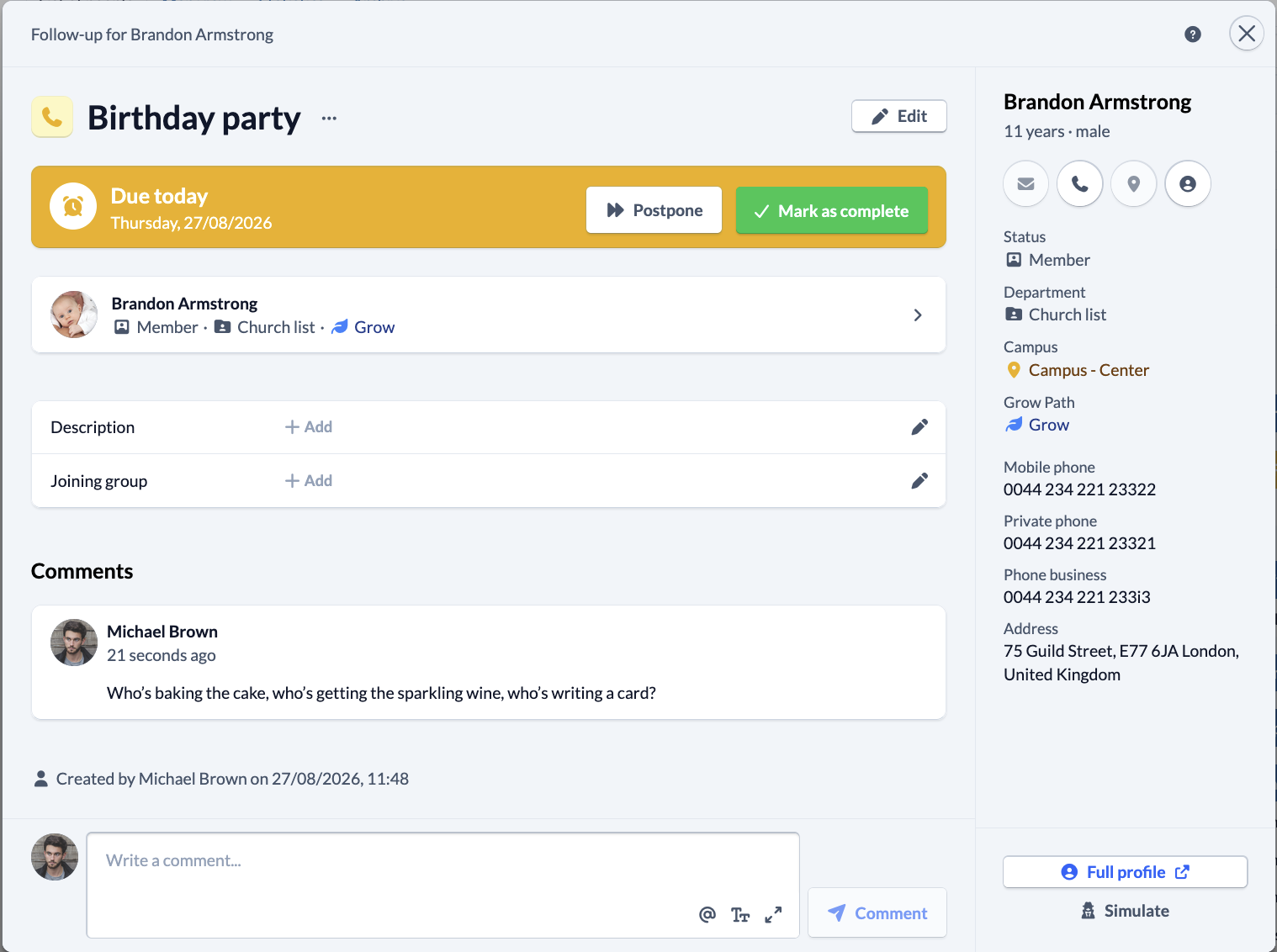
When you open a follow-up, you’ll see a clear overview of the contact information you’re authorized to view, and you’ll have the option to reschedule the task or mark it as completed. You can also edit the follow-up, add a comment to it, or leave a comment directly for the person. In the latter case, you decide who can see the comment.
Who can use follow-ups? #
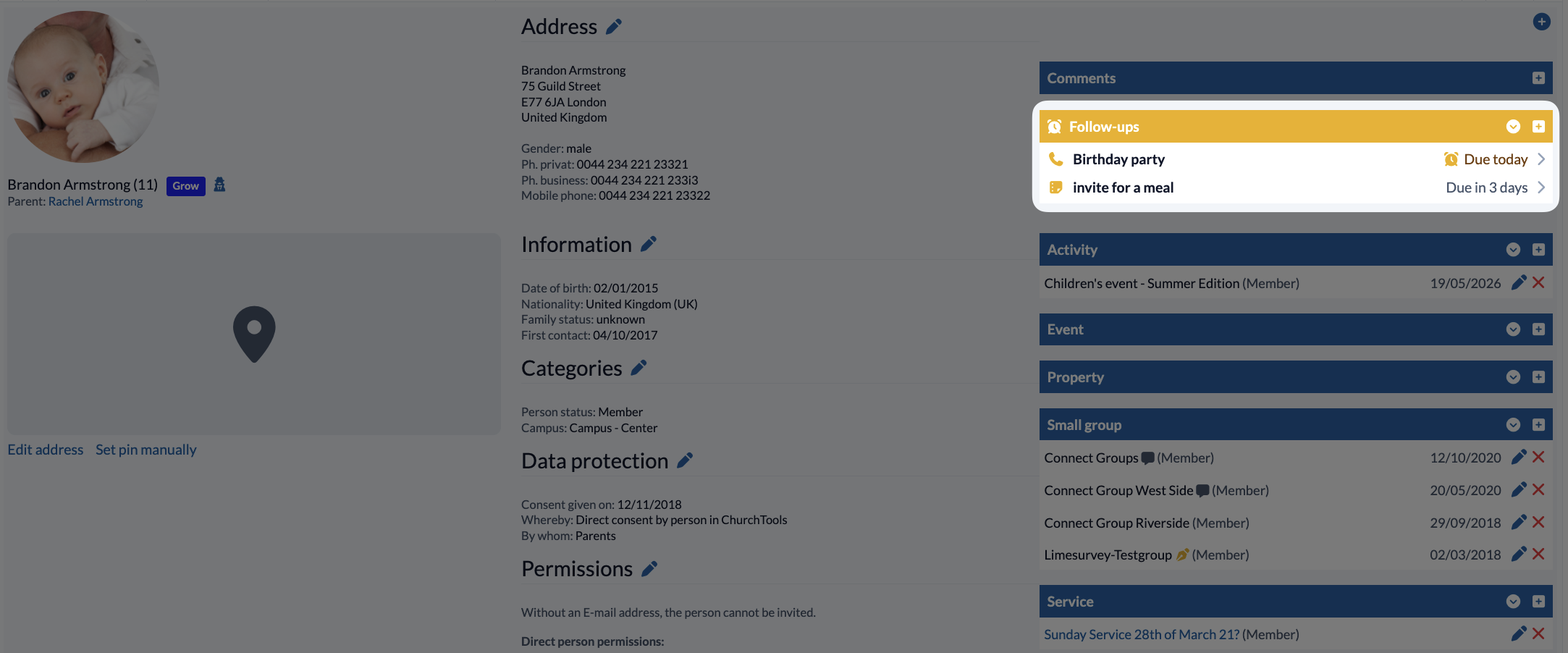
In each person entry, you will find the Follow-ups section, which shows you the follow-ups that you are allowed to carry out for the selected person and that are due soon.
Follow-ups without a group context #
By clicking on the small plus in this section, you can schedule a new follow-up for the selected person, which you can also carry out. To do this, you only need to be able to see the person and do not need any further permissions. A follow-up planned in this way has no group reference.
Follow-ups with group context #
With the group-internal permission Plan follow-up, you can also plan follow-ups directly within a group. If you have the group-internal permission to carry out follow-ups, you can also view and edit them accordingly. The black number next to the menu item Follow-up shows you at a glance how many are planned in total. The yellow circle shows you how many are due today.
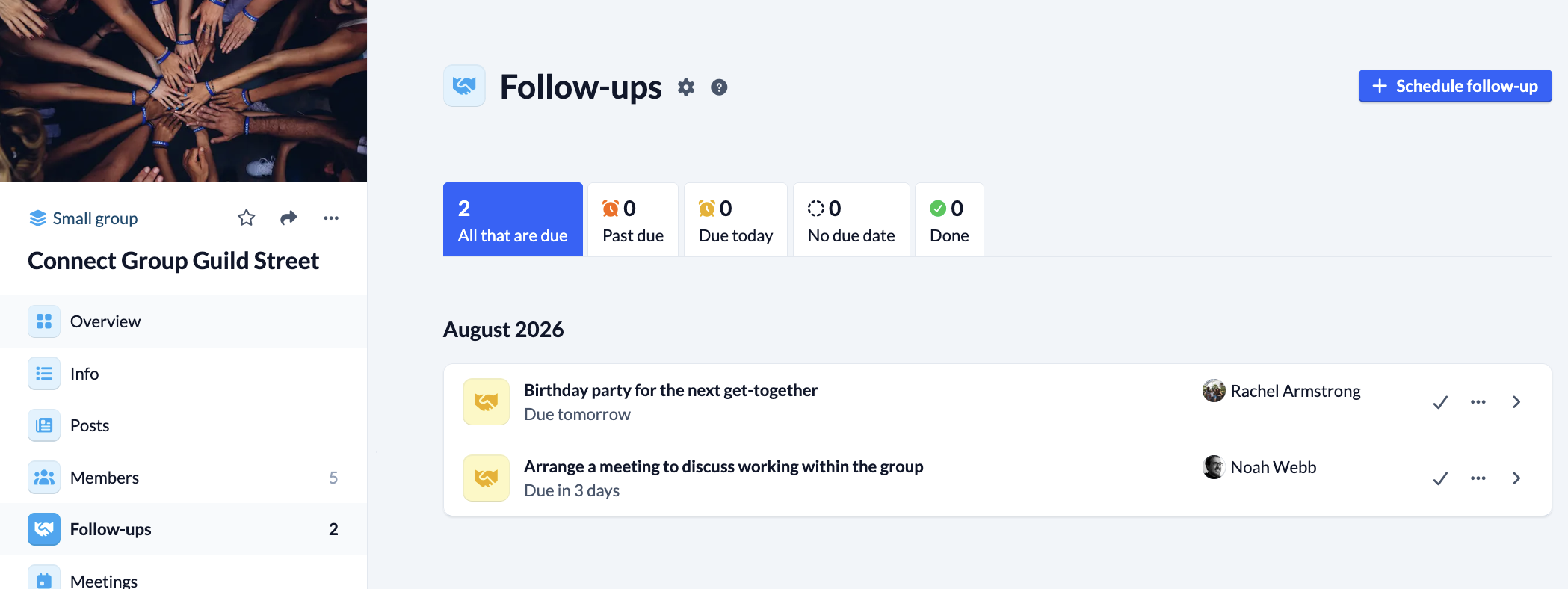
You also have the option of automatically scheduling follow-ups via your group’s routines, making it even easier to manage recurring tasks in your group. To do this, you need the group-internal permission Manage routines or one of several global group permissions. You can find more information on this in the article Understanding routines in the section Who can use routines?
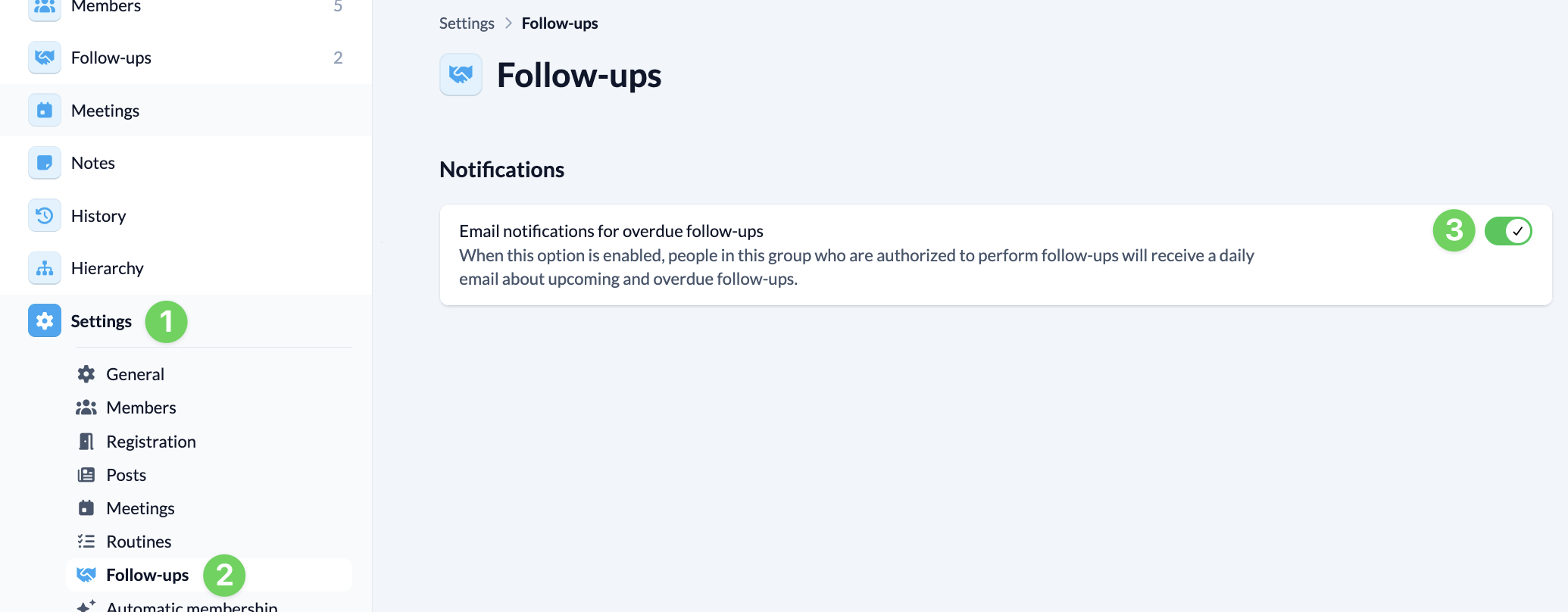
In the group settings (1), under ” Follow-ups ” (2), you can specify whether e-mail notifications for overdue follow-ups for your group should be sent or not (3). If this option is enabled, people who are authorized to perform follow-ups in this group will receive a daily e-mail about upcoming and overdue follow-ups.