


If chat is generally activated in your ChurchTools, you have the option of using an event chat for each event. This is a chat room in which all people who are assigned to a Roles can participate.
You can activate event chats either manually for individual events or automatically for many events.
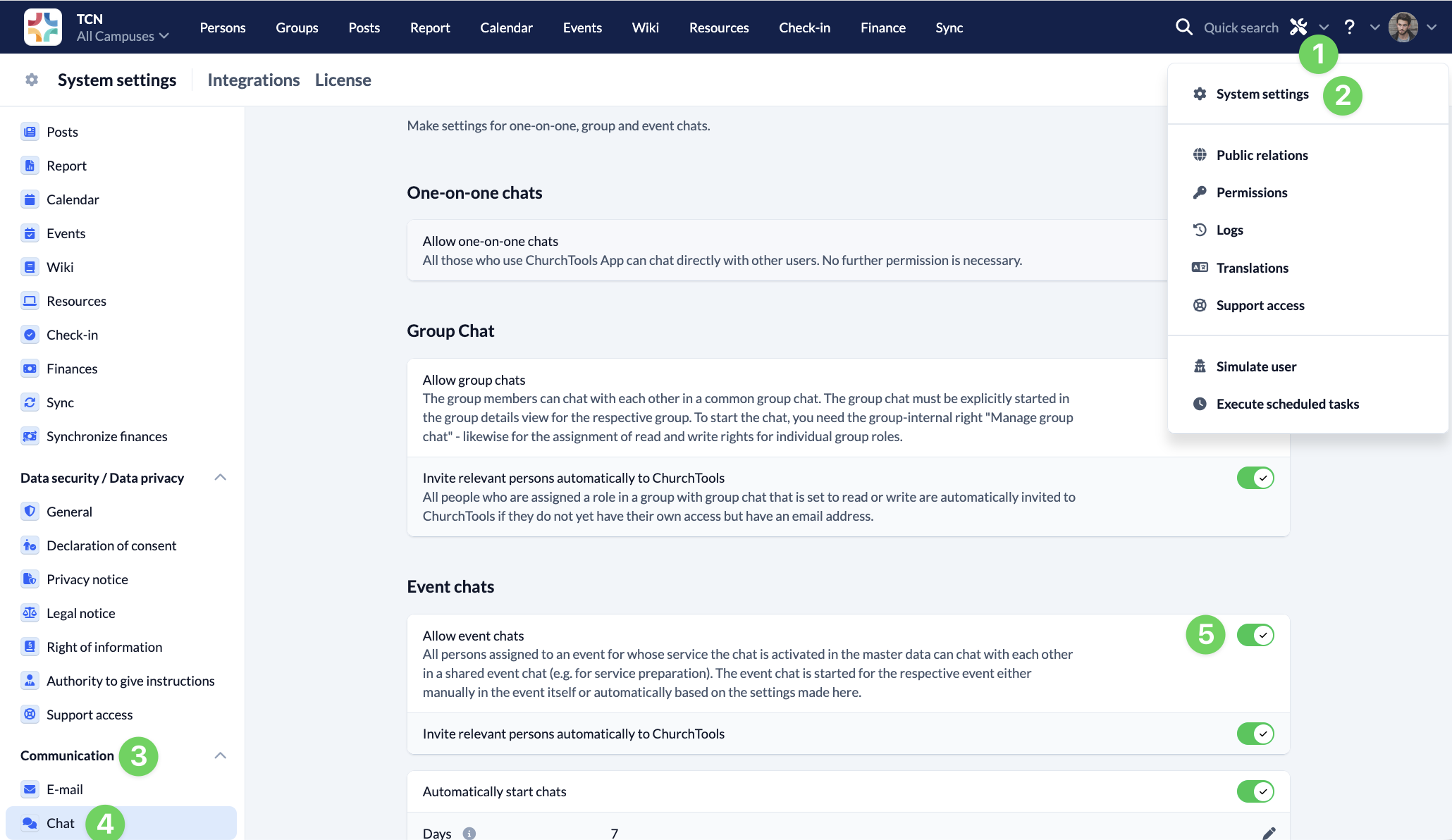
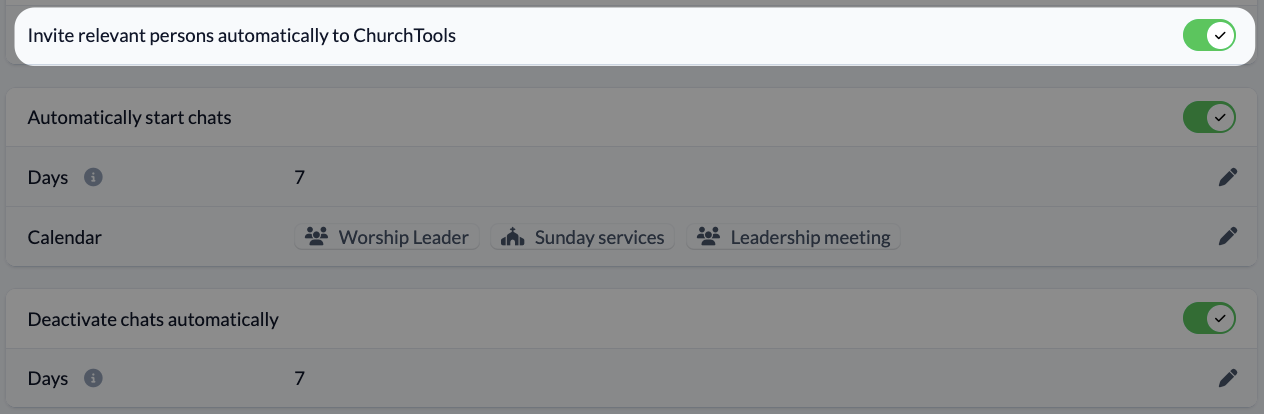
For both options, first activate the event chat in the System settings.
Start event chats manually #
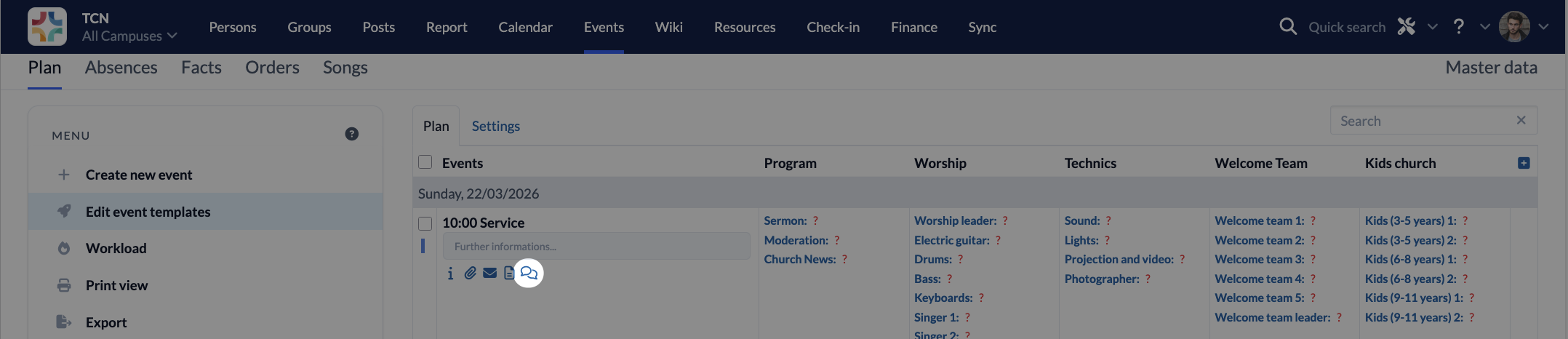
To start the event chat manually for your event, select your event in the module and click on the speech bubble.
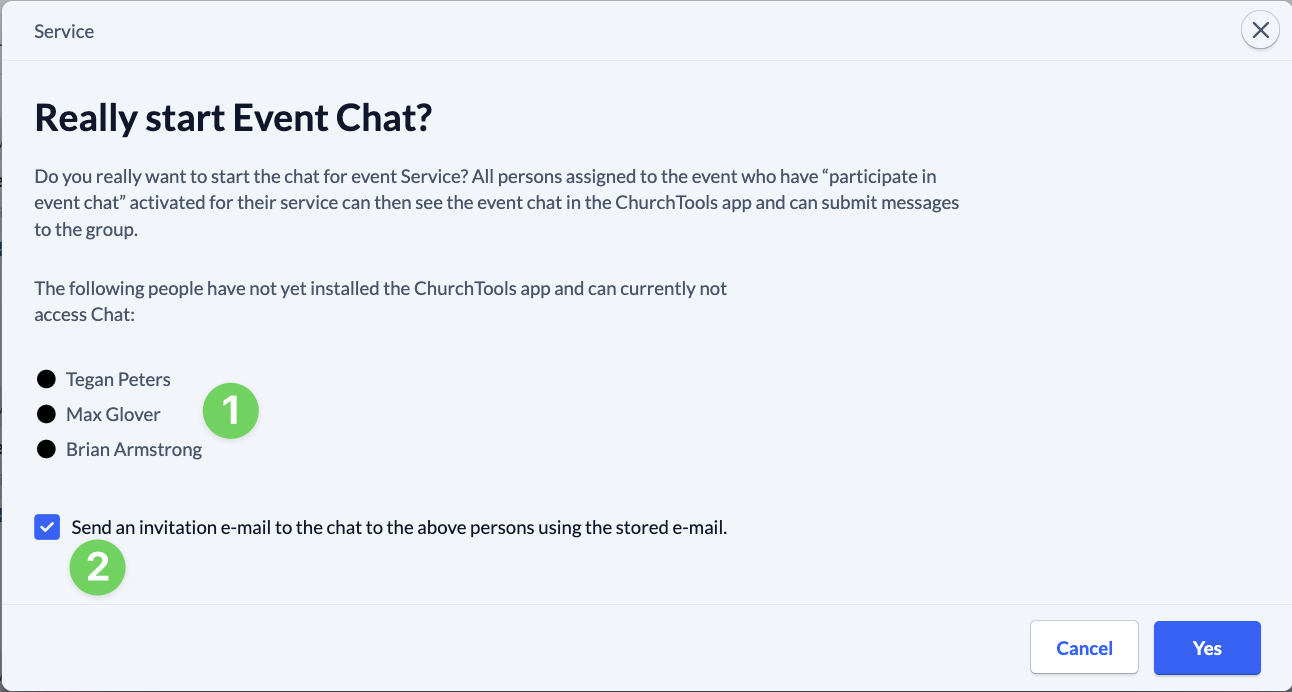
In the window that opens, confirm that you want to start the event chats (3). You will also be noted whether people assigned to the event have not yet installed the ChurchTools app and therefore cannot participate in the chat (1). You have the option of automatically sending these people an e-mail (2) inviting them to install the app so that they can use the chat.
Start event chats automatically #
If you want to use the event chat for many events, you can specify in the System settings whether and when the chat should be started for an event.
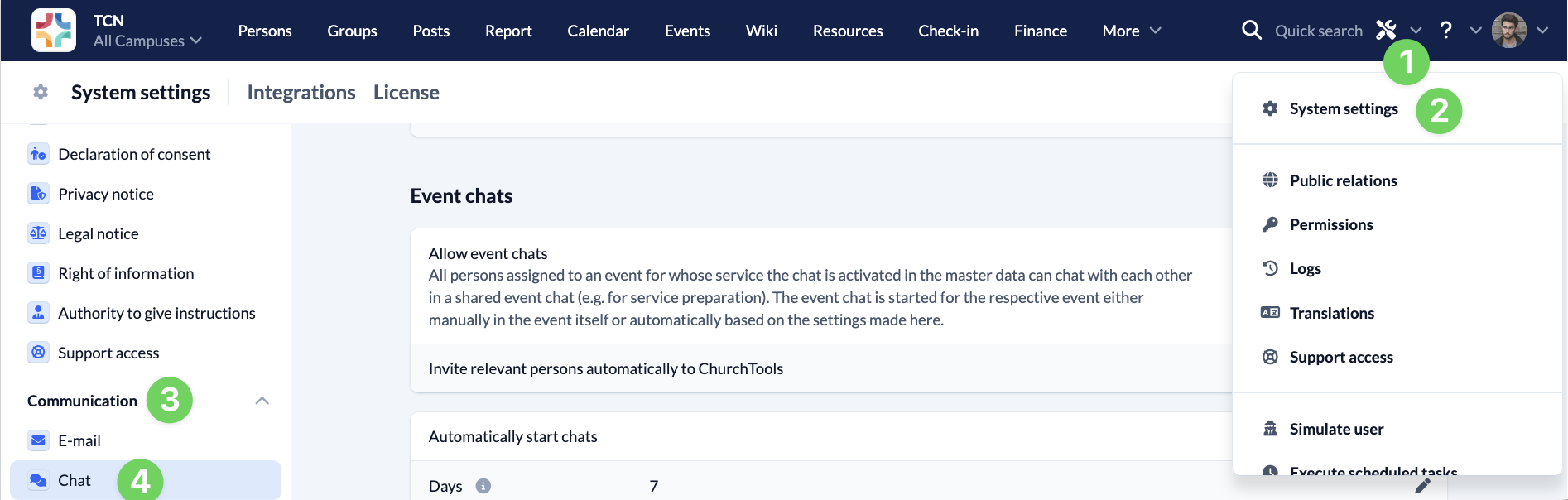
To do this, navigate to the Communication tab (3) in the System settings (1 and 2) and then to Chat (4).
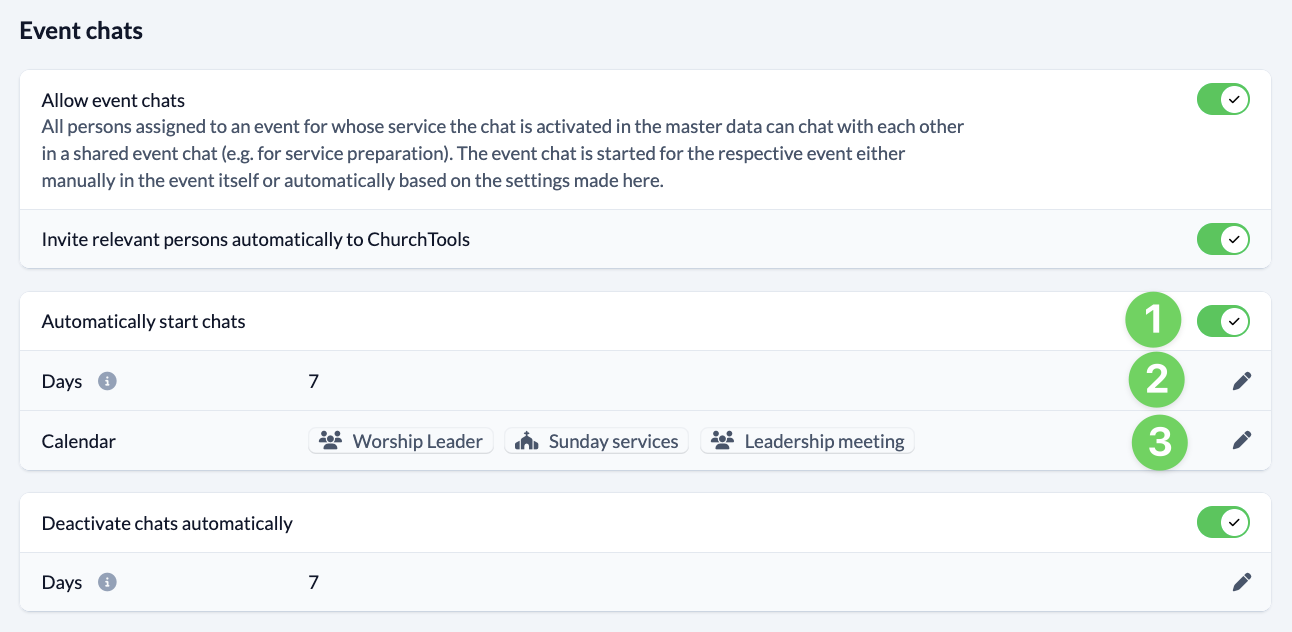
There you specify how many days before the event the chat should be started (1) and select all calendars (2) for whose events this setting should apply.
Deactivate event chats manually #
When your event is over, you probably no longer need the associated chat.
You can therefore deactivate the event chat of an event so that it disappears from the active chat list of your ChurchTool users.

Deactivate event chat automatically #
Alternatively, you can specify in the System settings how many days after an event the associated chat should be automatically deactivated.

If you delete an event, the associated event chat are always deleted as well.