When you call up a group, you will see a lot of information and setting options at first glance. We would like to briefly list these here to give you an overview.
Next to the name of your group, you have the option to change it (1) and find the share button(2). You can also edit your group membership (2) and add people, posts or other information to your group (3).
At the top right you can start a tour through the Groups module (4) and close the group view (5) and return to the previous screen.

On the left-hand side, you will find a link to the overview of all groups of the type of your group (6), you can mark your group as a favorite, share it and call up the context menu (7) of your group with various setting options. The menu items (8) for your group are also displayed here.

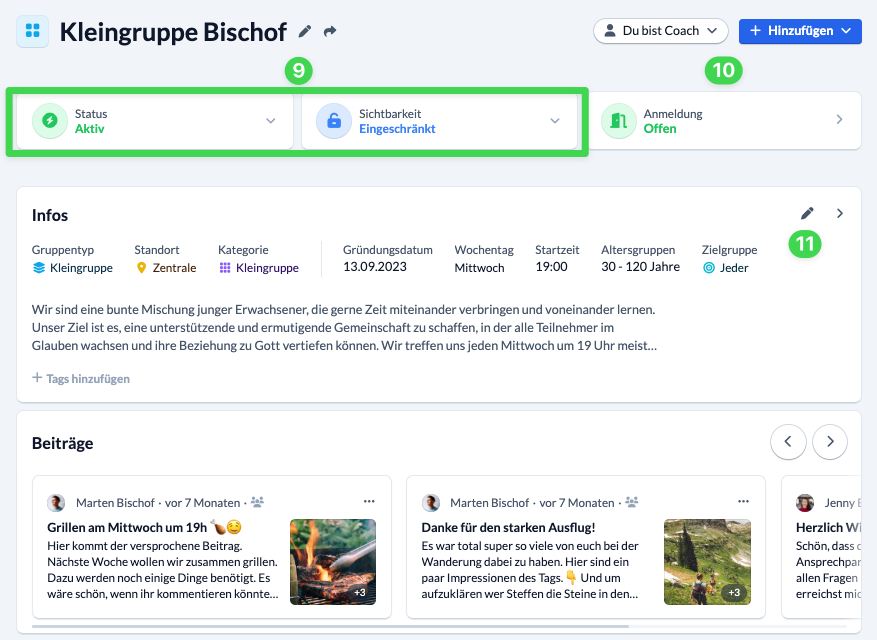
Back in the middle of the page, you can quickly adjust the group status and visibility (9) of your group and schedule registration (10).
Below you will find the information about your group, which you can also edit directly (11) and the last posts of your group.
All group members will then be displayed. You have the option to contact them (12) and the settings (13) for the members.

In the widget Follow-ups (14), current tasks are displayed and you have the option of scheduling new follow-ups for group members. In the Meetings-widget lists all upcoming group meetings. You can create additional meetings (15) or select an existing meeting directly to make changes to it.
Some things you just want to write down quickly so you don’t forget them. Ideas for activities or places you want to see together. And you can do this very quickly under Notes (16) .
You will then find the meeting points for your group and can create new meeting points (17).

Darunter werden dir alle Ober- und Untergruppen aufgelistet und du kannst weitere hinzufügen (18 und 19).

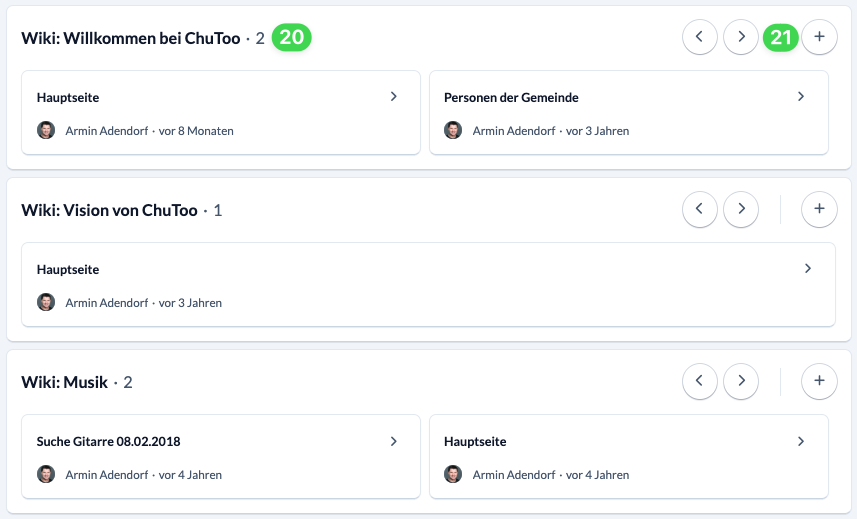
Als letztes werden dir, falls du dazu berechtigt bist, Wiki-Kategorien (20) und deren Seiten angezeigt. Außerdem kannst du hier direkt neue Wiki-Seiten in den Kategorien erstellen (21).
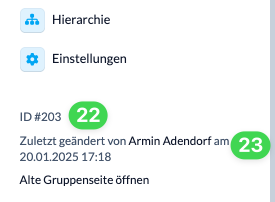
Ganz unten links findest du die ID (22) der Gruppe und kannst sehen, wer zuletzt eine Änderung an der Gruppe (23) vorgenommen hat.