


In this article, we’ll show you how to add a video slide to a page header. For general instructions on how to edit the page header, see the guide “How to edit the page header?”
1. Select a page header #
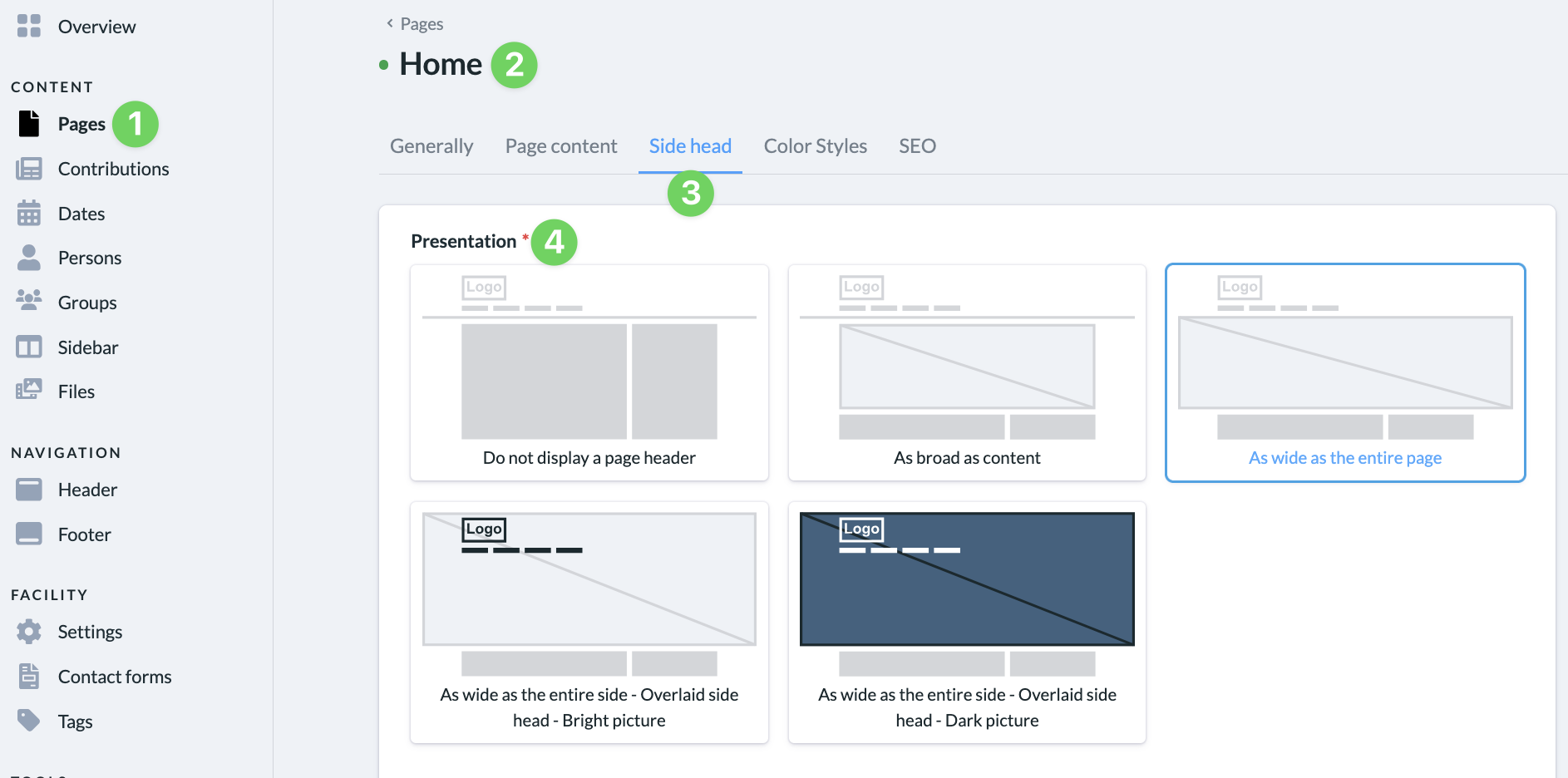
In the admin area, go to Pages, Posts, Events, People, or Groups (1) to open the page or content (2) to which you want to add a video slide. On the page or within the content, first go to “Page Header” (3) and select the desired layout (4) for the page header.
2. Add a video slide #
Further down, under the ” Slide ” heading, click the + icon (5) and add a video slide (6).

3. Upload a video #
In the element, you can upload a video (7) and, optionally, a video for mobile devices (8). The requirements the video must meet are displayed directly in the element.
4. Add a placeholder image (optional) #
You can also optionally add a placeholder image (9) and, of course, one for mobile devices (10), which will be displayed while the video is loading.
5. Configure Additional Settings #
We explain all the other settings (11) in the article ” How to edit elements?”

6. Save and publish changes #
To save your current changes, click the ” Save Changes” button. Once the page is complete, click the ” Publish” button to publish it.