


The ChurchTools Website lets you insert one or more elements into a page’s content or sidebar. Of course, you can edit and customize the list of elements and the elements themselves at any time. We’ll explain how to do that in this article.
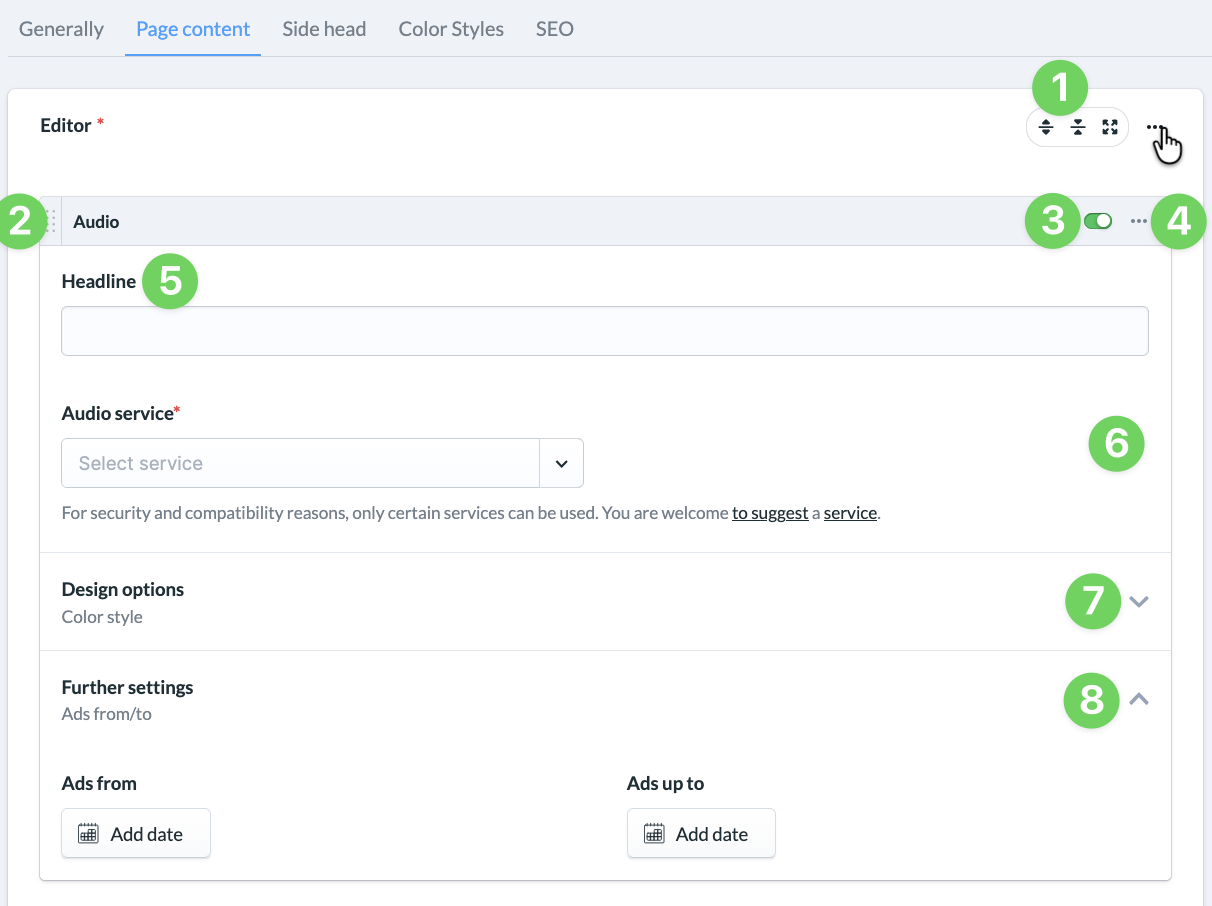
(1) Expand/collapse all items #
Using the ” Fold in all sets ” and “Fold out all sets ” buttons in the upper-right corner (three-dot menu) above the list of elements, you can collapse all previously inserted elements to their title bars or expand them to show their details. Collapsing the elements gives you a quick overview of their layout on the page, especially on larger pages.
(2) Move elements #
Using the handle to the left of the element’s title, you can easily grab an element with the mouse and move it up or down in the layout.
(3) Show/hide an element on the website #
If the switch is active, the element is displayed on the webpage. Clicking the switch deactivates it, and the corresponding element is no longer displayed. This makes it easy, for example, to show and hide elements for recurring events, rather than having to delete and recreate them over and over again.
(4) Three-dot menu #
Using an item’s three-dot menu, you can expand or collapse the item, duplicate it, or delete it.
(5) Heading #
You can add a heading to most elements.
(6) Enter/select information about the element #
For some elements, you’ll need to provide additional information: select external services, choose tags to narrow down your selection of groups, posts, people, or events, define buttons, add descriptive text, and upload images. It all depends on the element and how you plan to use it.
(7) Design Options #
For many elements, you have the option to customize the design to suit your preferences.
(8) Additional Settings #
In an element’s advanced settings, you can set a time period during which the element should be visible, enable automatic slide transitions, or add teaser elements.
Insert Additional Elements #
To add new items to the end of the list, use the + icon below the last item on the page.
If you want to add another element between two existing ones, hover your mouse over the space between the two elements and click the + icon that appears there.