The page header consists of one or more slides that are displayed in the header. You can set the slides to change automatically. You can place the page header below the navigation bar or display it in the background of the navigation bar in various widths. In this article, we’ll explain how to set up the page header.
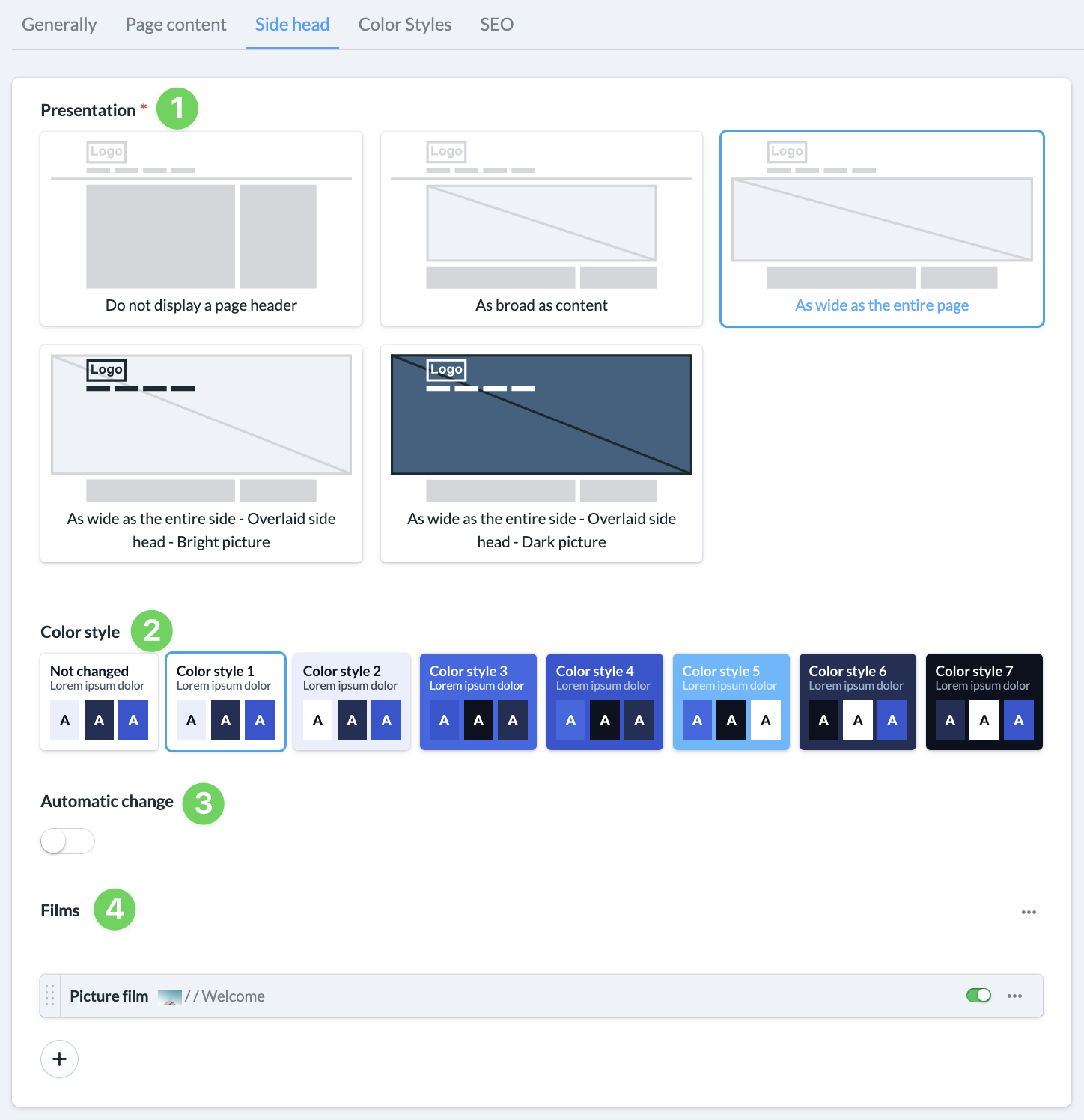
(1) Representation #
By default, when creating a page, the page header is set not to display. If you choose to display a page header and click on one of the other layouts, you can customize the page header for your website.
(2) Customize color scheme #
Here, you can customize the color scheme of the header to match your website’s design.
(3) Automatic changeover #
If you want to display multiple slides in your page header, you can set them to change automatically here.
(4) Add slides #
Use the + icon to add new image or video slides. If you want to insert a slide between two existing ones, hover your mouse over the space between them and click the + icon that appears.
Any image you insert should meet the following requirements:
- For sliders across the entire page, use an aspect ratio of 11:4 and a minimum resolution of 1920×600
- For sliders in the content column, the image aspect ratio must be 2:1 and the dimensions must be at least 1280×640
- For mobile devices: 1:1 aspect ratio and at least 600×600
Videos should be in MP4 format and under 5 MB in size, as this ensures the fastest loading times and the best quality. We explain how to create a video slide in the article “How to create a video slide for the page header?”