On the ChurchTools Website, you can customize the header to suit your congregation’s needs. You decide how it should look. You set up your website’s navigation menu—which appears in the header—elsewhere. You can find instructions on how to do this here.

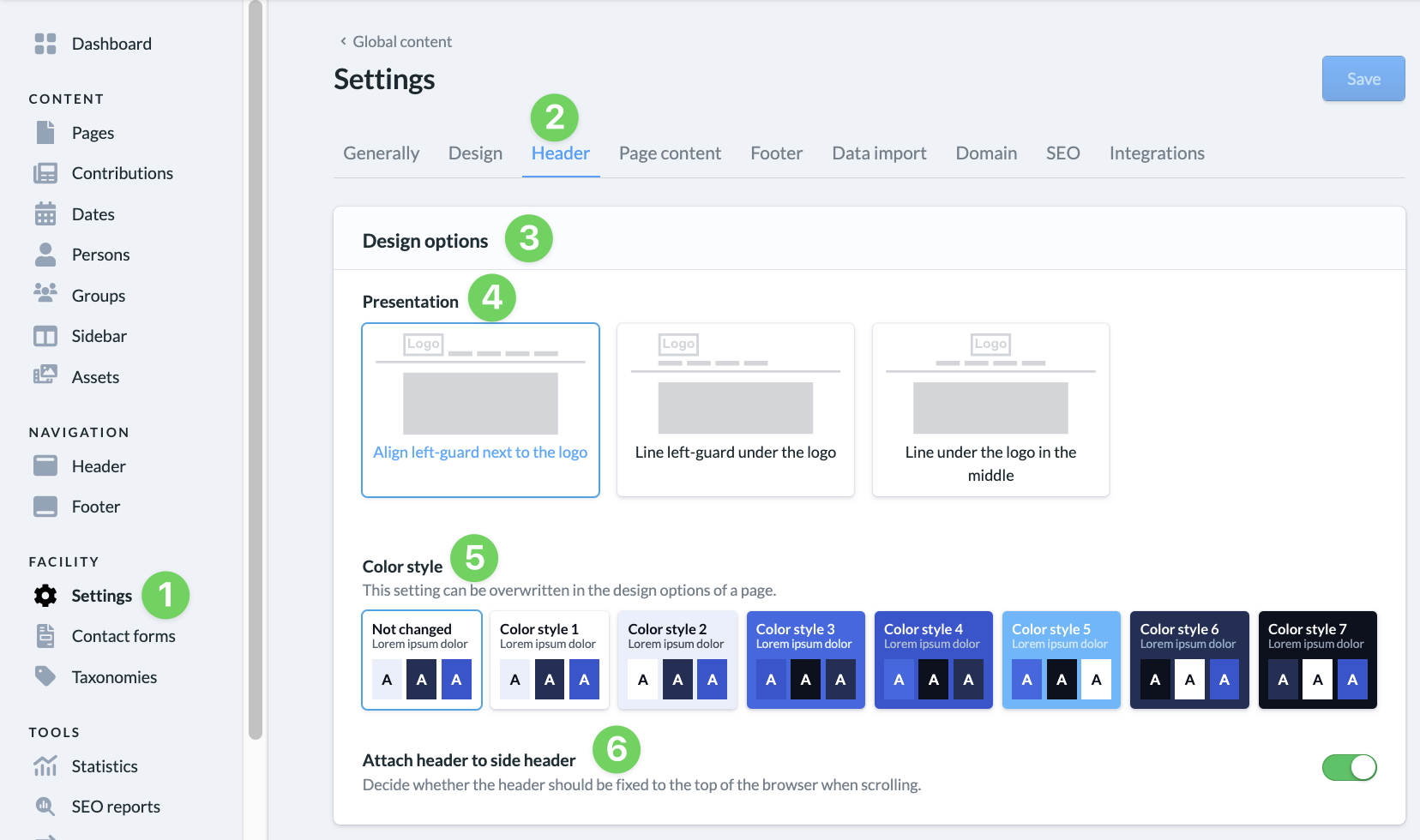
In your website’s admin area, go to Settings (1) and select the Header (2). Here, under Design Options (3), you can specify where the navigation menu should be positioned relative to the logo (4), set the header’s color scheme (5), and determine whether the header should be sticky at the top of the page or not (6).
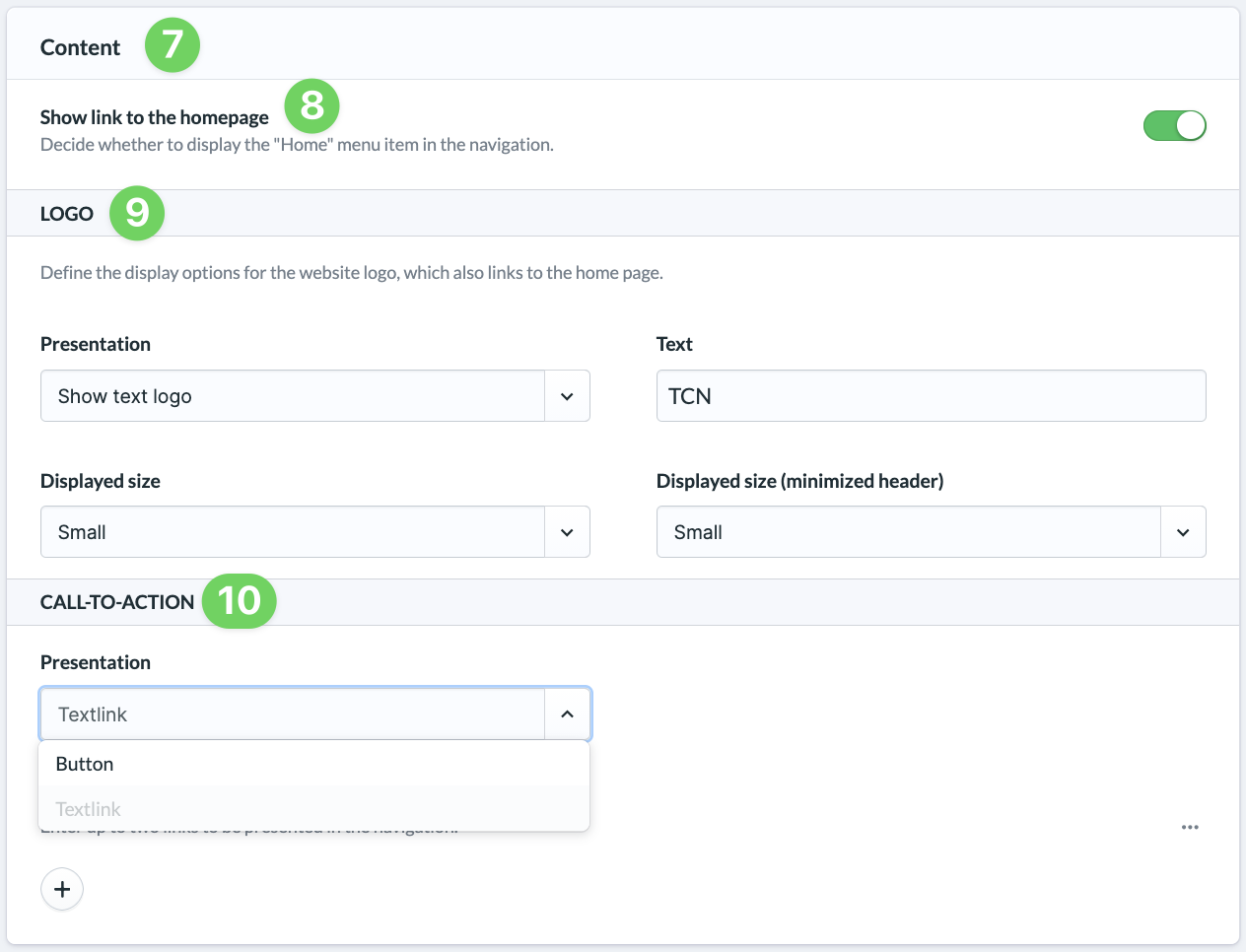
Under “Content ” (7), you can choose whether to display a link to the Home page (8) in the navigation menu or if you’re satisfied with visitors being able to go to the Home page by clicking your logo.
In addition, under “Logo ” (9), you can specify how your logo will appear; you can upload it in the General Settings. We’ll explain how to do that here.
Under “Call to Action” (10), you can define buttons or text links that should also be displayed in the header and that link to web pages you want to make particularly easy to access or highlight. These buttons or links are displayed on the right side of the header.