


In the live preview, you can see all changes to a page in real time. We’ll explain how to use it here.
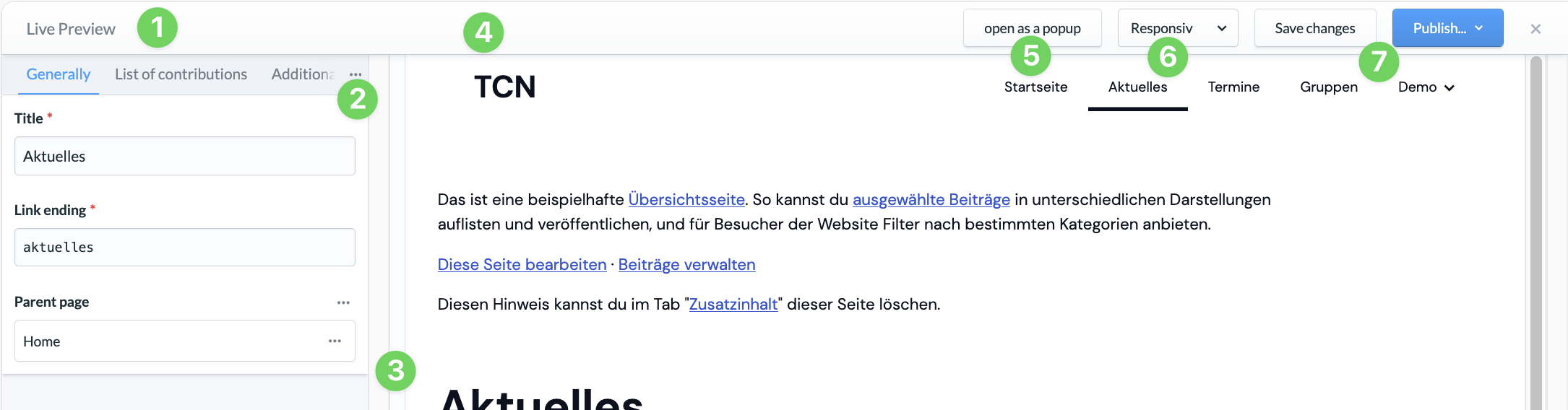
(1) Edit page #
You’ll find the editing area here in a compact view on the left-hand side.
(2) Expand the tab #
The three dots hide a context menu where you’ll find the tabs that can’t be displayed due to space constraints.
(3) Adjust window sizes #
You can easily adjust the size of the editing area and the live preview by dragging the divider between them back and forth using the button.
(4) Live preview of the page #
Here you can see all your changes in real time.
(5) Open as a pop-up #
This will open the live preview (4) in a separate window.
(6) Change View Mode #
Here, you can change the live preview view. You can choose between Responsive (adjusted to the screen size), Laptop, Tablet, and Mobile. This lets you see right away how your website would look on a smartphone, for example.
(7) Save and publish changes #
You’re already familiar with these buttons from the standard view. Saved changes won’t be published until you actively publish them by clicking the ” Publish ” button.