


In new ChurchTools systems, the use of chats is enabled by default. For existing systems, the feature must be enabled manually.
If individual chats are permitted, a user can chat with any user visible to them. Group chats, even if they are permitted in principle, only become active once they have been activated by an authorised group member (see Additional settings for group chat). Permitted event chats can either be started manually directly in the event by an authorised user or automatically before the event. We explain how to configure these settings in this article.
General settings in the system settings under Communication #
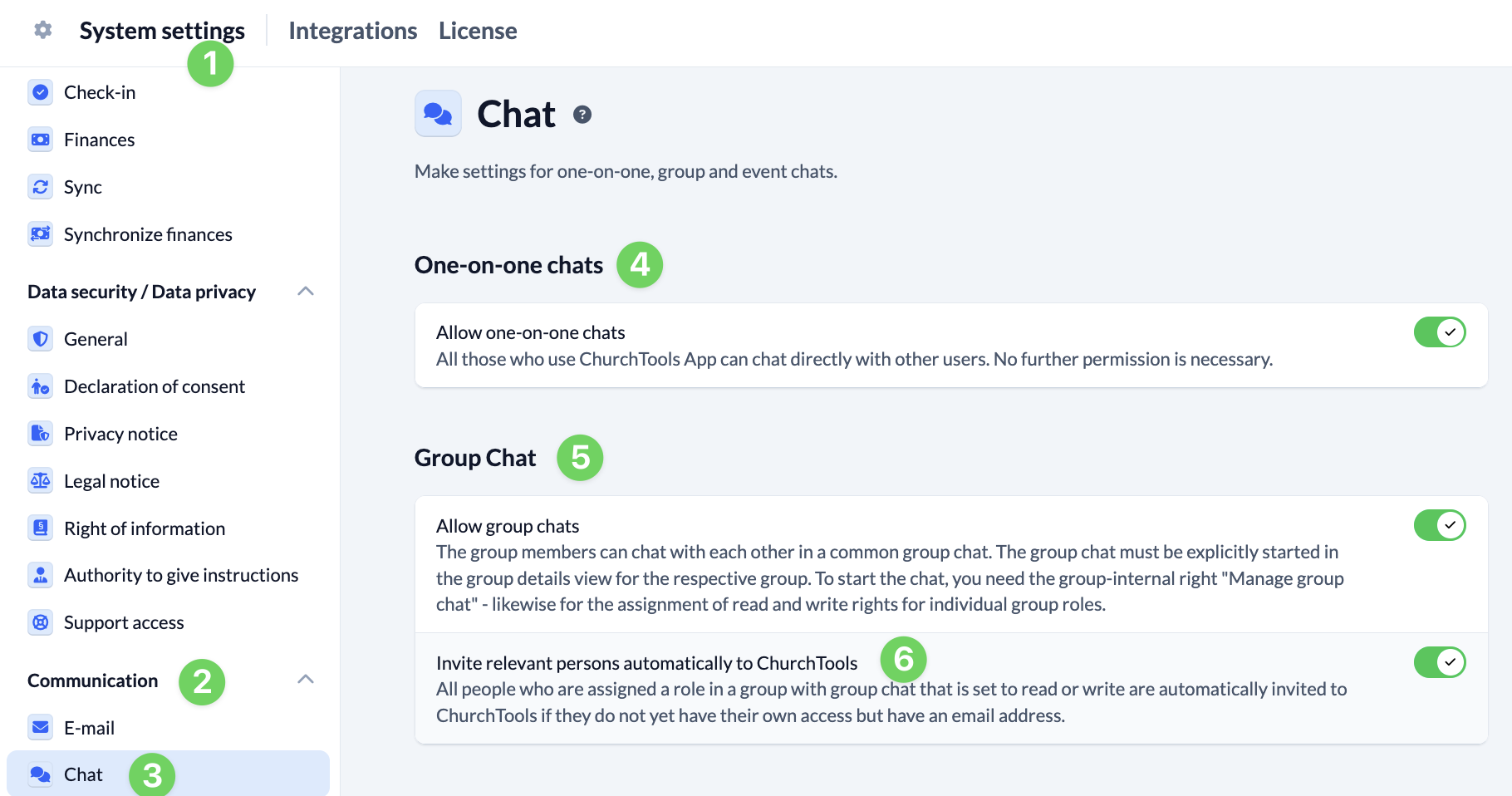
You can find the settings for this in System Settings (1) under Communication (2) and Chat (3).
In the upper part of the settings, you can allow the use of individual (4) and group chats (5) and specify for group chats whether affected persons should be automatically invited to ChurchTools (6) if they have never logged in before but an email address is stored for them.
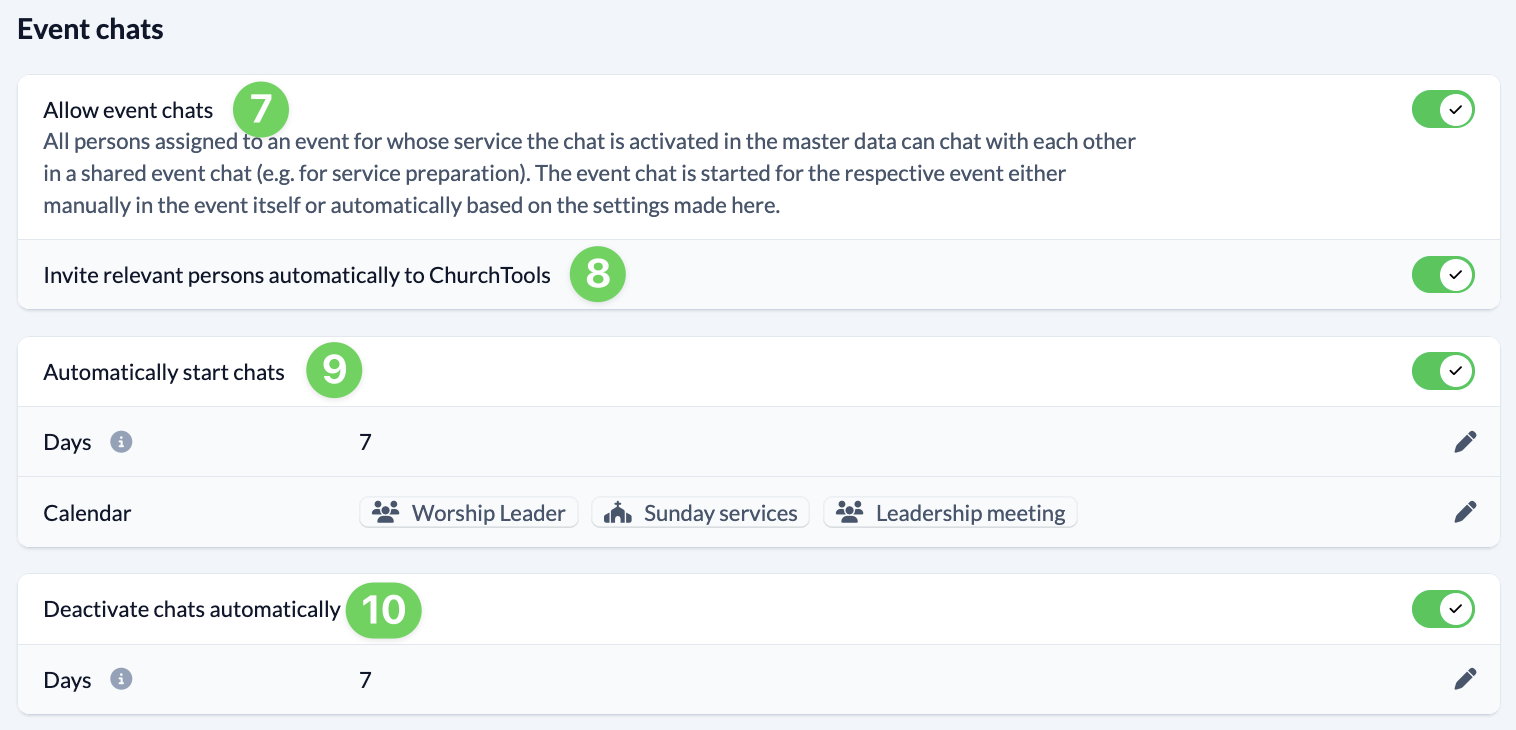
In the lower section, you can enable the use of event chats (7) and specify whether affected individuals should be automatically invited to ChurchTools (8) if they have never logged in before but an email address has been stored for them.
Events are often planned well in advance. However, the arrangements for them sometimes take place much later. That’s why you can have event chats start automatically (9) when the time comes. To do this, you specify how many days before the event the corresponding chat should start and can use a calendar selection to restrict which event chats the automatic start should apply to.
Once an event is over, the associated chat should also be cleaned up. In the last setting, you can specify how many days after an event the associated event chat should be automatically deactivated (10).
Further settings for Groups chats #
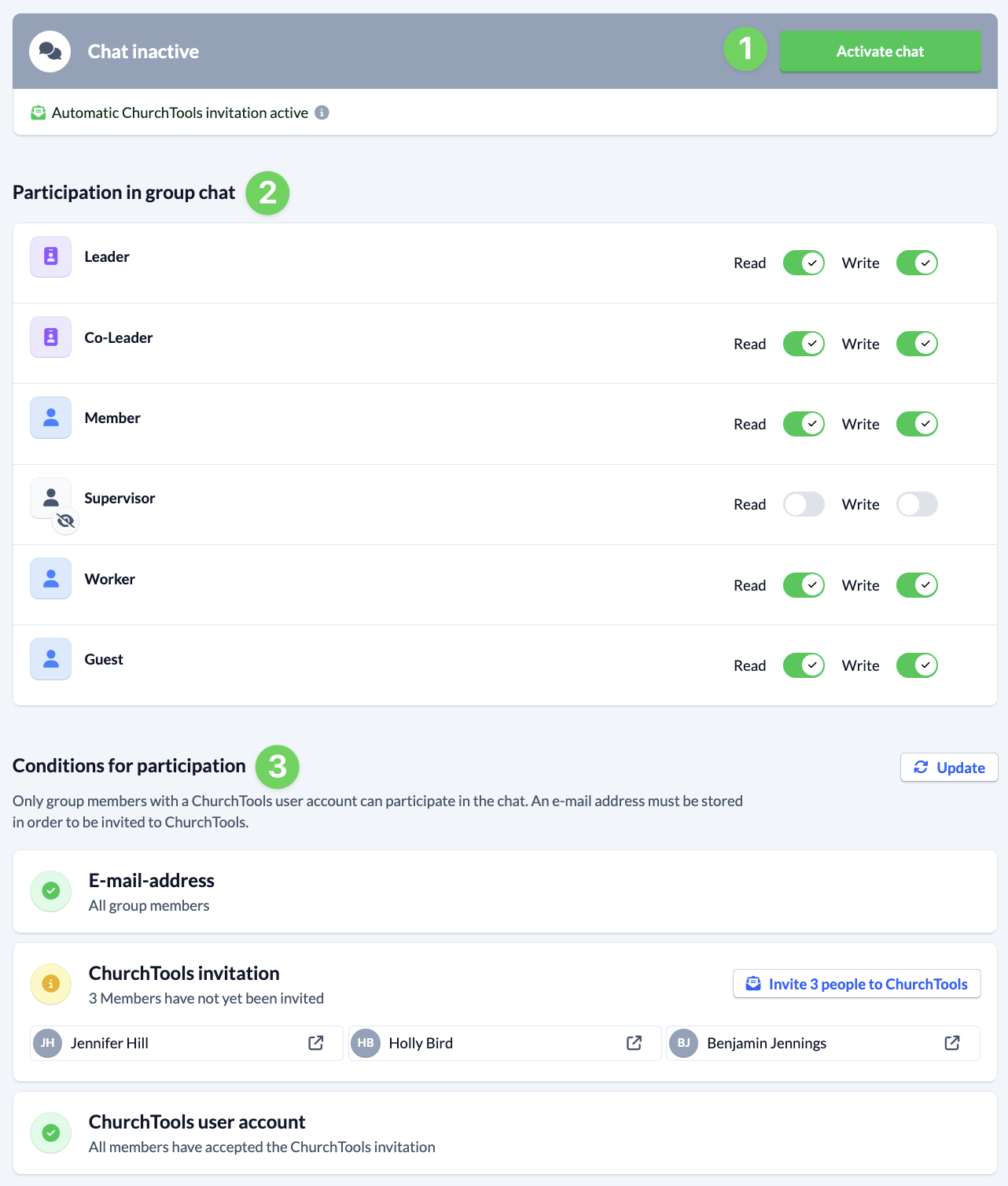
In principle, chat for a group only becomes active if it is enabled directly in the group settings in the group module by an authorised group member (1). To do this, the member requires the internal group authorisation to manage group chat.
This allows the authorised user to determine who is allowed to participate in the chat (2) and how. They can also see whether the other group members meet the conditions for participating (3) in the chat, for example, whether someone has not yet installed the app. For more information, see the article How to manage the chat for my group?
Further settings for event chats #
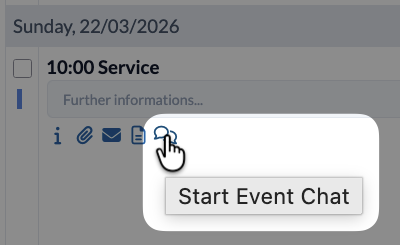
Event chats may only be started manually in the Events module by authorised users. To do this, the user must either have the global authorisation Manage authorisations (administer persons), the group-internal authorisation Start event chat, or the user must be registered as the person responsible for an event.
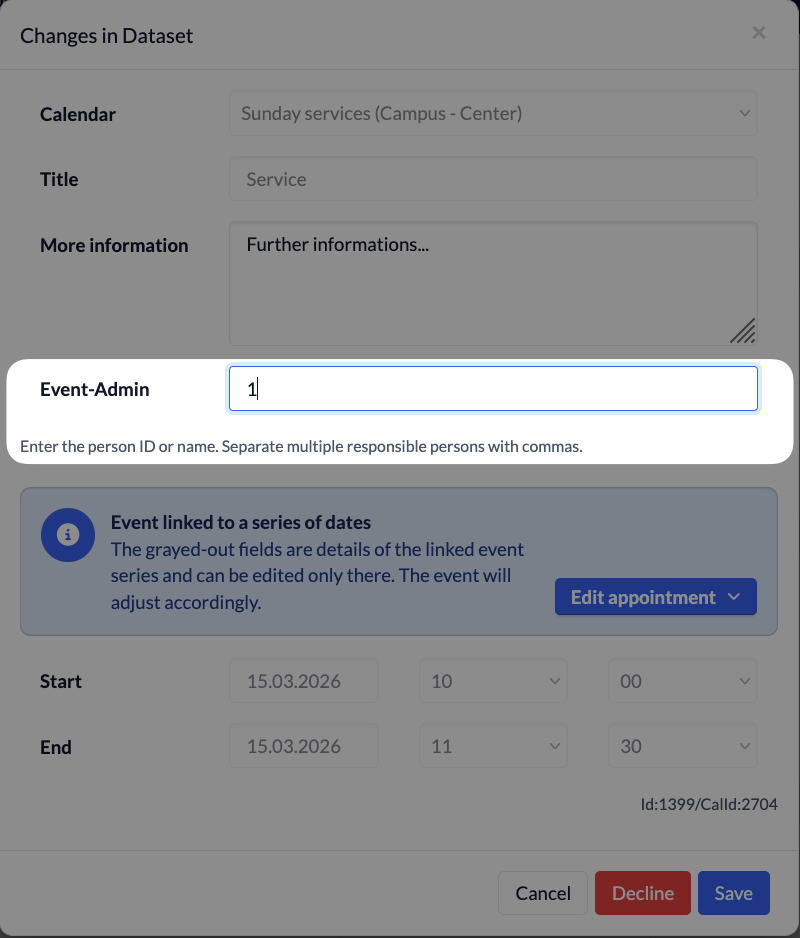
If he is authorised, he can start the event chat via the speech bubbles at the event. You can find more details on this in the article How do I use the event chat?
You can use the services in the master data of the Events module to specify whether the employees of a service participate in the chat or not.
