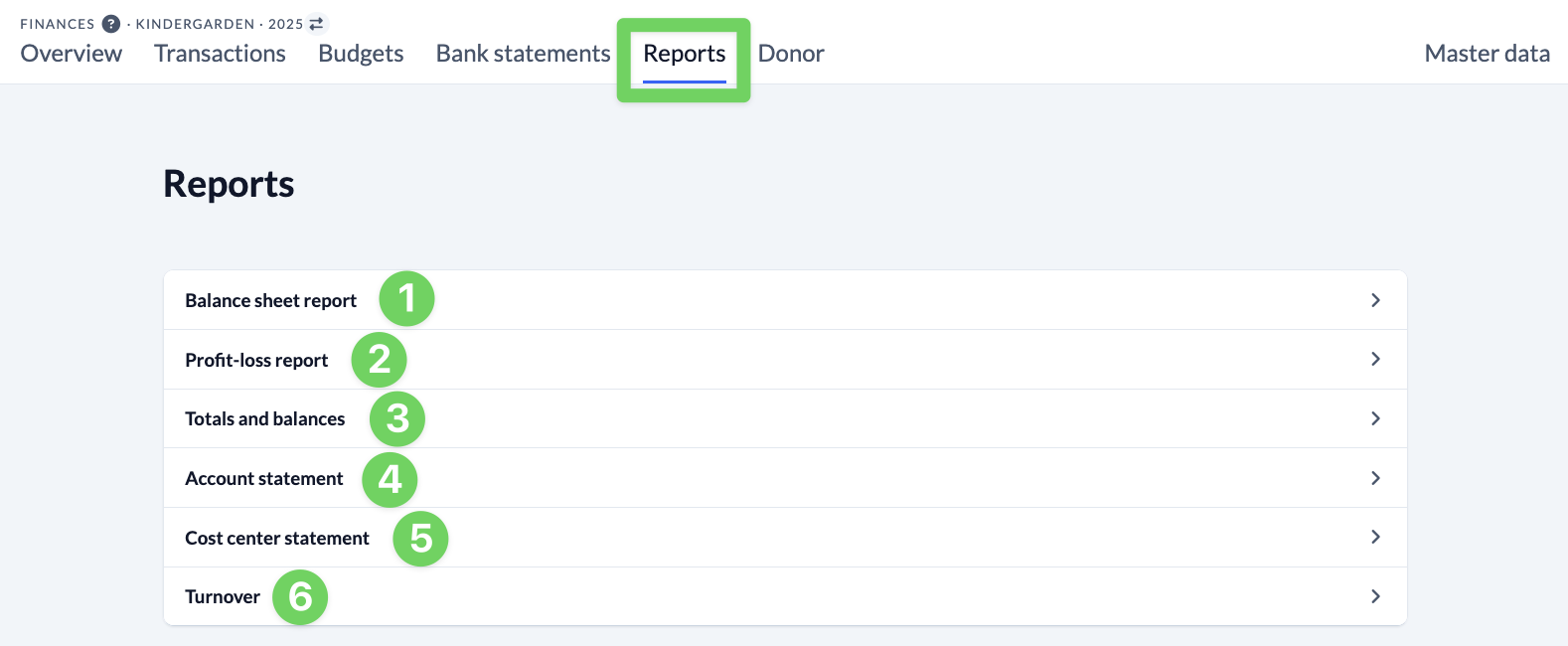
ChurchTools Finance offers you six different reports (financial reports) so that you can view clear information about your church’s finances.
You can download all reports as a PDF, Excel or CSV document.
(1) Balance sheet report #
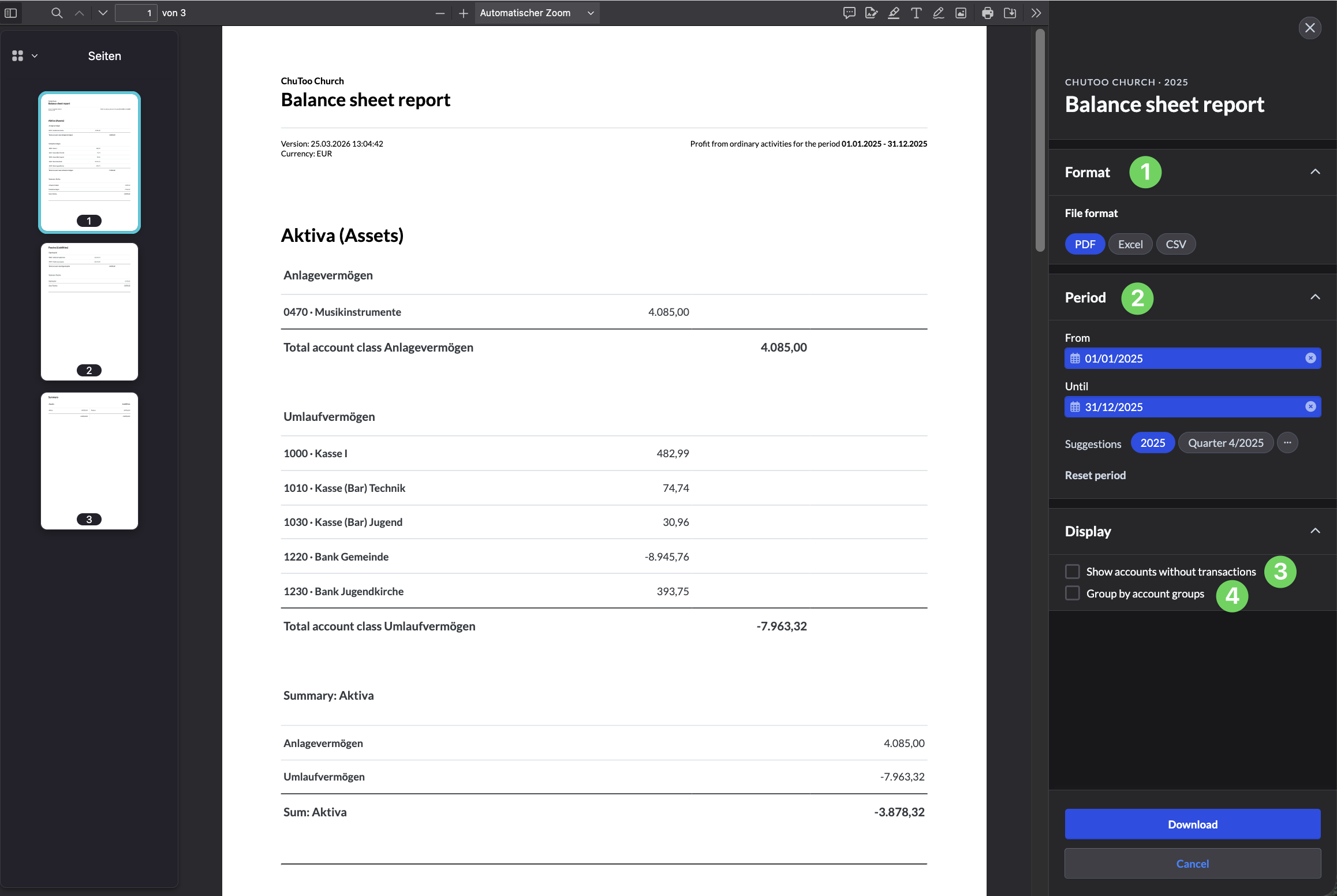
If your church has to submit a balance sheet for the annual financial statements, you can create and download it here.
In the menu on the right-hand side, you can select the file format (1), limit the time period (2), hide certain accounts (3) or group accounts (4).
(2) Profit-loss report #
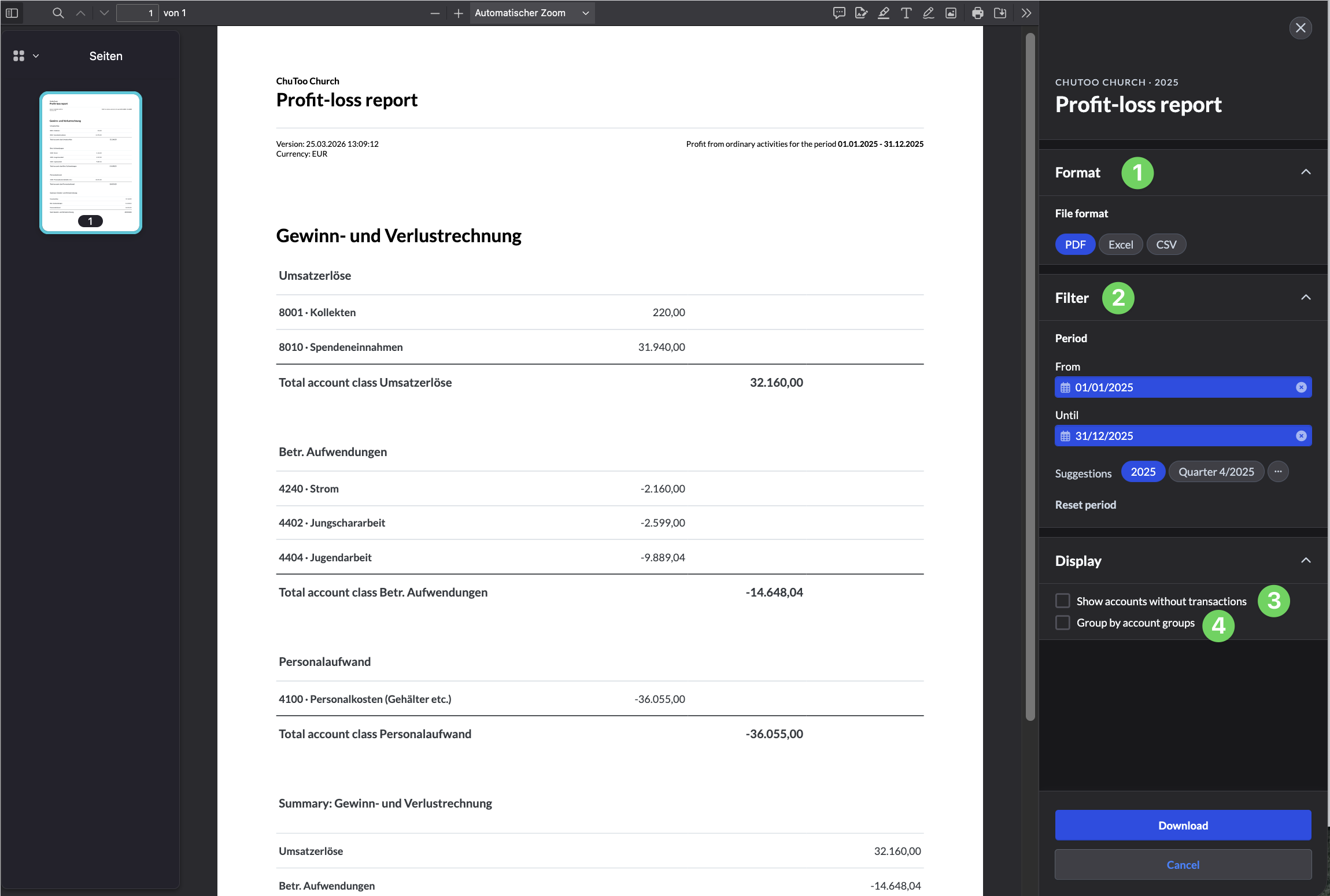
If your church needs a Profit and Loss Account, you can create and download it here.
In the menu on the right-hand side, you can select the file format (1), limit the time period (2), hide certain accounts (3) or group accounts (4).
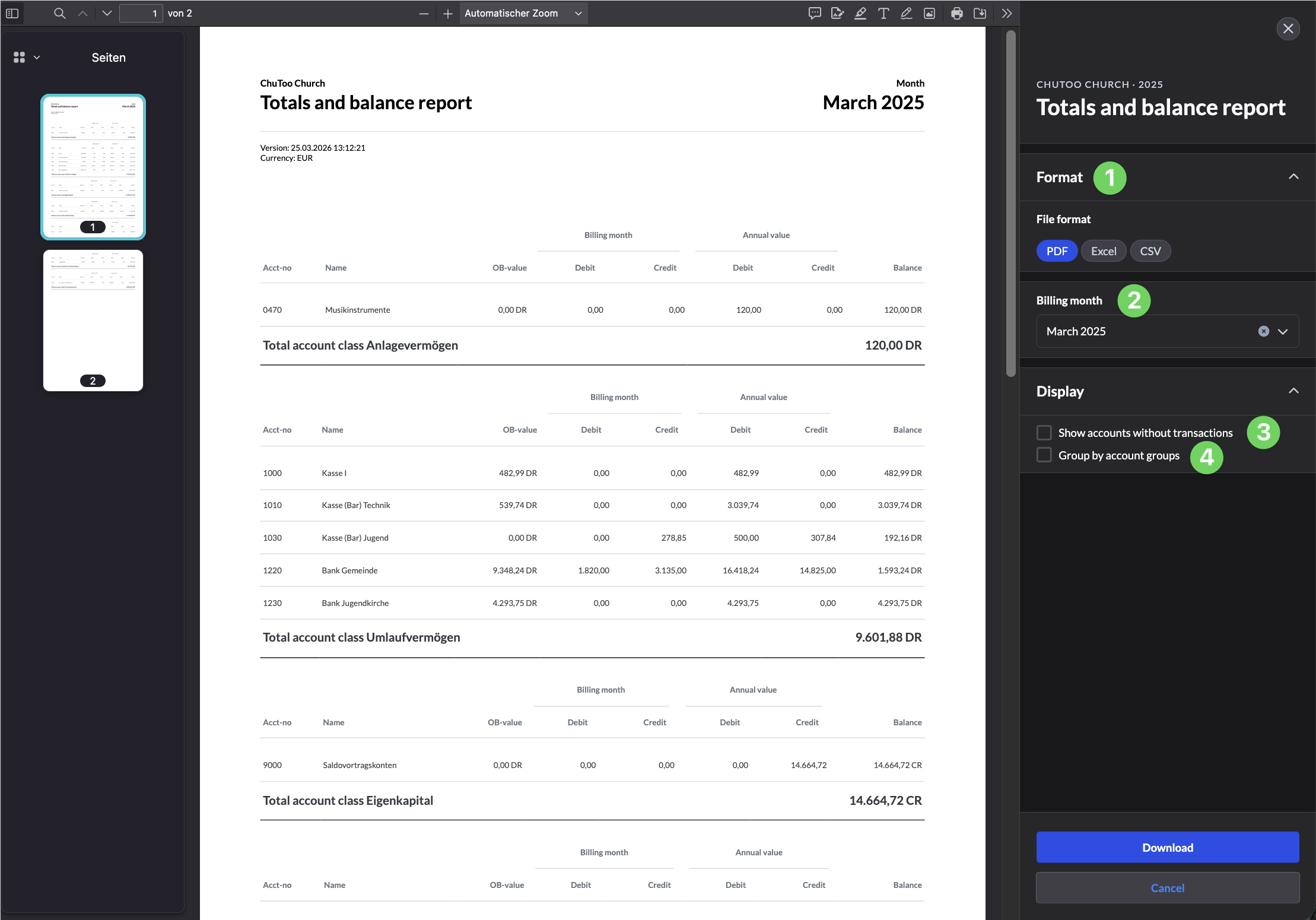
(3) Totals and balances #
This report shows you the totals and balances of your account classes. The monthly and annual values are displayed.
In the menu on the right-hand side, you can select the file format (1), limit the time period (2), hide certain accounts (3) or group accounts (4).
(4) Account statement #
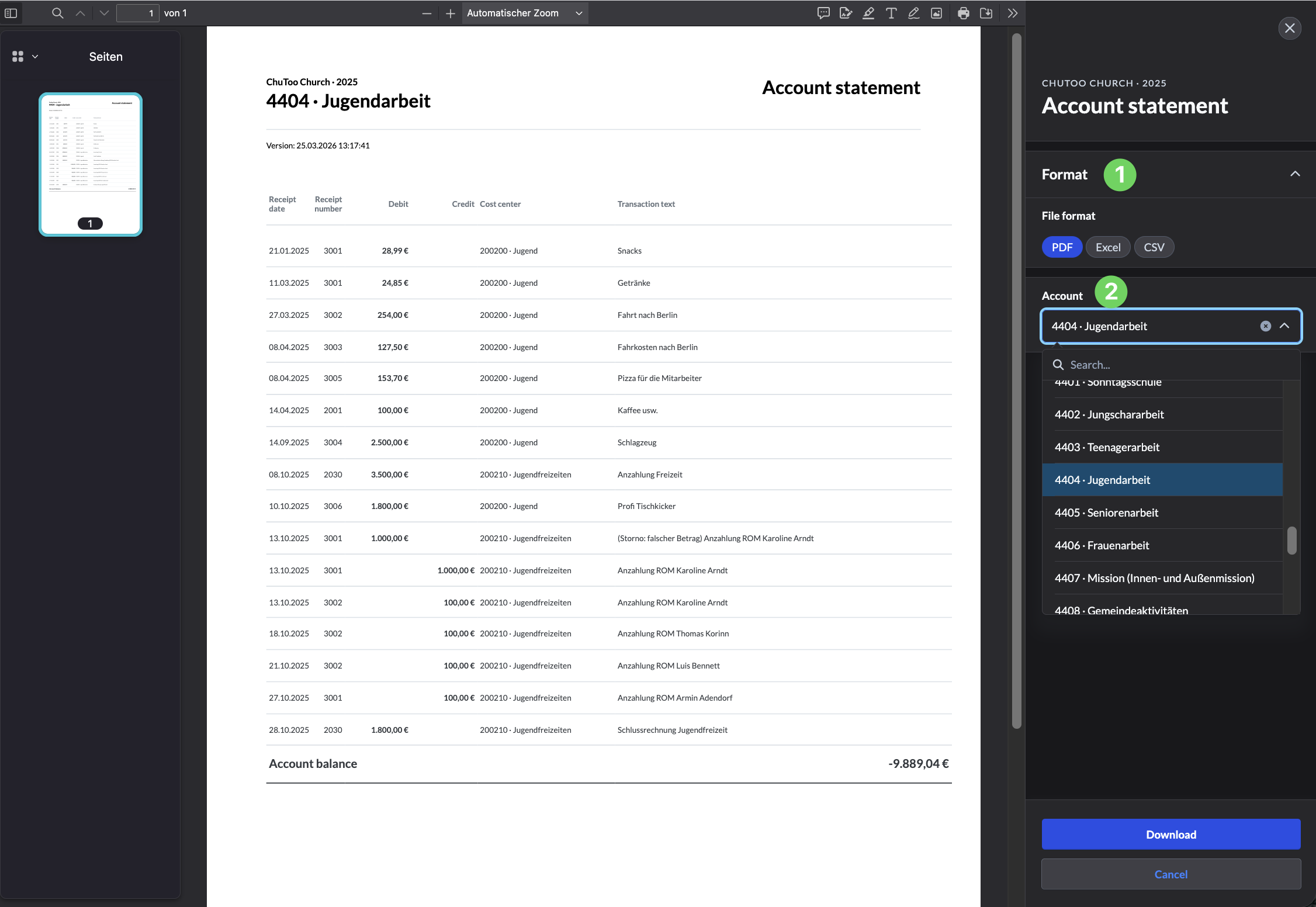
With this report you can create and download an account statement for each of your accounts.
You will then be shown all bookings in the account up to the current date, including the voucher number, cost center and booking text.
In the menu on the right-hand side, select the file format (1) and the account (2) for which you want the account statement to be displayed.
(5) Cost center statement #
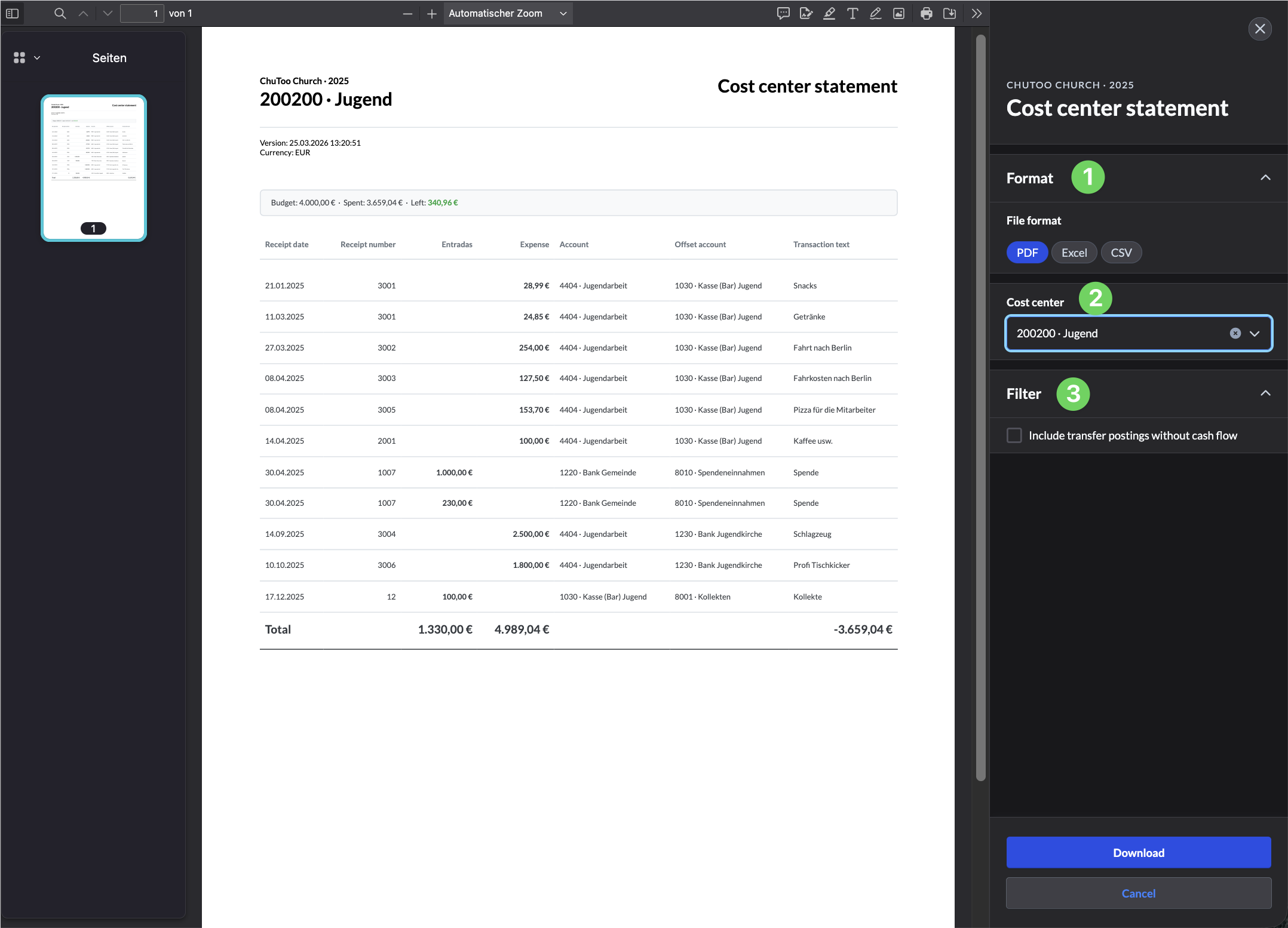
With this report, you can create and download a cost center statement for each of your cost centers.
You will first be shown the budget and its current status. You will also see all bookings for the cost center up to the current date, including the document number, account information and booking text.
In the menu on the right-hand side, select the file format (1) and the cost center (2) for which you want the cost center statement to be displayed. Transfers without a payment flow (3) are filtered out by default – you can include them using the checkbox.
(6) Turnover #
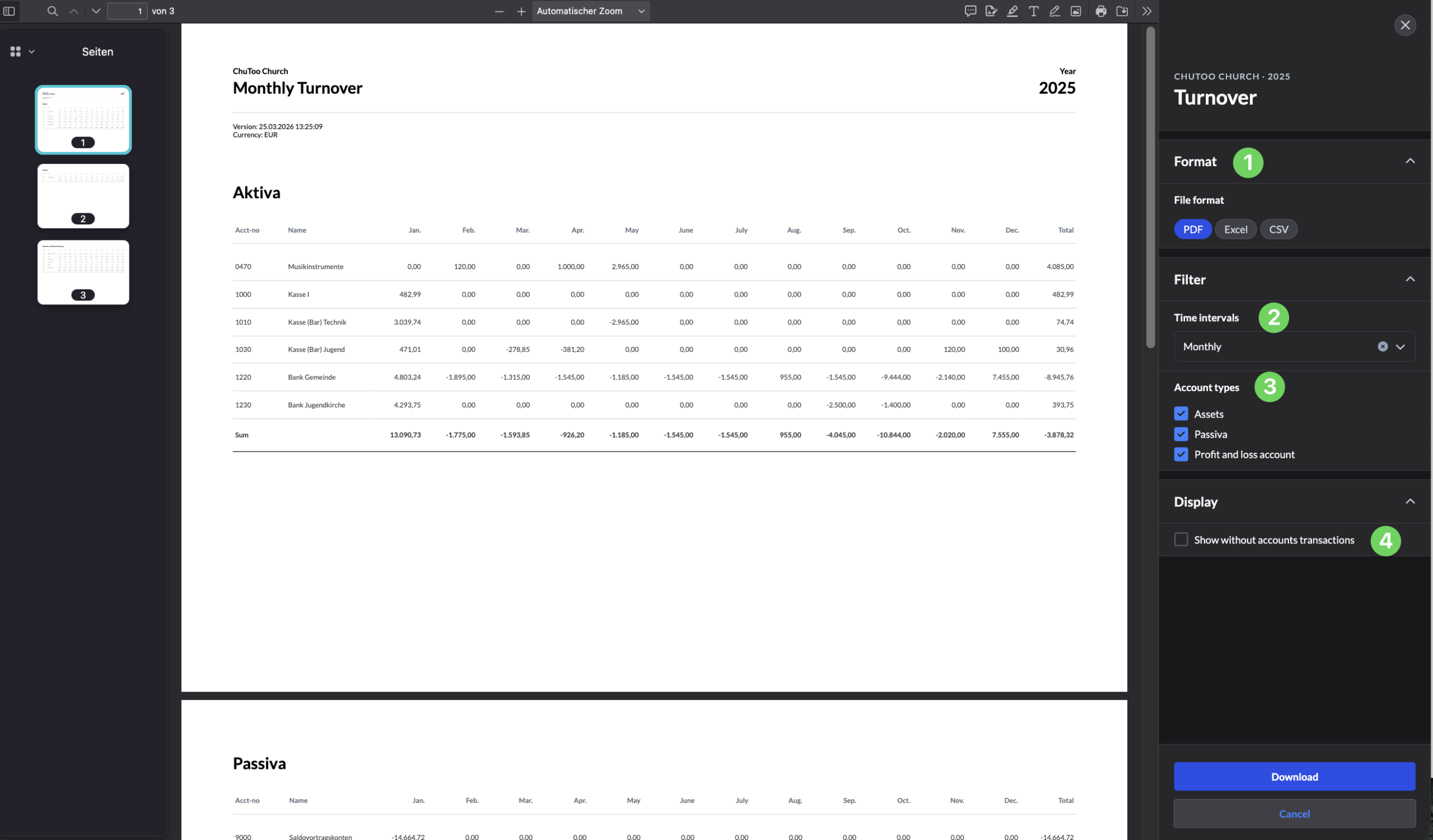
This report shows you the turnover of your accounts sorted by account type.
In the menu on the right-hand side, you can select the file format (1), time intervals (2) and account types (3) or hide certain accounts (3).