In ChurchTools, you can customize the roles for each group type so that they fit your group structures exactly. You can find out what options you have for this on this help page.
1. call up the roles of a group type in the settings #
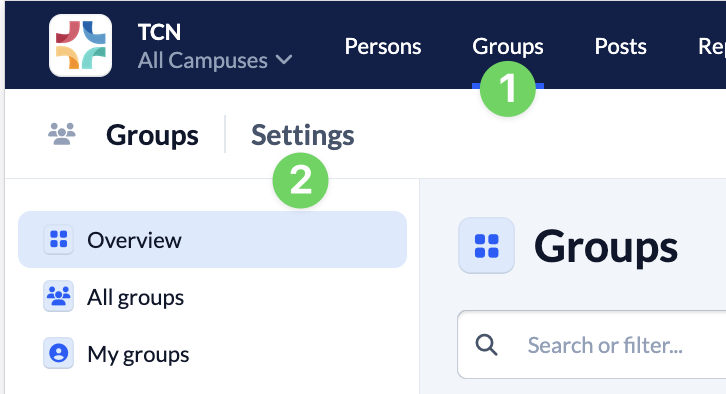
You call up the settings (2) in the Groups module (1).
Then select Manage Group types (3).

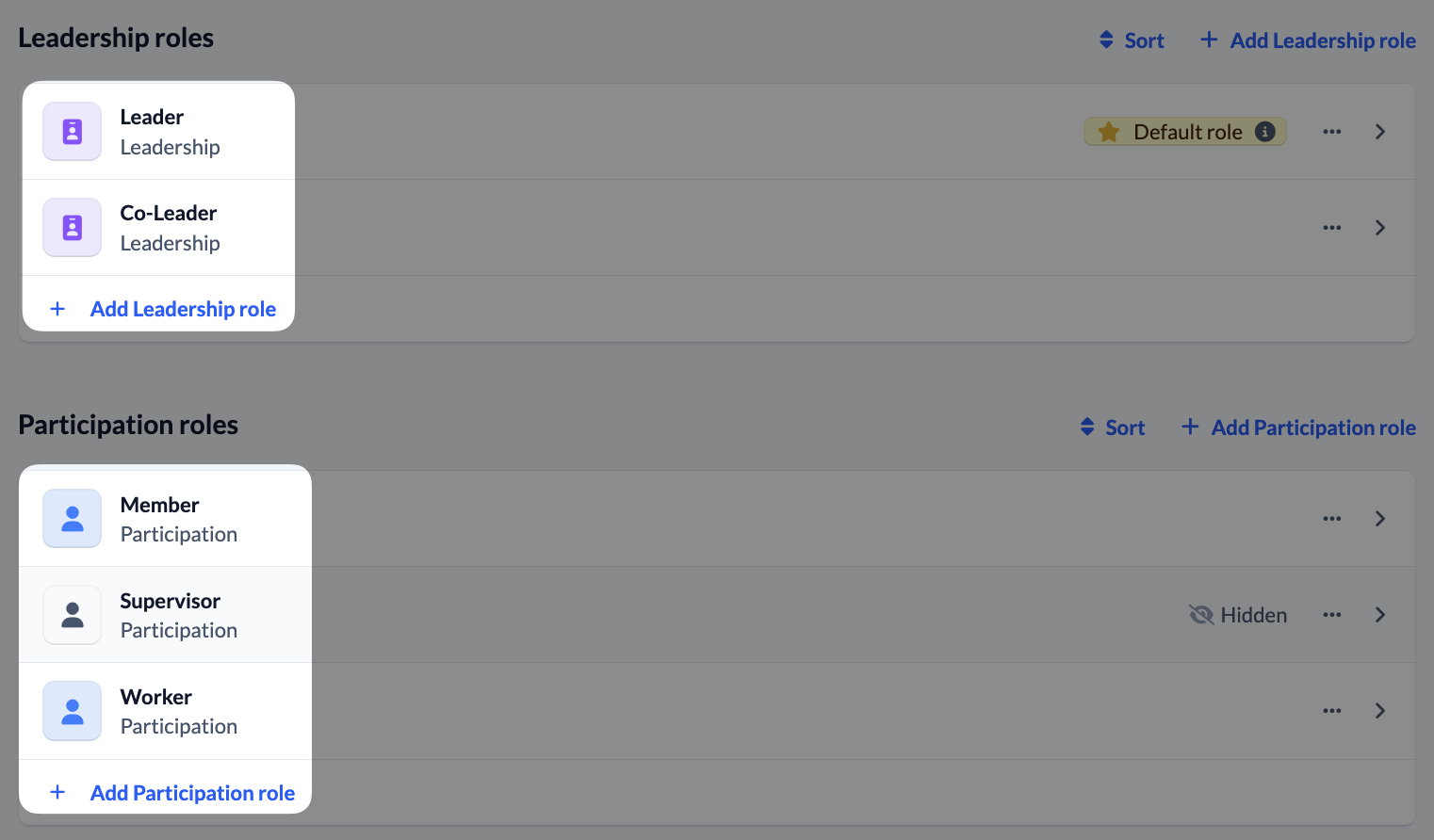
Here you will find all leadership and participation roles of the selected group type, add new ones and adjust existing ones.
2. add new roles #
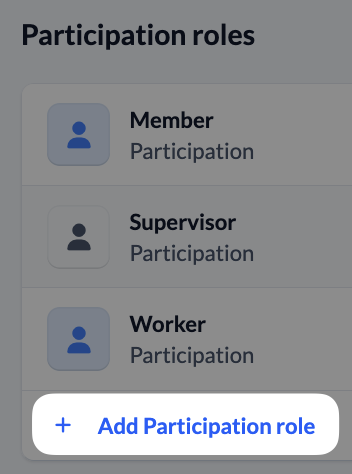
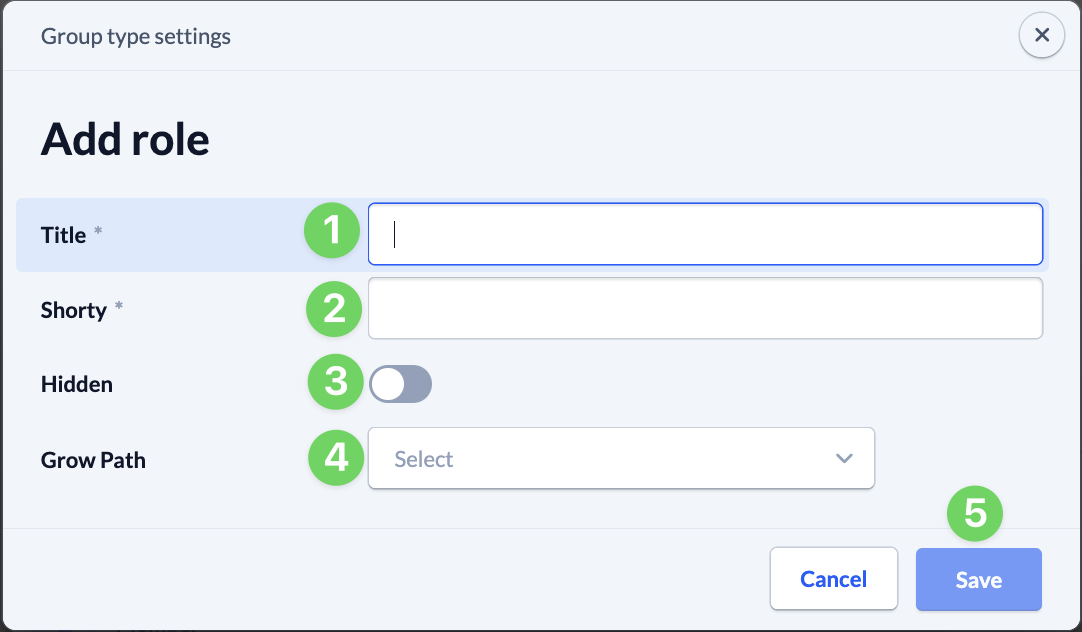
Click on Add Leadership or Participation role to open the input screen.
Here you enter a Title (1) and an abbreviation (2) for your new role.
Optionally, you can the new role hide (3). This makes sense, for example, in the case of the role of a coach who supervises the leader of a group.
You also have the opportunity to give the role a growth path (4) to accompany people with this role in a group of this particular type.
With the Save (5) you create the new role for the selected group type.
3. customize existing roles #
To customize an existing role, click on the corresponding role line.

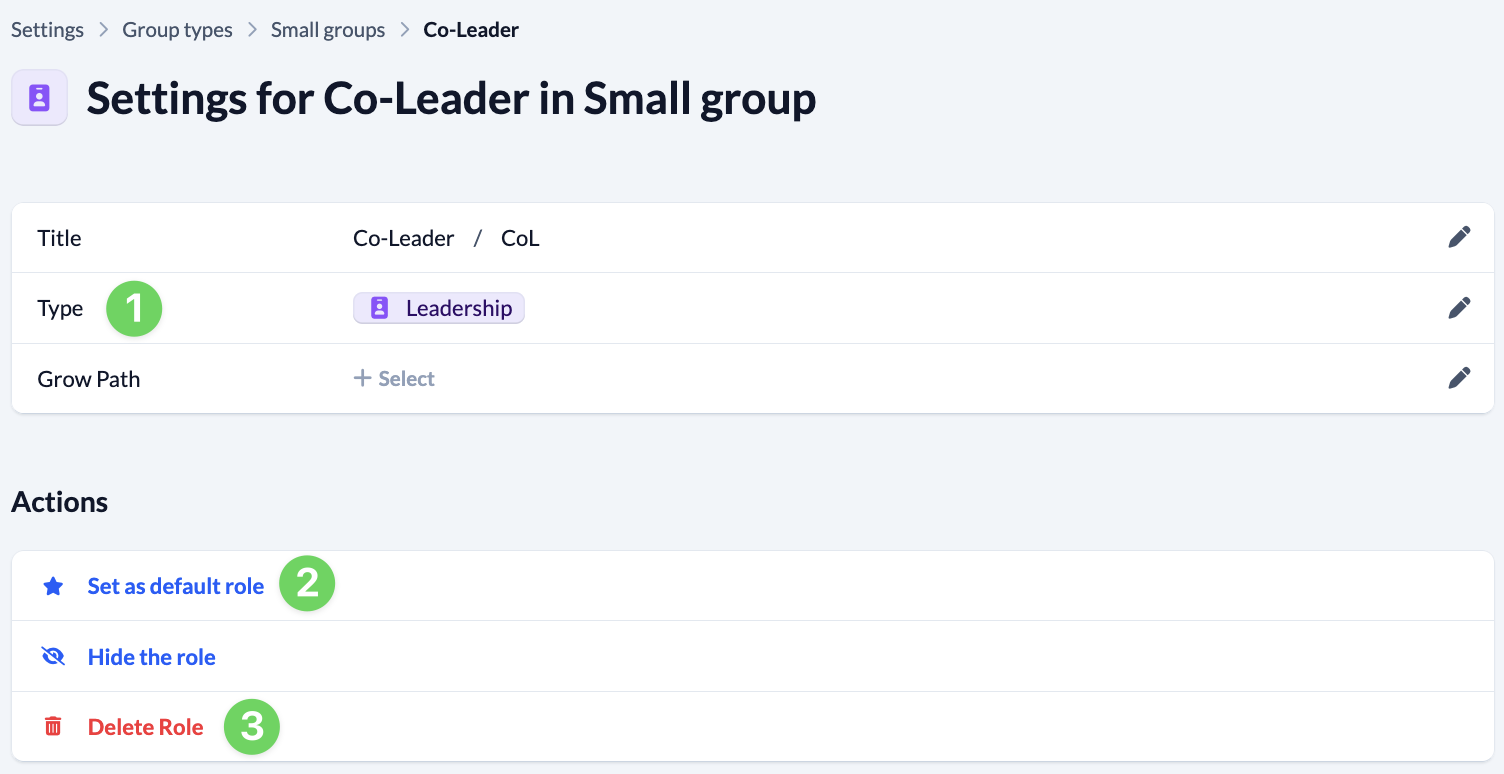
This opens the settings for the selected role and you can customize everything there that you can also define when creating a new role (see above).
You can also change the type (1) of the roll, change it to the standard role (2) or delete it (3).