

In ChurchTools, you can use graphics in many different places: profile pictures for people, or graphics and images for posts, groups, or calendars to complement descriptions or even partially replace them.
ChurchTools lets you edit your graphics to optimize how they appear in ChurchTools in various contexts, to make it clear where the graphic comes from, or to ensure that screen readers can read what they show. We’ll explain how to do this in this article.
Whether you’re uploading a profile picture, adding images to a post, or including a group photo or graphic with a calendar event, you’ll see the same dialog box in all cases, with different options available depending on the context.
Set Focus Point #
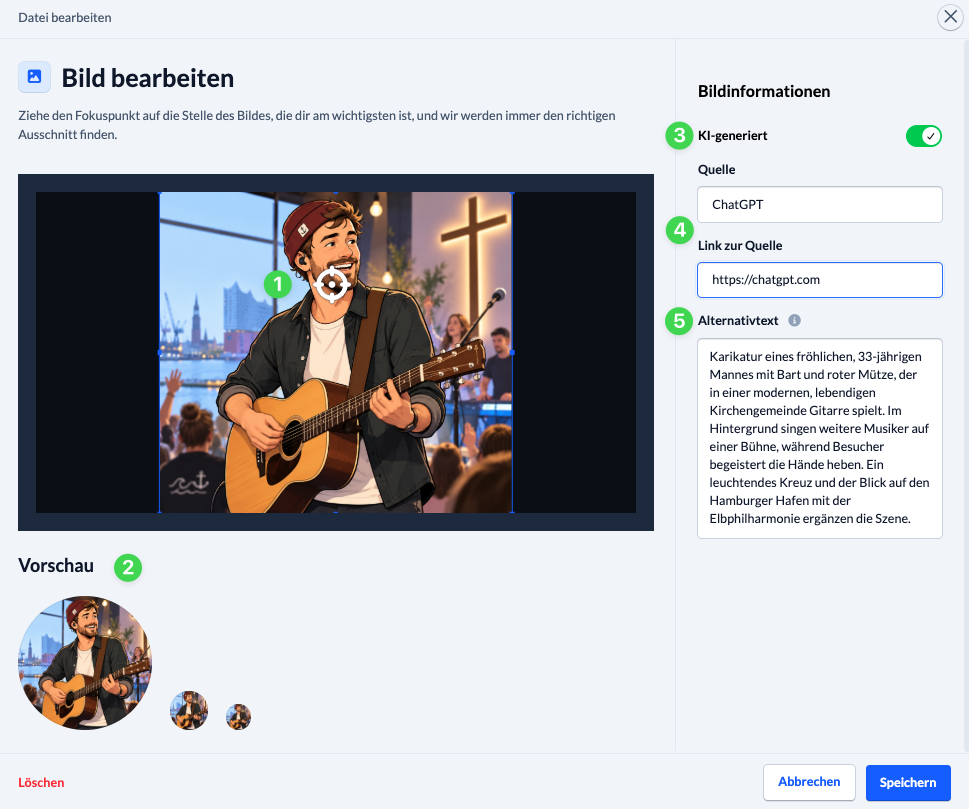
Drag the focus point (1) to the part of the image that’s most important to you, and we’ll always find the right frame. In the preview (2) below the graphic, you can see how the crop appears in different sizes.
Edit Information #
In the right-hand column of the window, you can enter information about your graphic.
- Make it clear whether the inserted graphic AI-generated (3). For publicly visible graphics, a note will be displayed in the lower-left corner of the graphic.
- References to the source (4) of the graphic and include a direct link to the source (5). When the graphic is used publicly, the source’s copyright notice will be displayed in the lower right corner via the provided link.
- Add an alternative text (6). Screen readers read this text aloud to people with visual impairments. Briefly describe what is shown in the image. For flyers, it’s best to also include the most important details.
Images in Posts #
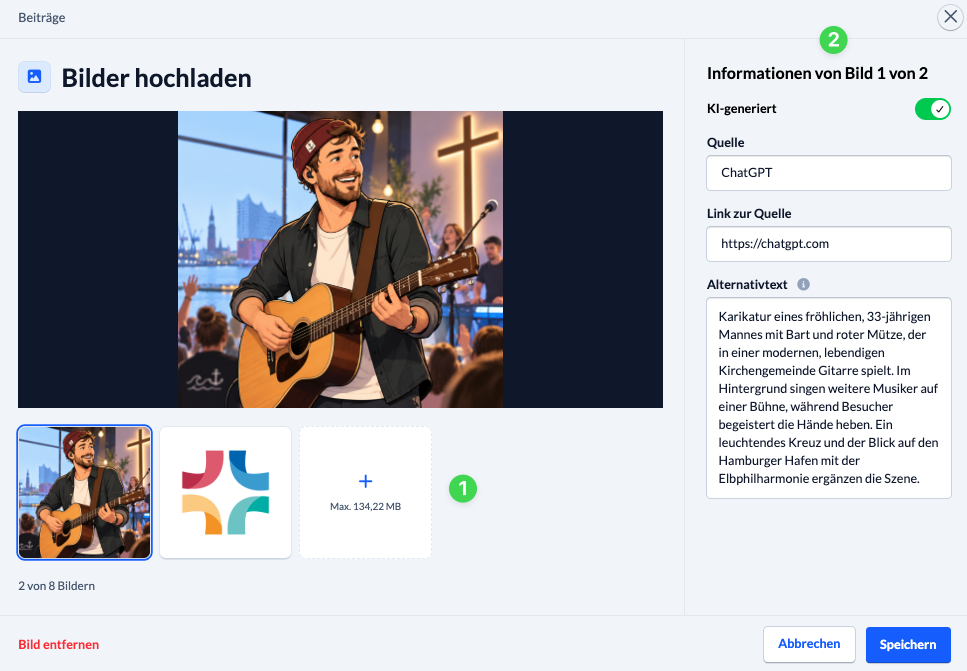
The spotlight feature is not available for images in posts. Instead, you have the option to upload up to 8 images to a gallery (1) and configure the information (2) for each one. We’ve compiled a list of the aspect ratios that work particularly well here in the article “Aspect Ratios for Images in Posts.”