


Your church’s ChurchTools is a secure environment for your data and that of your congregation. There are several ways to use it. You can either register yourself, or an admin at your church can set up an account for you using your e-mail address and then invite you to use the platform.
Self-Registration #
If your church has set up ChurchTools so that you can register on your own, go to the ChurchTools Login page, select ” Register,” and you’ll be redirected to the registration form.
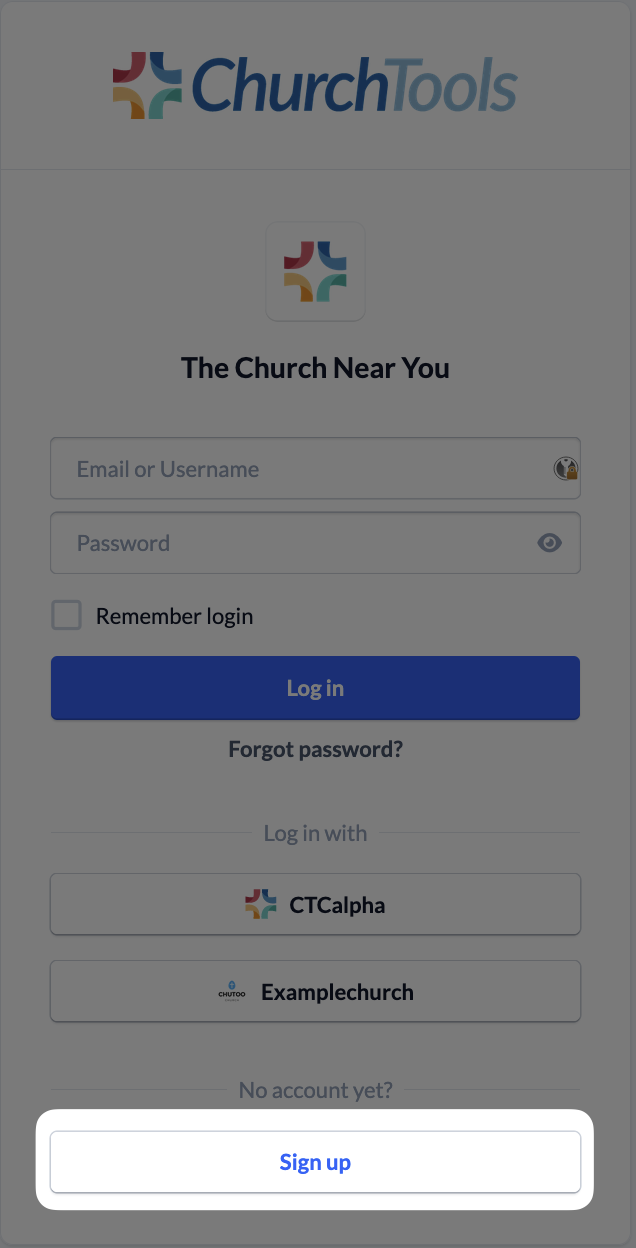
If you use a registration link or QR code provided by your church, you’ll be taken directly to the registration form, where you can enter the required information and set a password.
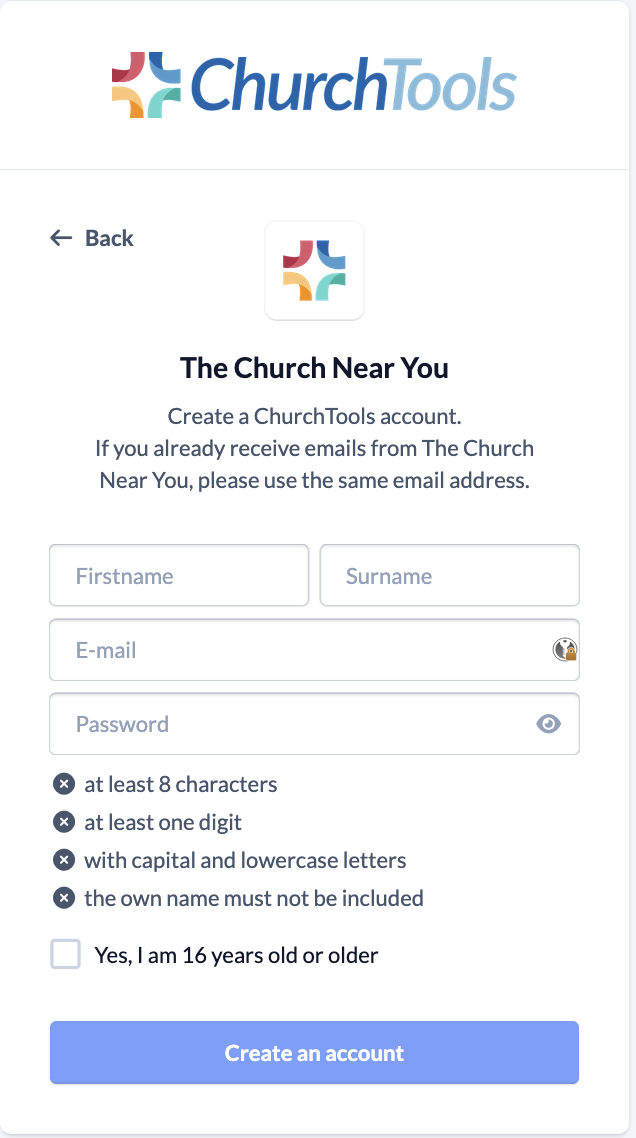
You will then receive a confirmation e-mail that you must use to verify your e-mail address. Once you have confirmed your address, select your campus—if your church has multiple campuses—and provide additional information to complete your registration.
Organized by your congregation #
If self-registration is not enabled for your congregation, please contact a local admin. An account will then be set up for you using your e-mail address, and you’ll be invited to use ChurchTools. Follow the link in the invitation e-mail and set a password for your account. You can then use these login credentials to log in both on the web and in the app.
Set a password #
Once your account has been created, you’ll receive an e-mail with a link (1) that takes you to the password setup page. It looks something like what we show you in the next image, but it’s customized for your congregation, of course.
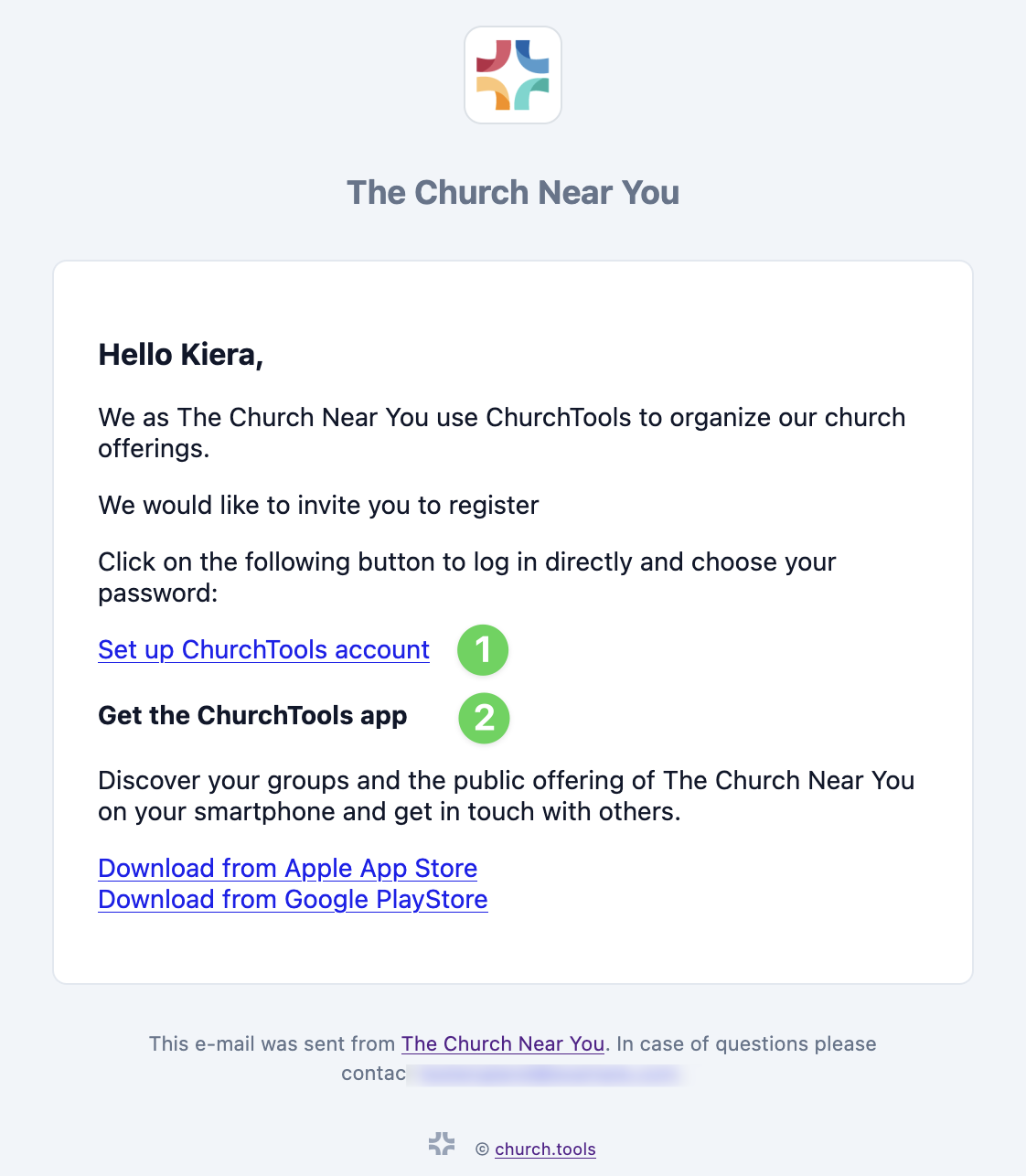
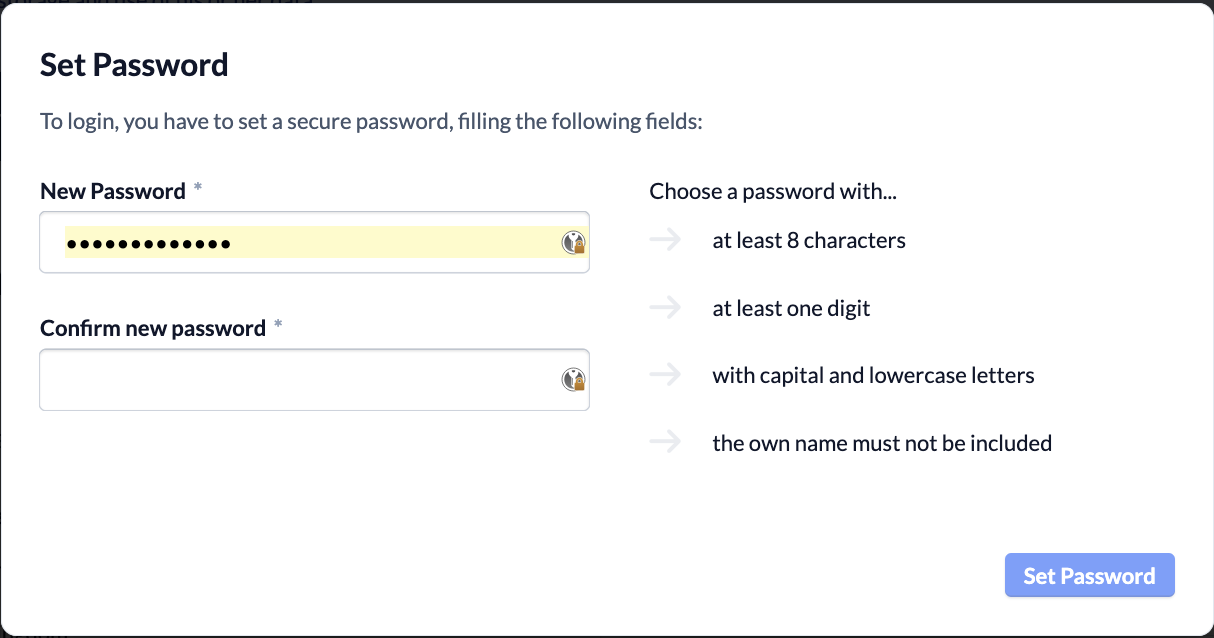
If you follow the link to set up your ChurchTools account, you’ll be prompted to create a secure password for your account.
On the right side of the window, you can see whether your password meets the security criteria. Finally, confirm your password by clicking the button at the bottom of the window.
Log In #
Open URL #
First, open your ChurchTools URL in a browser.

You will then see the Home page set up by your congregation for users who are not logged in. Even if you are not logged in, any public modules may be displayed in the blue menu bar. These have been made available by your congregation, such as public calendars or wiki categories. To view additional modules, you’ll need to log in. To do so, click “Login” on the right side of the blue menu bar to enter your login credentials.

Enter your login credentials #
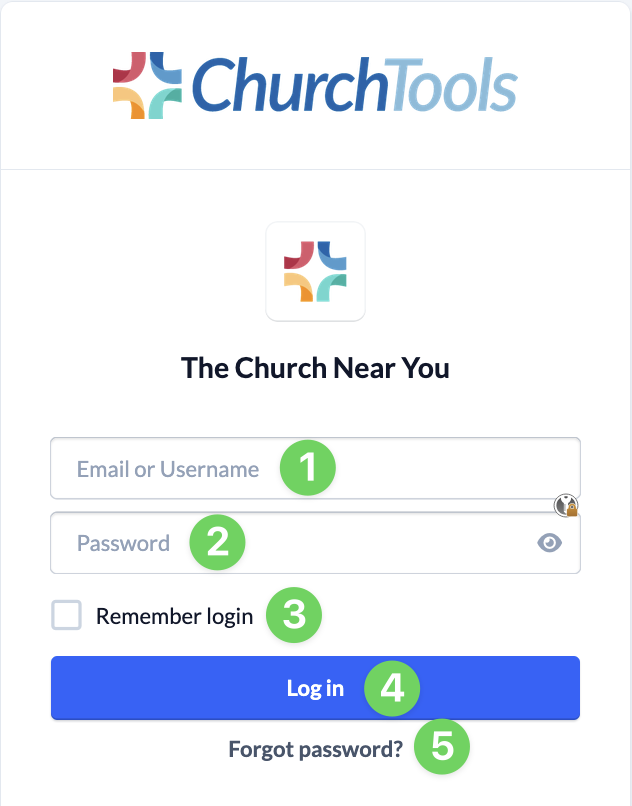
To log in to ChurchTools, you’ll need the e-mail address or username (1) you provided to ChurchTools, as well as your password (2).
By checking the box next to “Stay logged in ” (3), you can ensure that your Login remains active for the duration of your current browser session.
After entering your login credentials, click “Login ” (4) to log in to ChurchTools.
Optional: Accept the terms and conditions #
Since your congregation’s ChurchTools contains, for example, personal information or sensitive data about your congregation, it is very likely that you will need to accept a consent form and/or confidentiality agreement provided by your congregation’s admin.
Only if you accept the consent form does your congregation receive permission to store your data in ChurchTools. The confidentiality agreement, in turn, requires you to treat any data you may see in ChurchTools as confidential. The agreements therefore serve to provide mutual protection and ensure compliance with data protection obligations between you and your congregation.
You can learn more about data protection and the agreements mentioned here on the help page “How does ChurchTools help you with data protection?”
Login Failed #
If you’re unable to log in even after entering your login credentials, please first check the URL you entered in your browser’s address bar. Typos happen more often than you think!
If the URL is correct but you still can’t log in, your password might be incorrect: In the login window, click ” Forgot your password?” (5) and enter the default e-mail address you have on file in ChurchTools. If this e-mail address is on file in your account, you’ll receive an e-mail with a link to reset your password. Please follow the instructions provided. If you don’t receive an e-mail to reset your password, contact a ChurchTools admin at your congregation.