With ChurchTools Chat, you can stay in touch with people from your congregation, your small group, or even the planning team for the next worship service. You can access the chat both through the app and on the web. We’ll briefly walk you through both options here so you can get an overview.
The chat feature in the app #
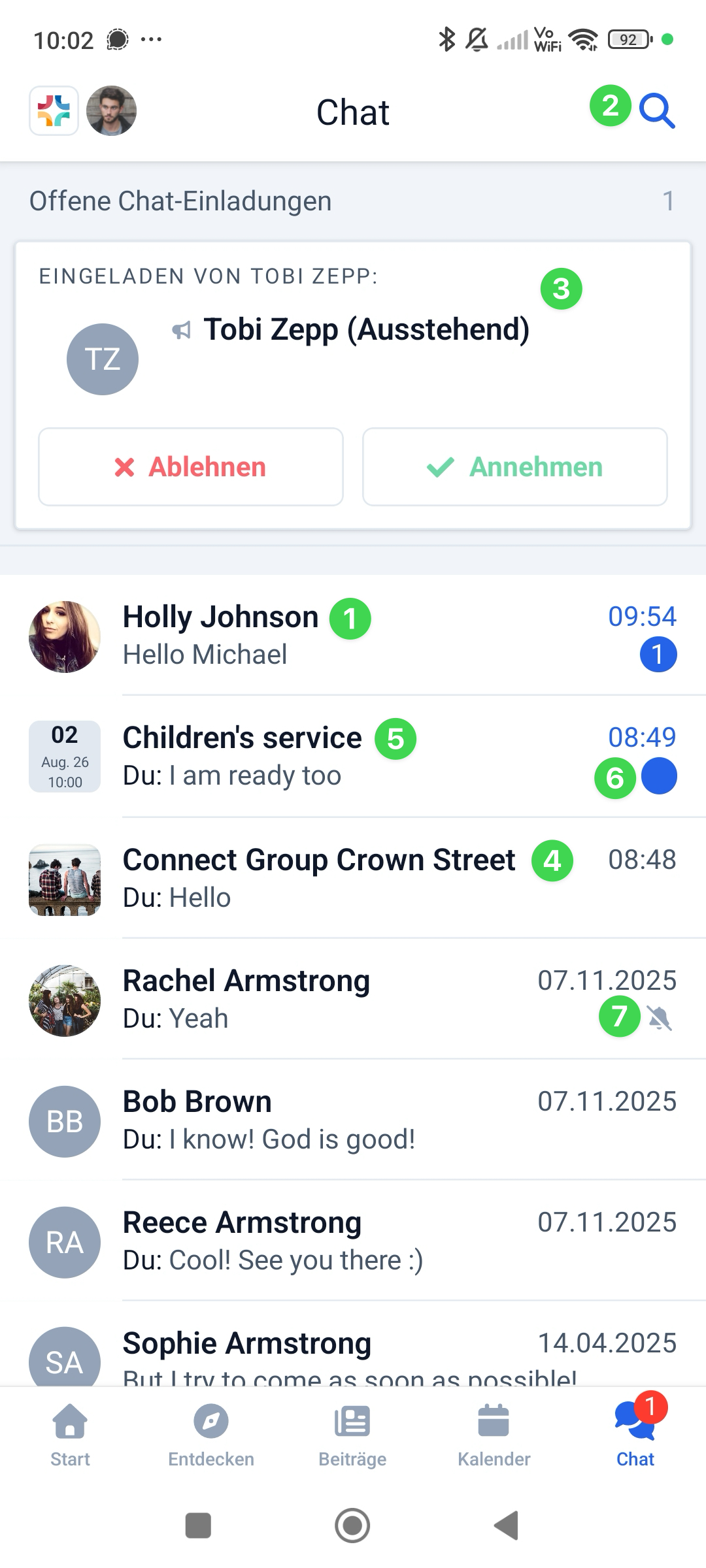
If you’re logged in to the ChurchTools app, you can easily contact people from your congregation via chat. Of course, you can chat with individual people (1). Search for the person using the magnifying glass icon (2) and invite them to chat with you. As soon as they accept your invitation (3), you’re all set.
If you’re part of a group, you’ll chat with everyone at the same time in a group chat (4), which is started and managed by a person with permission directly through the respective group in ChurchTools. The person responsible for each group role decides whether members with that role are allowed to participate and, if so, whether they can read and/or write. This also allows for read-only chats. You can learn more about this in the article “How to manage the chat for my group?”
And because it makes sense to discuss and coordinate events that you plan together, event chats (5) offer a special feature: everyone assigned to a role for an event can message each other in a time-limited chat. For each role, a decision is made as to whether employees from that role should participate in the chat. The chat starts automatically or directly through the event. Once the event is over, the chat can be automatically deleted. You can find all the details in “How to use the event chat?”
If you tap and hold a chat, you can mark it as unread or read (6), or turn notifications for the chat on or off (7). You can also delete one-on-one chats in the same way.
Web Chat #
Web Chat lets you continue your chats from the ChurchTools app in your browser. Web Chat is not a replacement for the chat feature in the app, but rather a supplement to it. All chats you’re currently participating in within the app will also appear in Web Chat.
You can access Web Chat from the ” Chat ” section in your user menu. For brief instructions on how to do this, see the article ” Logging In to Web Chat.”
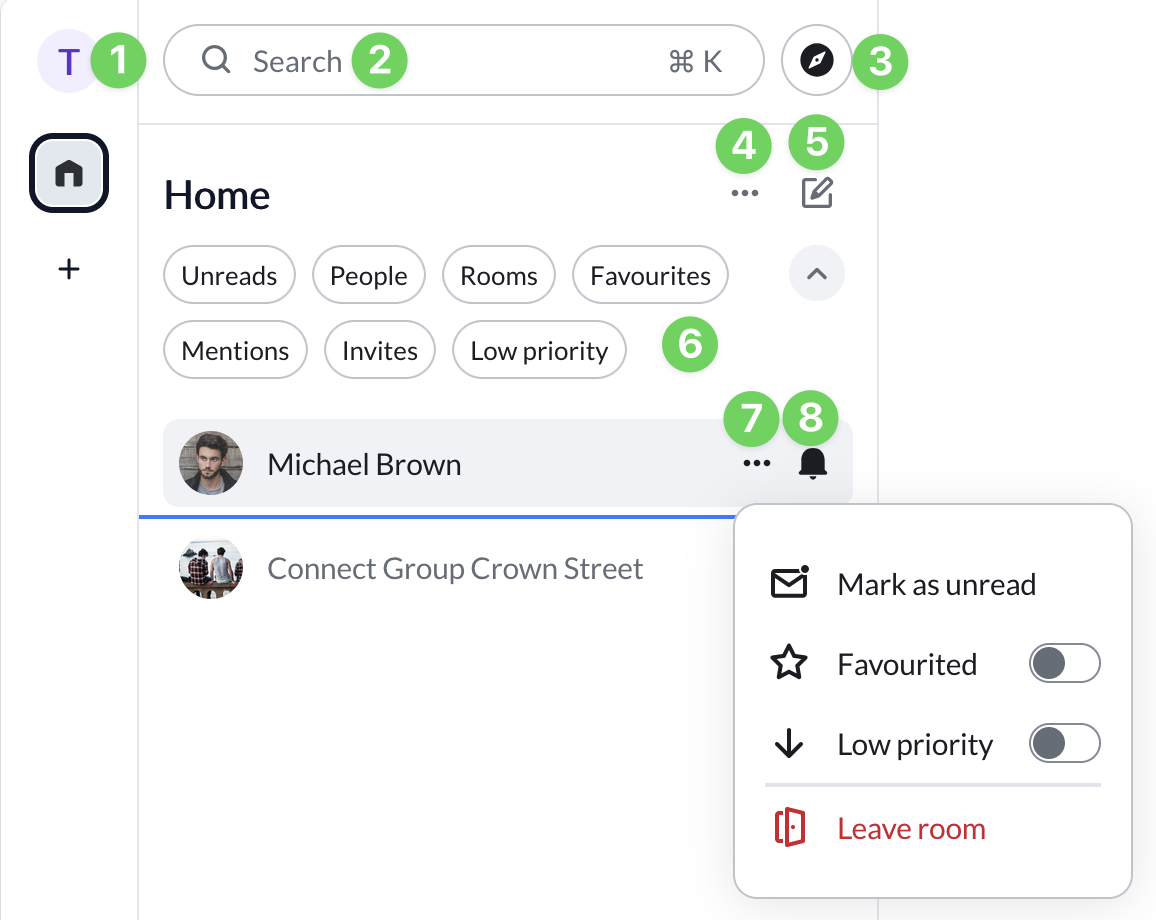
Click on your avatar to access your profile menu (1), where you can configure general settings for your web chat, such as notifications and security. Use the search function (2) to quickly find specific chats. And use the compass needle icon (3) to search for and discover public chats from other communities.
Use the context menu (4) for all chats to set how your chats are sorted and displayed, and use the pencil icon (5) to the right of it to start new chats and groups. We explain exactly how to do this in the article “How to start new chats in Web Chat?”
Below that, you’ll find various filter options (6) that let you quickly find the chats you need right now.
If you hover over one of your chats, a context menu (7) appears in the row next to it. From there, you can configure various settings for the chat and exit it. Click the bell icon (8) to the right of the chat to mute it. To learn more about what you can do with individual chats in Web Chat, see the article “How to use chats in Web Chat?”