To make it easier for you to send e-mails, ChurchTools offers you the option of saving e-mail templates and making them available to other users of your ChurchTools.
Permissions #
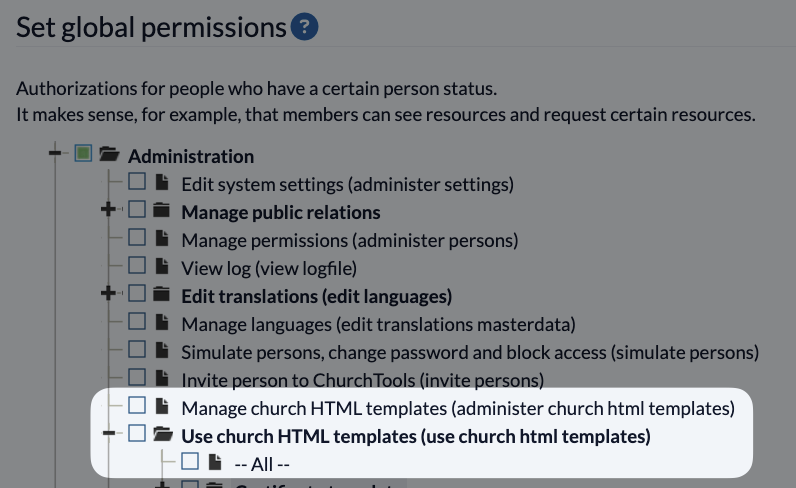
You can find the permissions for using and managing HTML templates in the Permissions management in the Administration section.
Create new template #
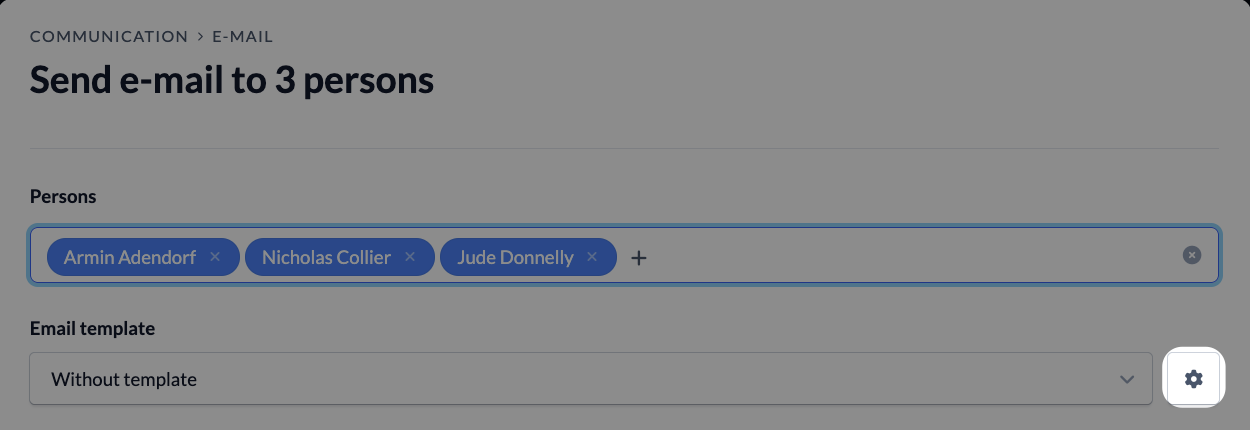
To create a new template or edit an existing one, click on Manage templates in the Persons module under E-mails or on the cogwheel icon next to the e-mail template selection in the e-mail dialog window.

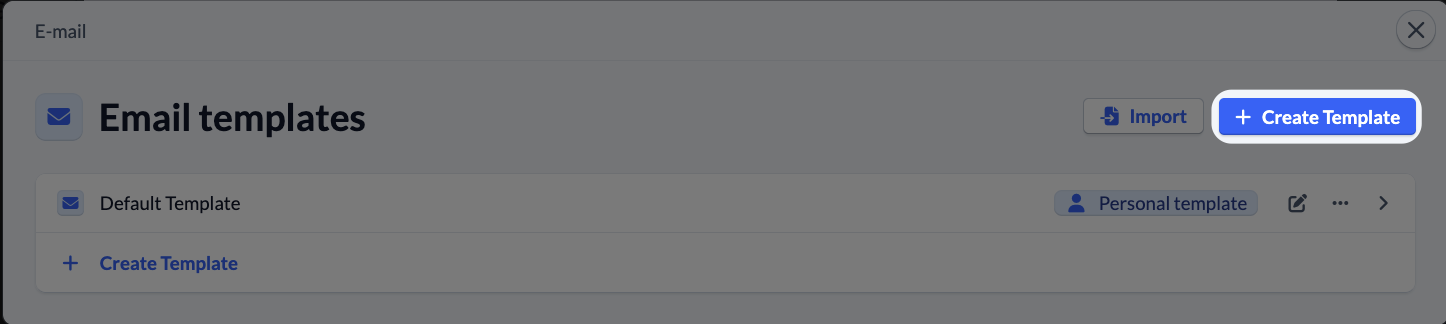
Here you click on Create template.
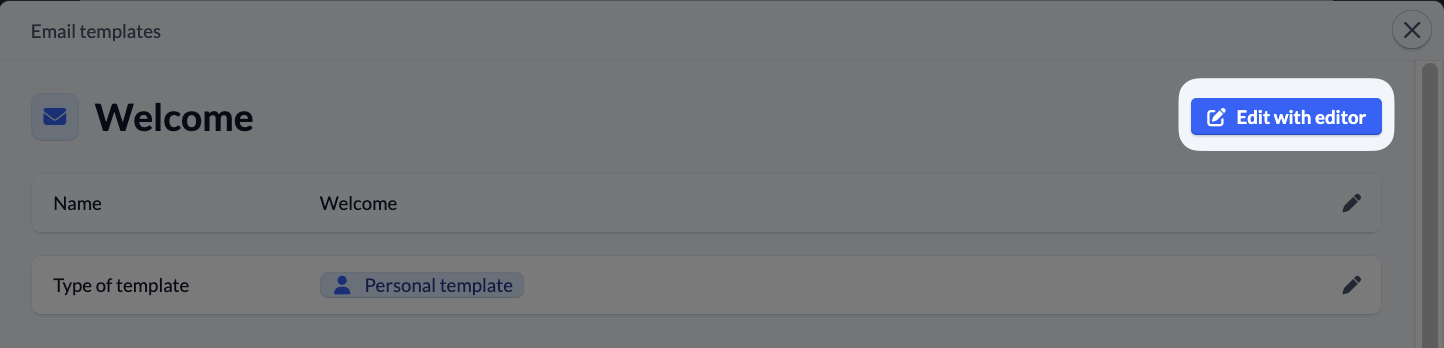
After you have named your template, click on Edit in editor to open the view where you can edit your HTML template.
Add new components #
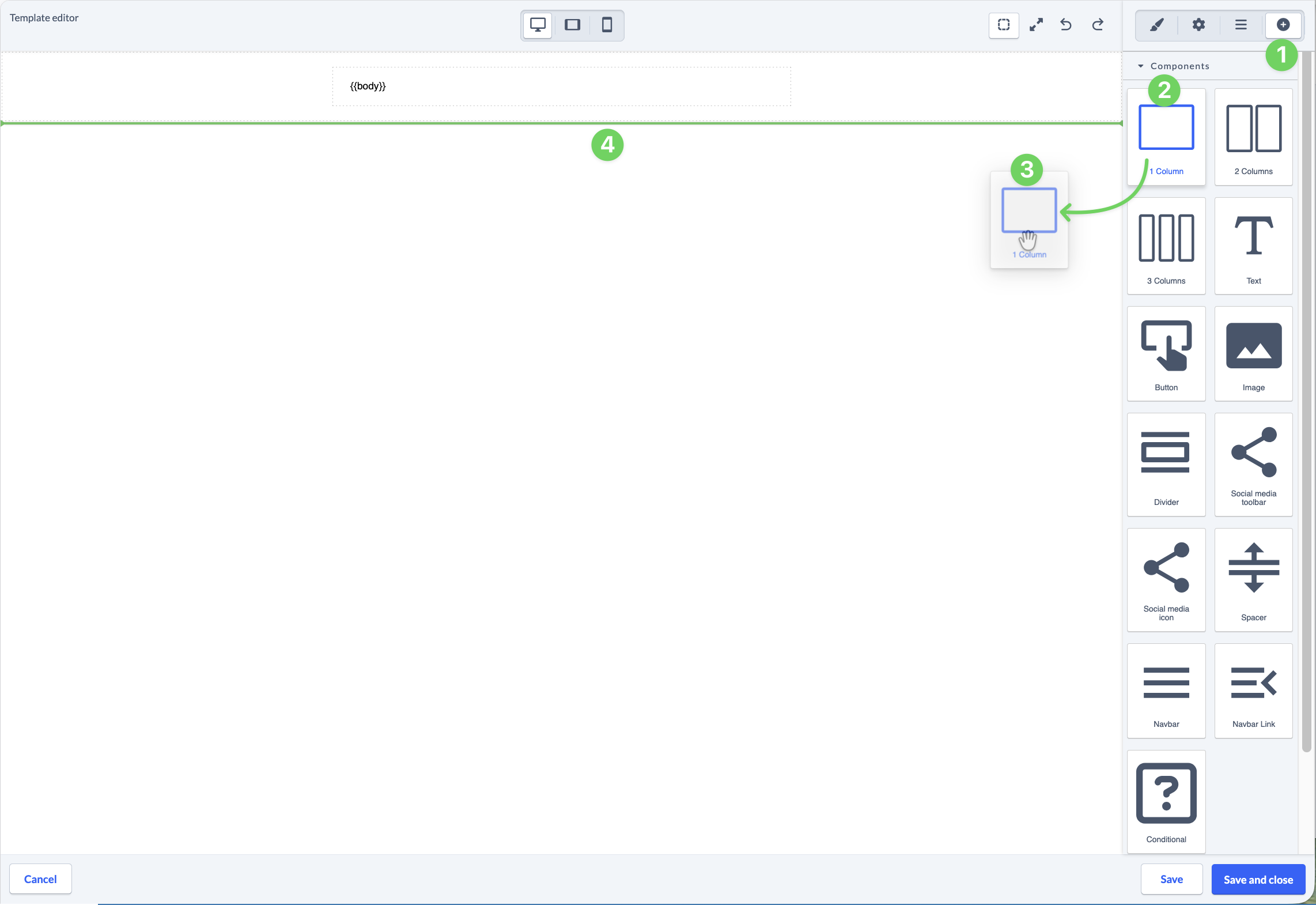
The e-mail templates are based on the principle that you divide and organize your content into different components (1).
You can add further components to your template using drag and drop (2-3), with a green line (4) indicating where the new component is inserted.
Edit existing components #
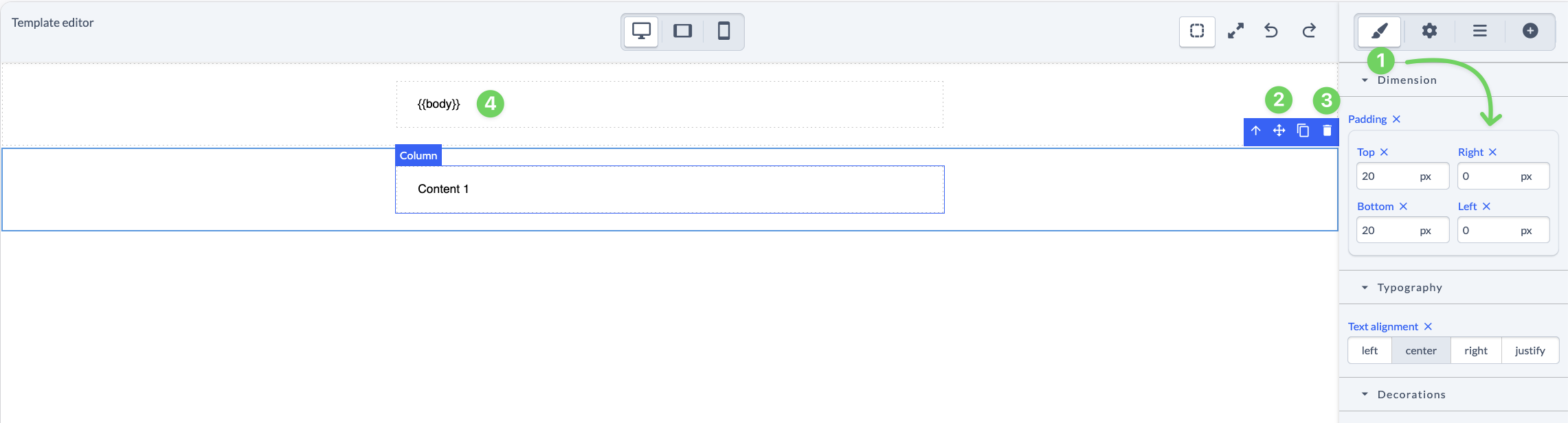
You can then edit (1), rearrange (2) or delete (3) the existing components in the template.
Customize layers #
Especially with more extensive templates, it can be helpful to have the individual layers (1) clearly displayed in the template. Here you also have the option of quickly moving and rearranging content (components) (2).

Save template #
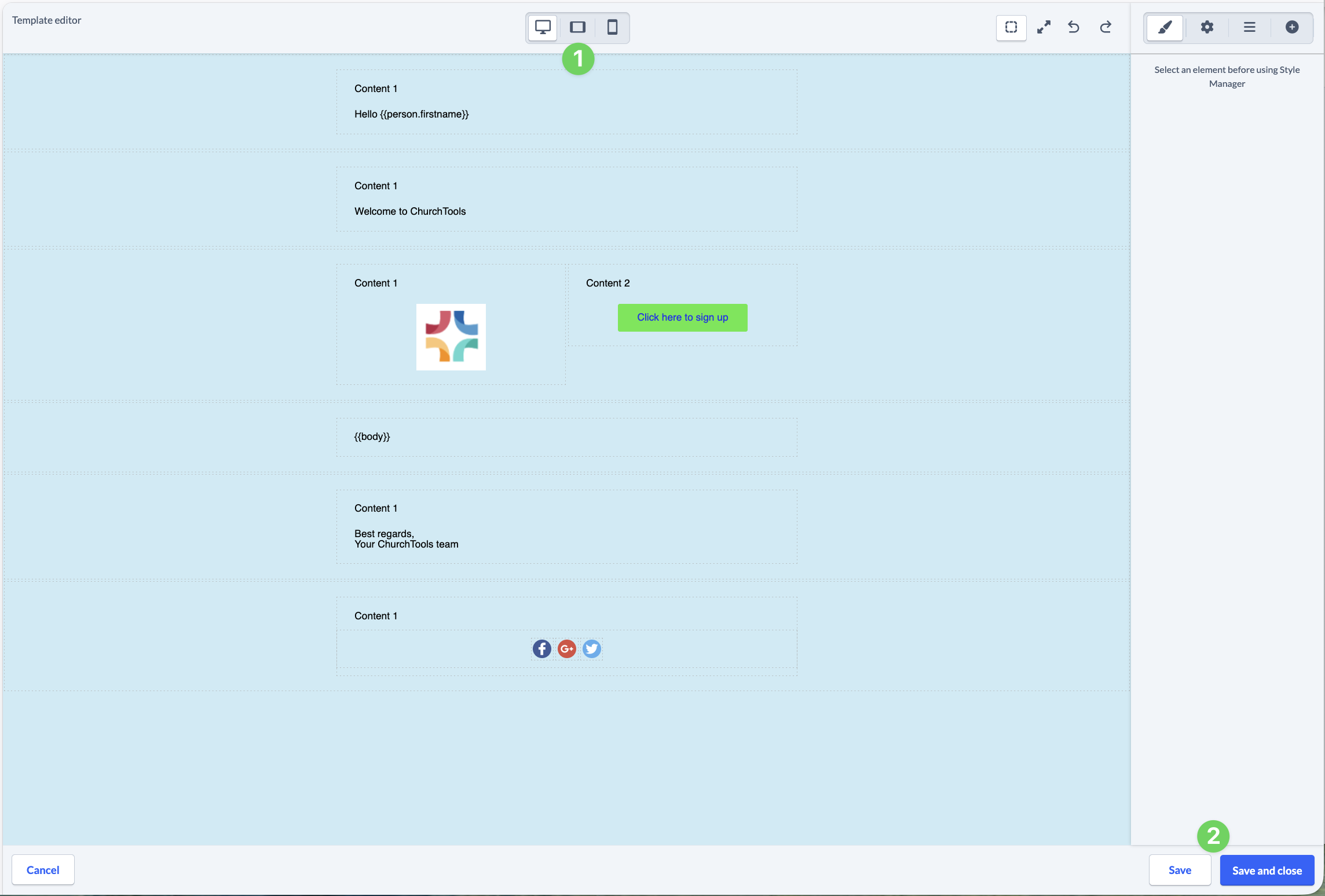
Finally, you can check how your template is displayed on different screens (1) and if you are satisfied, save (2) your template.
Customize existing templates #
To see a list of your existing templates, either click on Manage templates again in the Persons module under E-mails or click on the cogwheel icon next to the template selection in the e-mail dialog.
Then select the template you want to edit from the list of your templates.
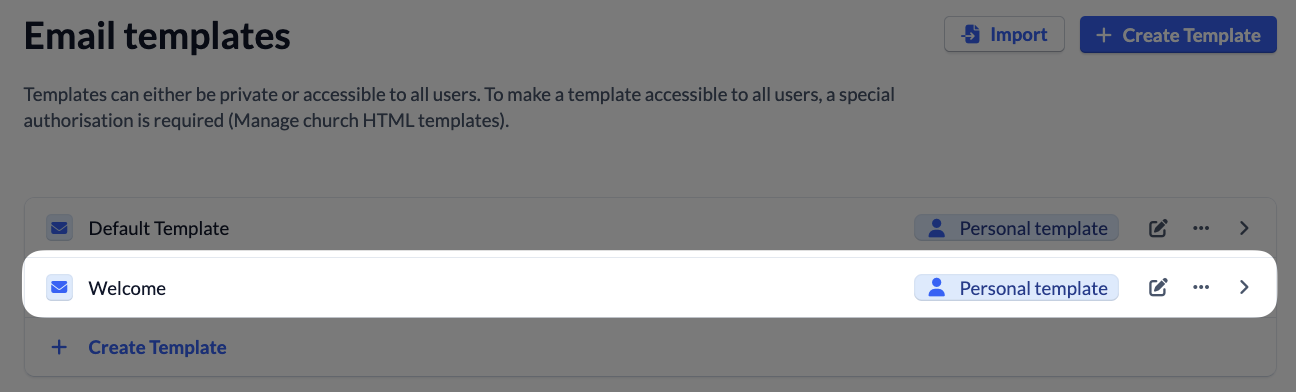
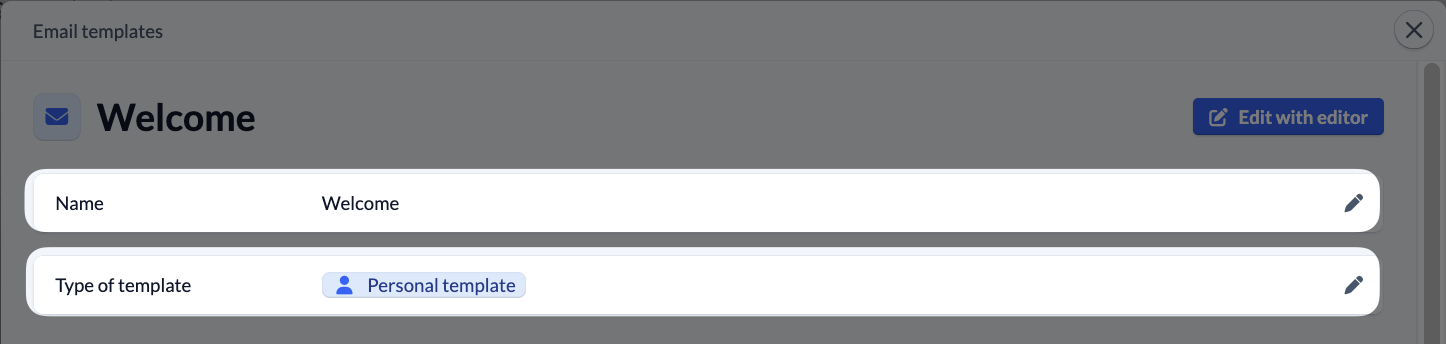
Here you can either edit it in the editor, change the name or specify whether only you can see and use this template (personal template) or whether all permitted persons in your congregation (congregation template) can use this template.
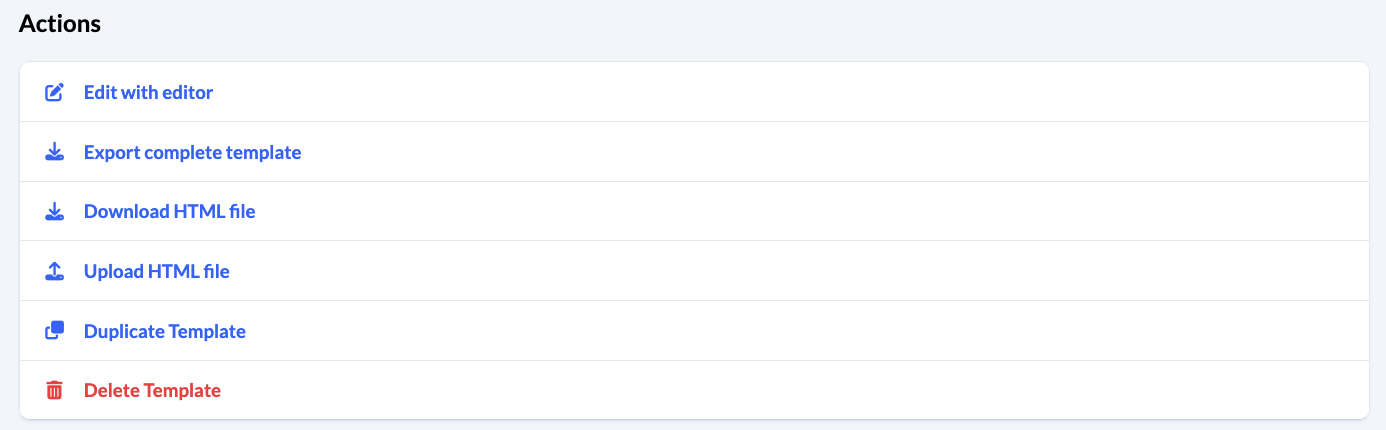
You can also export the template and make it available to another congregation, for example, so that they can upload the template directly to their ChurchTools.
Alternatively, you can download the pure HTML file of the template or upload your own template in HTML format.
You can also duplicate and delete the template.
You will find these menu items below the preview.