


1. Call up personal data fields #
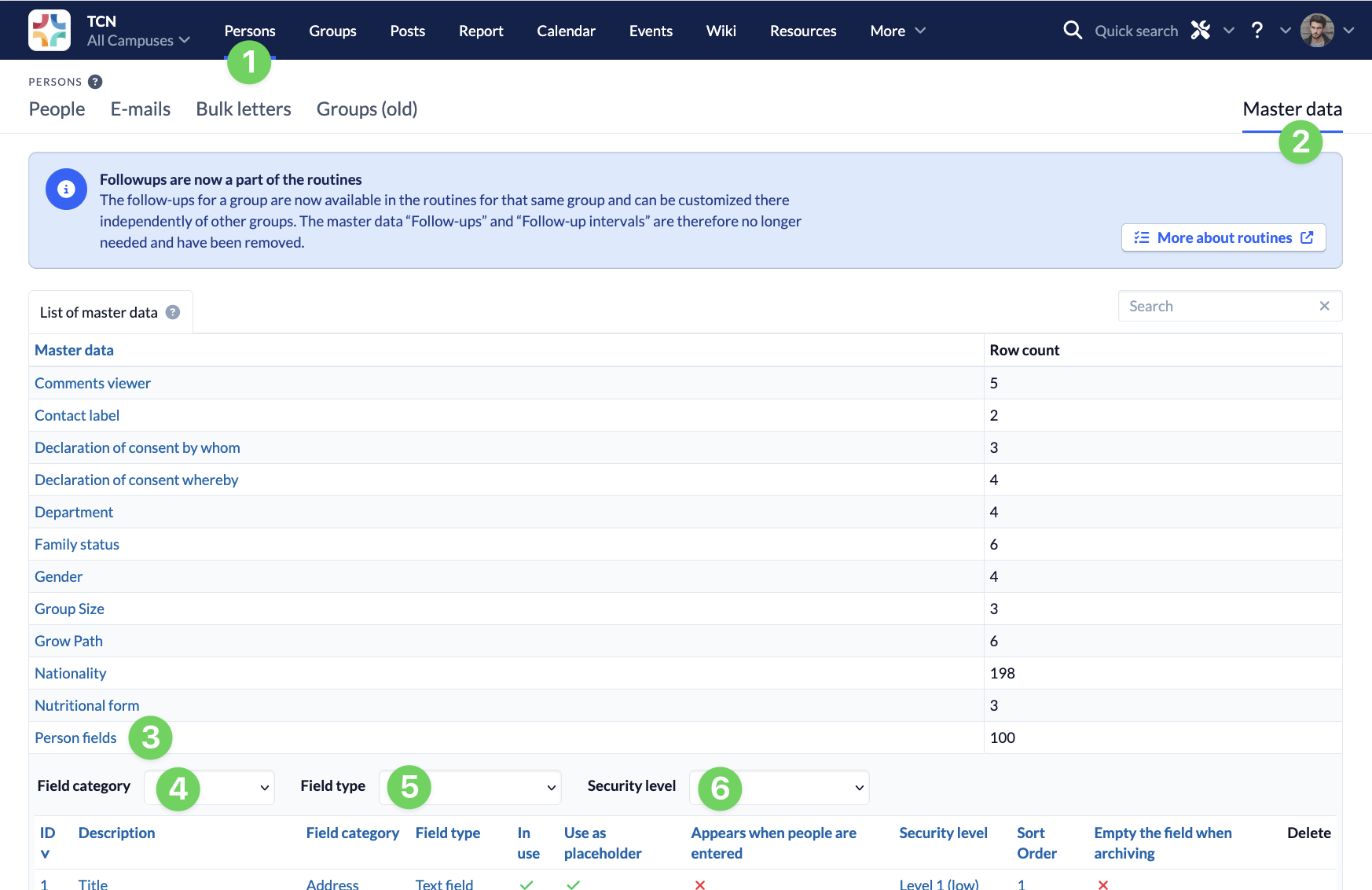
All fields that have already been created can be found in the Persons module (1) in the master data (2) under Person fields (3).
You can use the filters above the list to narrow down the display by field category (4), type (5) and security level (6) to create a better overview.
2. Edit existing personal data field #
To edit an existing field, simply click on the relevant field, change the parameters as required and save your changes.
3. Create a new personal data field #
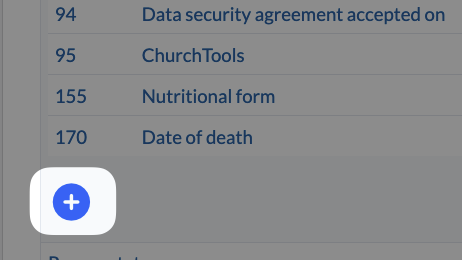
To add a new field, click on the blue plus sign at the end of the list of existing personal data fields.
Enter the information for your new personal data field here:
- Description – The description of the field in the input mask, e.g. first name.
- Short desc – Short description of the field when displayed in the person detail view. You can also leave this blank.
- Field category – Here you select the category in which the additional field should be added.
- Feldtyp – Here you decide what kind of field you want to add:
- Selection box: Here you can select exactly one option from a list. The field can also be emptied again. In the article How do I create selection options for a personal data field? we show you how to create the selection options.
- Date field: Only one date can be entered.
- Fieldtype: date and time
- Either/or choice: In such a field, exactly one of the options offered can be selected. Once filled in, it can no longer remain empty. In the article How do I create selection options for a personal data field? we show you how to create the selection options.
- Checkbox: The field contains a checkbox that can be marked for Yes or left blank for No.
- Comment field: Pure text field with free input, but multiple lines.
- Multiselect: One or more of the options offered can be selected here. In the article How do I create selection options for a personal data field? we show you how to create the selection options.
- Number field: Pure text field, but only numerical values are permitted.
- Text field: Pure text field with free input.
- In use – The field is active and can be used. If you no longer need a field, you can simply deactivate it here instead of deleting it.
- Use as placeholder – The field can be selected from the list of placeholders, e.g. for an e-mail.
- Appears when people are entered – The field is displayed for completion when creating new persons.
- HTML representation of the end of line – Here you normally use
<br/>for a line break. - Security level – The security level of the field.
- Length – The maximum number of letters that can be entered. Please post 11 here for selection fields. For text fields, enter as many as the maximum length of the text.
- Sort Order – Sorting of the field in comparison to the other fields. This value determines the position of the field.
- Empty the field when archiving – The content of the field is automatically deleted as soon as the person is moved to the archive.
After you have filled in all the parameters, the field is created when you click on Save.