If the Post function for your group is generally enabled by the administrator of your ChurchTools, you as the group leader can edit the settings for posts created in your group.
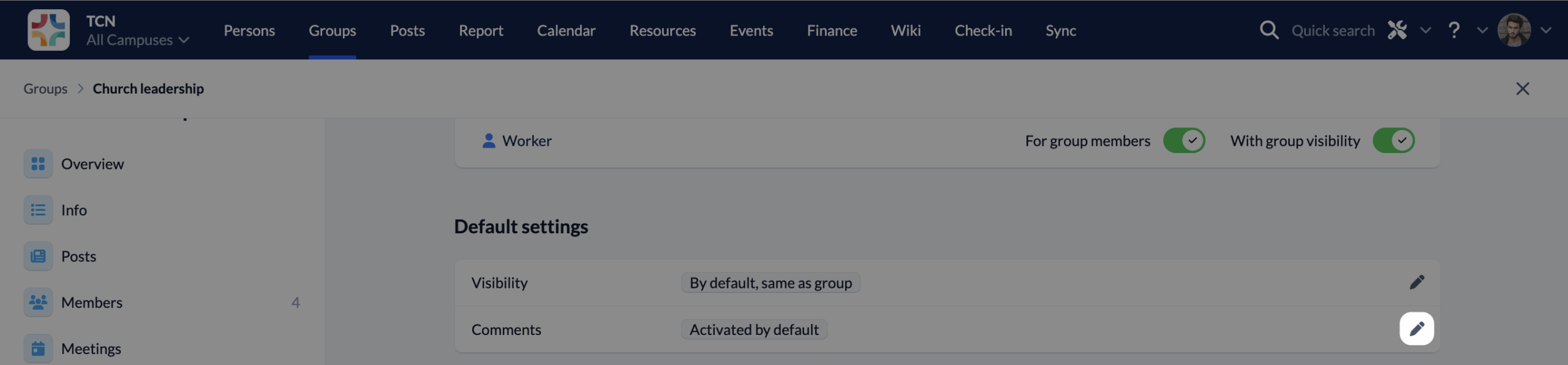
You can completely (de)activate and define who in your group can create posts. You can also define standards for who can see the posts whether comments can be written, whether someone should be notified about new posts and write a short invitation text.
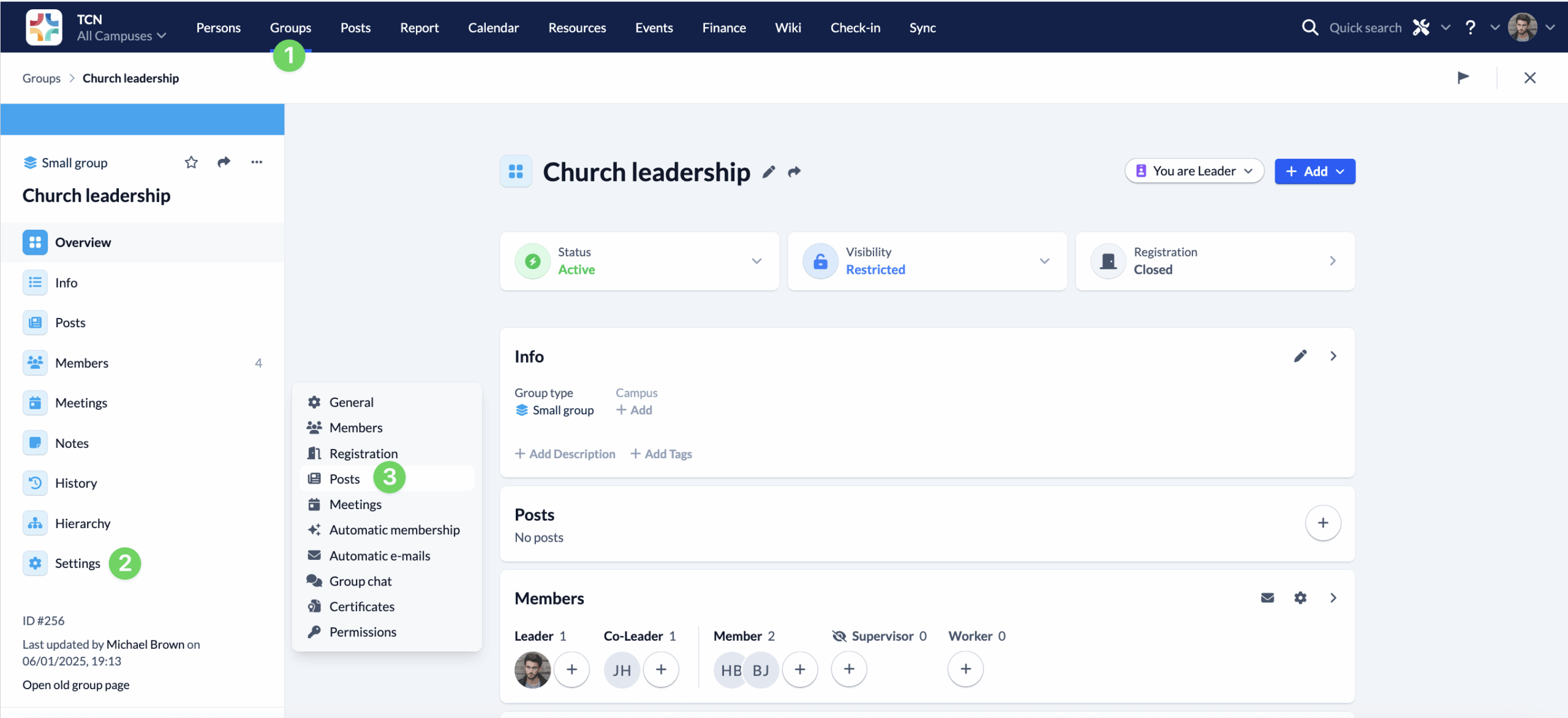
You can access all of these settings by opening your Groups (1) and navigate to Settings (2) to Posts (3).
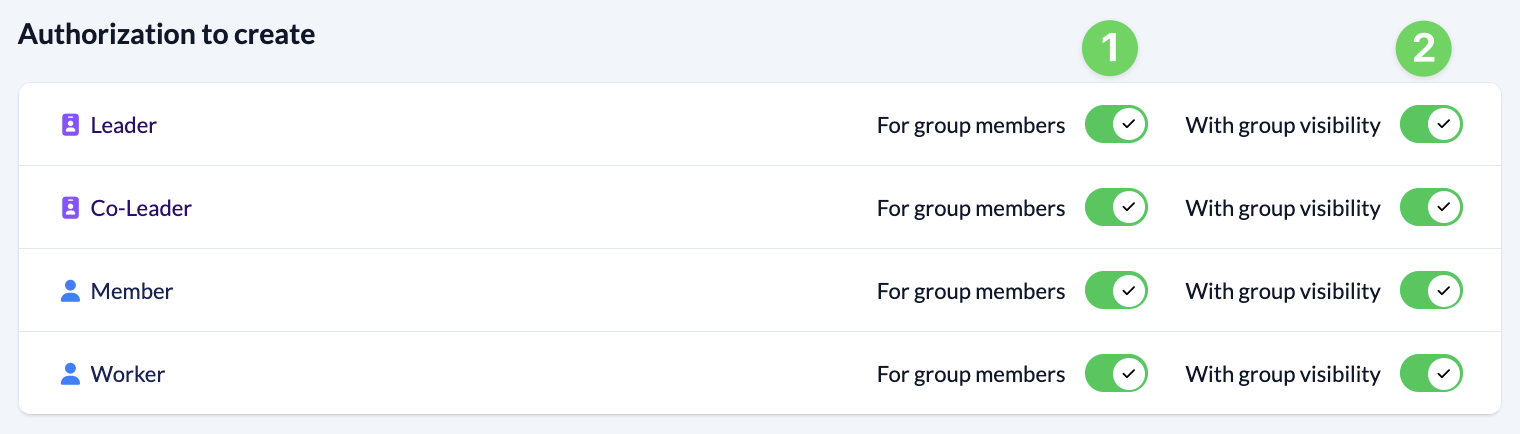
You can define which group members are allowed to create Posts. This permission is linked to the role that the group member has. You can define the visibility of the posts that your group members are allowed to write. Either the visibility of the post is set so that only group members can see Post (1) or the visibility of the post depends on the visibility of the group (2). For example, if the Group is publicly visible, you can also write Posts that are publicly visible.
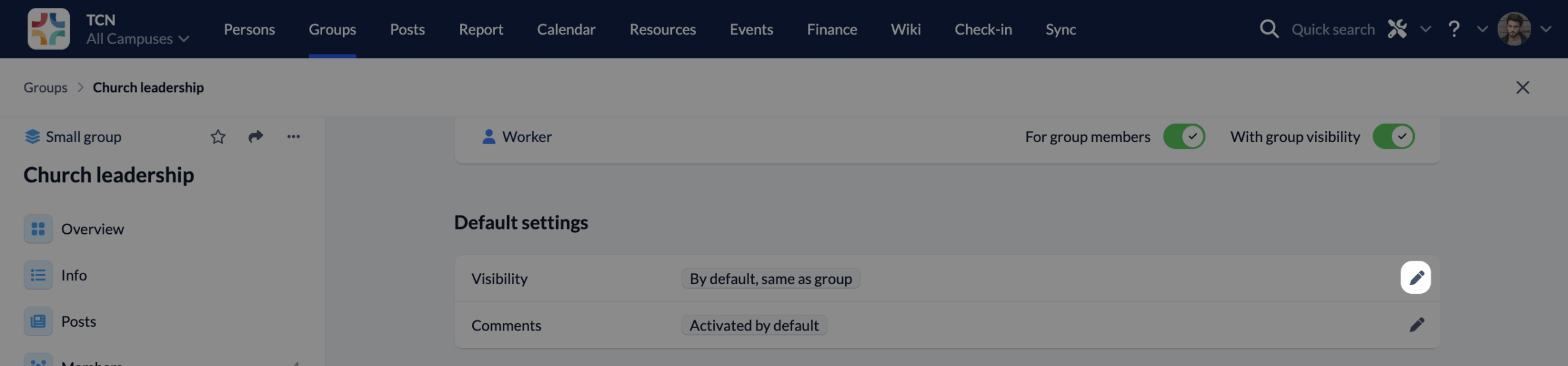
You can specify which visibility should be preselected when creating new posts for your group. Here you can set whether the default visibility is Group members only or whether the default visibility of the posts should be based on the visibility of the Groups. However, the author of the Post ultimately decides which visibility to choose.
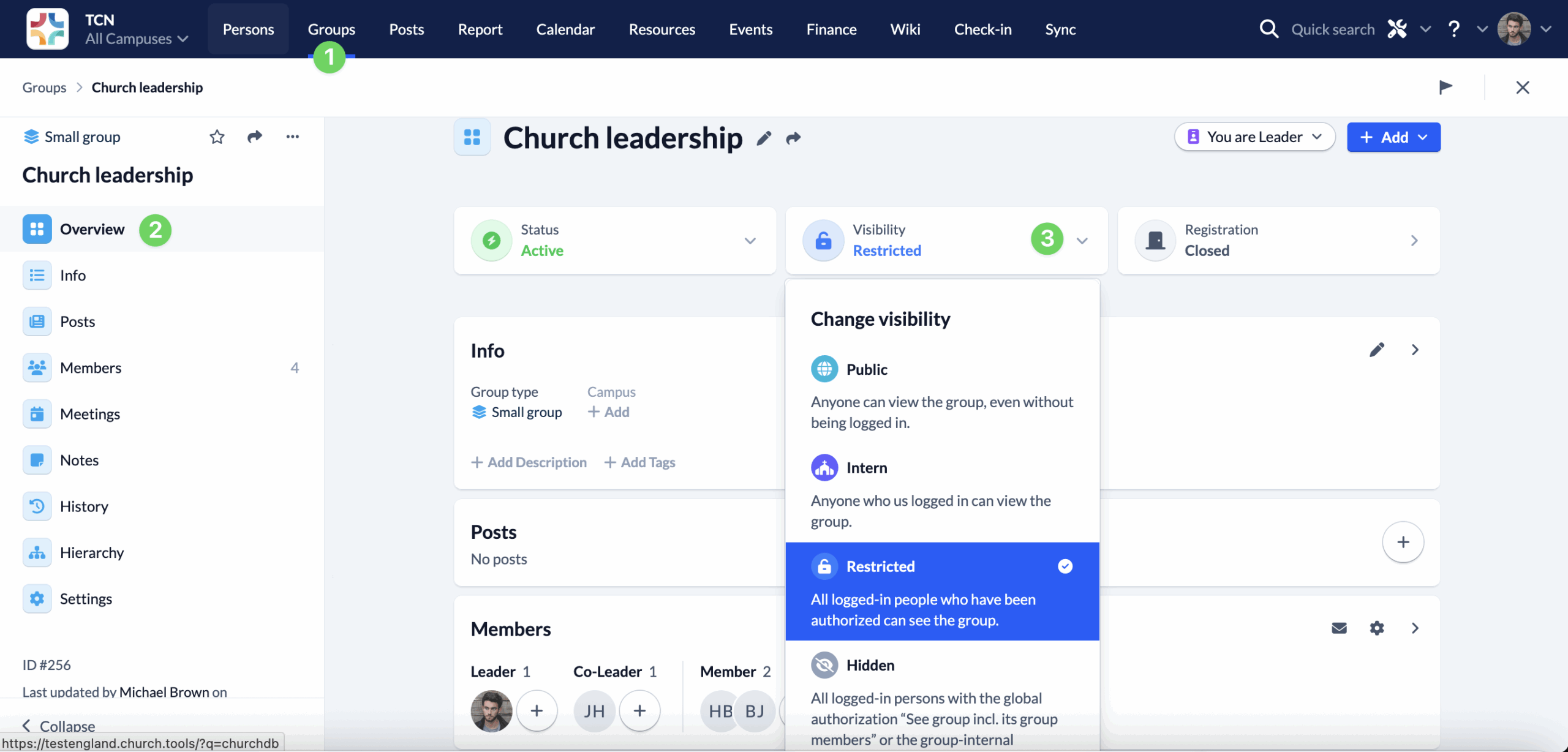
If you increase the visibility of your group, the visibility of all posts in your group is automatically changed from Like group to Only for group members only. This is a security measure to prevent content from being accidentally shared with more people than intended. Of course, you can adjust the visibility of the posts again afterwards.
Here you can set whether and for whom notifications should be switched on by default. Your group members can of course adjust this setting individually for themselves at any time. You can choose between no notifications, notifications for group members only or for everyone.
If you want your group members to use posts more, you can change the setting to Short prompt setting, which will be displayed to your Group members when they click on the Posts tab in the Group. You can edit your text at any time using the pencil.
With this function, you give people from other congregations or Christian organizations who use ChurchTools the opportunity to subscribe to your group’s posts. This allows your posts to be displayed in the feed of users in other ChurchTools installations.
The prerequisite for this is that your group is publicly visible. When creating a Post in your Group, you still have the option to choose whether this post should only be visible to Group members or publicly. Only if you select the latter option will the Post also be displayed to users of other ChurchTools installations who have subscribed to your public group.
You can find out how to subscribe to a group here.