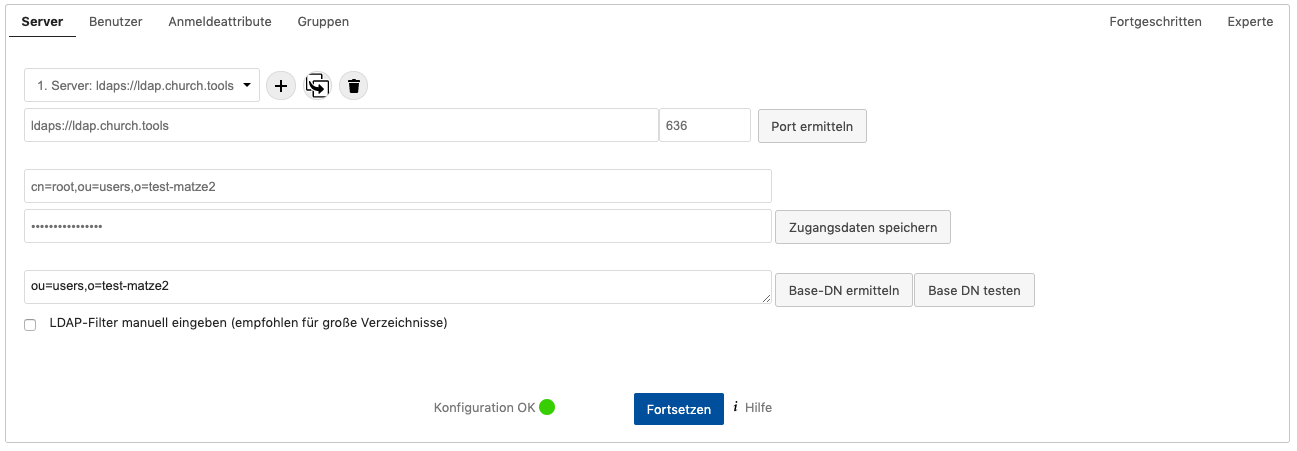
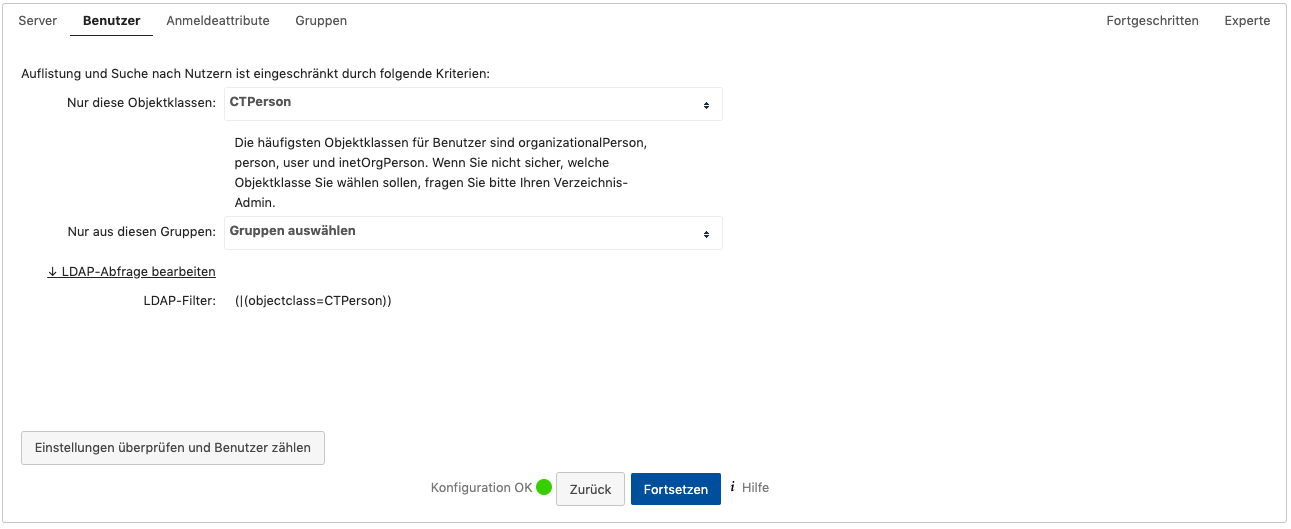
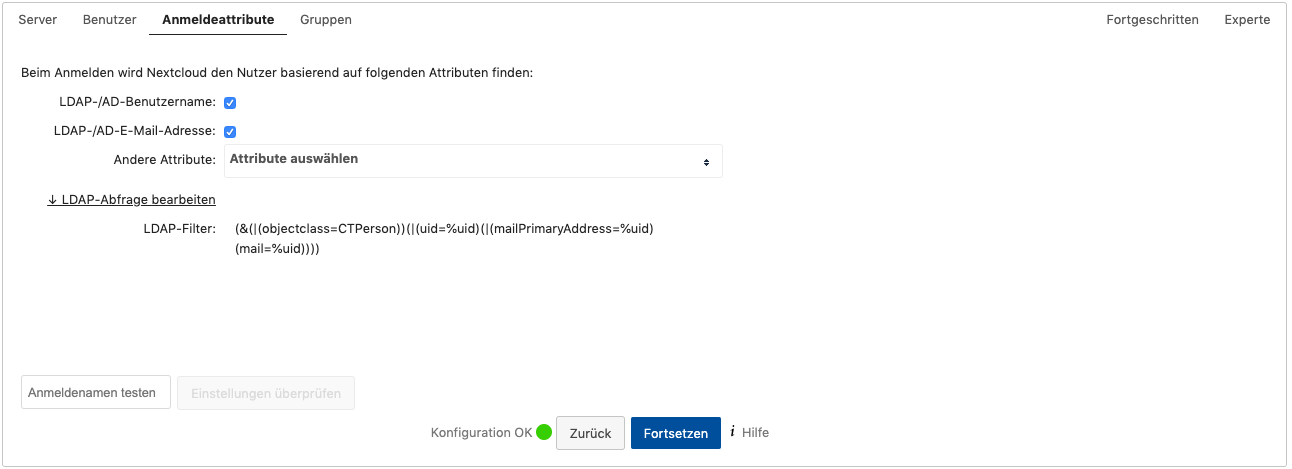
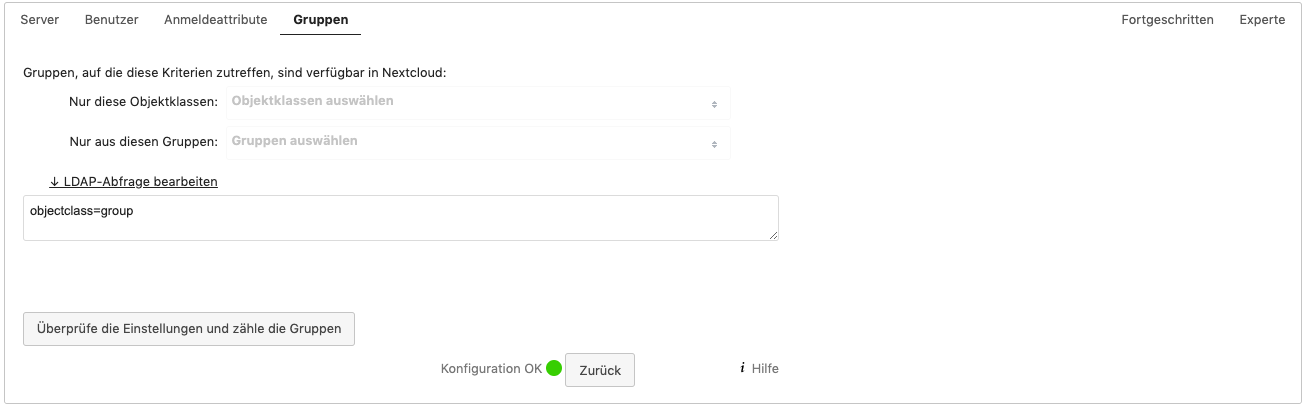
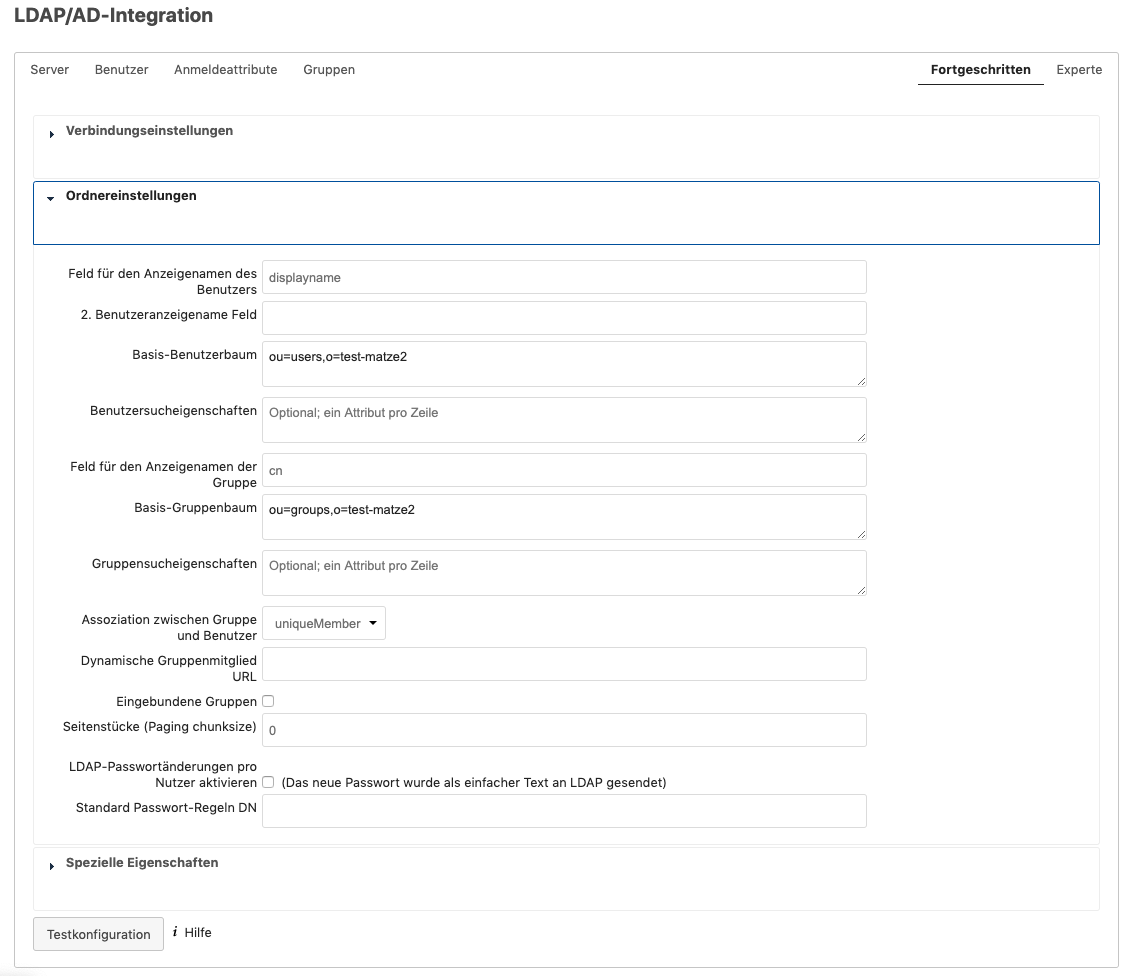
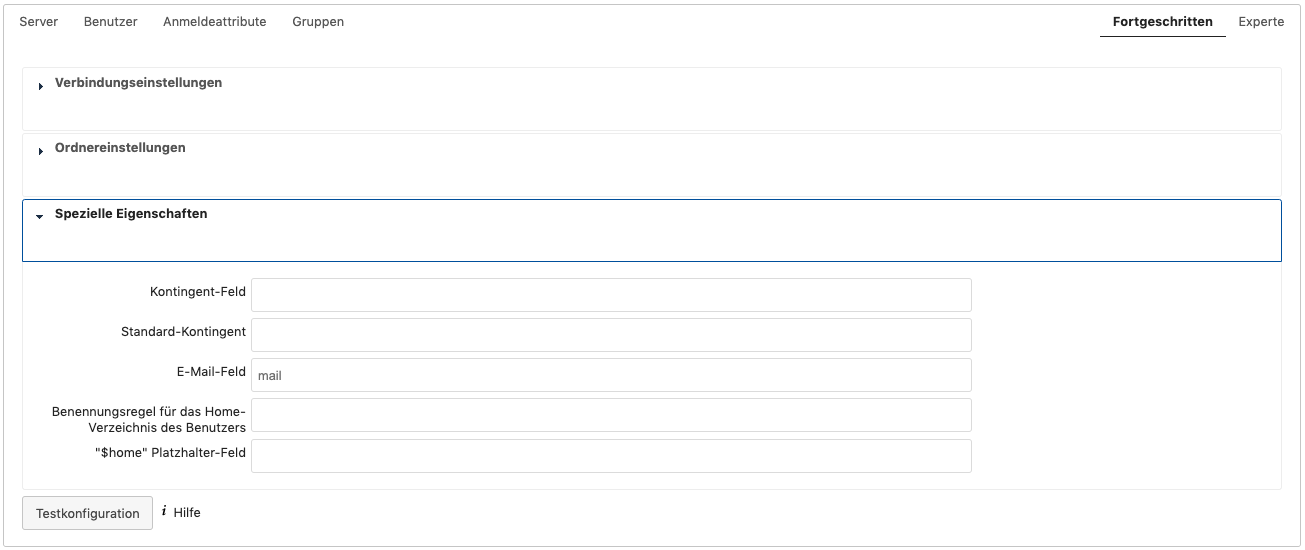
We have put together some screenshots that you can use to make the LDAP settings in the Nextcloud. The ChurchTools system “test-matze2” is of course one of our test systems. You always insert your own URL here.
Warning
We are happy to provide you with this help page as support and maintain it to the best of our knowledge. However, please understand that when it comes to functions, settings or changes in third-party systems such as NextCloud, we cannot guarantee that all information is always up-to-date, complete or correct – we simply have no direct influence on this. The official information and documentation of the respective provider is therefore always decisive. If you get stuck somewhere during implementation or if something seems contradictory to you: Feel free to contact us – we will help you find the right next steps, but cannot make any promises regarding availability, behavior or support from third-party providers.
Server #
Enter your access data here.
Users #
Under Users , you define criteria according to which the listing and search for users is restricted.
Login attributes #
Hier wählst du die Attribute aus, nach denen Nextcloud den Nutzer beim Einloggen findet.
Groups #
Here you define the availability in Nextcloud.
Advanced #
This is where you store the folder settings and define special properties .
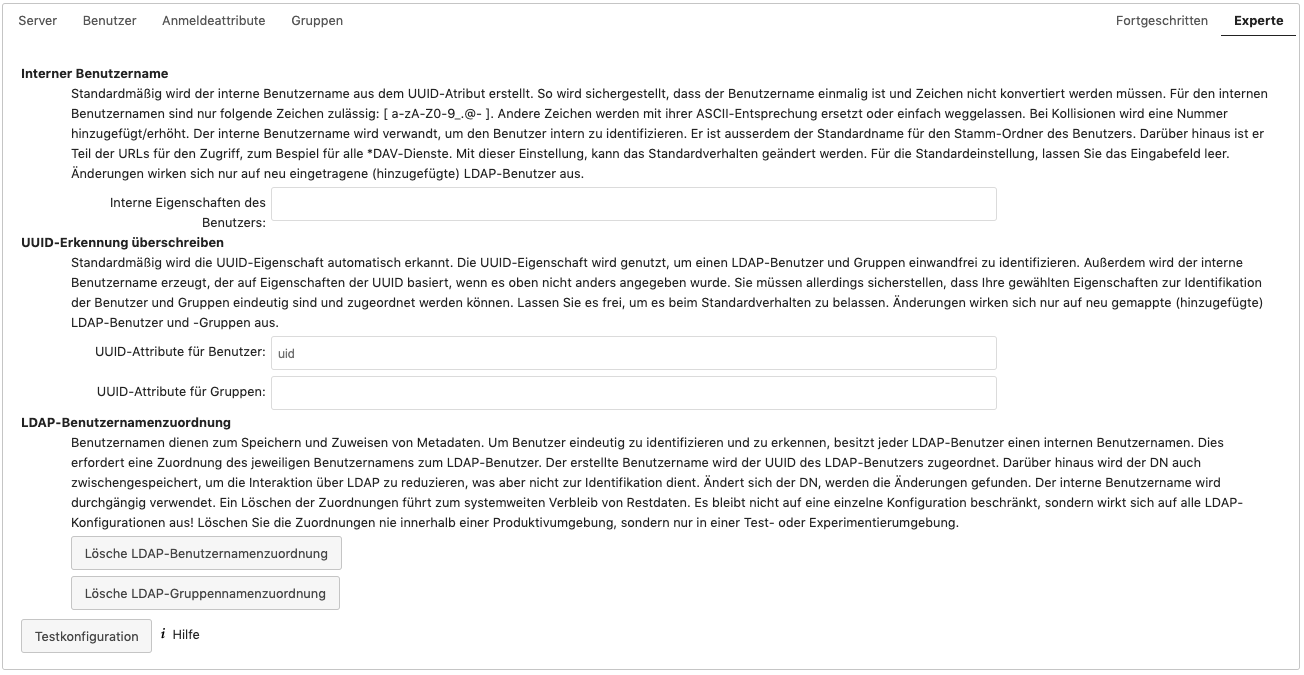
Expert #
We recommend the following setting:
Articles for further reading #