


This gives those with authorization the ability to permanently protect particularly sensitive permissions from routine Administration. As a result, other administrators can no longer grant or revoke these permissions.
A lock does not automatically revoke an existing permission from anyone. It merely prevents regular administrators from granting or revoking that permission in the future. Existing permissions therefore remain in effect until an authorized user changes them. Locking thus provides additional protection against accidental or unintended changes to particularly sensitive permissions.
Who is authorized to lock and unlock accounts? #
You may do that only if,
- If you are listed in ChurchTools as an authorized user and
- also have the global permission “Manage Permissions (Administer Persons)” .
View Locked Permissions #
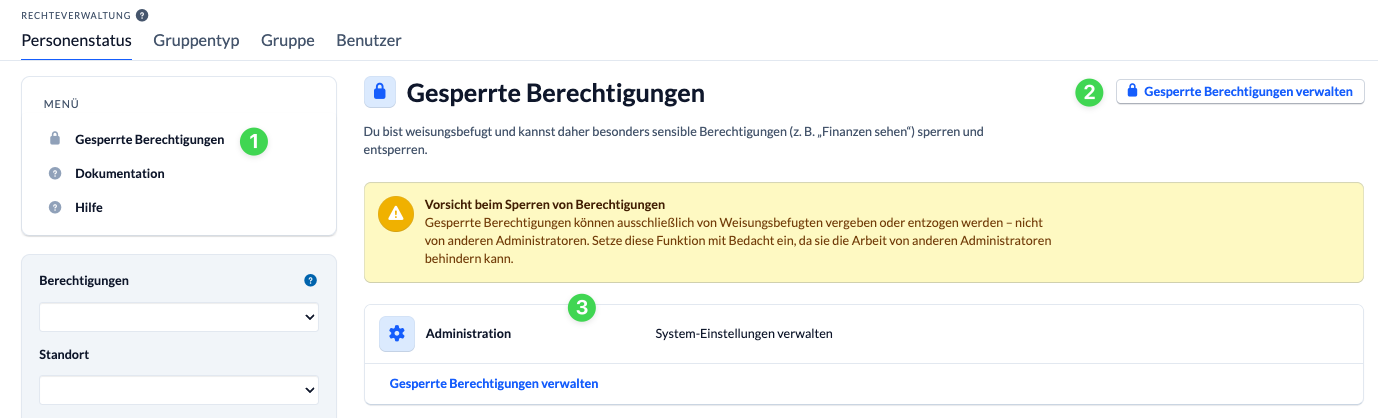
As an authorized administrator, you can access locked permissions via the ” Locked Permissions ” (1) menu item visible to you in the Rights Management section. Here, you can use the “Manage Locked Permissions” button (2) to lock and unlock permissions. All locked permissions are displayed in a list sorted by category list (3).
What do users see? #
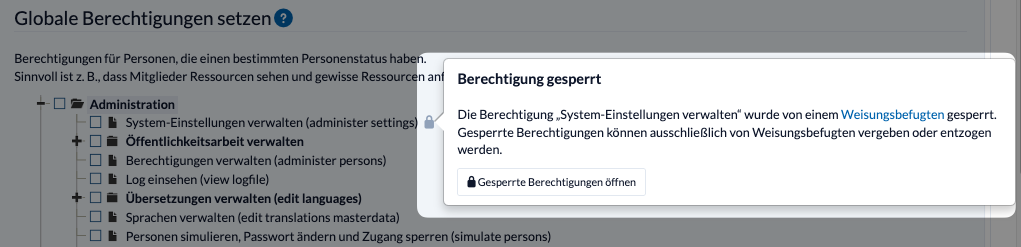
- Locked permissions are marked with a lock icon in Permissions Management.
- When you hover over it, a message appears indicating that the permission has been blocked by an authorized person.
- Regular administrators cannot edit the affected permission.
- If no permissions have been locked, the overview of locked permissions displays ” No permissions locked.”
What are the consequences of a suspension? #
A lock applies regardless of the purpose for which the permission is granted. For example, it prevents changes made via:
- individuals,
- person status,
- group roles or other group assignments,
- direct assignment of permissions, and bulk actions.
Even when copying permissions, locked permissions for users who do not have authorization are not included.