Birthdays are special, but for some people they’re also a private matter—a sensitive topic. Some people enjoy celebrating this day and are happy when you wish them a happy birthday, while others would rather not reveal how old they’re turning or even that it’s their birthday at all.
In this article, we’ll start by explaining where and how birthdays appear in the app and on the website. We’ve also put together some practical tips to help you manage birthdays for your congregation in the most effective way.
Birthday visibility on the Web and in the App #
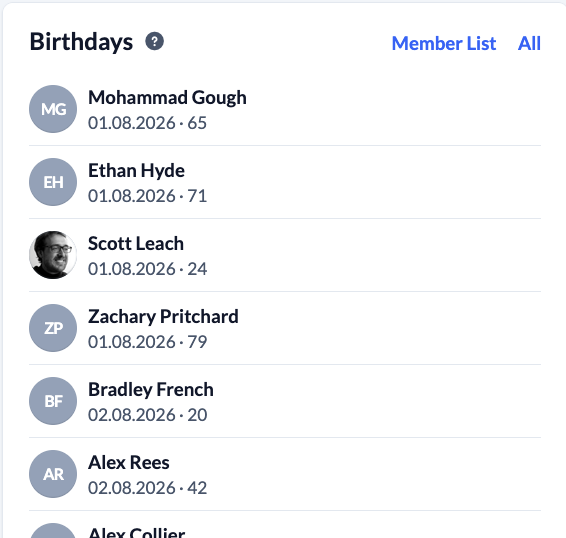
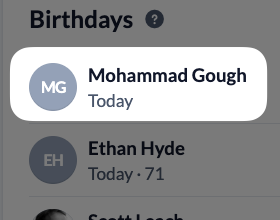
The Birthday widget on the Home page in the web version and the app displays your congregation’s birthday list. Here you’ll find the birthdays of people who are visible to you and whose person status in the People module’s System settings is taken into account for the birthday list. The widget will only appear if your permissions allow you to view any birthdays in ChurchTools.
On the website, you can also access the member list from the widget, where birthdays are also displayed. As an authorized user, you can specify directly in the member list settings which people appear on this list and whether the birthdate should be displayed with or without the year of birth.
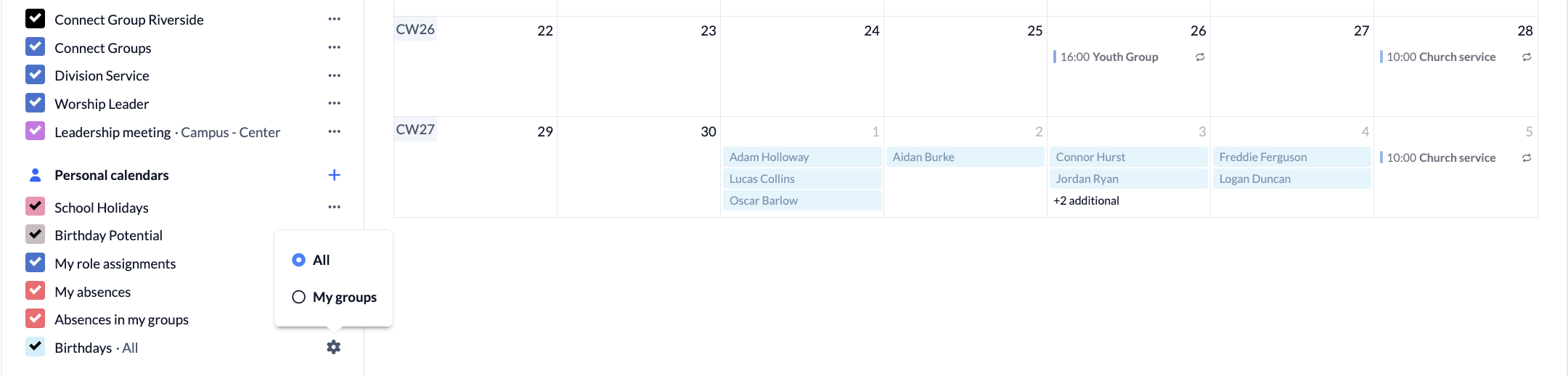
You can also view birthdays in the calendar —either all the ones you’re allowed to see, or just those of your groups.
You can control who is allowed to view the birth dates of public peoples by setting the security level for the “Birth Date” personal data field. By default, this field is set to “Level 2,” meaning it is classified as general information.
If you want to handle birthdays more sensitively in your congregation, you can set a higher security level for the “personal data” field. The security level can then be restricted, for example, to within a group and based on specific roles. We explain how to adjust the security level of a personal data field in the article “How to change the security level of a personal data field?”

Hide birth dates #
Some people prefer not to disclose their age—that is, their year of birth. If the year is not entered in the “Date of Birth” field, the person will appear in the birthday list with their day and month, but their age will not be displayed. Furthermore, their current age will not be shown in the person’s detail view.
Others, however, are concerned about their full date of birth, which they do not want to be publicly visible. Of course, a person cannot simply enter their date of birth into ChurchTools. In some cases, however, it makes sense to record dates of birth in ChurchTools. This allows, for example, leaders to filter by that information or narrow down groups of people based on age. Naturally, this requires that the data be visible only to a group of people who have been granted permission to view it.
To do this, you can create a separate personal data field (e.g., hidden date of birth) and assign it a higher security level than the default field.

For people who prefer to keep their date of birth private, the date of birth is not entered in the default field, but in a custom field. This way, the date of birth is visible only to users with permission and can be filtered, for example. To learn how to create your own personal data fields, see the article “How to create/edit my own personal data field?”
Filter by birthdays #
Does your congregation want to congratulate those celebrating milestone birthdays during the worship service? Is it important to you to personally address all young people who have just turned 18? Is your congregation starting a new group for seniors who are young at heart, and do the leaders need to identify the group of people who might be interested in such a group? The next cohort of teens is starting Bible classes, and the leaders would like to know whom they can personally invite? In these and similar cases, it makes sense to filter by date of birth.
To do this, you can use the ” More filter ” (1) in the People module. Here, for exactly these types of scenarios, you can use the “Date of Birth” filter (3) under “People Filters” (2), with or without the year of birth (4). You can set the filter itself either absolutely—that is, for a defined time period—or relative to the current time.
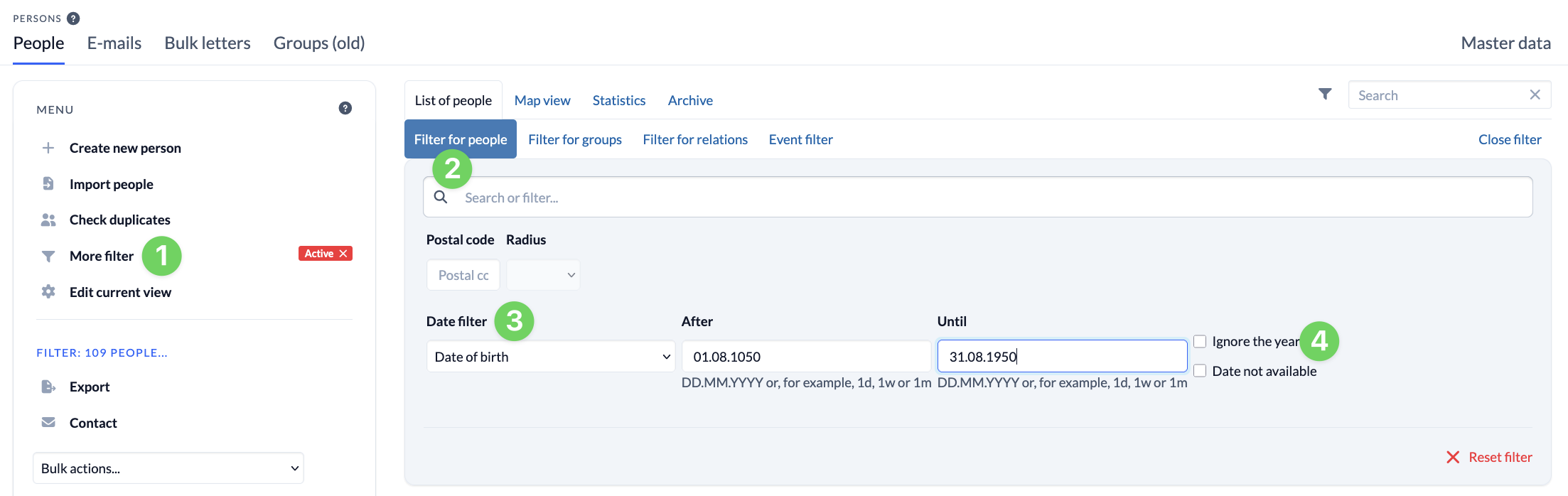
Relative filters are particularly well-suited for global filter groups. Save these filters so you can access them quickly and make them available to others.
Export Birthday List #
If necessary, it may be helpful to export birthdays so you can continue working with the data outside of ChurchTools. Authorized users can use the Export function for this purpose. This allows you to easily save the data for a previously filtered group of people as an Excel or CSV file. If you’d like to know how to do this, read the article “How to export person data?”